React File Manager: Folders, Uploads and the Backend API
Every SaaS that stores documents grows a "Files" tab sooner or later: contracts on a client record, invoices per month, photos from a site visit. A React file manager looks like a grid of icons, but the work is in folders that nest, uploads that fail halfway, a selection of 40 files dragged into another folder, and a phone where none of that can rely on hover or right-click. This guide covers what a file manager UI needs, when a Finder-style file browser is the better fit, the backend contract both depend on, and the open source options. The examples use the File Manager and File System components from Wingo UI, the library we build, so we are not neutral; facts about other projects link to their sources.
What should a React file manager do in a SaaS app?
Here is the list we built our React file manager UI against. It is also a fair test for any package or a hand-written version:
- Folders in two layouts. A grid with thumbnails for photos and a list with Modified, Size and Owner columns for documents, with a switch between them that remembers the choice.
- Where am I. A breadcrumb whose crumbs are drop targets, and a folder tree beside the files when there is room.
- Selection and bulk actions. Click, Cmd or Ctrl + click, Shift + click for a range, a checkbox per item, and a toolbar that turns into Move, Download and Delete once something is selected.
- Uploads. A button, drag and drop from the desktop into the open folder or onto a folder tile, paste, a progress row per file, and rejected files listed with a reason.
- Rename, move, delete. Rename in place with an error under the field when the server refuses, move by drag or a dialog, delete with a confirmation that names what goes.
- Search across folders, with each result's folder path.
- Keyboard and touch. Arrows, Enter, Delete, F2 and Backspace on a desktop; tap, long press and bottom sheets on a phone.
Install the component:
It brings its parts along (tree view, file upload, breadcrumb, context menu, lightbox and dialogs), because a file manager UI is a composition of those. Try the demo below: it keeps the files in memory, so you can upload, rename, move and delete freely.
$ npx wingo-ui@latest add file-managerFile manager or Finder-style file browser: which one do you need?
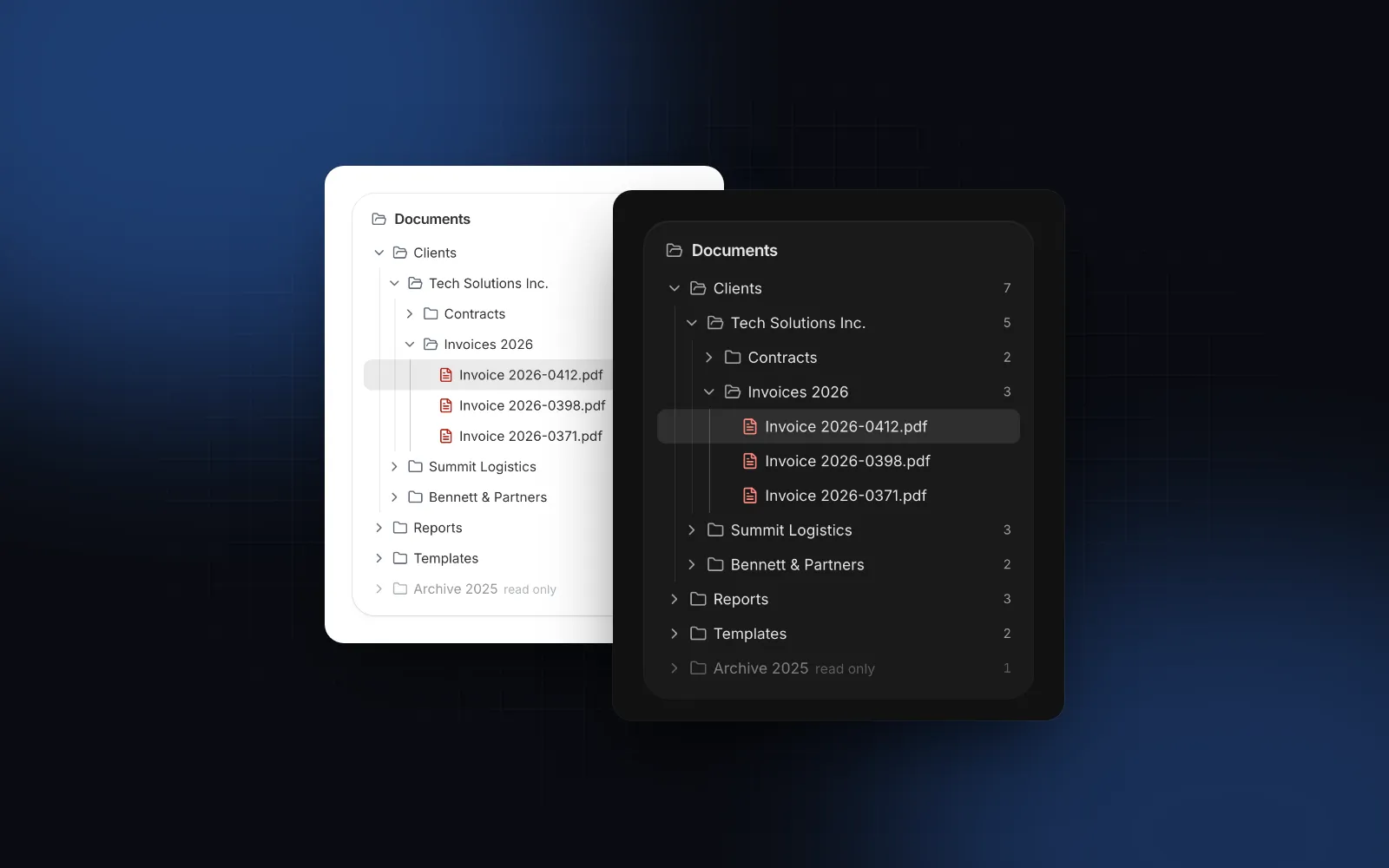
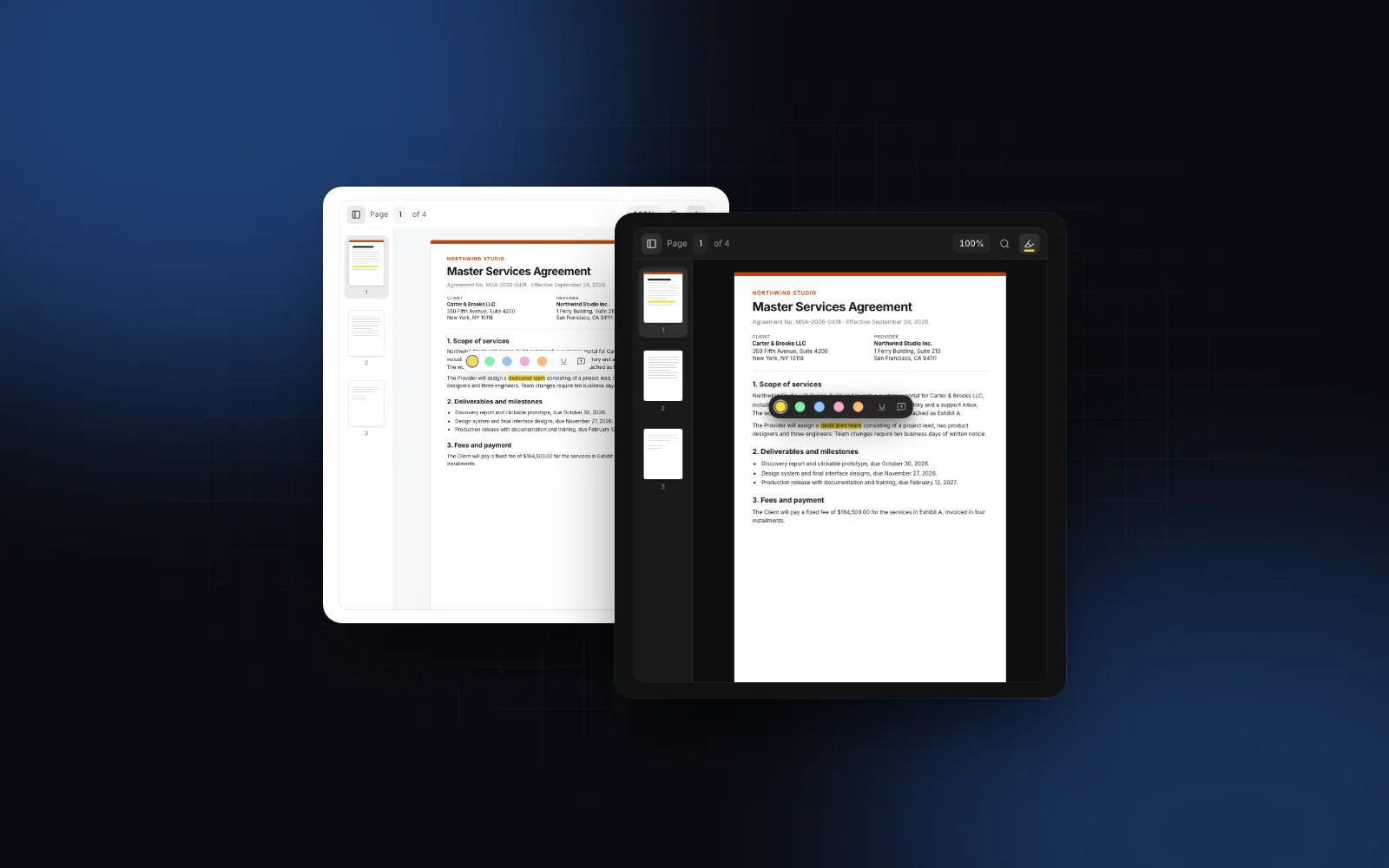
Pick a file manager when the files belong to a record and people come to drop one in or fetch one. Pick a Finder-style file browser when the files are the page: people spend time in it, move between many folders and want to look inside files without downloading them. Wingo UI has one component for each shape: File Manager for the first, and File System, a Finder-style React file browser component, for the second.
The rule we use: a file manager for "the files that belong to this thing", a file browser for "a place where files live". If people mostly upload and download, the browser's extra views only add weight.
$ npx wingo-ui@latest add file-systemHow do I connect a React file manager to my data?
Pass every folder and file as one flat items array and turn each action on by passing its handler. Each item is { id, kind, name, parentId, size, type, url, modifiedAt, modifiedBy }, and the component works out folders, the tree and the breadcrumb from the parentId links. onUpload adds the Upload button and drag and drop, onMove adds dragging onto folders and the Move dialog, onRename, onDelete and onCreateFolder add the rest. Leave them all out and it is a read-only viewer.
Two details make the error states work. A handler that returns a rejected promise keeps its dialog or rename field open with the error message, so a duplicate name or a lost connection shows where the person is looking. And upload progress is yours to report through the uploads prop, which feeds the floating uploads panel.
accept and maxFileSize reject files before onUpload runs, and the uploads panel lists them with the reason. Your server still checks both, since any client can call the endpoint. The upload flow itself (drag and drop, paste, progress, cancel) is covered in depth in our React file upload guide, and the standalone dropzone is the File Upload component.
What backend contract does a file manager need?
A file manager needs seven endpoints (list, new folder, rename, move, delete, upload, download), keyed by stable ids and checked on the server. That holds for whatever React file manager you choose, open source or not:
The rules that keep it correct:
- Ids, not paths. Store a stable id and a
parentId. A path like/Contracts/2026/acme.pdfas the key means a folder rename rewrites every row under it, and every shared link breaks. - Authorize every id. Each request checks that every id in it belongs to the tenant and record in the URL. A bulk delete with one foreign id should fail as a whole.
- Name conflicts are the server's call. Two people can create "Invoices" in the same folder at the same moment. Pick a rule (refuse with a clear message, or add " (2)") and return the error text, which the dialog shows.
- Storage keys are not file names. S3 replaces an existing object when an upload uses the same key, per the AWS presigned upload docs (opens in a new tab) (checked November 6, 2026). Use the file id as the key and keep the name in your database. Those docs also say that when the URL is signed with a Content-Type, the upload must send the same one, which is why the example signs and sends one value.
- Upload around your functions. Vercel Functions accept request bodies up to 4.5 MB and return 413 above that, per Vercel's limits page (opens in a new tab) (as of November 6, 2026). Presigned URLs send the bytes straight to storage.
- Soft delete first. Mark rows deleted and purge later. People delete the wrong folder, and a folder delete is a whole subtree.
- Refuse cycles on the server. The UI already blocks dropping a folder into itself or a subfolder, but the move endpoint must check again:
Run it in the same transaction as the update, after locking the tenant's folder rows (SELECT ... FOR UPDATE in Postgres) or under serializable isolation. A plain transaction at the default isolation level still lets two concurrent moves, A into B and B into A, each pass the check and build a loop. The seen set also stops the walk if bad data already contains one.
How does a file manager work on a phone?
On a phone the File Manager swaps hover, right-click and drag for taps, long presses and bottom sheets. It starts as a list there, with the folder name as a large title and a back link to the parent in place of the full breadcrumb. A tap opens, a long press starts selecting (checkboxes appear and a floating bar offers Move, Download and Delete), and every menu, the Move dialog and the New folder dialog open as bottom sheets. The layout follows the component's own width through container queries, so the same compact list appears in a narrow side panel on a wide screen, and the folder tree only shows once the manager itself is 768px wide.
For accessibility, the files are a single Tab stop with arrow key navigation inside, letters jump to a name, Space toggles selection, Shift + F10 opens the item menu and Delete asks before removing. The menu a right-click opens is also on a ⋯ button per item, which shows on hover, on keyboard focus and on selection, and stays visible on touch screens, so nothing depends on a mouse.
Is there a good open source React file manager?
Yes, and for many projects a free package is the right answer. Two MIT licensed projects are worth a look as of November 6, 2026 (star counts from GitHub on that date):
Pick @cubone or SVAR when you want a free, drop-in React file explorer and are happy with its look and its path-based ids. Pick a source component when the file manager has to match the rest of your design system and you expect to change its markup: you own the file, and npx wingo-ui@latest update merges our later fixes into your edits. Wingo UI is a paid library: Pro is $8 a month, $80 a year or $150 once, see pricing. The 14-day refund applies only while you have not downloaded a Pro item.
When is a tree view enough?
A tree view is enough when people pick or arrange folders and never work with the files inside them: a settings screen that picks a destination folder, a sidebar of project sections, or a code sample browser. The Tree View is the same component the file manager uses for its folders: lazy children through loadChildren, drag to move with draggable and onMove, filtering and folder icons. Our React tree view guide walks through it, and the component guides category has the rest of this series, with the React form components guide as its overview.
Next step
Open the File Manager docs, change the view, tile size and tone in the playground, and copy the usage code into a page with your own items. Then write the seven endpoints above before you style anything, since that is where file features break in production. Both file components are Pro; the docs, the playground and the MCP server work without an account.
FAQ
What is the difference between a file manager and a file explorer in React?
The words are used for the same thing, a UI that lists folders and files and lets people open, move, rename and upload them. In practice there are two shapes: a document manager embedded in an app page (grid or list, a tree, bulk actions) and a desktop-style file browser with a sidebar, several views and previews. Choose by how people use the files, not by the name.
Is there a free open source React file manager?
Yes. As of November 6, 2026, @cubone/react-file-manager and SVAR React File Manager (@svar-ui/react-filemanager) are both MIT licensed and published on GitHub. Both leave storage to you through callbacks or a data prop, so you still write the backend.
How should I store folders for a React file manager?
Store every folder and file as a row with a stable id and a parentId (null at the root), and keep the name as a plain column. A rename then changes one row, a move changes one parentId, and links to a file survive both.
How do I upload large files from a React file manager?
Ask your API for a presigned storage URL, send the file from the browser straight to storage with XMLHttpRequest so you get progress events, then confirm the upload so the server creates the file row. That keeps the bytes away from serverless functions, which Vercel caps at 4.5 MB per request body.
How do I stop a folder from being moved into its own subfolder?
Walk up from the target folder through its parents; if you reach one of the folders being moved, refuse the move. The UI can block it early, but the server must check it too, because any client can call your move endpoint.
- File Manager
- Files
- Drag and Drop
- Mobile UI
- Backend