React CSV Importer: Upload, Map Columns, Fix Rows, Import
The request sounds simple: a customer has 3,000 contacts in a spreadsheet and wants them in your app. A plain file input and a parser get you halfway. The rest is where people give up: their columns are called "E-mail" instead of "Email", row 412 has a phone number with two digits, and the error message says "Import failed" with no row number. A good React CSV importer walks a non-technical user through four steps (upload, map columns, fix rows, run) and never sends them back to Excel to try again. This tutorial builds one with the CSV Import component from Wingo UI, the library we make, so we are not neutral; outside facts link to their sources.
What does a React CSV importer have to do?
Four steps, each one removing a reason to write to support:
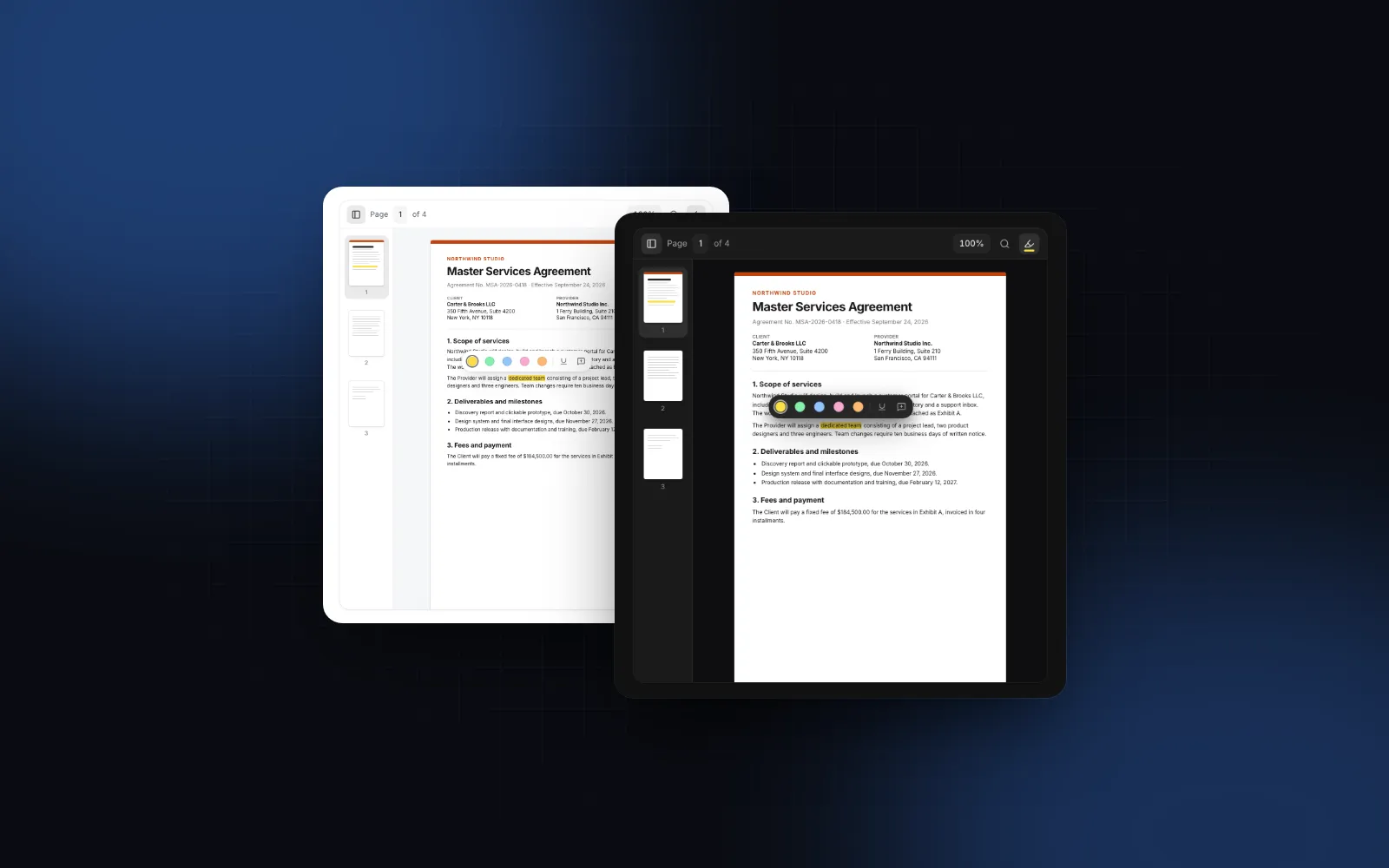
- Upload. Accept CSV, TSV and Excel files by drop, click or paste, and show what was read: rows, columns, separator, encoding, sheet.
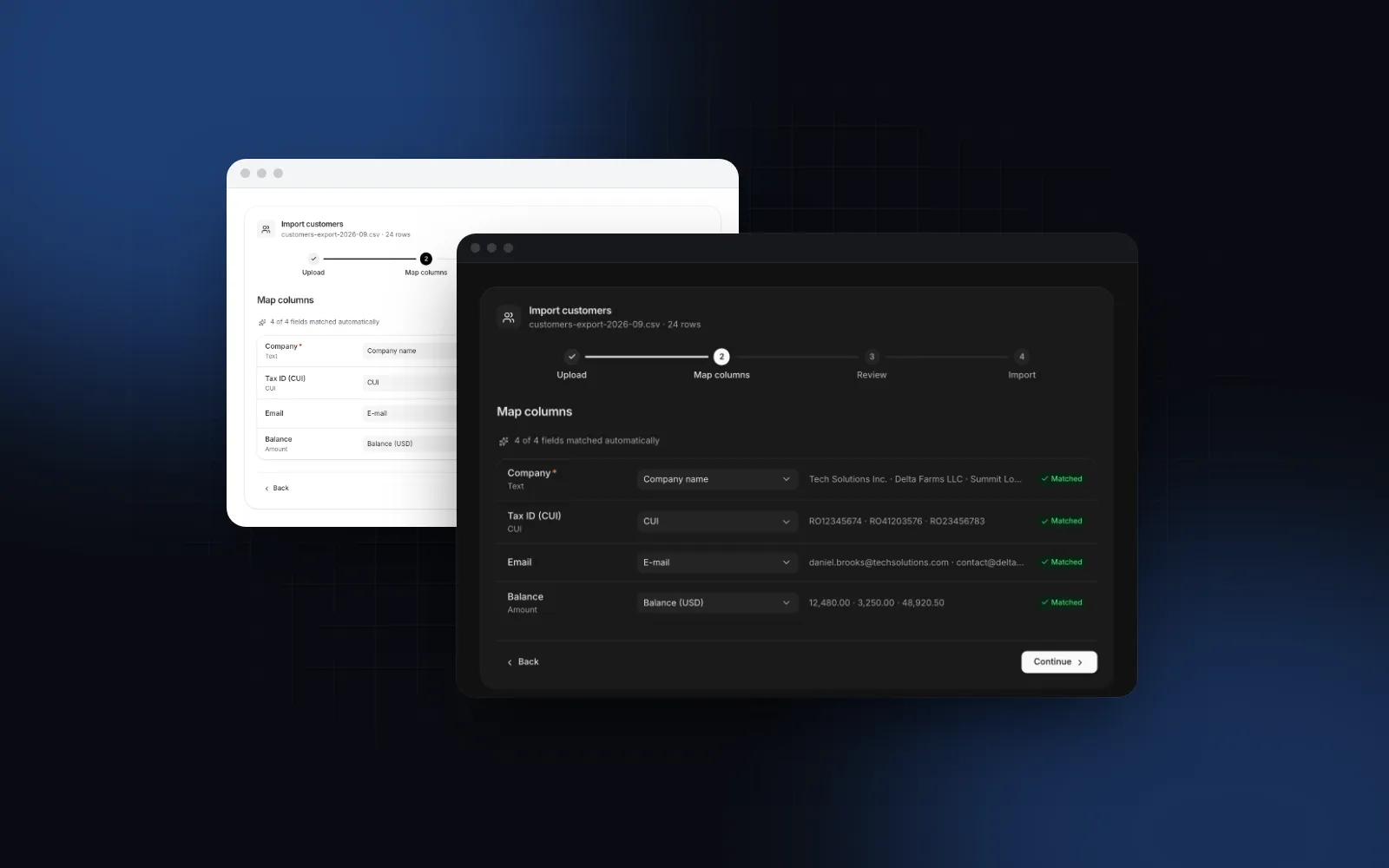
- Map columns. Pair each of your fields with a column in the file, pre-matched by name, with a select to change any pair.
- Review. Check every row against the field types, show the bad cells, and let people fix them in place or skip the row.
- Import. Send the valid rows with a progress bar and a Cancel button, then report what was created, updated, skipped and failed, with a downloadable file of the failures.
The quick way to import CSV in React is a file input, a parser and a console.log of the rows. That covers step one. The open-source react-csv-importer (opens in a new tab) (MIT, built on Papa Parse) goes further with upload, a raw preview and drag-and-drop column mapping, but its README does not describe row validation, and the repository has been archived since January 5, 2024 (checked October 2026). Step three is the one that saves the support ticket, so it gets the most space below.
How do I install and render the import wizard?
Install it with one CLI command, then render CsvImport with two props: the fields you import and a function that saves the rows.
The command also pulls in what the wizard is built from: the File Upload drop zone, the Spreadsheet helpers that read the file, the Form Wizard steps and the table. onImport must resolve with an ImportResult ({ created, updated, skipped, failed? }), so the endpoint below is assumed to return that shape.
Try the full flow below. The sample file is a customer export with a few problems planted in it.
$ npx wingo-ui@latest add csv-importHow do I describe the fields?
The fields array drives every step: the mapping rows, the template download, the validators and the shape of the rows you receive. Each ImportField has an id, a label and optional rules:
type:text,number,currency,date,email,phone,boolean,select, pluscui,ibanandcnpfor Romanian tax IDs, bank accounts and personal numbers.required: the mapping blocks Continue until the field has a column, and empty cells become errors.aliases: other headers that mean the same field. Real exports say "E-mail", "Mobile" and "Company name".optionsfor selects, withkeywordsfor the spellings people actually type.validate(value, row)for your own rule after the type check, returning a message ornull.transform(value)for the value handed toonImport.examplefor the template file.
onImport then gets typed values: numbers for amounts, ISO dates, E.164 phone numbers and option values instead of whatever the spreadsheet said.
How does the upload step read CSV and Excel files?
The upload step is a React CSV file upload with two halves. The File Upload drop zone handles the input: drop, click, Enter or Space, paste, and the native picker on a phone. The accept prop defaults to .csv,.tsv,.txt,.xlsx and maxFileSize to 20 MB.
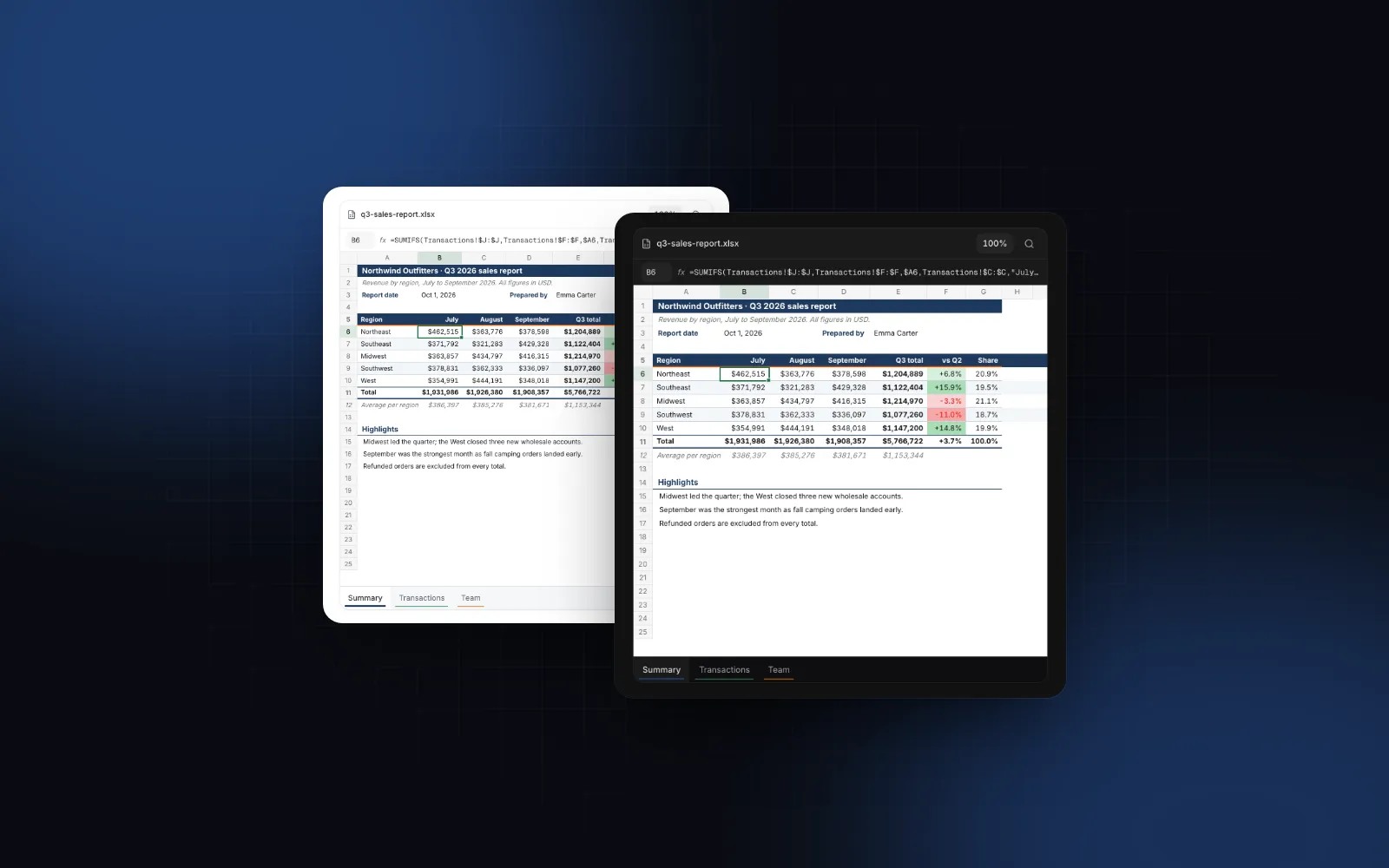
Reading the file is the job of readSpreadsheet from the Spreadsheet helpers. It detects the separator among comma, semicolon, tab and pipe, which matters because Excel in many European locales saves CSV with semicolons. It reads UTF-16 when the file starts with a UTF-16 byte order mark, decodes the rest as UTF-8, and falls back to Windows-1250 when the bytes are not valid UTF-8. That fallback is the Central European code page, so a Romanian, Polish or Czech export from an older Excel keeps its letters. A Western European file saved as Windows-1252 decodes mostly right (é, ü and ç sit at the same bytes) but turns à into ŕ, è into č and ñ into ń, so ask those customers for "CSV UTF-8" or .xlsx. Excel workbooks load the read-excel-file package only when someone picks one, so pages that never see an .xlsx never download it. Old binary .xls files are refused with a message asking for .csv or .xlsx.
$ npx wingo-ui@latest add spreadsheetTwo upload details cut down on bad files. A Download a template link writes a CSV with your field labels and their example values (templateFileName names it). And the "The first row is a header" switch handles exports that start straight with data.
How should a CSV column mapping UI work?
A good CSV column mapping UI asks as little as possible. Each field gets one row: its label and type, a select of the file's columns and a sample value from the chosen column. When the wizard opens, every field already points at the column whose header matches its label, its id or an alias, ignoring case, accents and punctuation, so "company_name" matches "Company name". Exact names score 1, partial matches score lower, and a pair needs a score of 0.5 to be made; the best scores are paired first, so two similar headers never fight over one field. Matched pairs carry a Matched badge.
The rules that keep it from going wrong:
- Each column is used once. Picking a column another field already uses moves it over, instead of importing the same data twice.
- Continue stays disabled until every required field has a column, and the message names the missing ones.
- "Don't import" is an option on every field, so extra columns are not a problem.
- Files without a header row still map: email, phone, date and Romanian ID columns are recognized by their values.
On a phone the column select opens as a bottom sheet, because a dropdown anchored to a field covers the thumb that opened it.
How do users fix bad rows without leaving the import?
Check every row before the review opens, mark each bad cell with its reason, and let people fix it in the table, where it is checked again at once. Rows are checked while the user is still mapping (big files in idle chunks of 500 rows, so 10,000 rows do not freeze the page), so the review opens ready:
- A filter for All, With errors and Valid.
- Bad cells get a red wavy underline and a tooltip with the reason ("Not an email address", "Duplicate of row 12").
- Clicking a bad cell edits it in place. Enter saves, Escape cancels, and the row is checked again at once. Error cells are the only cells in the tab order, so a keyboard user can Tab from one to the next.
- A ban button skips a single row, and "Skip rows with errors" leaves the rest out and puts them in the report.
Set allowSkipInvalid={false} when every row must be fixed or skipped by hand before Import is enabled.
Duplicates need a key. Pass uniqueField="email" and the emails already in your database as existingKeys. Repeats inside the file become errors, rows that already exist get an Exists badge, and a select asks whether to skip, update or add them again. Your onImport receives that choice as context.strategy. For a big table, fetch only the keys, not the records.
$ npx wingo-ui@latest add csv-importHow do I send the rows with progress and cancel?
onImport gets the valid, non-skipped rows and a context with four things: strategy, onProgress(done) for the progress bar, a signal that the Cancel button aborts, and rows, the review rows in the same order, whose index is the row number as the spreadsheet shows it. Send the rows in batches so the bar moves and Cancel stops between requests:
A thrown error shows its message with a Try again button. Cancel aborts context.signal, the pending fetch rejects, and the run ends as "Import cancelled after N rows", where N is the last value you passed to onProgress. The wizard also aborts the signal when it unmounts, so a user who navigates away does not leave requests running. The summary then shows tiles for created, updated, skipped and failed, lists the rows that did not make it with their reason, and offers Download failed rows: a CSV with an Error column the user can fix and import again.
Why does the server have to check the rows again?
Anyone can POST any JSON to /api/contacts/import, so the browser checks are for the user and the server checks are for your data. The component exports validateImportRows, a pure function that runs the wizard's checks on raw rows, but csv-import.tsx starts with "use client", so keep the server rules in a module of your own:
The other direction needs care too. The failed-rows report and the template are CSV files people open in Excel, and a cell that starts with = can run as a formula. OWASP's CSV injection page (opens in a new tab) lists prefixing such cells with a single quote as one defense, and warns that Excel can lose it after a save and reopen (checked October 2026). toCsv from the Spreadsheet helpers does that by default for cells starting with =, +, -, @, tab or carriage return, and the importer drops that quote again when a cell like '=SUM(A1) comes back in a file.
What changes on a phone?
Below 768px the wizard fills its container with a sticky header and footer and 48px buttons (fullScreenOnMobile, on by default, so give the container a height). The stepper turns into a compact progress row, review rows become cards, and tapping a value opens a sheet with the field, its error and one Save button. So a user who opens the import from an email on their phone can still finish it. More on that pattern in responsive tables that turn into cards.
Which files should I test a CSV importer with?
Test with the files customers will really send, since the clean export you made yourself passes every check. Collect a small folder of them and run each one through the four steps before launch:
- A semicolon CSV with decimal commas, from Excel set to a European locale.
- A file with accented names saved as Windows-1250, one saved as Windows-1252 (watch à, è and ñ), and one with a UTF-8 byte order mark.
- An export without a header row.
- Quoted cells that contain commas, doubled quotes and line breaks.
- A workbook with several sheets, and an old .xls file, which should be refused with a clear message.
- A file over the row limit.
maxRowsdefaults to 10,000; the rest is cut and a warning says so. - The same customer twice, and a customer you already have.
If each of these ends in either a clean import or a message that tells the user what to change, the support ticket from the first paragraph does not get written.
Should I build the import or use a hosted importer?
Use a hosted importer when you would rather configure the importer in a vendor dashboard than own its code. CSVbox (opens in a new tab) is one example: a JS snippet adds an import modal, files are processed on its infrastructure in a region you pick, and its Private Mode parses, maps and validates in the user's browser and posts the rows to your own endpoint (checked October 2026). Use a component when you want the importer in your repository, typed against your own fields, reviewed and versioned with the rest of the app, and styled like it. CSV Import is a Pro component (pricing); every string is a labels prop, and tone, size and stepper change the look without restyling.
What does the finished CSV and Excel import wizard look like?
It is one client component that wires the fields, the batched onImport and the duplicate check together. Excel workbooks go through the same four steps as CSV files, so the same page works as an Excel import wizard:
For the steps themselves outside an import, read the React multi step form tutorial, and for the drop zone alone, the React file upload guide. The React form components guide covers the field anatomy all of these share, and more component walkthroughs live in the component guides category.
Next step
Install the wizard with npx wingo-ui@latest add csv-import, point fields at the table you import most often, and run your messiest real export through it before a customer does.
FAQ
How do I import a CSV file in React?
Read the file in the browser with the File API, parse it with an RFC 4180 parser that handles quotes and line breaks inside cells, then map the columns to your fields and validate each row before you send it. A wizard component like Wingo UI's CSV Import wraps those steps, so you only describe the fields and write the function that saves the rows.
Can a React CSV importer read Excel files?
Yes, if it parses .xlsx in the browser. The Wingo UI CSV Import reads .xlsx through read-excel-file, loaded only when someone picks a workbook, and lets them choose the sheet. Old binary .xls files are refused with a message asking for .csv or .xlsx.
How should column mapping work in a CSV import?
Pre-match every field to the column whose header matches its name or one of its aliases, ignoring case, accents and punctuation, and let the user change any pair with a select. Block the next step until every required field has a column, and name the fields that are still missing.
Should I validate CSV rows on the client or the server?
Both. Client-side checks give instant feedback in the review step, so people fix errors before they submit. The server must check again, because anyone can call your import endpoint with any JSON.
How do I handle duplicate rows in a CSV import?
Pick one field as the key, such as email, mark repeats inside the file as errors and flag rows whose key already exists in your data. Then let the user choose to skip, update or add those rows again, and pass that choice to the server.
- CSV
- Excel
- Data Import
- Forms
- Mobile UI