React File Upload: Drag and Drop, Paste, Camera, Progress
A file input looks done the moment the picker opens. Then the real requests arrive: drop files from the desktop, paste a screenshot, take a photo on a phone, see each file's progress, cancel the wrong one. A React file upload has to handle all four ways in, check every file before it leaves the browser, and say clearly why a file was refused. This guide covers what that takes, how progress and cancel work under the hood, and a complete example with a Next.js route handler, including the body size limits that break uploads in production. The examples use the File Upload component from Wingo UI, the library we build, so we are not neutral; outside facts link to their sources.
What should a React file upload handle?
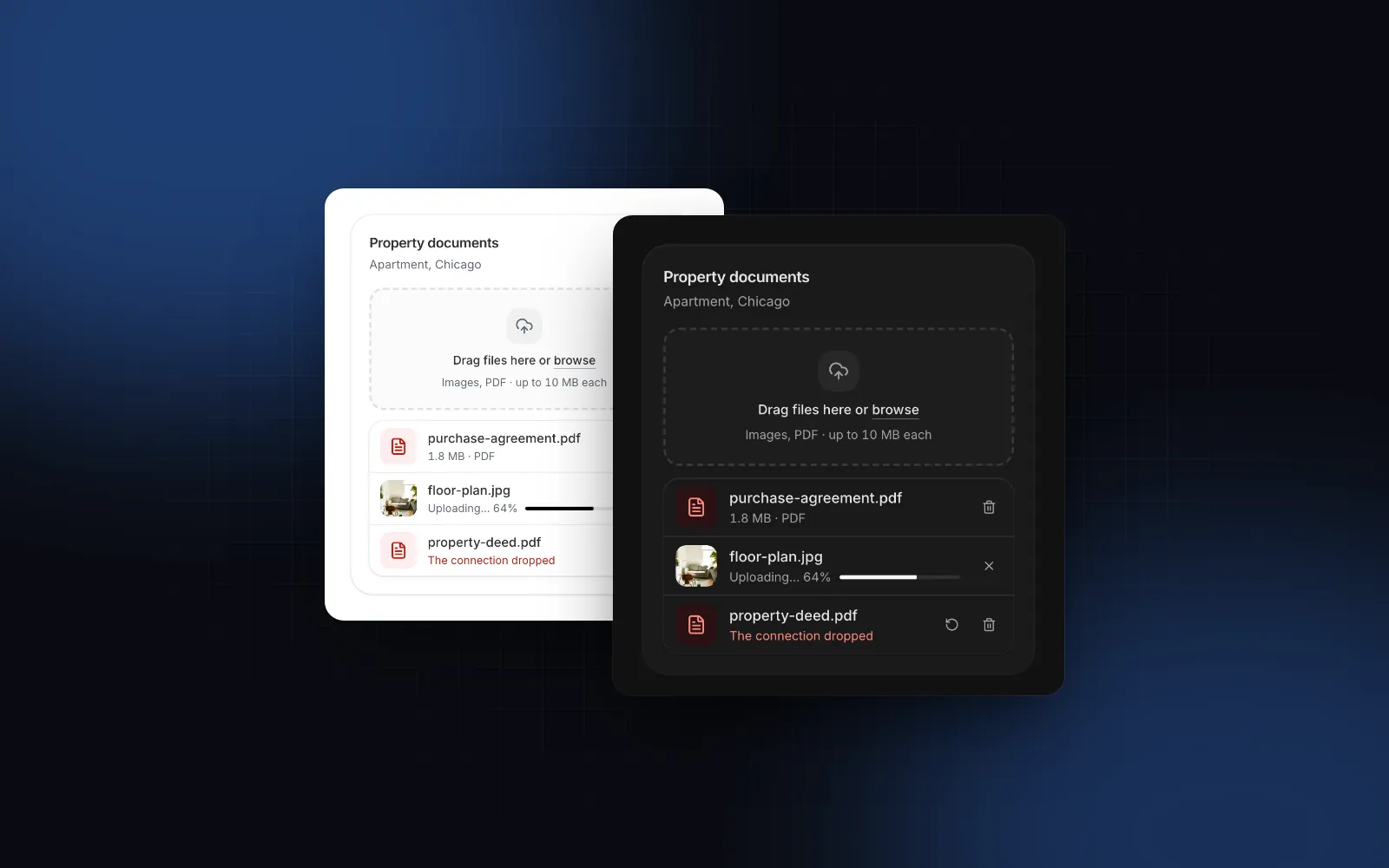
Four inputs, three checks and a status per file. Here is the list we built against, and a fair test for any library or hand-written version:
- Drag and drop. A file dragged anywhere over the page should light up the dropzone, and a drop that misses it should do nothing. Without that, the browser opens the file and the person loses the form.
- Browse. A click, Enter or Space on the dropzone opens the native picker. Drag and drop is the extra. The picker is the baseline that works everywhere.
- Paste. Ctrl+V or Cmd+V with focus inside adds copied files and screenshots.
- Camera. On a phone, a "Take photo" button that opens the camera directly.
- Checks. Accepted types, a size limit and a file count, plus your own rules, with a visible reason for every rejected file.
- Status. A preview for images, a progress bar per file, cancel, retry and remove.
Install the component and give it an accept list:
Without an upload function the files stay idle in the list, which is what you want for a form that submits them natively (more on that below).
$ npx wingo-ui@latest add file-uploadHow does drag and drop work in a React file upload?
The browser fires dragenter, dragover, dragleave and drop, and the dropped files arrive in event.dataTransfer. Three details trip up hand-rolled React file upload drag and drop code. First, dragover must call preventDefault(), or the drop event never fires. Second, a drop outside your zone makes the browser open the file and leave the page. Third, dragenter and dragleave fire again for every child element the pointer crosses, so a plain boolean flickers; count enters and leaves and clear the highlight when the count is back to zero.
Our component handles the first two on the window: a drag that carries files lights up every dropzone on the page with "Drop to upload", and a drop that misses them is swallowed. It checks dataTransfer.types for "Files" first, so dragging text or a link around the page does nothing. It also skips folders. A dropped folder shows up in dataTransfer.items as an entry whose webkitGetAsEntry() reports isDirectory, and reading it with getAsFile() does not give you its contents. The component leaves it out instead of adding a broken row.
How do you show a React file upload progress bar?
Use XMLHttpRequest. Its upload object fires progress events with loaded and total bytes. fetch has no upload progress event, so a fetch upload can only show a spinner. MDN's XMLHttpRequest.upload page (opens in a new tab) (checked October 2026) adds two pitfalls. Listeners must be registered before send() or no upload events fire, and browsers often need them before open(), so set them first. An upload listener also turns a cross-origin request into a non-simple one, which costs a CORS preflight.
The component takes one function, upload(file, { signal, onProgress }). You call onProgress with a fraction from 0 to 1, and you wire signal to the request so that cancel, remove and unmount abort it. Save this as upload-file.ts; the later examples import it:
The onload handler matters more than it looks. Calling JSON.parse there throws inside an event handler when the server answers with an HTML error page, the promise never settles and the row spins forever. With responseType = "json" a bad body is null, and the server's own error message reaches the row.
Progress updates are throttled to one render per 100ms per file, so a fast connection does not re-render the list hundreds of times a second. At most three files upload at once by default (maxConcurrent), and the rest wait their turn. Whatever the promise resolves with lands in the file's response. A rejection keeps the file in the list with its error message and a retry button. Set autoUpload={false} when people should review the list first: each row gets an upload button and the list an "Upload all" button.
How do you handle paste and the phone camera?
For a React file upload paste handler, read event.clipboardData.files. That list holds copied files and screenshots taken to the clipboard. The catch is where to listen. An onPaste on the dropzone misses a paste made while focus sits on a row's remove button, so the component listens on the document and acts only when document.activeElement is inside its root. It calls preventDefault() only when the clipboard holds files, so pasting text into an input elsewhere on the page still works. paste is on by default; turn it off with paste={false}.
The camera is a second, hidden input with capture="environment" and accept="image/*". MDN's capture attribute page (opens in a new tab) says environment asks for the outward-facing camera and user for the front one, and that a desktop browser usually shows the normal file picker instead. That is why camera adds its "Take photo" button on touch screens only:
The grid layout is built for listing photos. The first tile is the cover, and you reorder by dragging, by a 250ms press on touch so the page still scrolls, or with Space and the arrow keys. Our post on dnd-kit drag on touch screens explains why the press delay matters.
$ npx wingo-ui@latest add file-uploadHow do you validate files before they upload?
Use accept, maxSize and maxFiles for the common rules and validate for your own. maxSize defaults to 10 MB, so set it to 0 if you really want no limit. Every refused file is listed under the dropzone with a message ("You can add up to 6 files") and handed to onReject with a reason code ("type", "size", "count" or "custom"), so nothing disappears without an explanation. The checks run in that order per file: type, then size, then your validate, then the count, so a file that fails two rules gets the first message only. accept matches extensions case-insensitively and MIME wildcards like image/*; acceptsFile(file, accept) runs the same check outside the component, and formatFileSize(bytes, locale) formats sizes for your messages.
Treat all of it as feedback. accept only filters the picker, and anyone can post any file to your endpoint, so the server checks again. Also note that file.type comes from the file extension on the client and from the multipart header on the server. Both are claims the sender makes; if the type matters for security, read the first bytes of the file on the server.
How do you upload files to a Next.js route handler?
Post each file to a route handler, check it again there, and store it under a name you generate. The client: documents, a duplicate check, a 10 MB limit and a callback for rejected files.
The server: a route handler in app/api/upload/route.ts that repeats the checks before it stores anything.
The key never uses file.name. That name is whatever the client sent, so ../../app.config.js must never reach a disk path; the extension comes from the allowed type instead. The { error } body is what the upload function above shows on the failed row.
A route handler is the right place for the upload endpoint. The Next.js Server Actions docs (opens in a new tab) (checked October 2026) cap action requests at 1MB by default (serverActions.bodySizeLimit raises it), and an action gives you no upload progress anyway.
Why do uploads over 4.5 MB fail on Vercel?
Hosting adds its own limit. Vercel's function limits page (opens in a new tab) (checked October 2026) caps the request body of a Vercel Function at 4.5 MB and answers bigger bodies with a 413 FUNCTION_PAYLOAD_TOO_LARGE, so the 10 MB route above works locally and fails in production there. The fix is to keep the file away from the function: the route returns a presigned URL from your storage (S3 and R2 both offer them), and the upload function sends the file straight to it. Progress and cancel keep working, because it is still an XMLHttpRequest:
The bucket needs a CORS rule that allows PUT and the Content-Type header from your origin. The upload listener makes the request non-simple, so the browser sends a preflight first, and a missing rule shows up as the "No connection" error from onerror, with the real cause only in the browser console. If your presigned URL signs a content type, send exactly that one, or the storage rejects the signature.
Can you submit the files with a plain form instead?
Give the component a name and leave out upload. It keeps a hidden file input whose files follow the list through DataTransfer, so a native form submit or new FormData(form) sends exactly the files on screen, and required blocks an empty submit. Our React form components guide covers the field anatomy around it: label, description and the animated error.
How do you show files that are already uploaded?
Pass them as defaultValue or value with a url and status: "done", and they show as finished rows. When the files live on a separate screen, such as a client folder or email attachments, the File List component is the better fit: rows, preview tiles or chips, download and delete with a confirm dialog, selection, and progress for files still uploading. The UploadFile[] that File Upload reports fits its files prop as it is.
How do you crop a photo before it uploads?
Put the Image Cropper between the pick and the upload. It takes a File as src, offers aspect presets, pinch or wheel zoom and rotation, and hands you an API through setApi whose toBlob exports a JPEG, PNG or WebP:
maxSize caps the longest side and never upscales, so a 12 megapixel phone photo does not travel at full size. The cropper exports through a canvas, so the result carries no EXIF data, which also strips the GPS location a phone writes into photos. For a profile photo, Avatar Upload already combines the picker, a round crop and the upload in one component. The React image cropper guide covers zoom, rotation, the export size and that avatar flow in more detail.
$ npx wingo-ui@latest add image-cropperIs the file upload accessible by keyboard and on phones?
Yes. The dropzone is a real focusable control: Tab reaches it, Enter or Space opens the picker, and clicking the label focuses it without opening the picker. A polite live region announces uploaded, failed, rejected and removed files, and every reorder in the grid. On a phone the dropzone reads "Tap to choose files", remove buttons on photos are always visible instead of appearing on hover, and every action has a 44px target, the size our touch target guide explains.
Should you use a shadcn file upload instead?
As of October 2026, shadcn/ui has no dropzone of its own. Its Attachment component (opens in a new tab) displays a file with its upload state and actions, but you build the picker, the drop handling and the progress math yourself. So a shadcn file upload usually means a community registry item. Dice UI's File Upload (opens in a new tab) is a composable set of parts (dropzone, trigger, list, item preview, item progress) with validation, installed with npx shadcn@latest add @diceui/file-upload. If you want to assemble those parts yourself, it is a good choice. Wingo UI's File Upload is one element configured by props, with four layouts (list, grid, avatar, compact), paste, the camera button, grid reordering, an upload queue and a native form fallback built in.
Next step
Install it with npx wingo-ui@latest add file-upload file-list image-cropper. All three are part of Wingo UI Pro (pricing); the File Upload docs have the playground and every prop. More component guides live in the component guides category.
FAQ
How do I show upload progress in React?
Send the file with XMLHttpRequest and listen to request.upload.onprogress, which reports loaded and total bytes. fetch has no upload progress event, so a fetch-based upload can only show a spinner. Register the listener before open(), since MDN warns that browsers often skip upload events for listeners added later.
How do I paste images into a React file upload?
Listen to the paste event and read event.clipboardData.files, which holds copied files and screenshots. Attach the listener to the document and act only when document.activeElement is inside your component, so a paste works whether focus sits on the dropzone or on a row's button.
How do I open the camera from a file input on mobile?
Add capture="environment" for the back camera or capture="user" for the front one, together with accept="image/*". MDN notes that desktop browsers usually show the normal file picker instead, so offer the camera as an extra button on touch screens.
Is the accept attribute enough to validate uploads?
No. accept only filters the picker; a dropped or pasted file skips it, and anyone can send any file to your endpoint. Check type and size in the component for fast feedback and again on the server before you store the file.
Is there a shadcn file upload component?
As of October 2026, shadcn/ui has an Attachment component that displays files and their upload state, but no dropzone or file picker. Community registries such as Dice UI fill that gap, and Wingo UI's File Upload installs the same way, as source code, with npx wingo-ui@latest add file-upload.
Why do large uploads fail on Vercel?
Vercel Functions accept request bodies up to 4.5 MB and answer anything larger with a 413 error. For bigger files, have your route return a presigned storage URL and send the file straight to storage from the browser.
- File Upload
- Forms
- Drag and Drop
- Mobile UI
- Accessibility