React Image Cropper: Crop Before Upload, Zoom, Rotate
You let people upload a profile photo or a listing picture, and the photos arrive as 4,000 pixel JPEGs, sideways faces and heads cut off by object-fit: cover. A React image cropper fixes this before the file leaves the browser: the user frames the photo, you export a small image at the exact size you need, and the server stores what the page will show. This guide covers what a cropper must handle, how the common libraries compare, how to crop before upload with the Wingo UI Image Cropper, and the round avatar flow built on it.
What should a React image cropper handle?
A cropper that holds up in production handles seven things:
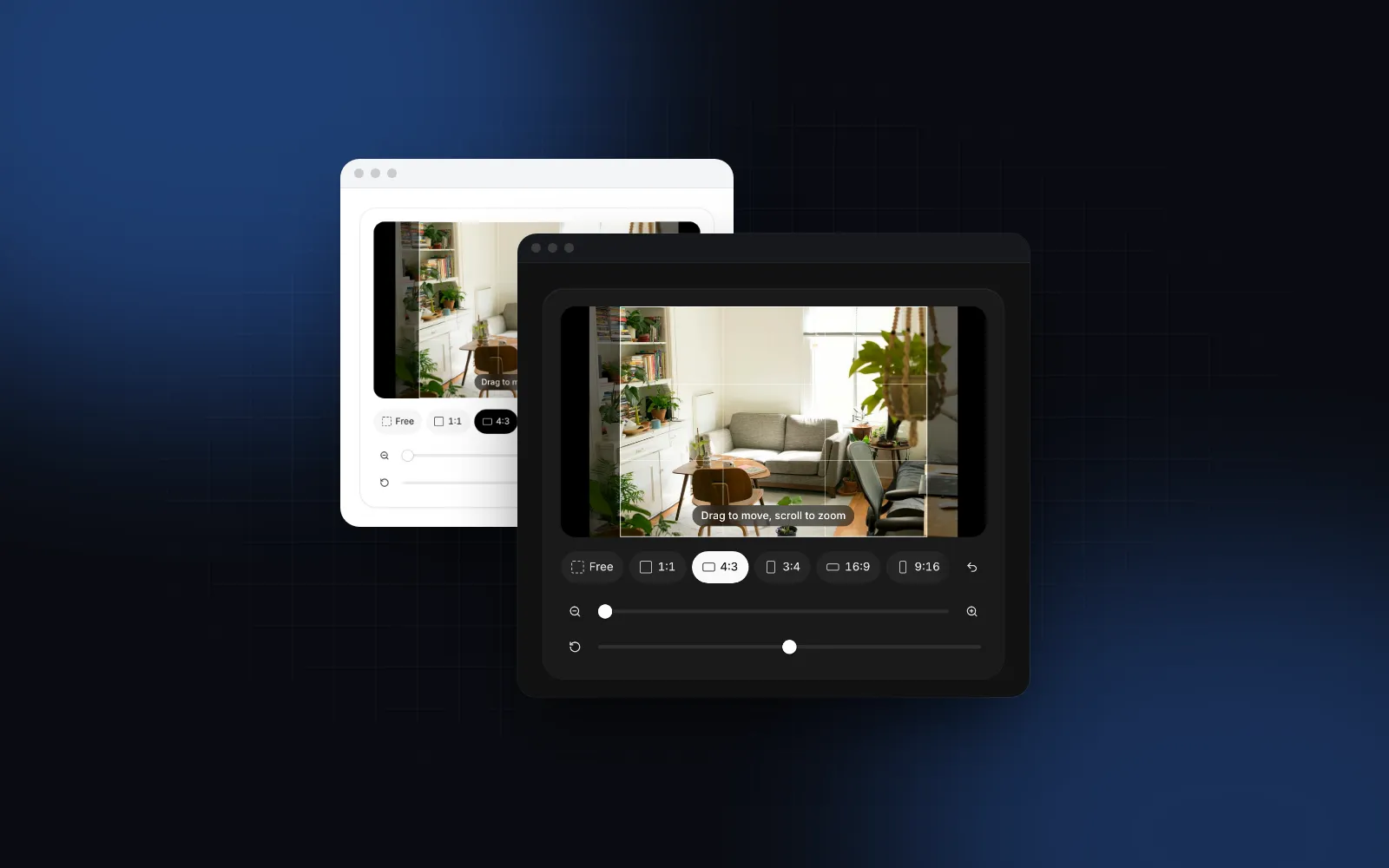
- Pan and zoom with a mouse drag, the wheel, a one finger drag and a two finger pinch, while the photo always covers the frame.
- Aspect ratios: a fixed one for covers and avatars, presets for galleries, and a free crop with resizable corners.
- Rotation: 90 degree turns for sideways photos and a fine slider to straighten a horizon.
- A sized export: an exact width or a cap on the longest side, in WebP, JPEG or PNG, as a
Blobyou can put inFormData. - A round frame for avatars and logos, with transparent corners in the export.
- Keyboard support: arrows to move, keys to zoom and rotate, and sliders that read their value.
- A phone layout where the toolbar stays on screen and every control is a 44px target.
Point 4 is where hand-rolled croppers usually break. Drawing a large photo straight down to 512px in one drawImage call can leave jagged edges, and a canvas past the browser's size limit can fail or come back blank.
Which React image crop library should I use?
These are the names that come up when you search for a React image crop library. Facts are from each project's README on GitHub, as of October 2026.
react-image-crop is the better choice when users should draw a box over a document or a screenshot, and when bundle size matters most. react-easy-crop fits photos, where moving the picture under a fixed frame feels more natural on a phone. The Wingo UI component is react-easy-crop with the UI and the export already written, as source you can edit.
How do I crop an image before upload in React?
Put the cropper between the file input and the upload. The Image Cropper takes a File as src (it creates and revokes the object URL for you), and setApi hands you a handle with toBlob. A crop before upload React flow needs three pieces: a file input, the cropper and the upload call.
defaultAspect sets the starting ratio and leaves the presets (Free, 1:1, 4:3, 3:4, 16:9, 9:16) available; pass aspectPresets={false} to lock it. onValueChange fires when an interaction ends, never per frame, with a CropValue: the area in source pixels, the zoom, the rotation, the aspect and the flip.
$ npx wingo-ui@latest add image-cropperHow do I export a sized WebP from the crop?
Pass export options to toBlob, or set them once with the export prop. maxSize caps the longest side and never upscales, width and height set an exact size, type picks image/webp, image/jpeg or image/png, and quality (0 to 1) applies to WebP and JPEG. Without options the export is a JPEG at 90% quality, capped at 2048px.
Three details of the export are worth knowing before you write your own:
- Stepped downscaling. The crop is first drawn at a power-of-two multiple of the final size (never above the source resolution), then halved step by step while the next half is still at least the target, and only then drawn at the final size. A large phone photo exported at 512px stays sharp instead of aliased.
- A canvas cap. The working canvas never exceeds 16,777,216 pixels (4096 by 4096), so a huge photo is scaled down instead of producing a blank export.
- No metadata. The file is re-encoded from a canvas, so it carries no EXIF data, which also drops the GPS location a phone writes into photos. Current browsers apply the EXIF orientation when they draw the photo (
image-orientation(opens in a new tab) defaults tofrom-image), so the preview and the export match.
JPEG has no transparency, so the export fills the background white unless you pass background. If a browser cannot encode the type you ask for, canvas toBlob (opens in a new tab) falls back to PNG, so read blob.type before you name the file.
How do I make a React image crop circle?
Set cropShape="round". The frame becomes a circle, the ratio is forced to 1, the presets hide, and the export masks the circle by default. Ask for PNG or WebP to keep the corners transparent:
cropImage runs the same export without the component, from the original file and a saved CropValue. That is the pattern to use when you want to re-crop later: store the original upload and the crop value, pass the value back as defaultValue when the user edits again, and regenerate any size you need.
$ npx wingo-ui@latest add image-cropperHow do I build an avatar upload crop React flow?
Use Avatar Upload, which puts the cropper inside the whole profile photo flow. Tap the avatar to open a menu (Choose a photo, Take photo, and Remove photo when you pass onRemove), crop in a round frame in a dialog, and Save exports a square WebP at 512px. The new picture shows at once while a ring around the Avatar fills with the upload progress. A failed upload brings the old picture back and offers Try again.
Resolve with the stored URL and it becomes the value. Without onProgress calls the ring spins instead of filling. The signal aborts when the component unmounts or a newer upload starts. variant="row" adds Change photo and Remove buttons beside the avatar for a settings list, and variant="dropzone" is a dashed tile for company logos. crop={false} skips the dialog and uploads the largest centered square. Pass cropperProps to tune the crop step, for example { flippable: true }.
$ npx wingo-ui@latest add avatar-uploadHow does cropping work on phones and with a keyboard?
On a phone the photo moves with one finger and zooms with a pinch, the stage caps at 60% of the screen height so the toolbar stays visible, the toolbar stacks, and the ratio presets become a scrolling chip rail with 44px targets. In Avatar Upload the source menu, the crop step and the camera turn into bottom sheets below 768px (responsive, on by default), the same rule as in the responsive dialog on mobile guide. Take photo opens the front camera through capture="user" on phones and a live camera dialog on desktops.
With a keyboard, Tab to the crop frame: arrow keys move the photo by 10px (Shift plus arrows by 2px), + and - zoom, r turns 90 degrees left, f flips when flippable is on, and 0 resets. The zoom and rotation sliders read their values as 150% or −12 degrees, and ratio changes, turns and resets are announced. Every string, announcements included, lives in labels and merges over DEFAULT_IMAGE_CROPPER_LABELS.
What are the common image cropper pitfalls?
- Remote images without CORS. The preview works, but
toBlobrejects withlabels.corsErrorbecause the canvas is tainted. Crop theFilefrom the input, or serve the image with CORS headers. - iPhone HEIC photos. Avatar Upload accepts JPEG, PNG and WebP by default. Safari converts HEIC to JPEG on pick when JPEG is in
accept; in other browsers a HEIC file fails the type check and the user seeslabels.wrongType. - Uploading the original. If you send the picked file and crop on display with CSS, every visitor downloads the full photo. Send the export.
- Trusting the client. The browser export is a convenience. Check type, size and dimensions again on the server.
- Listening to every frame.
onCropChangefires on every frame while the crop moves. Save ononValueChange, which fires once per interaction.
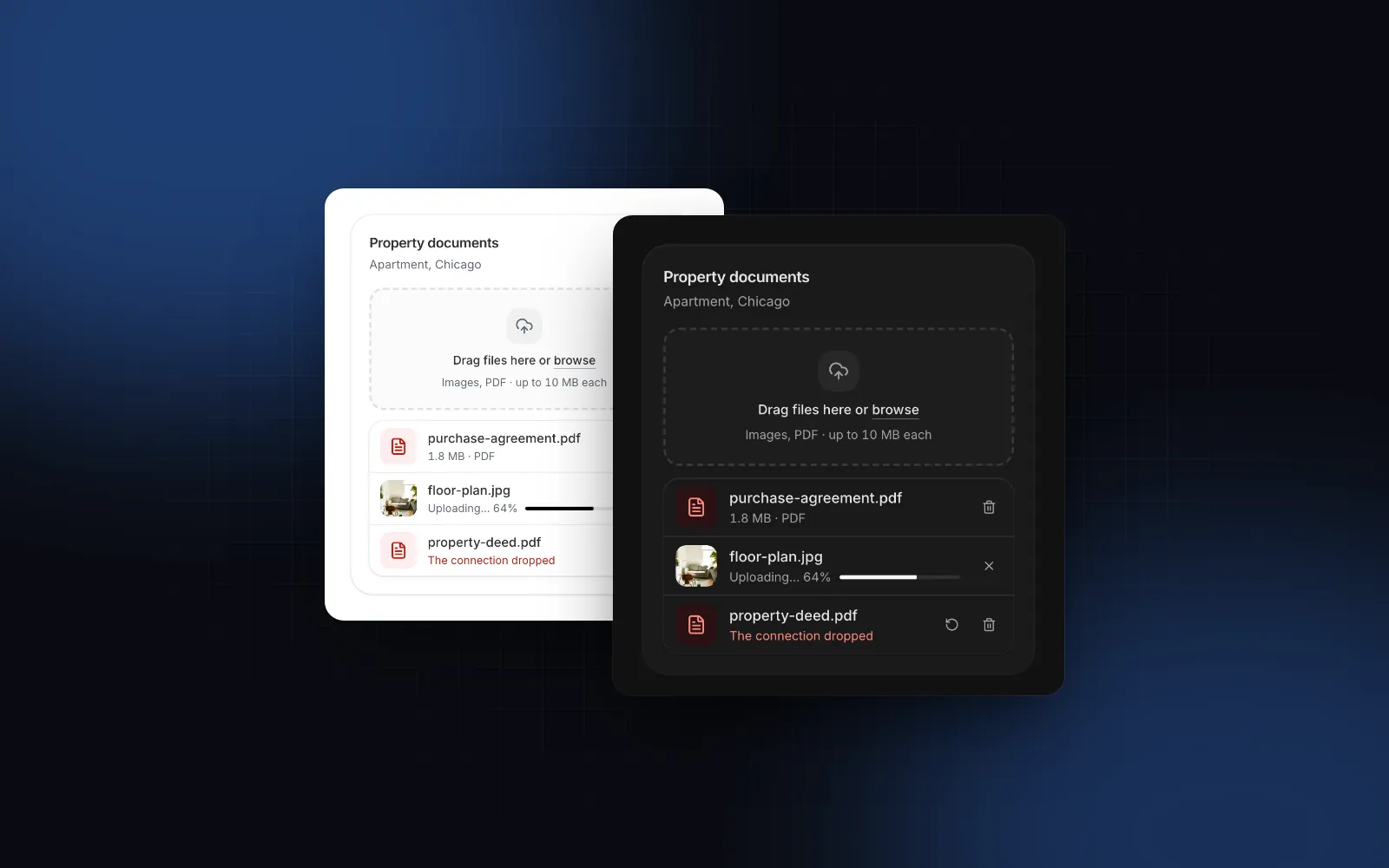
For the picker side (drag and drop, paste, type and size checks, an upload queue), the React file upload guide pairs the File Upload with this cropper, and the React settings page tutorial shows where a profile photo row sits in a full settings screen.
How do I add it to my project?
Run npx wingo-ui@latest add image-cropper or npx wingo-ui@latest add avatar-upload. The CLI copies the source into components/ui, adds the components and helpers they import, and installs the npm packages they need (react-easy-crop, motion and lucide-react for the cropper). Both are Pro components (pricing). More single component deep dives live in the component guides category, and the React form components guide covers the label, error and touch rules every field in a profile form shares.
FAQ
What is the best React image crop library?
react-easy-crop is the usual pick when you want pan, pinch zoom and rotation, and react-image-crop when you want a small, dependency free crop box you resize by its edges. Both report crop coordinates and leave the final image to you or a helper; a source component such as the Wingo UI Image Cropper adds the toolbar and the export on top of react-easy-crop.
How do I crop an image to a circle in React?
Draw a round frame for the user (cropShape="round" in react-easy-crop and the Wingo UI Image Cropper, circularCrop in react-image-crop), then mask the export with a circular clip on the canvas. Export PNG or WebP to keep the corners transparent, because JPEG has no alpha channel.
Should I crop images on the client or the server?
Crop on the client so the user sees the result and the upload is small, then validate type, size and dimensions again on the server. Keeping the original file and the crop coordinates also lets you re-crop later without asking the user again.
Why does my cropped image fail to export from a remote URL?
Drawing a cross-origin image without CORS headers taints the canvas, and toBlob then throws a SecurityError. Serve the image with Access-Control-Allow-Origin, proxy it through your own domain, or crop the File from the input instead of a URL.
Is the Wingo UI Image Cropper free?
No. The Image Cropper and Avatar Upload are Pro components. The Avatar component that Avatar Upload shows the picture in is free.
- Image cropper
- File upload
- Avatar
- Mobile UI
- React