React Animated Number Counter: Rolling Odometer Digits

You want a React animated number counter for a revenue total, a live visitor count or a pricing toggle. The first version is usually a setInterval that bumps a number in state until it reaches the target. Then the number changes again mid-count and restarts from zero, the text jitters left and right because a 1 is narrower than an 8, a German visitor sees 12,480.00 instead of 12.480,00, and a screen reader announces forty numbers in a row. This guide covers what a production counter needs, the props that matter in the Wingo UI Animated Counter, and how the Stat Card puts it in a dashboard tile.
What should a React animated number counter handle?
It should animate from the value on screen, hold its width, format with the locale, give screen readers one value and respect reduced motion. In detail:
- Animate from what is on screen. When you react to a number change mid-animation, the counter should retarget from the digits the user sees instead of starting over. Prices, scores and live counts change often, so this matters more than the first animation.
- A stable width. Tabular figures (
font-variant-numeric: tabular-nums,tabular-numsin Tailwind) give every digit the same advance, so the number only grows when it gains a place. - Locale formatting. Group and decimal marks differ by locale.
Intl.NumberFormatalready knows them, so the counter should ask it instead of hardcoding a comma. - One value for screen readers. The moving digits are decoration. Assistive technology should get the final formatted number once.
- Reduced motion. Under
prefers-reduced-motion: reducethe number should update in place, with no rolling.
Count-up or odometer: which kind of animated number do you need?
Use a count-up for a one-time reveal and an odometer for a value that keeps changing. Those are the two families of react animated numbers. A count-up tweens the whole value from A to B and prints every number in between, which suits a one-time reveal ("12,000 customers"). An odometer, or rolling counter, gives each digit its own vertical wheel and rolls only the digits that changed. That reads better for values that keep moving, because a price going from 1,249 to 1,251 moves two wheels instead of flashing through every number.
These are the options that come up when you search for a react odometer or a counter component. Facts are from each project's public docs and README, as of October 2026.
NumberFlow is the better pick when you need full Intl.NumberFormat output from the counter itself, such as compact notation (1.2K) or percent, because it formats with the whole options object. react-countup is fine for a single reveal on a landing page. The Animated Counter fits when you want the source in your repo, Tailwind classes, and the same tokens and spring presets as the rest of your UI.
What props does the Animated Counter need?
One: value. Everything else has a default that looks finished.
The props you will change most:
decimals(default0, up to 15): the value is rounded to that precision, so the wheels always land on a whole digit.duration(default0.6seconds): roughly how long a digit takes to settle. Lower it for values that update every second.bounce(default0.18): spring overshoot of the wheels, from 0 to 1.padStart(default1): the fewest whole digits, padded with zeros, so a timer or a score holds its width when it crosses a power of ten.prefixandsuffix: a currency mark, a unit or an icon. They never animate, but they glide when the width changes.fadeandfadeSize(defaulttrueand22): the soft fade at the top and bottom of each digit window. Turnfadeoff for a hard mechanical cut.
Drag along the ruler below. Digits roll up as the number grows and back down as it shrinks, and a place that appears slides in while the separators move with it.
$ npx wingo-ui@latest add animated-counterHow do I style an animated counter with Tailwind?
Leave size, font and weight on their default inherit and the counter styles like text: a class on the counter or on its parent sizes it. A Tailwind animated counter then needs no extra props: a responsive size is just responsive classes.
The root already carries tabular-nums. Inside it, every digit column has data-slot="animated-counter-digit" and every separator data-slot="animated-counter-mark", so you can reach either with an arbitrary variant, for example [&_[data-slot=animated-counter-mark]]:opacity-60 for quieter commas. Use color (default currentColor) for a custom color; currentColor follows the text and works in light and dark mode without extra classes.
How do I format the number with Intl?
Pass locale. The counter calls Intl.NumberFormat(locale).formatToParts() once and takes the locale's group and decimal marks from it: en-US writes 1,234.5, de-DE 1.234,5 and fr-FR 1 234,5 with a narrow space. Set the locale once for the whole app with UIProvider and every counter picks it up.
An explicit separator or decimalSeparator always wins over the locale, which is how you turn grouping off for a year or an order number (separator=""). grouping="indian" places separators after the last three digits and then every two, 12,34,567.
Two limits to know. The counter takes only the marks from Intl, not the full formatted string, so a currency symbol is your prefix or suffix and its position is up to you. And it always draws the digits 0 to 9. If you need the symbol placed by locale, percent or compact notation, use the Stat Card below, which formats with Intl and switches compact and percent values to a count-up.
How does a counter handle values that keep changing?
Each wheel aims from where it is right now, which is what you want when you animate a number change in React for a value that never stops moving. If the value changes while a digit is still rolling, the spring retargets from the face on screen instead of finishing the old turn first, so a number that updates every second spins smoothly rather than stuttering. The direction follows the change: digits roll up when the value grows and down when it shrinks.
For a live value, shorten the duration so the wheels stay close to the real number:
For a countdown, pad minutes and seconds to two digits and turn grouping off, so the width never moves:
If you need days, hours and labels, the Pro Countdown component is built for that.
How do I count up when the number scrolls into view?
The counter shows its value on the first paint with no animation, which keeps server HTML and the first frame correct. To roll up on scroll, start at zero and pass the real value once the element is visible:
The trade-off: the server HTML now says 0, which is what crawlers and readers without JavaScript see. For a marketing number that matters for search, keep the real value in the copy next to it, or use the Stat Card, whose server HTML and first paint already show the final number and which counts up from zero only once it scrolls into view.
Is an animated counter accessible?
Yes, if the moving parts are hidden. The Animated Counter renders the rolling wheels with aria-hidden and puts the formatted number, minus sign included, in a visually hidden span next to them. The prefix and suffix stay outside the hidden part, so with a text $ prefix a screen reader reads "$12,480.00" once, never the faces that roll past. Give an icon prefix its own aria-hidden or a label.
Two rules on top of that:
- Do not wrap a ticking number in
aria-live. A visitor count that changes every two seconds would interrupt the user every two seconds. Announce only changes that matter, in your own polite live region, at a pace a person can follow. - Reduced motion means no roll. When the system asks for reduced motion, the counter sets each digit straight to its new face and resizes instantly, and places that appear or disappear switch without a transition. The hook behind it reads the media query after hydration, so the server and client render the same markup. The details of that pattern are in the prefers-reduced-motion in React guide.
The roll itself is a Motion spring (its visualDuration is duration, its bounce is bounce) on a motion value that drives transform, so React does not re-render per frame. If you want to tune the feel beyond bounce, the spring presets guide explains what bounce and visual duration do.
When should I use the Stat Card instead?
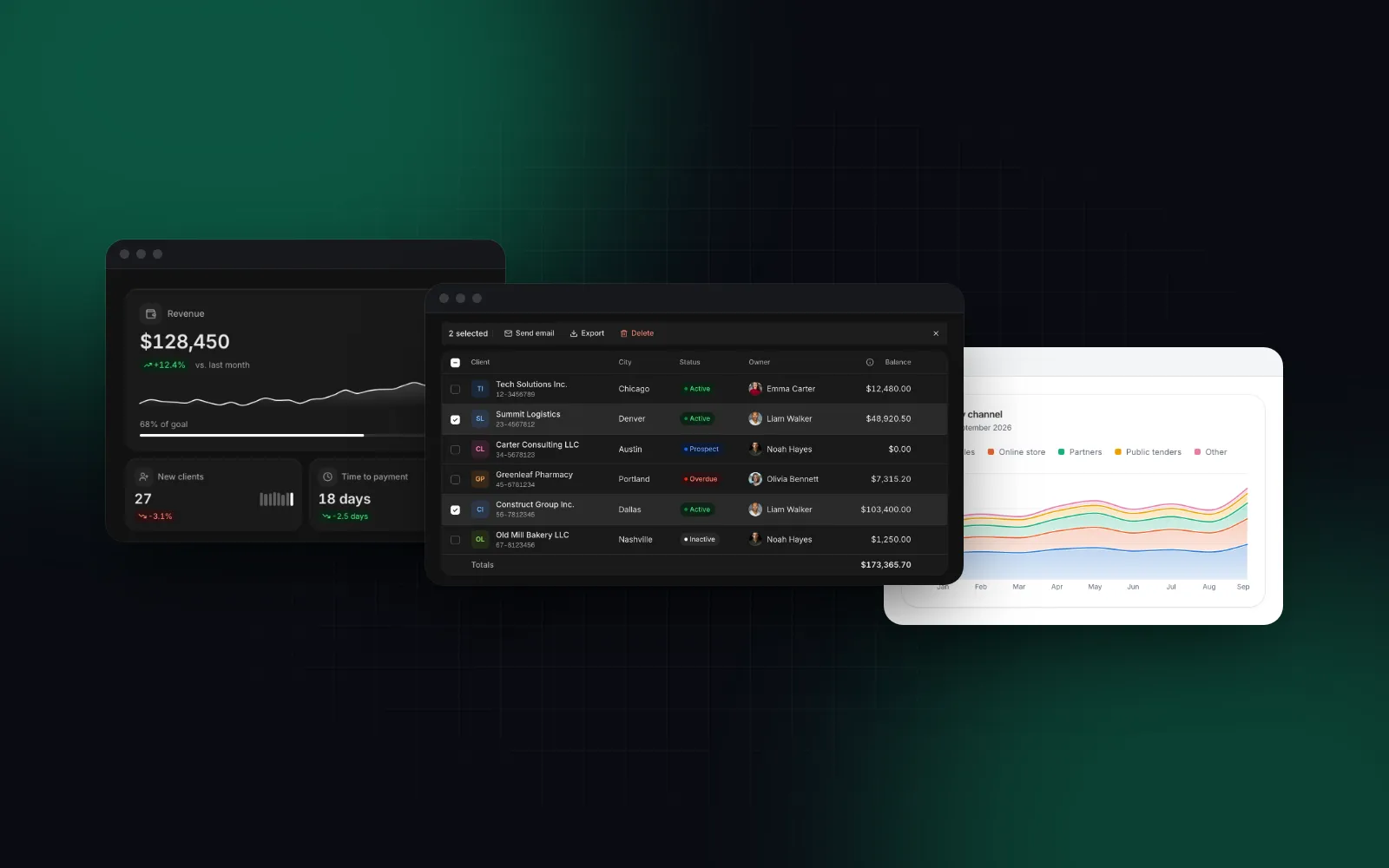
Use it when the number is a dashboard metric with a label, a change pill and maybe a sparkline. The Stat Card has three animation modes:
animation="count"(default): counts up from zero the first time the card scrolls into view (900ms, easing out), then from the previous value on later changes.animation="roll": the Animated Counter odometer, for live numbers. It works forformat="number"andformat="currency"; the card places the currency symbol where the locale puts it. Other formats fall back to count.animation="none": static.
Screen readers hear one sentence with the final value and the change, such as "$128,450, up 12.4% vs. last month". Under reduced motion the number and the chart appear final at once.
$ npx wingo-ui@latest add stat-cardA full dashboard built from these tiles is in the Next.js admin dashboard tutorial.
What are the common animated counter pitfalls?
- Proportional digits. Without tabular figures, 1,111 is narrower than 8,888 and the text shifts on every change. The Animated Counter sets
tabular-numsand also sizes each column to its widest face, for fonts that ship without tabular figures. - Passing a string.
valueis a number. Format it with the props, not withtoLocaleString()before you pass it in. - Huge or unsafe values. The counter caps the scaled value at
Number.MAX_SAFE_INTEGER, because digits past that are noise. Keep money in cents on the server and divide for display. - Separators that fight the locale. If
separatoris passed, it wins overlocale. Leave it out when you want the locale's marks. - A long number on a 360px phone. A
text-7xlvalue with two decimals can overflow a narrow card. Use responsive size classes, or a smallersizeinside cards.
How do I add it to my project?
Run npx wingo-ui@latest add animated-counter. The CLI copies the source into components/ui, adds the motion and ui-config helpers it imports, and installs motion. The Animated Counter is free; the Stat Card is a Pro component (pricing). More single-component deep dives are in the component guides category, and the React form components guide applies the same accessibility and mobile rules to every form control.
FAQ
How do I animate a number change in React?
Keep the number in state and pass it to a component that animates between the old and new value, such as an odometer counter or a count-up tween. Animate transform and opacity only, and start each animation from the value currently on screen so rapid updates do not queue up.
What is the difference between a count-up and an odometer counter?
A count-up tweens the whole number through every value in between and re-renders the text on each frame. An odometer rolls each digit on its own wheel to the new face, so only the digits that changed move and the width stays stable.
How do I make an animated counter accessible?
Hide the moving digits from assistive technology and expose the formatted final value as plain text. Do not put a number that ticks every second inside an aria-live region, or a screen reader will read every update.
Does an animated counter respect prefers-reduced-motion?
Only if it checks the media query. The Wingo UI Animated Counter and NumberFlow both do by default; react-countup's README does not mention it, so you would check the preference yourself.
Is the Wingo UI Animated Counter free?
Yes. The Animated Counter is a free component you install with npx wingo-ui@latest add animated-counter. The Stat Card that uses it for dashboard tiles is a Pro component.
- Animation
- Numbers
- Dashboard
- Accessibility
- React