React Sparkline: Table Cells, KPI Tiles, Delta Chips
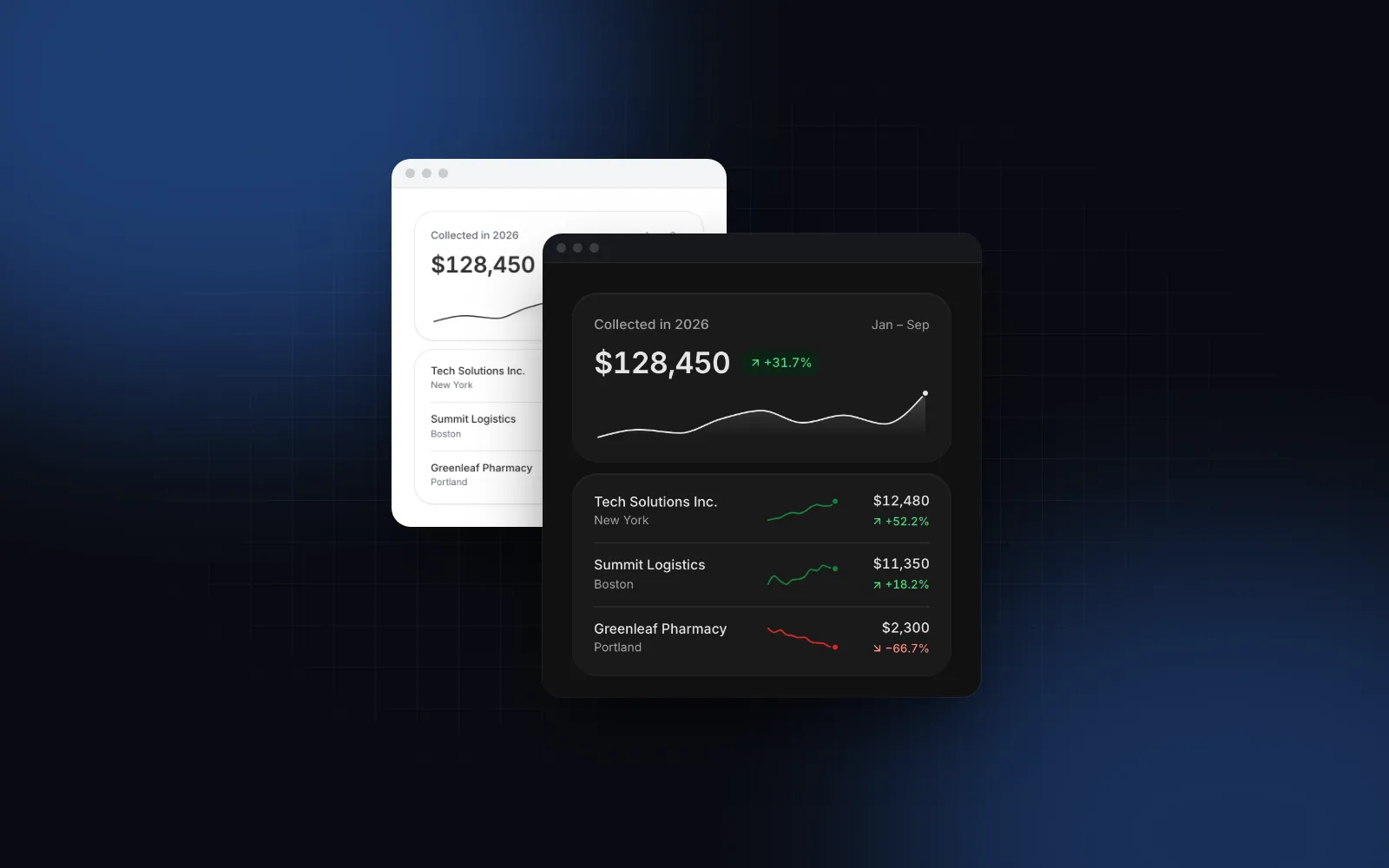
You have a table of clients, products or servers, and each row needs to say "going up" or "going down" without turning into a full chart. A React sparkline does that: a word-sized line next to the number, with no axes, no legend and no grid. The hard parts show up later. Each row scales to its own range, so a flat client looks as busy as a growing one. The delta next to it turns red when costs drop. A screen reader hears nothing, and on a phone the tooltip hides under the finger. This guide covers when to use a sparkline, how to put one in a table cell and in a KPI tile, the delta chip that goes with it, and the pitfalls.
What is a sparkline and when should I use one?
Use a sparkline when the shape of a trend matters more than its exact values. Edward Tufte, who coined the term, defines it as "a small intense, simple, word-sized graphic with typographic resolution" in his notes on sparkline theory and practice (opens in a new tab), and lists sentences, tables, headlines and spreadsheets as places it can live.
In a React app that means three places:
- Table cells and list rows: revenue per client, response time per endpoint, stock per warehouse.
- KPI tiles on a dashboard, under or beside the big number.
- Running text: "Signups rose all quarter" with the line inline at the size of the text.
A sparkline is the wrong tool when the reader needs to read values off an axis, compare two series in one box, or see dates. Use a Line chart for that, and keep the sparkline as the summary that links to it.
Which React sparkline chart libraries are there?
Pick by the stack you already have: react-sparklines for a plain SVG line, the MUI X SparkLineChart if you use MUI, the Wingo UI Sparkline for table cells with a value and a delta. Facts below are from each project's docs, its source and the npm registry, as of October 19, 2026.
If your app already uses MUI, the SparkLineChart is the natural pick: it shares your theme, and you avoid adding a second chart stack. react-sparklines is free and depends only on prop-types, but it has not had a release since 2017, so any tooltip, keyboard or screen reader support is yours to build. The rest of this guide uses the Wingo UI components.
How do I add a React sparkline to a component?
Install it and pass an array of numbers, oldest first. The defaults are a 96 by 28 px line with a dot on the last point, which reads well in a phone row.
The props you will reach for first:
type:"line","area"(a line over a soft fill),"bar"or"win-loss"(equal ticks up for positive values and down for negative ones, for streaks or daily goals).widthandheightin px.width={0}fills the parent, which then needs a width of its own.tonecolors the line (neutral ink by default).trendColorcolors it by direction instead: green when the last value is above the first, red when it is below.invertTrendfor metrics where down is good, such as costs, churn or response time.reference: a dashed hairline at the"first"value, the"average"or"zero".datacan also hold rows with alabelor an ISOdatefor the readout, andnullleaves a gap.
Turn on interactive and the sparkline becomes one tab stop you can read point by point. Hover it, drag across it with a finger, or focus it and use the arrow keys.
$ npx wingo-ui@latest add sparklineHow do I put a sparkline in a table cell?
Give every row the same scale. A sparkline in a table cell scales to its own minimum and maximum by default, so every line fills its box: a client that went from $9,000 to $9,400 looks as steep as one that doubled. Pass shared min and max to every row and a taller line means more revenue. The trade-off: a small client's line sits nearly flat near the bottom. When the shape of each row matters more than its size, keep the per-row scale and say so in the column header.
SparklineWithValue puts the current value and a Trend Badge next to the line, which is what most table cells need. The value defaults to the last point, the badge to the percent change from first to last.
layout="responsive" stacks the value and badge over the line below 640px and puts them in one row from there, so the cell stays narrow on a phone. The badge uses the ghost variant and the sm size by default, colored text with an arrow and no fill, which keeps a column of them quiet. If an interactive sparkline sits in a scrolling table, the readout is portaled and pinned above the line, so the table cannot clip it.
For a table with more than a handful of columns, the Data Table handles sorting and paging, and the responsive table guide shows how its rows turn into cards on a phone.
How do I build a KPI sparkline tile?
Use the Stat Card. It takes the label, the value, the delta and the sparkline values, and lays them out as a dashboard tile: the number counts up the first time it scrolls into view, the delta pill fades in, and the KPI sparkline draws from left to right.
format="duration" takes seconds, so 8100 reads "2 hr, 15 min". With invertTrend the drop in response time shows green while the arrow still points down. StatGroup lays the tiles out two per row on phones and four from 1024px.
The card's built-in sparkline is decorative: the card already speaks one sentence with the value and the change, so the chart is hidden from screen readers and cannot be inspected. When you want the reader to scrub the line, pass the standalone Sparkline through the chart prop:
Press Simulate a new day in the demo below: a new day joins the sparkline and the value and delta count to their new numbers from where they are.
$ npx wingo-ui@latest add stat-cardWhat goes in the delta chip next to a sparkline?
An arrow, a signed number and a color that reflects meaning instead of sign. The line shows the shape, and the chip gives the number people quote. The Trend Badge is that chip on its own, for places where you print the value yourself.
The first prints "+12.4%" in green, the second "−$3,200" in red, and the third a green "−0.8%" because lower churn is good. A few props worth knowing:
format:"percent"(12.4 is +12.4%),"number"or"currency". Values of a million and up go compact ("+$1.3M").flatThreshold(0.05 by default): smaller changes count as no change and turn gray, so +0.01% does not flash green.neutralTonepaints every direction in the neutral ink, for metrics where up is neither good nor bad, like open tickets.animatedis off by default, so a table of fifty badges does not all count up at once. Turn it on for a single hero number.
Screen readers hear the direction in words ("Up 12.4% vs. last month"), never the arrow glyph. Change the sentences through labels when you translate.
$ npx wingo-ui@latest add trend-badgeHow do I make a sparkline accessible?
Say the trend in words. A read-only Sparkline renders with role="img" and an accessible name made from your label plus a summary of the first value, the last value and the change: "Revenue, last 12 weeks: from $8,200 to $12,480, +52.2%". Pass labels.summary to word it in another language.
With interactive on, the sparkline is one tab stop. Left and Right walk the points, Home and End jump to the ends, Page Up and Page Down move by 10, and Escape clears the readout. A polite live region reads each point as you move. On the color side, trendColor is never the only signal: the delta chip prints the sign and an arrow, which matters for readers who cannot tell red from green. Under reduced motion the draw-in and the count-up are skipped and everything appears final.
How does a sparkline work on a phone?
The default 28px height fits a list row, and an interactive sparkline treats the whole row height (8px above and below the drawing) as its touch target. Tap and drag sideways to scrub; a vertical drag still scrolls the page. The readout sits above the line instead of under the finger, and a second tap on the same point or a tap outside clears it. The same rules about touch targets and gestures run through the component guides category and the React form components guide.
What are the common React sparkline pitfalls?
Six mistakes show up once real data arrives.
- A separate scale per row. Every line fills its box and the rows stop comparing. Share
minandmax. - Importing the wrong Sparkline.
stat-card.tsxexports its own smallSparkline(the decorative one inside the card). For tables andinteractive, import from@/components/ui/sparkline. - A series that starts at zero. A percent change from 0 is undefined, so the badge shows "–". Pass
deltayourself or usedeltaFormat="number", which prints last minus first. - Too many bars. Above 120 points,
type="bar"and"win-loss"fall back to a line, with a warning in development. Aggregate daily data to weeks first. width={0}in a parent without a width. A fill-width sparkline measures its parent; inside an auto-width inline element it has nothing to fill. Use a grid cell or aflex-1box.- Green for a cost increase. Set
invertTrendon costs, churn and response time, on both the sparkline and the badge (SparklineWithValuepasses it through).
The dashboard side of this, KPI rows over a filtered table, is built end to end in the Next.js admin dashboard tutorial, and the dashboard library comparison covers which libraries ship KPI cards at all.
How do I add it to my project?
Run npx wingo-ui@latest add sparkline stat-card trend-badge. The CLI copies the source into components/ui, adds the helpers they import (the chart kit, number formatting, tones) and installs motion, d3-shape, d3-scale and lucide-react. All three are Pro components (pricing). If you build with Claude Code or Cursor, the MCP server lets the agent read these props instead of guessing them.
FAQ
What is a sparkline chart?
A sparkline is a tiny line or bar chart without axes, labels or a legend, sized to sit next to a word or a number. Edward Tufte named it and describes it as a word-sized graphic that can go anywhere a word or number can, such as a sentence, a table or a headline.
How do I add a sparkline to a table cell in React?
Render a fixed-size sparkline (for example 88 by 32 px) in the cell, next to the current value and a delta chip. Pass the same min and max to every row so a taller line means a larger number; with a separate scale per row, every line fills its box and the rows stop comparing.
Should a sparkline have a tooltip?
Only when people need exact values. A read-only sparkline with the last value printed beside it is enough for most tables; turn on inspection (interactive in the Wingo UI Sparkline) when readers want to check a week, and make it work with the keyboard and touch too.
How do I make a sparkline accessible?
Give it role="img" and an accessible name that states the trend in words, for example "Revenue, last 12 weeks: from $8,200 to $12,480, +52.2%". Do not rely on green and red alone: print the value and a signed change as text.
Is the Wingo UI Sparkline free?
No. The Sparkline, the Stat Card and the Trend Badge are Pro components. The Number format helper they share is free, and so is the Animated Counter that the Stat Card uses for its roll animation.
- Sparkline
- Charts
- Dashboard
- Accessibility
- React