React Settings Page: Section Nav, Save Bar, Danger Zone
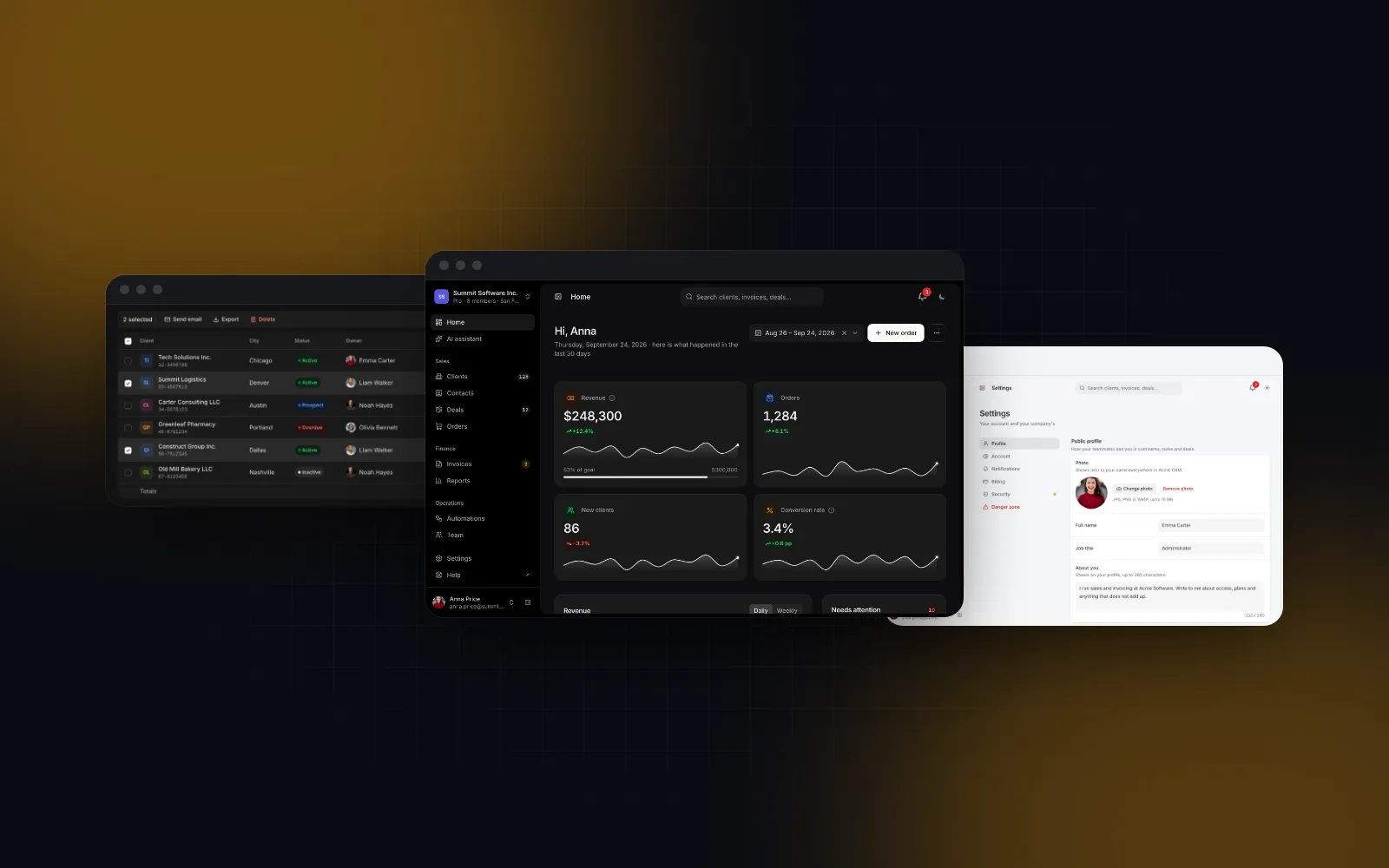
Every app grows a settings screen, and most of them are built last and in a hurry: one long form, a Save button at the bottom that nobody scrolls to, switches that look saved but are not, and a "Delete account" button sitting right next to "Change password". This tutorial builds a React settings page that avoids all of that, step by step: a section nav on desktop, an iOS-style push list on phones, a save bar that appears only when something changed, switches that save on their own, and a danger zone at the end. We build Wingo UI and the code uses our Settings Layout, so we are not neutral; the patterns work with any library.
What does a good account settings page UI need?
A good account settings page UI needs five things: addressable sections, a visible save model, toggles that apply at once, a separate danger zone and a real phone layout. Each one comes from a product people already use:
- Sections, each with its own address. Profile, notifications, billing, security. A left column when there are many, tabs when there are a few. Support links should land on the right section, so the open section belongs in the URL.
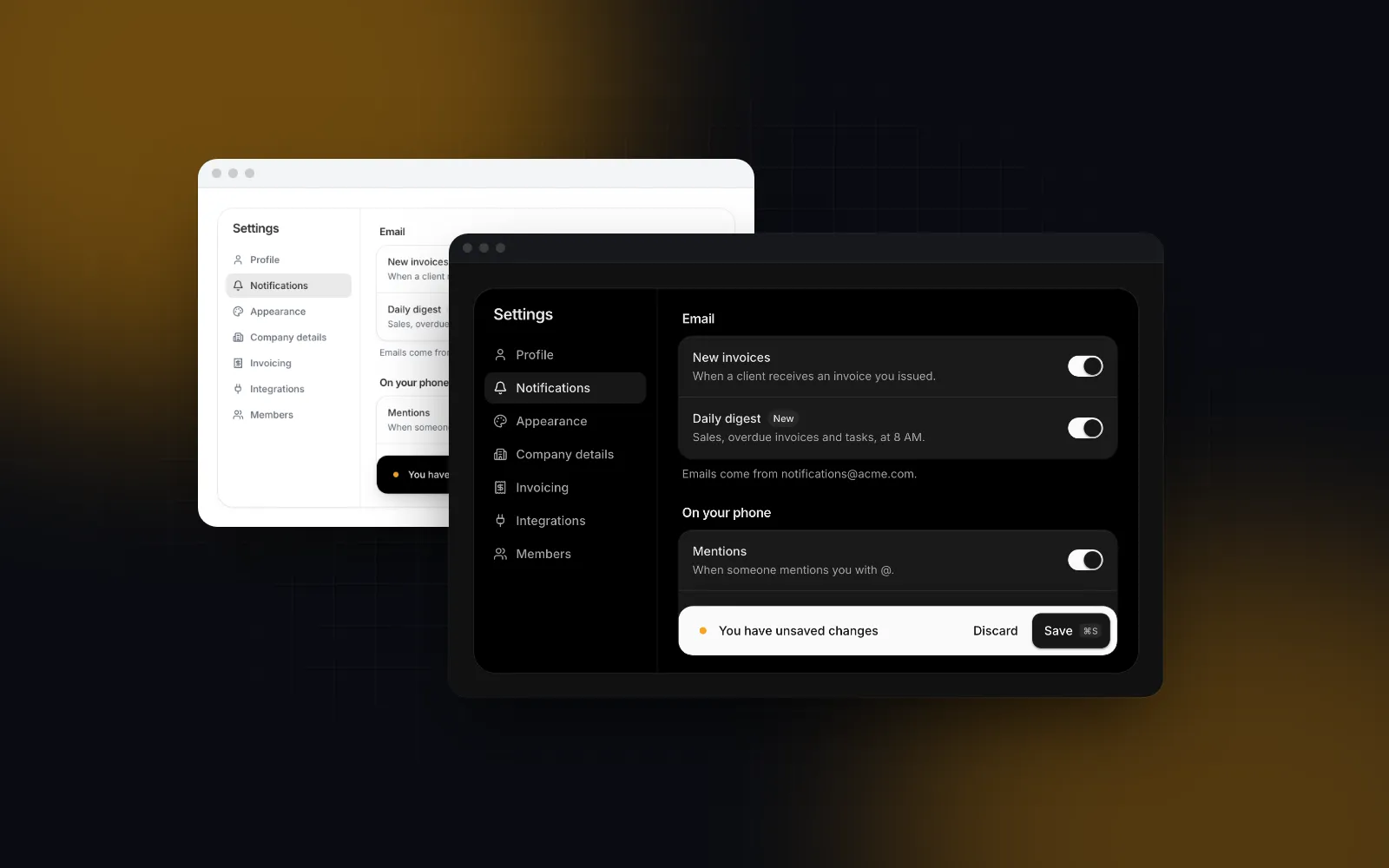
- A save model you can see. Shopify's Save Bar API (opens in a new tab) shows Save and Discard only while a form has unsaved changes, and its
leaveConfirmation()asks the merchant before the app navigates away (as of October 2026). That is the model for text fields. - Toggles that apply at once. A switch that waits for a Save button lies about its state. It should save immediately and flip back if the request fails.
- Destructive actions last. A separate block with a red outline, buttons instead of switches, and a confirmation that takes a deliberate act, like typing a word.
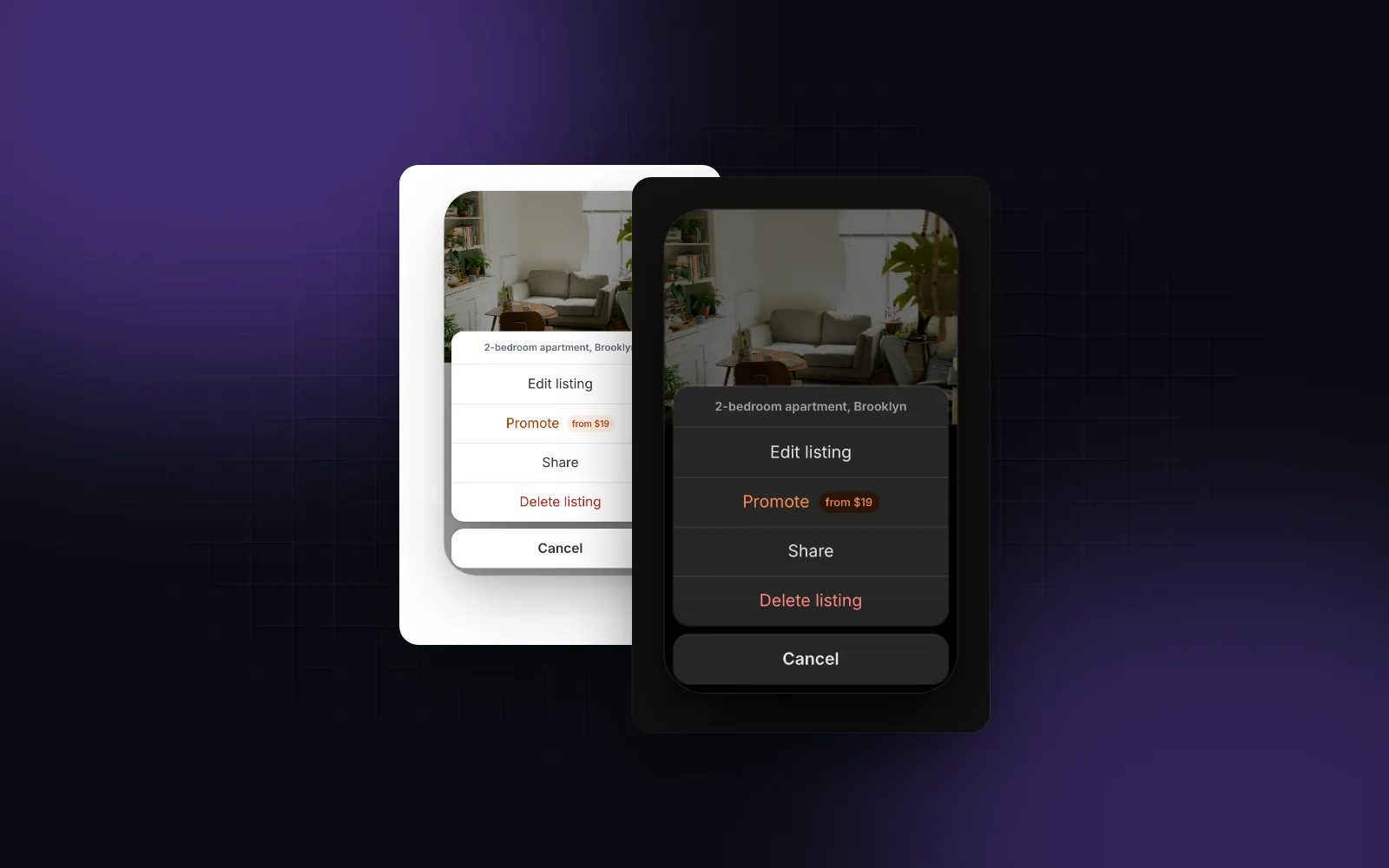
- A phone layout. On a 390px screen a sidebar does not fit. iOS Settings solved this long ago: a grouped list of sections, and tapping one pushes it in.
Many React settings page templates cover the first point and stop there. Untitled UI's settings pages (opens in a new tab), for example, list 21 layouts (profile, password, team, billing, notifications, integrations) and, as of October 2026, the page does not mention unsaved changes, a danger zone or a phone layout. Those are the parts that take the time, so they get the most space here.
How do you set up the settings layout in React?
You set it up with one SettingsLayout that receives your sections as data and owns the nav and the save bar. Install it with the controls:
The Settings Layout component is the frame: it takes a list of sections, renders the nav, swaps the active page with a short fade, and owns the save bar. Each section is an object with an id, a label, an optional icon, group (an eyebrow label in the sidebar and one inset group on phones), description (the subtitle in the phone list), tone (the phone icon tile) and content. Inside a section you compose SettingsSection (a titled group of rows) and SettingsRow (a label, a description and one control on the right). A row wires its label to the control for you, so tapping the label text flips a switch.
Here is the client view with three sections, a save bar for the text fields and switches that save on their own:
Three details carry most of the weight. dirty compares the draft to the last saved values, so typing a name and then deleting the change hides the bar again. onSave returns a promise: while it runs the button spins, a resolved promise flashes "Changes saved" and slides the bar away, and a thrown error keeps the bar, shakes it and shows your message. onDiscard puts the saved values back, and the layout also calls it when someone confirms leaving a section with unsaved changes.
$ npx wingo-ui@latest add settings-layoutHow do you put each section in the URL in a Next.js settings page?
Read the section from the query string in the server page and write it back with history.replaceState on the client. In Next.js 16, searchParams is a promise, so await it:
The view above updates the address with window.history.replaceState in onValueChange. Next.js supports the native History API (opens in a new tab) and keeps usePathname and useSearchParams in sync with it, and the call rewrites the address without a navigation, so switching sections never refetches the settings or reruns the server page. Building the URL from window.location.href keeps any other query params, which a bare ?section= string would drop. An unknown id in the URL falls back to the first enabled section.
There is one phone trade-off to know about. A query parameter selects the section, but on a phone the layout still opens on the grouped list, the way iOS Settings does. If deep links must open the section itself on phones, give each section an href and make it a real route (/settings/notifications) with value controlled from the pathname: the layout opens a routed section already pushed. Sections with an href render children instead of content, and guarding unsaved changes across routes becomes your router's job.
How should switches save on a settings page?
Immediately, with a rollback. The Switch treats a promise from onCheckedChange as a save: it flips at once, shows a small spinner in the thumb, ignores clicks until the promise settles, and flips back if it rejects. That is why savePreference in the view throws on a failed response and only updates saved after success. checked stays bound to the saved value, so while the request runs the switch shows the pending value, and afterwards it follows checked again and never claims a state the server does not have.
The error message is the part that trips people up. A Switch with its own label shows its errorText under the label on a failed save, but inside a SettingsRow the switch has no label of its own: the row supplies it. A bare switch still shakes, flips back and announces errorText to screen readers, yet nothing visible says why. That is why the view keeps a prefError map and passes it to the row's error prop, which renders the message under the description and links it to the switch with aria-describedby. Clear the entry at the start of each attempt so a retry that succeeds removes the message.
Keeping switches out of dirty matters. If a toggle also raised the save bar, people would see "You have unsaved changes" for something that already saved, and the next Discard would appear to undo it. One page, two save models, and each control makes it obvious which one it uses.
$ npx wingo-ui@latest add switchThe Switch is free. Inside a SettingsRow the bare track gets a 44px hit area on touch screens, the row's label is wired to it so tapping "Daily digest" flips it too, and a vertical swipe across the track still scrolls the page.
How do you build a danger zone that cannot be clicked by accident?
Put it last, mark it, and make the final step deliberate. SettingsSection takes danger for a red ring and title, SettingsRow takes danger for a red label, and the section item takes danger: true so the phone list shows it in red too. The confirmation is an Alert Dialog with a typed word:
Focus lands on Cancel when the dialog opens, clicking the dimmed page does nothing, and the action stays disabled until the word matches. onConfirm returns a promise, so the button spins while the request runs and a thrown error shakes the card and shows the message above the buttons instead of closing it. Reset typed when the dialog closes, or the next open starts already armed.
How does the settings page work on a phone?
Settings Layout measures its own width, and below 768px it switches the nav. The default mobileNav="list" is the iOS pattern: the page title becomes a large title over a grouped list, each section is a row with its icon tile and description, and tapping a row pushes the section in. The back button, Escape or a swipe to the right takes you back. Two alternatives exist for shorter pages: "tabs" (sticky scrolling pill tabs) and "select" (a select that opens a bottom sheet with the same groups).
The save bar changes too. On a phone it always pins to the bottom, sits above the safe area and above a bottom tab bar that publishes its height as --bottom-bar-offset, lifts over the on-screen keyboard, and the layout pads the content so the bar never covers the last row. If you have fought position: fixed on iOS before, our post on the iOS Safari keyboard and fixed bars explains why that last part needs care, and the bottom navigation bar guide covers the tab bar side of --bottom-bar-offset.
On a desktop, the save button shows a key hint for saveShortcut (default mod+s: Cmd+S on a Mac, Ctrl+S elsewhere), hidden on touch screens. The shortcut is bound only while there is something to save, even inside a text field, so the browser's own Save Page still works the rest of the time. Pass saveShortcut="" to turn it off.
What if you only need the phone list of settings?
Use the List component when a whole layout is more than you need, such as a "Me" tab in a phone-first app with a few rows that link to pages, show a current value or toggle something. It draws the iOS grouped panel on its own:
Rows with an href end in a chevron, value shows the current choice on the right, and trailing takes any control. When a row has both an href and a Switch in trailing, the row gets a stretched pressable instead of a wrapping button, so the switch never nests inside a link. The full Settings Page block uses the same List for its signed-in devices.
Is there a complete React settings page template?
Yes, if you would rather start from the finished screen. The Settings Page block is built on Settings Layout and ships six sections: profile (photo upload with crop, phone, time zone), account (email change with a 6-digit code, workspace address check), notifications (a switch per event and channel, quiet hours, digest), billing (plan, usage, invoices that turn into cards on phones), security (password, a three-step two-factor setup with a QR code and backup codes, sessions) and a danger zone with export and a typed delete. Its section ids are Romanian keys behind English labels: profil, cont, notificari, facturare, securitate, pericol.
onSave covers the text fields of the open section and onPreferenceChange the switches that save on their own, with the same rollback as above (here a rejection flips the switch back with a toast). Both handlers must throw on a failed response: fetch only rejects on a network error, so a 500 that you do not turn into a throw counts as a successful save. The preference keys are paths such as notificari.quietHours or securitate.loginAlerts. Every string is a labels prop and every piece of data has its own prop (profile, billing, sessions), so you replace the sample one piece at a time. Our Next.js admin dashboard tutorial wires this block to Server Actions inside a full back office, and the rest of the build category covers other complete screens.
$ npx wingo-ui@latest add settings-pageWhat should you do next?
Start with the layout and one section, wire its save, then add the switches and the danger zone. The Switch and Input are free, while Settings Layout, List, Alert Dialog and the Settings Page block are part of Wingo UI Pro (pricing). Install the layout with npx wingo-ui@latest add settings-layout and build your first section from the code above.
FAQ
Should a settings page save automatically or use a Save button?
Use both, each for its own kind of control. Switches and other single-choice toggles save the moment they change and flip back if the request fails, while text fields collect into a draft that a save bar commits, because a half-typed name should never reach the server.
How do I warn users about unsaved changes on a settings page?
Track a dirty flag by comparing the draft to the last saved values, show a save bar while it is true, ask before switching sections, and register a beforeunload handler so closing the tab warns too. Settings Layout does all three from its dirty, confirmLeave and warnBeforeUnload props.
How should a settings page look on mobile?
Turn the section nav into a grouped list, like iOS Settings, where tapping a row pushes that section in with a back button and swipe back. Pin the save bar above the tab bar and the safe area so it never covers the last row or hides behind the on-screen keyboard.
What belongs in a settings danger zone?
Actions that cannot be undone, such as deleting the account, transferring ownership or removing a workspace. Put the zone last, give it a red outline and title, use a button instead of a switch, and ask for a typed confirmation before running the action.
Is there a ready-made React settings page template?
Wingo UI's Settings Page block ships profile, account, notifications, billing, security and danger zone sections with a save bar and phone layout, and installs with npx wingo-ui@latest add settings-page. It is part of Wingo UI Pro; the Switch and Input it uses are free.
- Settings
- React
- Next.js
- Forms
- Mobile UI