React PDF Viewer: Search, Highlights, Real Annotations
You have a contract, an invoice or a research paper as a PDF, and your app has to show it. An <iframe> hands the job to the browser's built-in viewer, which you cannot style, translate or listen to, and it looks different in every browser. A React PDF viewer gives you that control back: your toolbar, your search, your events. The hard parts come after the first page renders: keeping a 200-page file fast, keeping text sharp at 300%, making it usable on a phone, and letting people highlight passages without losing them when the file leaves your app. This guide covers those parts with the Wingo UI PDF Viewer. We build Wingo UI, so we are not neutral; outside facts link to their sources.
What should a React PDF viewer handle?
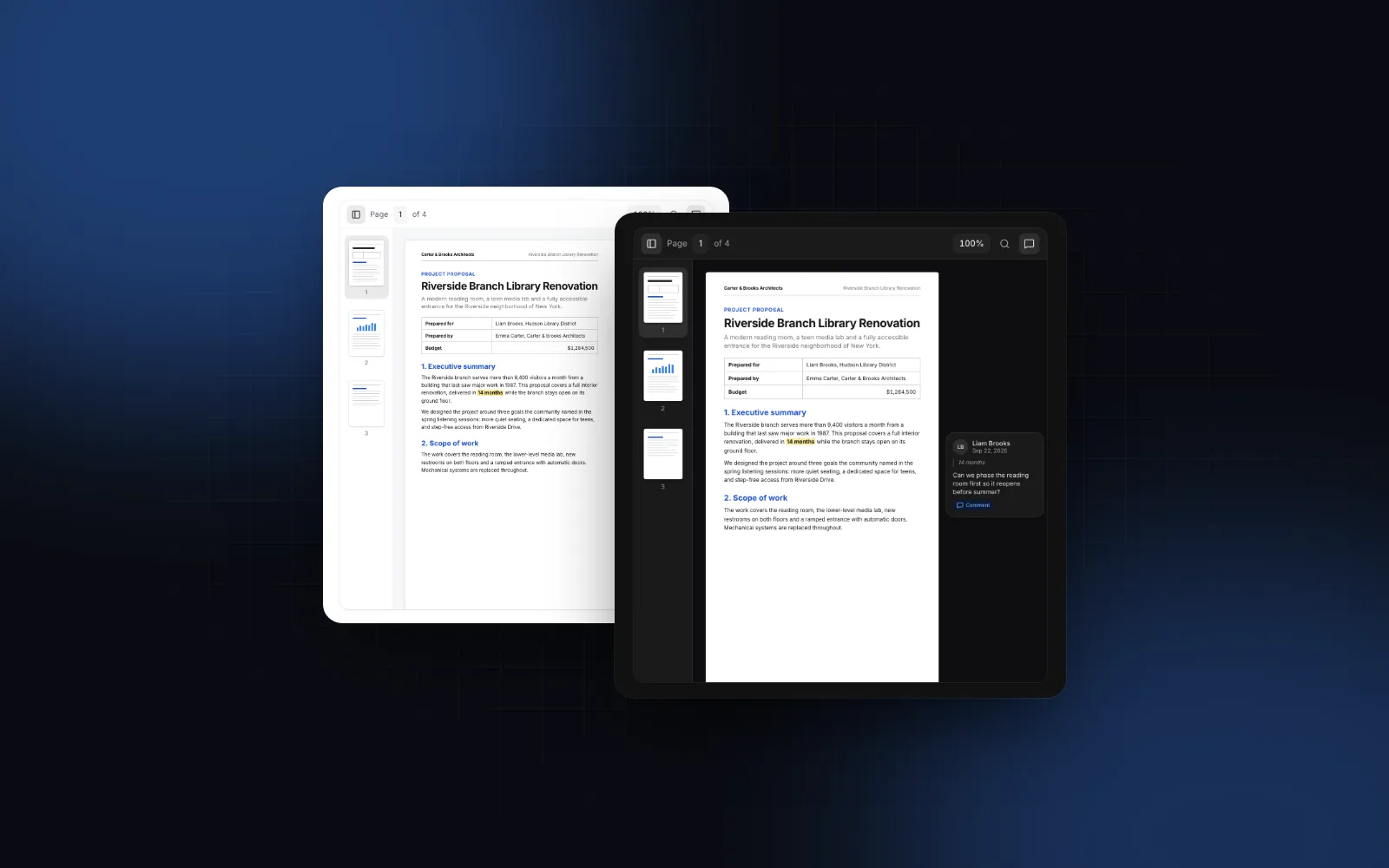
A viewer people work in needs seven things, and only the first page render is easy with any library:
- Virtualized pages. Only the pages on screen render, so a long file opens as fast as a short one.
- Sharp zoom. At high zoom a single canvas per page gets huge, so zoomed pages paint in tiles.
- Search with every hit marked, a "2 of 5" counter and Enter to step through results.
- Thumbnails to jump through the file, and page rotation that the download keeps.
- Selectable text, so people can copy a clause instead of retyping it.
- A phone layout: a swipe scrolls, a long press selects, panels slide over the page.
- Highlights and notes, if people review the document, stored where your app can read them.
react-pdf, the most common starting point, leaves point 7 to you entirely.
Which React PDF viewer libraries should I compare?
Compare react-pdf, react-pdf-highlighter, react-pdf-viewer, EmbedPDF and the Wingo UI PDF Viewer. Each sits on one of two engines: Mozilla's pdf.js (opens in a new tab) (JavaScript, Apache 2.0) or Google's PDFium (opens in a new tab) (C++, the engine inside Chromium) compiled to WebAssembly. Facts are from each project's GitHub README and npm listing, as of October 2026.
If you want a react pdf viewer free to use in a commercial app and you will build the UI yourself, react-pdf is the well-trodden path. EmbedPDF is the better pick when you want annotations without paying for a component. Pick react-pdf-highlighter when highlights only ever live in your database. Skip react-pdf-viewer for new projects: it is archived. The rest of this guide covers the Wingo UI viewer.
Why build on PDFium in React?
Because PDFium can both read and write a PDF. The viewer loads the PDFium binary (about 4 MB, fetched once and cached) into a web worker, so parsing and painting stay off the main thread, and one worker is shared by every viewer on the page. The same engine that renders the pages also reads the annotations already in the file and writes new ones on export. Running PDFium in React this way lets highlights round-trip through the file. Rendering happens in the browser, and a PDF someone drops onto the viewer opens from memory without an upload.
The CLI copies components/ui/pdf-viewer.tsx, adds the Button, Popover, Tooltip and Dropdown Menu plus the shared hooks it uses, and installs the @embedpdf/* packages, pdf-lib (for writing rotations into downloads) and lucide-react.
src takes a same-origin URL, a CORS-enabled URL or a blob: URL. With no src, the viewer shows an empty state that asks for a file, and onPdfUpload hands you the File someone picked or dropped. Pair it with the File Upload when the PDF should also go to your server; the React file upload guide covers that side.
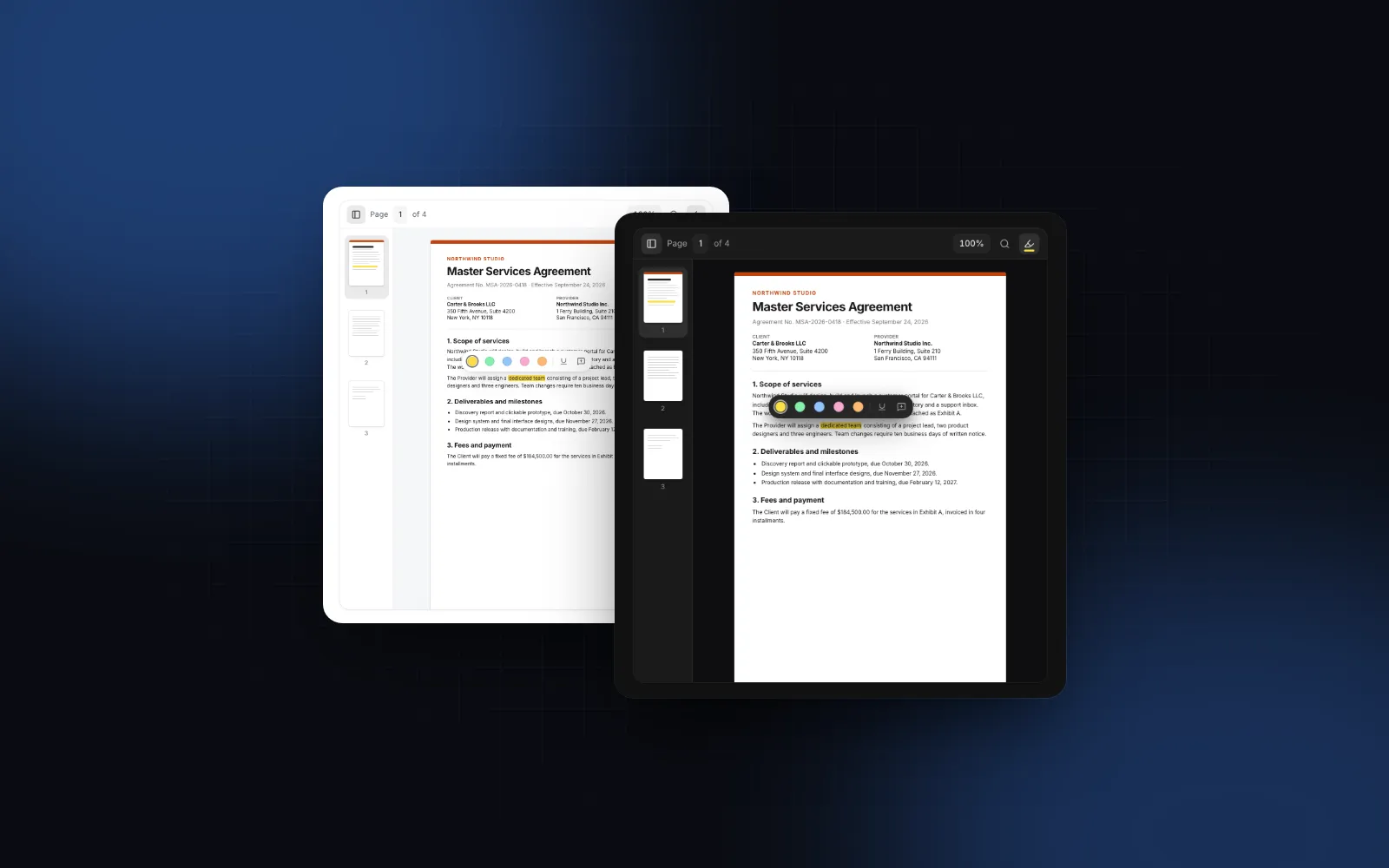
Scroll the contract, type a page number, open search and try a word like "fee":
$ npx wingo-ui@latest add pdf-viewerWhat props does the PDF viewer need?
Only src is needed, and height is the second one to set. The viewer fills the height you give it (640 by default, a number for px or any CSS length such as "100%" to fill a pane). After that, these are the props you will reach for:
defaultZoom:"automatic"(the default) fits the width up to 100%, so a page never opens blown up on a large screen or cut off on a phone."fit-page","fit-width"or a number also work.zoomLevelssets the steps of the zoom menu.variant(surface,outline,plain) andradiusfor the frame.showToolbar,showThumbnails,showSearch,showRotateControls,showDownload,showUploadto trim the chrome.toolbarActionsfor your own buttons before the ⋯ menu: Share, Sign, Approve.onActivePageChangeandonDocumentLoadSuccess(numPages)to sync a "page 3 of 12" elsewhere in your UI.labelsfor every string, merged overDEFAULT_PDF_VIEWER_LABELS, andlocalefor the dates in the highlights panel.
renderPageOverlay draws on top of every page and rotates with it, for citations or bounding boxes from a document extraction model; ref.scrollToPageArea(page, { top, left, width, height }) in percent of the page scrolls to one.
How do I add a React PDF viewer highlight feature?
You already have it: highlighting is on by default, and you control the highlights array. Select text and a bar opens with five colors, underline, strikethrough, Add note and Copy. Ctrl+Shift+H (⇧⌘H on a Mac) highlights the selection, or toggles the Highlighter, a mode where whatever you select is marked as soon as you let go. Click a highlight to edit its color or note, and Ctrl+Z / ⌘Z undoes.
Each highlight is plain JSON: { id, page, rects, text, color, type, note, author, createdAt }, with rects in PDF points from the top-left of the unrotated page. Page coordinates mean a stored highlight lines up at any zoom and rotation. Control the list like any input:
For one row per highlight, use onHighlightAdd, onHighlightChange and onHighlightRemove. Only onHighlightsChange fires for annotations imported from the file, which join the list once per document, merged by id.
$ npx wingo-ui@latest add pdf-viewerSet highlighting={false} for a read-only review: highlights you pass (or that the file carries) still show and open with their notes, but nothing can change. The Highlights panel lists every highlight with its page, note, author and date, filtered by color; showHighlightsPanel={false} hides it when your app shows its own list.
How do I export PDF annotations from React?
Call exportPdf() on the ref. It returns a Blob of the file with every highlight written as a real markup annotation (/Highlight, /Underline or /StrikeOut) with its note and author, plus any page rotations. The export works on a copy. Acrobat, Preview and Chrome show the annotations, and reopening the file in the viewer loads them back as editable highlights. To export PDF annotations without a download button, send that Blob to your server, as below.
With importHighlights on (the default), markup annotations already in the file become highlights and are replaced by your list on export, so one deleted in the viewer is gone from the file too. Readers get the same export from the ⋯ menu.
How does the PDF viewer work on a phone?
The layout follows the viewer's own width, so a narrow viewer in a desktop side panel behaves like a phone too. Below 520px the thumbnail sidebar starts closed and slides over the pages. Below 600px the rotate buttons move into the ⋯ menu, and below 440px the Highlights toggle does too. The Highlights panel sits beside the pages from 900px and slides over them below.
On touch, a swipe scrolls. A long press selects the word under your finger, and dragging extends the selection word by word. The color bar pins to the bottom of the viewer (or the top, when the selection is down there), and highlight details open as a bottom sheet. Toolbar and selection bar buttons grow to 44px on coarse pointers. The mobile-first React components guide explains these rules.
Is the PDF viewer accessible?
Yes, it works with a keyboard and a screen reader. The toolbar is a role="toolbar" with labeled buttons, the page field takes Enter to jump, Up and Down to step and Escape to cancel, and the search result count is announced through a live region. The thumbnails are a multi-select listbox: Up and Down move, Home and End jump, Shift extends, Space toggles. In the Highlights panel, Up and Down move and Delete removes. Ctrl+F / ⌘F opens search only while focus is inside the viewer, so the browser's own find still works on the rest of the page. Keep in mind that a PDF is only as accessible as its text layer: a scanned file without OCR has no text to search, select or highlight.
What are the common pitfalls?
- CORS. A PDF on another domain needs CORS headers, or the fetch fails and the viewer shows its error state. Proxy it through your own route otherwise.
- A strict Content Security Policy. WebAssembly needs
'wasm-unsafe-eval'inscript-src. The binary loads from jsDelivr by default; to self-host it, copynode_modules/@embedpdf/pdfium/dist/pdfium.wasmintopublic/and passwasmUrl="/pdfium.wasm". - No height. The viewer does not grow with its pages. Give it
heightor a parent with a fixed height andheight="100%". - Word files. PDFium reads PDF only. For .docx, use the DOCX Viewer; the React DOCX viewer guide covers when to convert a Word file to PDF instead.
How do I add it to my project?
Run npx wingo-ui@latest add pdf-viewer. It is a Pro component (pricing), and its docs page has more examples, from a read-only review with a Sign button to citations on an invoice. For spreadsheets, the React Excel viewer guide covers .xlsx files, and the component guides category has more single-component deep dives.
FAQ
What is the best free React PDF viewer?
For a free, MIT-licensed option, react-pdf by Wojciech Maj renders pages, thumbnails and an outline on top of pdf.js, and you build the toolbar, search and highlights yourself. EmbedPDF is an open-source viewer on a PDFium fork that drops into a page. The Wingo UI PDF Viewer is a Pro component built on the EmbedPDF plugins, with a finished toolbar, a highlights panel and highlights kept as JSON in your state.
How do I highlight text in a PDF in React?
You need the text positions on the page, a way to turn a selection into rectangles in PDF points, and a layer that draws them at every zoom and rotation. The PDF Viewer does this for you: select text, pick a color in the bar beside the selection, and the highlight lands in the highlights array you pass with onHighlightsChange.
Can I save highlights into the PDF file itself?
Yes, if they are written as markup annotations. The PDF Viewer's ref.exportPdf() returns a Blob with every highlight as a /Highlight, /Underline or /StrikeOut annotation, with its note and author, so other PDF readers show them and the viewer loads them back when the file is reopened.
What is the difference between pdf.js and PDFium?
pdf.js is Mozilla's PDF renderer written in JavaScript, licensed Apache 2.0. PDFium is the C++ PDF engine that ships inside Chromium; compiled to WebAssembly, it runs in a web worker in the browser. Both render in the browser, so the file does not have to go to a server.
Is the Wingo UI PDF Viewer free?
No. The PDF Viewer is a Pro component. The Button, Tooltip, Popover and Dropdown Menu it is built from are free.
- Document viewer
- Annotations
- React
- Next.js