React DOCX Viewer: Real Pages, Comments, Tracked Changes
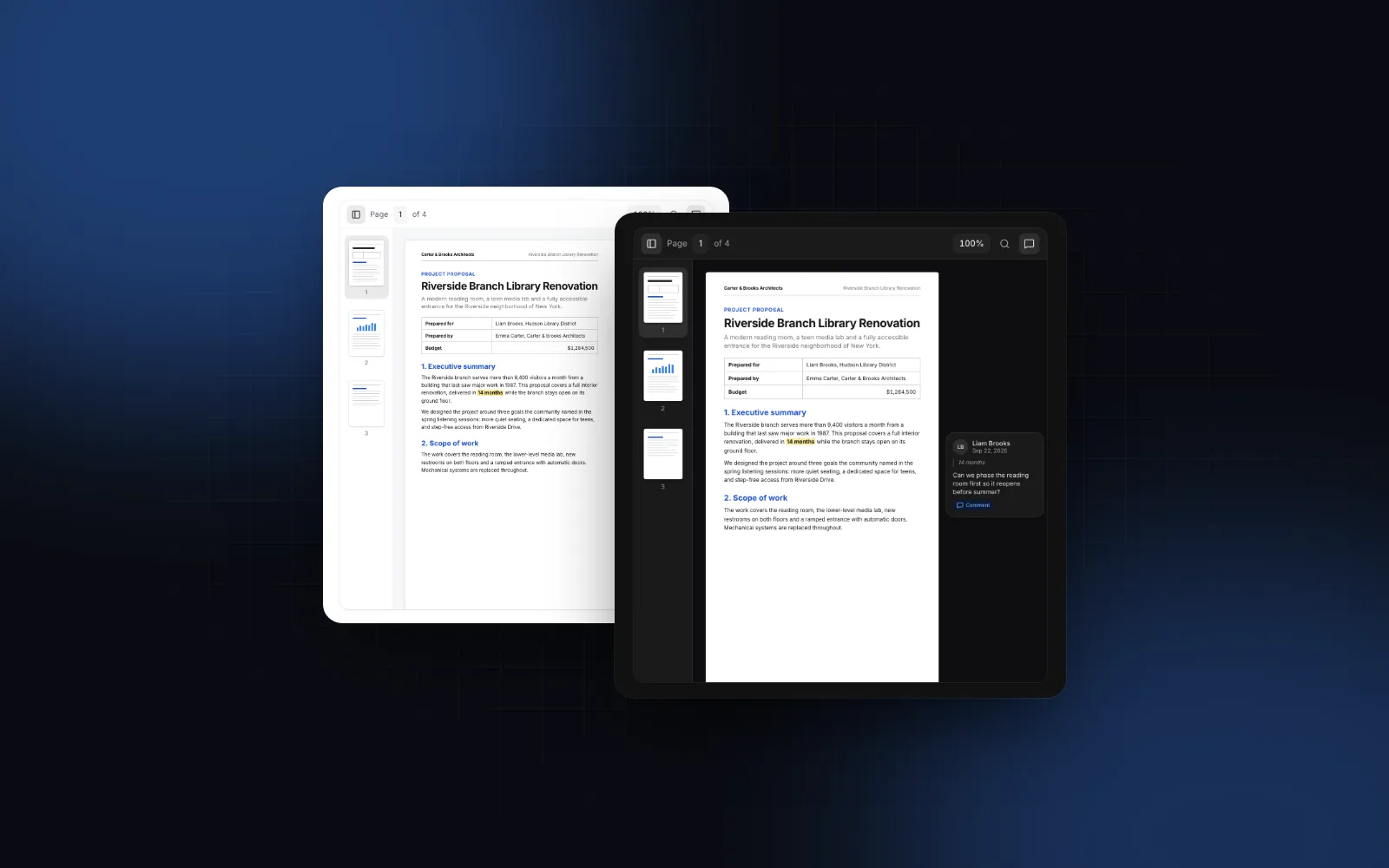
Someone uploads a proposal as a Word file and your app needs to show it the way it looks in Word: pages, the letterhead in the header, page numbers in the footer, and the reviewer's comments. A download link or a dump of plain text loses all of that. A React DOCX viewer has to rebuild the pages from the file's XML, and the hard parts are page breaks, fields like page numbers, and the review markup. The examples use the DOCX Viewer from Wingo UI, the library we build, so we are not neutral; outside facts link to their sources.
What are the ways to view a Word document in React?
To view a Word document in React you can embed Microsoft's online viewer, parse the file in the browser with Mammoth or docx-preview, license a commercial SDK, or convert the file to PDF first. The five rows below differ in where the file goes and how close the result looks to Word. Facts below are from each project's own page, checked October 16, 2026.
The iframe row is the one that surprises teams later: Microsoft's service fetches the file itself, so a private file behind your login cannot use that route. For private documents the in-browser parsers are the realistic options. Mammoth is the better pick when you want the text in your own typography (a help center article, a blog import) and do not care about the page.
For a quick React DOCX preview, docx-preview alone gets you rendered HTML in one call. Set the options yourself: by default it ignores the page breaks Word last rendered (ignoreLastRenderedPageBreak: true) and skips comments and changes.
The DOCX Viewer runs docx-preview with those flags and adds what the library leaves out. Its README says realtime page breaking is not implemented, so the viewer measures each page and splits one that runs long. It also fills in PAGE and NUMPAGES fields, which docx-preview drops along with every other field run, so "Page 3 of 12" in a footer survives, and adds page thumbnails, a heading outline, search and cards for comments and changes.
How do I add a React DOCX viewer to a Next.js app?
Install the component with the CLI and pass it a URL. The CLI brings docx-preview and the Wingo UI parts it builds on, such as the button, dropdown menu, popover and tooltip:
The component is a client component, so a server page can render it directly. src takes a same-origin URL, a CORS-enabled URL or a blob: URL:
docx-preview and JSZip (about 190 KB) load with the first viewer on the page, not with your route bundle, so a page that only sometimes shows a document does not pay for the parser up front. defaultZoom="automatic" (the default) fits the page width up to 100%, so a page never opens blown up on a large monitor or cut off on a phone.
For a file the user picks on their own device, you do not need an upload. The toolbar's ⋯ menu opens another .docx, a file dropped onto the viewer opens too, and onDocxUpload hands you the File if you want to store it. Turn that off with showUpload={false} on read-only screens.
Can a React DOCX viewer show comments and tracked changes?
Yes: the DOCX Viewer shows comments by default and tracked changes when you switch them on. Comments (defaultCommentsVisible, true) sit as cards in a column beside the pages, with the commented passage highlighted. Tracked changes are off by default (defaultChangesVisible={false}), so the document reads as if every change were accepted; switch them on and insertions are underlined in green, removals struck through in red, each with its author and date.
Try it below: the sample proposal opens with tracked changes visible. Click a comment card or the highlighted text to pick it, then use the toolbar switches to hide comments or changes.
$ npx wingo-ui@latest add docx-vieweronAnnotationClick reports the comment or change someone picks. onDocumentLoadSuccess hands you all of them up front (annotations, each with kind, author, date, text, anchorText and pageNumber), which is enough to build a review checklist next to the document.
Build a table of contents from the outline
The same callback returns outline, the document's headings with their level and page. Combine it with the ref's scrollToHeading and onActivePageChange, and you get a section list that jumps through the document and marks the section in view:
Two more props are worth knowing. toolbarActions puts your own buttons at the end of the toolbar (Approve, Share, Send for signature), and renderPageOverlay draws on top of every page with the page size and scale at the current zoom, so a stamp or a signature box placed in percent stays aligned while people zoom.
How does a DOCX viewer work on a phone?
The DOCX Viewer adapts to its own width, measured with a ResizeObserver, so it behaves the same in a narrow side pane as on a phone. Below 720px of width the comments, changes and dark pages switches and Download move into the ⋯ menu. Below 520px the thumbnails sidebar starts closed and slides over the pages when opened, and below 440px the zoom steps fold into the menu too. When the page leaves no room for the comment column, comments become markers on the page edge that open the card in a popover, which is a bottom sheet on phones. Pinch zooms around your fingers, and Ctrl or ⌘ plus scroll does the same with a mouse.
When do you need a React DOCX editor instead?
You need a React DOCX editor when people change the text and must hand back a Word file. A viewer is enough when they read, approve, or discuss the file somewhere else. The DOCX Editor opens the same kind of file into real pages and saves a .docx:
onSave shows a Save button and binds Ctrl or ⌘+S; returning a promise shows Saving, then Saved or the error. defaultSuggesting opens in Suggesting mode, so every edit becomes a tracked change under author, and reviewers accept or reject them from the change cards. Install it with npx wingo-ui@latest add docx-editor; it builds on ProseMirror and the @eigenpal/docx-editor-core layout engine (Apache-2.0), loaded on demand like the viewer's parser.
Select some text below and add a comment, or switch the mode menu to Suggesting and type: the edit appears as a tracked change you can accept or reject.
$ npx wingo-ui@latest add docx-editorOne limit to plan around: headers and footers are not editable in the editor. Their original parts go back into the saved file untouched, which keeps letterheads and page number fields intact, but a change to the footer text still needs Word.
When should you convert the Word file to PDF instead?
Convert to PDF when every page must break in the same place for every reader, because a browser rebuilds a .docx layout instead of reading it from the file. A .docx file does not store where Word breaks most pages; Word computes that from the fonts installed and its own layout engine. docx-preview breaks pages at explicit page breaks, section changes and the breaks Word last rendered, and the DOCX Viewer splits a page that still runs long at its paragraphs and table rows. That is close, but a missing font or a floating text box can still move a line to the next page.
Convert to PDF when that difference matters:
- Signed or legal documents, where page 4 must be page 4 for everyone.
- Print and archives, where the file is final and nobody will edit it again.
- Complex layouts: floating shapes, text boxes and multi-column designs that HTML lays out differently.
- Legacy .doc files, which the in-browser parsers do not read.
LibreOffice converts on the server from the command line (start parameters (opens in a new tab)):
Then show the result in the PDF Viewer, which has a similar toolbar, thumbnails and search, plus highlights with notes that export as real PDF annotations (our React PDF viewer guide walks through it). A common setup keeps both: the .docx in the DOCX Viewer while a document is in review, the PDF once it is signed. Slide decks follow the same logic with the PPTX Viewer.
What breaks when you render DOCX files in the browser?
Plan for four things before launch: cross-origin files, missing fonts, very long documents and unchecked uploads.
- CORS. A file on another origin needs
Access-Control-Allow-Origin, or fetch it on your server and serve it from your domain. For a file in memory,URL.createObjectURL(file)gives you ablob:URL to pass assrc. - Fonts. If the device lacks Calibri, text falls back to a close generic font and lines wrap a little differently. The viewer keeps fonts embedded in the file. The editor has a
webFontsprop that loads metric-compatible fonts (Carlito for Calibri, Caladea for Cambria) from Google Fonts; it is off by default, so there are no third-party requests unless you opt in. - Long documents. Past 24 pages, the viewer sets
content-visibility: autoon each page, so the browser skips layout and paint for pages off screen. Search still covers the whole file, because it indexes the text, not what is painted. - Uploads. If people send you the file first, validate the type and size before you store it; our React file upload guide covers that flow, and the File Upload component handles picking and progress.
What is the next step?
Install the viewer with npx wingo-ui@latest add docx-viewer and point src at one of your own Word files, ideally one with tables, a header and a few comments, since that is where renderers differ. The DOCX Viewer, DOCX Editor and PDF Viewer are part of Wingo UI Pro; see pricing for what is included. Spreadsheets raise the same questions, covered in the React Excel viewer guide. For more, browse the component guides or start with the React form components guide, the pillar of this category.
FAQ
How do I display a .docx file in React without a server?
Parse it in the browser with a library such as docx-preview, which reads the zip and renders the document as HTML. The DOCX Viewer wraps that in a component: pass a same-origin, CORS-enabled or blob: URL as src and the file never leaves the device.
Can a React DOCX viewer show comments and tracked changes?
docx-preview can render both, but its README marks them experimental and off by default. The DOCX Viewer turns both on: comments show as cards beside the pages by default, and tracked changes (insertions in green, removals in red) appear when you flip their toolbar switch or set defaultChangesVisible.
Why do Word page breaks look different in the browser?
A .docx file does not store where Word breaks most pages; Word computes that from fonts and layout at render time. docx-preview only breaks at explicit page breaks, section changes and the breaks Word last rendered, so the viewer also splits any page that runs long at its paragraphs and table rows.
Can React render legacy .doc files?
Not in the browser with these tools. The DOCX Viewer and docx-preview read the .docx (Office Open XML) format only; convert .doc files on the server first, for example with LibreOffice.
Should I convert Word documents to PDF for viewing?
Convert when the layout has to match exactly on every device: signed or legal documents, print, archives, or files with complex floating layouts. Keep the .docx when people will comment, review or edit it, since a PDF loses the editable structure.
- DOCX
- Word
- Document viewer
- React
- Next.js