React Excel Viewer: Show .xlsx Files With Their Real Styles
Someone uploads a quarterly report, or your app stores invoices as spreadsheets, and you want people to read the file inside your product instead of downloading it and opening Excel. A React Excel viewer for that job has to do more than put values in a table: the fonts, fills, borders, merged cells, number formats and frozen header rows are what make a report readable. Below: what to check in any viewer, why sheet-to-HTML loses the formatting, how dates and frozen panes really work in the file, and a preview-then-import screen. The code uses the Excel Viewer from Wingo UI, the library we build, so we are not neutral; outside facts link to their sources.
What should a React Excel viewer show?
It should show the workbook the way its author saw it in Excel, at scrolling speed. A spreadsheet is a layout as much as a dataset: drop the layout and the reader gets a wall of numbers nobody designed. Here is the list we built against, and a fair test for any react xlsx viewer you evaluate:
- Cell styles. Fonts, fills, borders, alignment, wrapping, merged cells, column widths and row heights, hidden rows and columns, theme colors.
- Number formats. Currency, percent, dates and custom codes, formatted for the reader's locale.
- Frozen panes. The header rows and key columns the author froze stay put while the rest scrolls.
- Sheet tabs. Every visible sheet as a tab, hidden sheets left out.
- Formulas. The saved value in the cell and the formula in a formula bar.
- Conditional formats, tables, images and charts. Color scales, data bars, Excel table styles, an embedded logo.
- Speed. Smooth scrolling on a sheet with thousands of rows, on a phone too.
Why does converting a sheet to HTML lose the formatting?
Because the library most tutorials reach for is built for data first. The usual answer is SheetJS: read the file, call sheet_to_html, inject the result. Its official React demo (opens in a new tab) does exactly that with dangerouslySetInnerHTML. You get the values and their formatted text. You do not get the look: the parse options page (opens in a new tab) says "By default, SheetJS CE parsers focus on data extraction." A cellStyles flag reads some styling metadata such as row and column properties, and the docs list cell and text styling and conditional formatting as SheetJS Pro features. The HTML utility page (opens in a new tab) says the same for CSS styles in the generated table (all as of October 2026).
That is the right tool when you need the data, or when you must read many formats (.xls, .ods, Numbers). For an Excel viewer component that customers read reports in, it is a poor fit: you would rebuild fills, borders, number formats and frozen panes by hand. At the other end, commercial spreadsheet controls such as SpreadJS (opens in a new tab) and the Infragistics React Spreadsheet (opens in a new tab) let people edit cells and ship their own calculation engines; SpreadJS lists more than 500 built-in functions (per their product pages, as of October 2026). If people need to change the workbook, choose one of those. A viewer is for reading.
How do you view an Excel file in React?
With a component that reads the format, it is one line of JSX. Install the viewer:
The component file starts with "use client", so a server component page can render it with plain props like these. src can be a same-origin path, a CORS-enabled URL (a presigned S3 link needs a CORS rule on the bucket) or a blob: URL. Leave it empty and the viewer shows an open-a-workbook state that accepts a picked or dropped .xlsx or .csv.
Under the hood it fetches the bytes, unzips them with fflate (about 10 KB, loaded with the first workbook instead of with the page), reads the workbook, style, theme, table and drawing XML with the browser's DOMParser, and scans the cell data itself with a row pattern. Nothing is sent to a conversion service.
$ npx wingo-ui@latest add excel-viewerHow are Excel number formats and dates rendered?
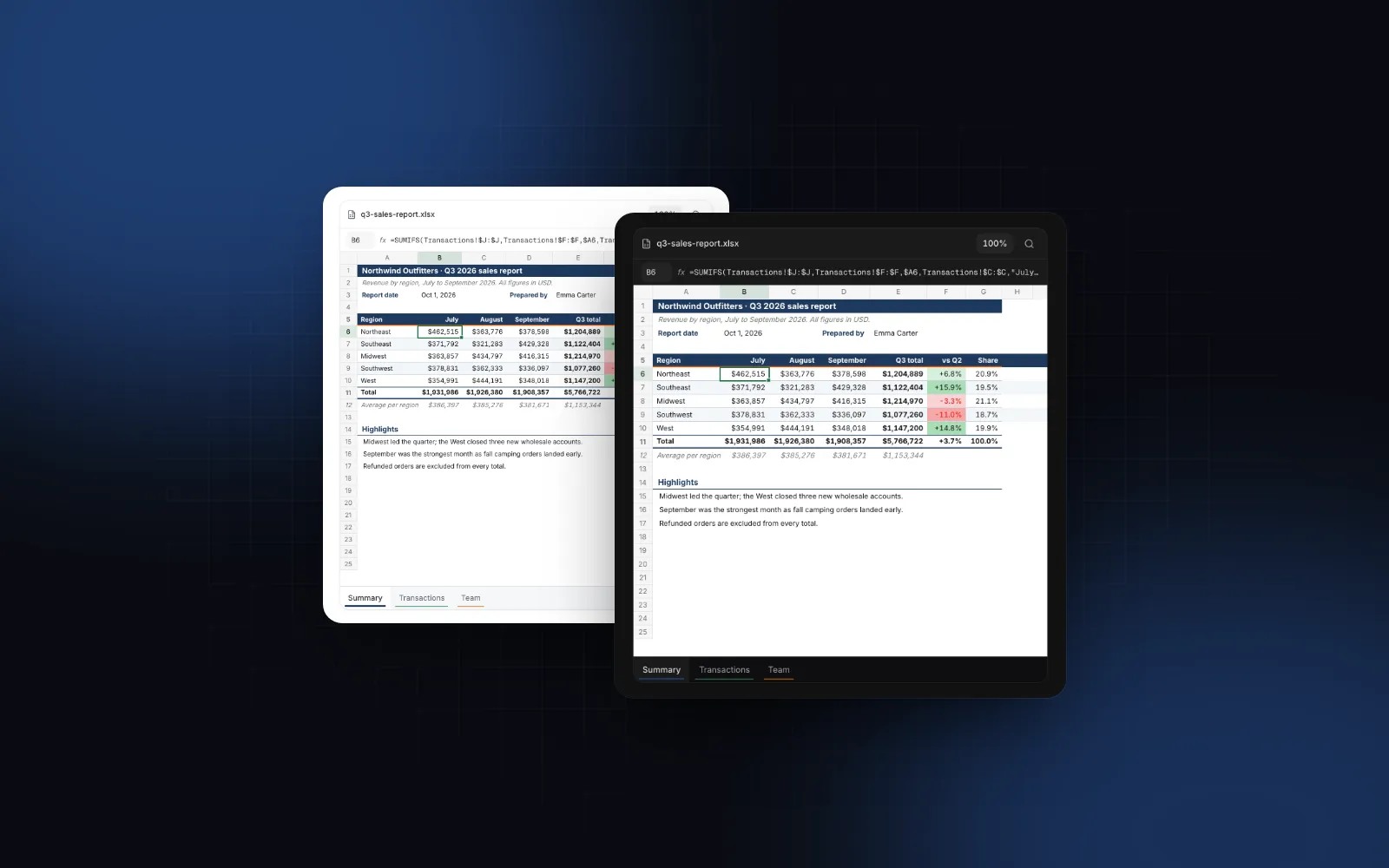
From the format code saved with each cell, not from the raw value. Excel stores a number and a format code, and the cell shows the result. The sample report's "vs Q2" column uses +0.0%;[Red]-0.0%;0.0%: three sections for positive, negative and zero, with negatives in red. The viewer parses those sections, the color codes and the built-in formats, then formats the number with Intl.NumberFormat for the locale prop. Unset, it follows the UIProvider locale, then the browser's.
Dates need care because Excel stores them as serial day numbers: 45930 is a date only because its format code says so, which is why naive parsers print five-digit numbers in a date column. The viewer converts them in UTC so a time zone never shifts a date by a day, handles workbooks saved with the 1904 date system, and accounts for the fake February 29, 1900 that Microsoft documents as kept for Lotus 1-2-3 compatibility (opens in a new tab). Month and day names come from the locale too.
$ npx wingo-ui@latest add excel-viewerHow do frozen panes and sheet tabs work?
Frozen panes come from the file. Each sheet's view records a pane with xSplit and ySplit, and the viewer keeps that many columns and rows fixed, together with the A B C and 1 2 3 headings. In the sample, the Summary sheet freezes its first five rows and Transactions freezes row 1 plus columns A and B, so the date and order number stay visible while you scroll through 2,000 orders.
Sheet tabs sit at the bottom and scroll sideways. The sample has a hidden "Lists" sheet: it gets no tab, and the sheets menu lists everything. The viewer opens on the sheet the workbook was saved on unless you pass defaultSheet, or control it with sheet and onSheetChange. The ref adds goTo, which takes an address, a range on any sheet or a defined name. The sample workbook defines Q3_totals for the Summary table:
goTo returns false when the reference does not exist in the open file. To hide a button before anyone clicks it, check the sheets and definedNames that onWorkbookLoadSuccess reports.
How do you show a large Excel file in React without freezing the page?
Split the parsing into short tasks and draw only what is in view. Two parts can freeze a page: parsing and drawing. For parsing, fflate inflates the large parts of the zip in a worker. A Content Security Policy that blocks blob: workers stops that worker from starting, so the viewer catches the failure and inflates on the main thread instead of showing an error. The XML still has to be read on the main thread, because DOMParser does not exist in workers. So the viewer skips DOMParser for the cell data, which is most of a big sheet, and scans the rows and shared strings in slices of about 12 ms, handing the browser a turn between slices so input and paint keep going. Files above maxFileSize (50 MB by default) are not parsed at all; the viewer shows a "file too large" state with a download link.
For drawing, the grid is virtualized in both directions with @tanstack/react-virtual: only the rows and columns in view, plus a few on each side, exist in the DOM. Frozen rows and columns are drawn in their own sticky layers above the scrolling body. Sorting from a column menu reorders the view only, and the download button always saves the original file.
Two limits to know before you ship. Formulas are not recalculated; the cells show the values Excel saved. And old binary .xls files are refused with a message asking the person to save them as .xlsx.
How do you show a large CSV file in React?
Use a viewer built for CSV, because the problems differ. The Excel Viewer opens a .csv as a single sheet with the first row frozen as a header, which is fine for small exports. For large ones, a react csv viewer has different problems: there is no style information, the delimiter may be a semicolon, the encoding may be Windows-1252, and the file can have hundreds of thousands of rows.
The CSV Viewer handles that case. It reads the file in slices so the first rows appear while the rest loads, detects the delimiter, encoding and header row, recognizes number, date and boolean columns, and adds filters and frozen columns. Defaults are a 100 MB file limit and 1,000,000 rows.
$ npx wingo-ui@latest add csv-viewerHow do you read Excel data in React for an import?
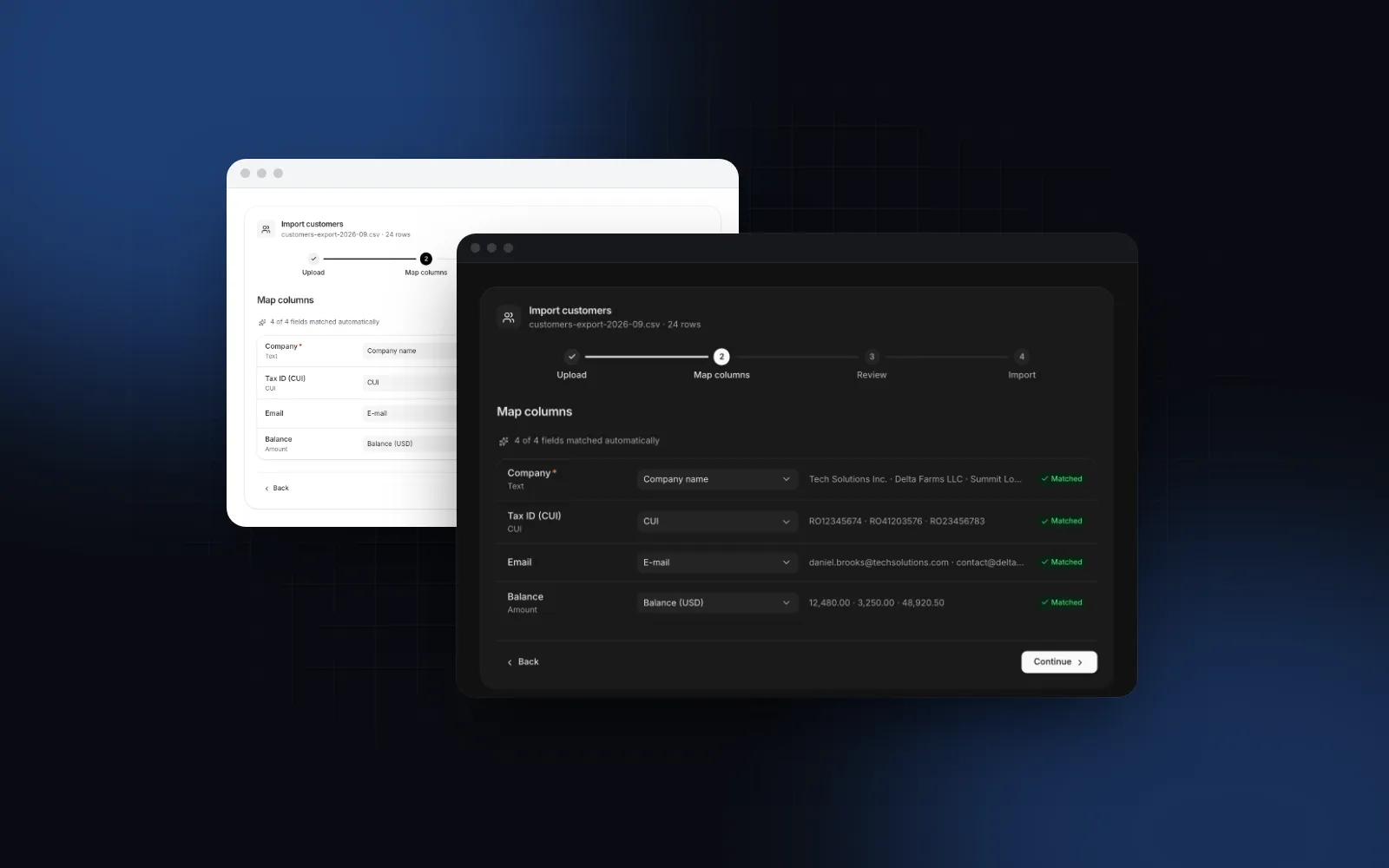
Use a parser that returns rows, not a viewer. A viewer is for people. When your code needs the data, for an import or a validation step, use the Spreadsheet helpers: readSpreadsheet turns a picked CSV or .xlsx into sheets with headers and rows, and matchColumns pairs those headers with your fields. The full upload, map and fix flow is the CSV Import block. For the upload field itself, the React file upload guide covers drag and drop, paste and validation.
Is the viewer accessible and usable on a phone?
Yes for keyboard, screen reader basics and touch, with one limit worth planning for. The keyboard works like Excel's: arrows, Tab, Enter, Home and End, Page Up and Down, Ctrl or Cmd plus arrows to jump to the edge of the data, Shift to extend, Ctrl or Cmd plus C to copy as tab-separated text. The scrolling area is a focusable region labeled with the file name, and a polite live region announces the active cell's address and shown text as the selection moves. The sheet tabs are a real tablist.
The limit: cells off screen are not in the DOM, so a screen reader user moves cell by cell and cannot browse the whole sheet as a table. If the data must be fully navigable that way, also offer the download or show the rows in a Data Table.
On phones the grid stays a grid. A spreadsheet's layout carries meaning, so we do not turn rows into cards here the way we do for app data in the responsive table guide. Tap selects a cell and shows it in the formula bar, two fingers pinch to zoom, and when the viewer itself is narrower than 720px, the toolbar switches fold into the ⋯ menu, which opens as a bottom sheet on phones.
A complete example: preview a workbook before importing it
This screen lets someone open or drop a workbook, read it with its formatting, then import the sheet they are looking at. The file never leaves the browser until your import code sends it.
Two details in there come from real files. readSpreadsheet takes the first row with any text as the header, so a report sheet with a title block above its table gets the title as its headers. The sample's Summary sheet starts its table on row 5: pass header: 4 (0-based) for that layout, or point people at a plain data sheet like Transactions. The helper also has its own limits, 20 MB per file (maxBytes) against the viewer's 50 MB and 50,000 rows per sheet (maxRows), and reports the rows it cut in each sheet's truncated. Check it before you tell someone the import is complete.
Next step
Install the viewer with npx wingo-ui@latest add excel-viewer; it brings the spreadsheet helpers and its other dependencies along, and csv-viewer installs the same way. All three are part of Wingo UI Pro (pricing). The Excel Viewer docs have the playground with the sample report and every prop. For more component walkthroughs, see the component guides category and the React form components guide.
FAQ
How do I display an Excel file in React?
Fetch the .xlsx as bytes, unzip it, read the sheet, style and shared string XML, and render the cells with a virtualized grid. A component like the Wingo UI Excel Viewer does all of that from one src prop: a same-origin URL, a CORS-enabled URL or a blob: URL.
Can a React Excel viewer open old .xls files?
The Excel Viewer opens .xlsx, .xlsm, .csv and .tsv. An old .xls is a different binary format, so the viewer shows a message asking to save it as .xlsx in Excel and calls onWorkbookLoadError.
Does the viewer recalculate formulas?
No. It shows the values Excel saved in the file and the formula of the active cell in the formula bar. If a file was written by a tool that never calculated it, those cells show what the file stores.
Is the Excel file uploaded to a server?
No. A file someone opens or drops onto the viewer is read in the browser, and onWorkbookUpload hands you the File object if you want to store it. A src URL is fetched by the browser like any other request.
How do I show a large CSV file in React?
Use a viewer that reads the file in slices and virtualizes the rows. The Wingo UI CSV Viewer detects the delimiter, encoding and header row, accepts files up to 100 MB by default and keeps up to 1,000,000 rows.
- Excel
- Spreadsheet
- CSV
- Data Display
- Virtualization