Help Center Template for React: Search, Topics, Articles
Most people who open a help center want one answer and want it before they give up and write to support. A good help center template is built around that: a search that answers while you type, topics for people who browse, the articles everyone reads, and a clear way to a person when the article is not enough. This guide walks through the two screens that make up a React help center, a support home and an article page, with our Help Center Page and Help Article Page templates as the example. We sell them, so we are not neutral, but the structure and the pitfalls apply to any React knowledge base template. The last section says when a docs engine or a CMS-backed template is the better tool.
What does a help center home page need?
Six parts, in this order: a search with live results, a row of common questions, a status line, topic cards, popular articles and a way to reach a person. The help center templates that ranked for this search in November 2026 (ThemeForest kits, the BaseHub template, Notion collections and vendor posts on help center page design) agree on search first and clear categories. Few of them show what happens after the first keystroke, which is where a visitor either finds the answer or opens a ticket. Here is each part in our support home:
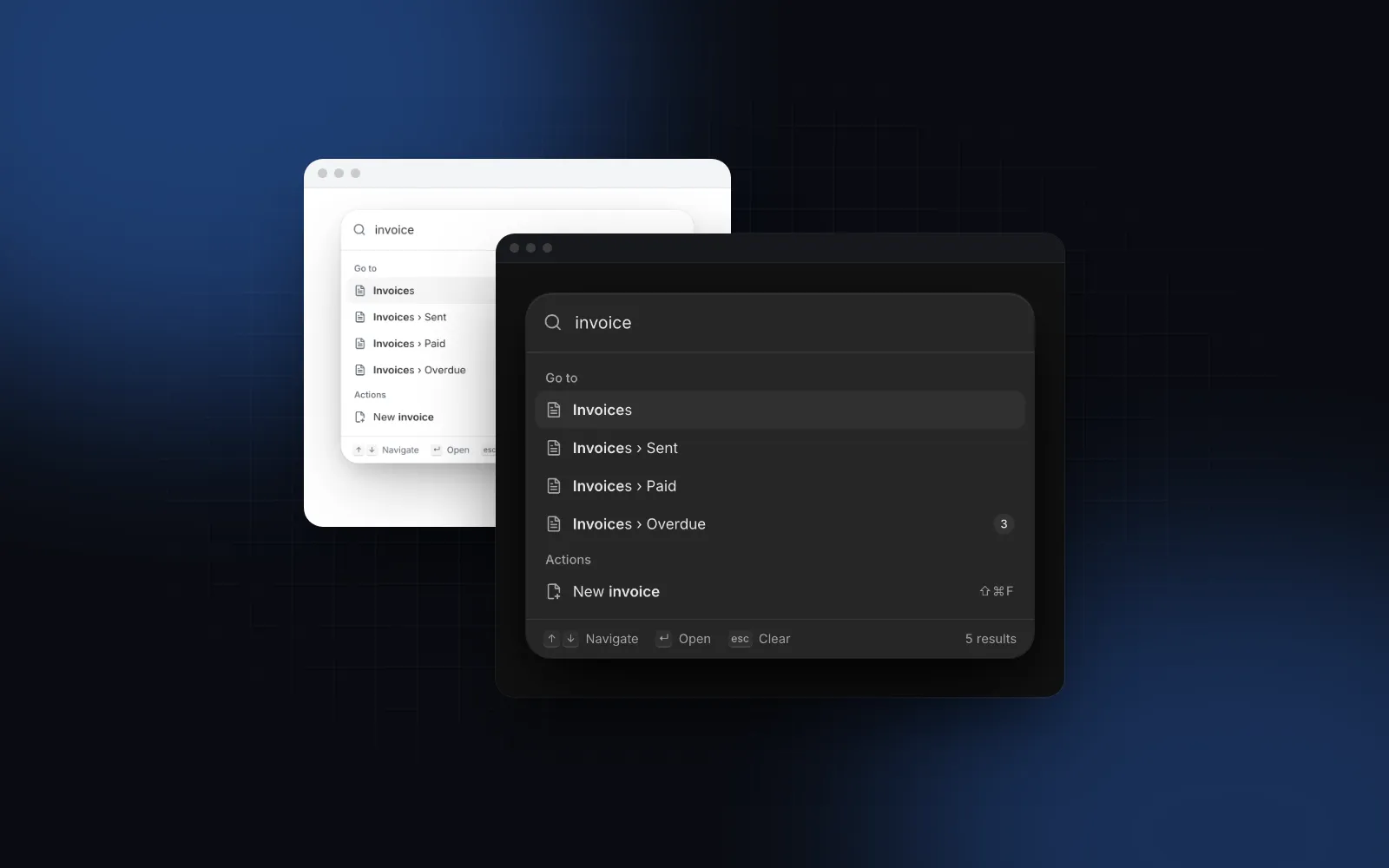
- A big search with live results. Results appear under the field as you type, grouped by topic, with the matched words marked in each title and summary. The field shows how many articles match.
- Popular chips under the field. One tap fills the search with a common question (Invite teammates, Invoices, SSO).
- A status pill above the title. A green, amber or red dot with one line of text, linked to your status page. During an outage, that line answers the question most visitors came with.
- Topic cards with an article count each, for people who browse.
- Popular articles, numbered, the six questions you answer every day.
- Still need help? Chat, email and community, each with a fact such as the reply time.
$ npx wingo-ui@latest add help-center-pagePress / anywhere on the page to focus the search. Arrow Down moves into the results, Home and End jump, Enter opens one, and Escape returns to the field. More than five results fold behind Show all (maxResults). When nothing matches, the empty state offers Clear search and Contact support, so a failed search ends at a person, never a dead end.
How do you install the help center template?
Both screens are Pro templates. The CLI copies them with every component they import:
The files land in components/templates/: help-center-page.tsx, help-article-page.tsx and a data file each with typed sample content (24 articles in six topics for a fictional product called Acme). You replace that data with yours.
How do you wire it into a Next.js route?
The page takes plain data: categories, an article index, popular articles and contact options. Several labels, the contact icons and the router link are functions or components, which cannot cross from a server component, and the templates are client components anyway. The clean split is a server route that reads the URL and a small client file that owns the data and the callbacks.
Start with the index. Keep article bodies out of it, since the index ships to the browser for the live search:
The client file passes the data, next/link and an onSearch handler:
The route reads ?q= (in Next.js 16 searchParams is a promise) so a link like /help?q=invoice opens with results showing:
Set header={false} and footer={false} when the route sits inside your site layout; leave them on for a standalone support site. design switches the whole look between classic, bold and minimal.
How does the search decide what matches?
This is the part worth understanding before you write articles. Every typed word must appear in the article's title, excerpt, topic name or keywords, and title matches rank first. Case and accents do not matter. The body is never searched.
That has two consequences. First, the keywords field is where you win or lose a search. Customers type "receipt" when your article says "invoice", and "add user" when it says "invite teammates". Put those words in keywords. Second, log what people search for. onSearch fires once typing pauses, on Enter and when a chip is picked, so the beacon above gives you a list of real queries. Because it also fires on every pause, the log holds partial words such as "inv" next to "invoice": keep the longest query per visitor session before you count them. The queries that end in a contact click are the articles you have not written yet.
The local search is fine for a few hundred articles, since the index is small. When you need full-text search over bodies or thousands of articles, put a server search behind the Global Search component, which takes loadResults(query, { signal, scope }), debounces it, aborts stale requests and groups the answers. The smaller Search Input is the field on its own. For an app-wide palette, see our React command palette guide.
What goes on a help article page?
A help article template has one job: get the reader through the steps and catch them when they get stuck. The article page renders one Markdown article: a breadcrumb back to the help center and the topic, a search bar, a sidebar with the topic's other articles, the body, a table of contents, Was this article helpful?, a contact card and related articles.
$ npx wingo-ui@latest add help-article-pageThe body goes through the Markdown component with two additions. A GitHub-style alert quote becomes a callout, and inline code that starts with kbd: becomes a key cap that shows the right modifier for the device:
The Table of Contents builds itself from the body's ## and ### headings. It sticks on the right from 1280px and becomes a pill under the header below that. The topic sidebar becomes a bottom sheet below 1024px.
Wire it with a static route that reads the Markdown on the server:
Which pitfalls should you avoid?
- Topics and articles share one URL space. Topic cards link to
/help/<value>and articles to/help/<slug>, so a topic calledbillingand an article calledbillingcollide. Keep them distinct. The kit has no topic listing screen; the redirect above sends a topic to the search, which matches the topic name and lists its articles grouped. onFeedbackruns twice on No. Once when the reader presses No and again with the comment. Store one row per reader and article, and update it.- A status pill that lies is worse than none. Pass the real state from your monitor, or set
showStatus={false}. Our Next.js status page tutorial and the Status Page template cover the page it links to. - Long excerpts bury the results. One or two sentences, written as the answer, not as a teaser.
On phones the topic chips scroll sideways, cards stack to one column, and every target is 44px on touch screens.
When is Nextra, Fumadocs or a ready-made kit a better fit?
A help center template answers support questions. Developer documentation is a different job, usually better served by a docs website template or framework, and the tools below were checked on November 6, 2026:
Pick Nextra or Fumadocs when you have hundreds of MDX pages, an API reference or versions; they search the whole text and give you navigation for free. Pick the BaseHub template when non-developers write the articles and full-text search matters more than owning the data layer. Pick a help desk kit when your product is the support tool. For a docs portal home in front of your docs, our Docs Home Page has a search palette, quick starts and API samples. For fewer than about 30 questions, a single FAQ Page is enough, and it is free.
More screens like this are in Build it: screens and apps, and the SaaS website template guide shows where the help center sits among the other pages of a product site. Its closest neighbor is the changelog page template, which answers "is this fixed yet?" before anyone opens a ticket.
Where do you start?
Open the Help Center Page and type a few searches, then swap its sample data for ten of your own articles with honest keywords. Both screens are part of Wingo UI Pro, from $8 a month (pricing); if a single support page is enough for now, start with the free FAQ Page.
FAQ
What should a help center home page include?
A search field that shows results as you type, topic cards with article counts, the five or six most read articles, ways to reach a person (chat, email, community) and the current system status. Anything else pushes the search down the page.
What is the difference between a help center, a knowledge base and an FAQ page?
A knowledge base is the set of articles; a help center is the public site around it, with search, topics and contact options. An FAQ page is one page of short answers, and it is enough while you have fewer than about 30 questions.
Does the Wingo UI help center search the full article text?
No. It matches every typed word against the title, excerpt, topic name and keywords of each article, and ranks title matches first. For full-text search across bodies, use a server search behind the Global Search component or a docs engine with a build-time index such as Pagefind.
Should I use Nextra or Fumadocs instead of a help center template?
Use one of them when the content is developer documentation: hundreds of MDX pages, an API reference, versions and search over the whole text. A help center template fits customer support content where the job is to answer a question fast and offer a person when the article does not.
Is the Wingo UI help center template free?
No, the Help Center Page and the Help Article Page are part of Wingo UI Pro. The FAQ Page template is free and covers a smaller support page with search, topics and contact cards.
- Help center
- Knowledge base
- Templates
- Next.js