Skip to content
WingoUI
ComponentsTemplatesDocsPricingAI agentsBlogChangelog
  1. Home
  2. Blog
  3. Build it: screens and apps
  4. React Workflow Builder: Triggers, Branches and AI Steps
Auf Deutsch lesen
  1. Blog
  2. Build it: screens and apps
  3. React Workflow Builder: Triggers, Branches and AI Steps
Build it: screens and apps

React Workflow Builder: Triggers, Branches and AI Steps

SR
Serban Rusu · Founder of Wingo UI
Oct 16, 2026 · 13 min read

On this page

0%
  1. What does a React workflow builder need on top of React Flow?
  2. How do I install the workflow canvas?
  3. How do I define triggers, actions and AI steps?
  4. How do I build a branch with yes and no outputs?
  5. How do I give each step its own settings?
  6. How do I validate a workflow before saving?
  7. How do I show a run on the canvas?
  8. How do I wire save, settings and runs into one editor?
  9. What is a simpler alternative to a node-based workflow editor?
  10. Canvas or rule list: which one should I ship?
  11. How do I add an automations list, run history and logs?
  12. How do I make a workflow builder work on a phone?
  13. Should I build it myself or use a workflow builder SDK?
  14. What should I build next?
  15. FAQ
    1. Is React Flow free for building a workflow editor?
    2. How do I add conditional branches in React Flow?
    3. How should I store a workflow built in React?
    4. Can I call validateWorkflow in a Next.js route handler?
    5. Should I build a node canvas or a rule list for automations?
    6. Are the Wingo UI workflow components free?

TL;DR

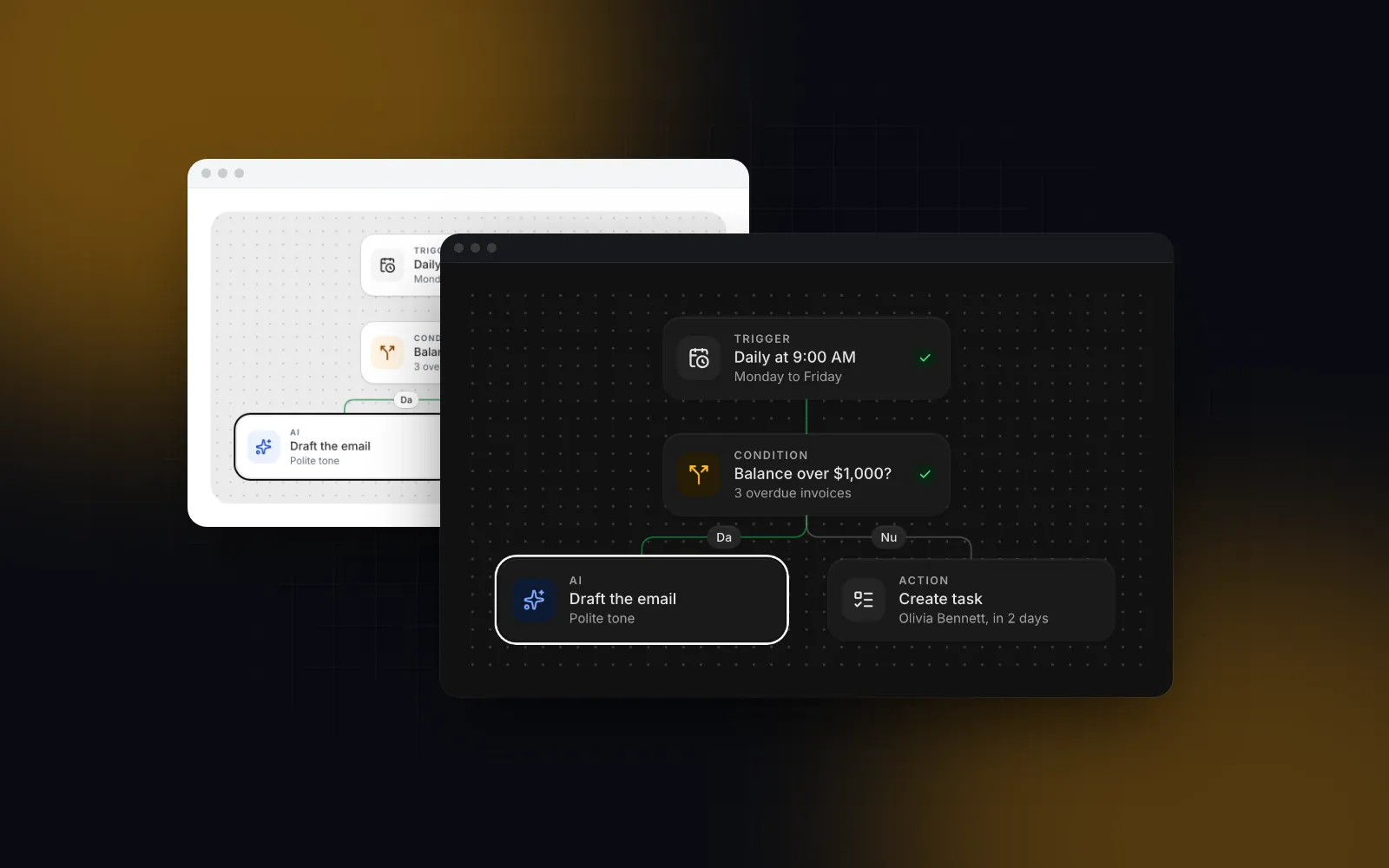
A React workflow builder is React Flow plus the layers it leaves to you: a step catalog, a settings panel per step, validation (one trigger, no loops, no dangling branches), undo and a run view that shows each step's status. The Wingo UI Workflow Canvas ships those layers on @xyflow/react and stores the automation as plain { nodes, edges } JSON that your own server runs. For one-trigger automations, the Rule Builder edits the same idea as a When / If / Then list that reads like a sentence.

Published Oct 16, 2026

You want your users to set up their own automations: when an invoice goes overdue, check the balance, have an AI draft a reminder, send it. The obvious start is React Flow, and an afternoon later you have boxes and lines on a canvas. Then the real work shows up. A React workflow builder needs a catalog of steps, a settings form per step, branches that cannot loop, undo, a way to show a run, and a layout someone can use on a phone. This tutorial builds that editor on React Flow with triggers, yes / no branches and AI steps, then builds a similar automation as a list-style rule builder for people who would rather not drag lines. The examples use Workflow Canvas and Rule Builder from Wingo UI, the library we build, so we are not neutral. The data model and the checks apply to any implementation.

What does a React workflow builder need on top of React Flow?

It needs seven layers of application code, because React Flow (@xyflow/react) only gives you the canvas: nodes, edges, handles, pan, zoom and a minimap. This is the list we worked from:

LayerWhat it doesIn the Workflow Canvas
Step catalogWhich triggers, actions, AI steps and logic existnodeTypes, grouped in the add menu
BranchesA condition splits the flowYes and No outputs, stored as sourceHandle
Settings panelEdit the selected steprenderInspector, a panel on desktop and a sheet on phones
ValidationStop broken flows from runningvalidateWorkflow, red rings on the steps
HistoryUndo a bad drag or deleteUndo and redo, one step per committed change
Run modeShow what the automation is doingrunning plus data.status per step
LayoutKeep the graph readablelayoutWorkflow and the Tidy button

The value is plain JSON, { nodes, edges }, so you can save it, diff it and run it on the server with whatever engine you already have. The canvas never executes anything.

How do I install the workflow canvas?

Install it with the Wingo UI CLI, which copies the source into your project:

bash
npx wingo-ui@latest add workflow-canvas

The CLI writes components/ui/workflow-canvas.tsx with its Wingo UI dependencies (button, textarea, drawer, alert dialog and others) and installs @xyflow/react, motion and lucide-react. The component imports the React Flow base CSS itself. It fills its parent, so give the parent a height. The settings form later in this post also uses a select, which is not one of those dependencies: run npx wingo-ui@latest add select too.

How do I define triggers, actions and AI steps?

Each step type is a WorkflowNodeDef with a kind: trigger, action, condition, ai, delay or end. The kind sets the icon tile and the rules (a trigger takes no incoming line, a condition gets two outputs). Keep the catalog at module scope so it keeps its identity between renders.

tsx
// app/automations/node-types.tsx
import { Flag, Hourglass, Mail, Receipt, Sparkles, Split } from "lucide-react"
import type { WorkflowNodeDef } from "@/components/ui/workflow-canvas"
export const nodeTypes: WorkflowNodeDef[] = [
{
type: "invoice-overdue",
kind: "trigger",
label: "Overdue invoice",
description: "When an invoice passes its due date",
icon: <Receipt />,
group: "Triggers",
defaults: { subtitle: "After 30 days" },
},
{
type: "condition",
kind: "condition",
label: "Condition",
description: "Splits the flow into Yes and No",
icon: <Split />,
group: "Logic",
},
{
type: "ai-draft",
kind: "ai",
label: "Draft with AI",
description: "Writes the message from your instructions",
icon: <Sparkles />,
group: "AI",
defaults: { subtitle: "Polite tone", config: { prompt: "Write a short, polite payment reminder." } },
keywords: ["llm", "write", "gpt", "claude"],
},
{
type: "send-email",
kind: "action",
label: "Send email",
icon: <Mail />,
group: "Communication",
},
{ type: "delay", kind: "delay", label: "Wait", icon: <Hourglass />, group: "Logic" },
{ type: "end", kind: "end", label: "End", icon: <Flag />, group: "Logic" },
]

group becomes a heading in the add menu, and keywords let someone find the AI step by typing "llm". A condition gets Yes and No outputs unless you pass your own outputs, such as three tiers for a lead score.

How do I build a branch with yes and no outputs?

A branch is two edges from the same condition, each with a sourceHandle that names the output (yes or no). Steps can start at 0, 0, and layoutWorkflow places them in layers from the trigger, with the branches side by side in the order of the condition's outputs. The canvas would also lay out an all-zero graph once on mount, but calling layoutWorkflow yourself means the value you save already holds real positions.

tsx
// app/automations/initial.ts
// imported by client components only: workflow-canvas.tsx is a "use client" module
import { layoutWorkflow, type WorkflowEdge, type WorkflowNode, type WorkflowValue } from "@/components/ui/workflow-canvas"
import { nodeTypes } from "./node-types"
const step = (id: string, type: string, title: string): WorkflowNode => ({
id,
type,
position: { x: 0, y: 0 },
data: { title },
})
const edges: WorkflowEdge[] = [
{ id: "e1", source: "start", target: "check" },
{ id: "e2", source: "check", target: "draft", sourceHandle: "yes" },
{ id: "e3", source: "draft", target: "send" },
{ id: "e4", source: "check", target: "stop", sourceHandle: "no" },
]
export const initial: WorkflowValue = {
nodes: layoutWorkflow(
[
step("start", "invoice-overdue", "Invoice 30 days overdue"),
step("check", "condition", "Balance over $1,000?"),
step("draft", "ai-draft", "Draft the reminder"),
step("send", "send-email", "Email the client"),
step("stop", "end", "Nothing to send"),
],
edges,
{ nodeTypes },
),
edges,
}

Render it in a client component. AlertDialogProvider goes once near the root, because deleting a connected step asks for confirmation through it:

tsx
// app/automations/overdue-editor.tsx (first version)
"use client"
import { useState } from "react"
import { AlertDialogProvider } from "@/components/ui/alert-dialog"
import { WorkflowCanvas } from "@/components/ui/workflow-canvas"
import { initial } from "./initial"
import { nodeTypes } from "./node-types"
export function OverdueEditor() {
const [workflow, setWorkflow] = useState(initial)
return (
<div className="h-[560px]">
<WorkflowCanvas nodeTypes={nodeTypes} value={workflow} onValueChange={setWorkflow} />
<AlertDialogProvider />
</div>
)
}

onValueChange fires once per committed change: a drop, a connection, an inserted step, an undo. A drag does not flood your state with positions, and a value that arrives mid-drag waits until the drop. The canvas also refuses bad connections while you drag: a line into a trigger, a line that would close a loop, or a second line from the same branch turns red and does not land.

Drag from the dot under a step to another step, then try to connect back into the trigger and watch the line turn red. Press Run to see each step go from queued to running to done
$ npx wingo-ui@latest add workflow-canvas
ProWorkflow Canvas docs

Hover a line for its + button to insert a step in between, or drop a line on empty space to open the add menu there. Tidy rearranges the graph, and the move is one undo step.

How do I give each step its own settings?

Pass a renderInspector function: it returns the settings form for the selected step, which opens in a panel on the right. You get the step and an api with update (merges into the step's data), def (the step's catalog entry), fields (the default name, description and skip fields) and readOnly. Here the AI step gets a prompt and a tone, and the other steps keep the default fields:

tsx
// app/automations/inspect.tsx
import type { ReactNode } from "react"
import { Select } from "@/components/ui/select"
import { Textarea } from "@/components/ui/textarea"
import type { WorkflowInspectorApi, WorkflowNode } from "@/components/ui/workflow-canvas"
const TONES = [
{ value: "polite", label: "Polite" },
{ value: "firm", label: "Firm" },
]
export function inspect(node: WorkflowNode, { update, fields, readOnly }: WorkflowInspectorApi): ReactNode {
if (node.type !== "ai-draft") return fields
const config = node.data.config ?? {}
return (
<>
{fields}
<Textarea
label="Instructions for the AI"
value={String(config.prompt ?? "")}
onValueChange={(prompt) => update({ config: { ...config, prompt } })}
readOnly={readOnly}
minRows={3}
/>
<Select
label="Tone"
options={TONES}
value={String(config.tone ?? "polite")}
onValueChange={(tone) =>
update({ config: { ...config, tone }, subtitle: `${TONES.find((t) => t.value === tone)?.label} tone` })
}
readOnly={readOnly}
/>
</>
)
}

update merges shallowly into data, so spread the old config or you lose the other settings. Typing in the prompt counts as one undo step per 500ms burst, so Ctrl+Z does not erase a paragraph one letter at a time. If your app already has a side panel, set inspector="none" and open your own from onSelectedIdChange.

How do I validate a workflow before saving?

Call validateWorkflow(value, nodeTypes): it returns the problems that stop an automation from running as { nodeId?, edgeId?, message } objects. It catches no trigger or more than one, a connection into a trigger, a loop, a condition branch that goes nowhere, an unknown step type and a connection to a missing step. The canvas already rings those steps in red. On save, select the first broken step so its settings open, and drop the run state before the graph leaves the browser:

ts
// app/automations/save.ts
import { validateWorkflow, type WorkflowValue } from "@/components/ui/workflow-canvas"
import { nodeTypes } from "./node-types"
// status and error describe the last run, not the automation
const withoutRunState = (value: WorkflowValue): WorkflowValue => ({
...value,
nodes: value.nodes.map(({ data: { status: _status, error: _error, ...data }, ...node }) => ({ ...node, data })),
})
export async function saveWorkflow(workflow: WorkflowValue, select: (id: string | null) => void) {
const issues = validateWorkflow(workflow, nodeTypes)
if (issues.length > 0) {
select(issues.find((issue) => issue.nodeId)?.nodeId ?? null)
return false
}
const response = await fetch("/api/automations/overdue", {
method: "PUT",
headers: { "Content-Type": "application/json" },
body: JSON.stringify(withoutRunState(workflow)),
})
return response.ok
}

Run the same checks on the server, because the client can be bypassed. One Next.js trap: workflow-canvas.tsx starts with "use client", so a route handler that imports validateWorkflow from it gets a client reference, and calling it throws "Attempted to call validateWorkflow() from the server". Copy the checks you need into a server-only module instead.

How do I show a run on the canvas?

Set running and write each step's data.status; the canvas draws the rest. onRun adds a Run button to the toolbar, running locks editing, and the status shows as a marker. The status type is the same one the AI agent tool call UI uses: pending, running, complete and error, plus canceled and awaiting-approval for an AI step that waits for a person to approve its output. The line into the running step flows, finished lines turn green, and the view follows the running step unless the person panned in the last 3 seconds. Your server runs the steps and streams their status:

ts
// app/automations/run.ts
import type { Dispatch, SetStateAction } from "react"
import type { WorkflowNodeData, WorkflowValue } from "@/components/ui/workflow-canvas"
type StepEvent = { stepId: string; status: WorkflowNodeData["status"]; error?: string }
export async function startRun(
automationId: string,
setWorkflow: Dispatch<SetStateAction<WorkflowValue>>,
setRunning: (running: boolean) => void,
) {
setRunning(true)
const response = await fetch(`/api/automations/${automationId}/runs`, { method: "POST" })
if (!response.ok) return setRunning(false)
const { runId } = await response.json()
const source = new EventSource(`/api/runs/${runId}/events`)
const stop = () => {
source.close()
setRunning(false)
}
source.onmessage = (event) => {
const { stepId, status, error } = JSON.parse(event.data) as StepEvent
setWorkflow((current) => ({
...current,
nodes: current.nodes.map((node) =>
node.id === stepId ? { ...node, data: { ...node.data, status, error } } : node,
),
}))
}
source.addEventListener("done", stop)
source.onerror = stop
}

A failed step shows its error in the inspector. AI steps fail in the most varied ways (a timeout, a refusal, a rate limit), so send the model's own error text so the person can tell them apart.

How do I wire save, settings and runs into one editor?

Hold the workflow, the selection and the run flag in the editor, and hand each helper what it needs. This replaces the first version of overdue-editor.tsx:

tsx
// app/automations/overdue-editor.tsx
"use client"
import { useState } from "react"
import { AlertDialogProvider } from "@/components/ui/alert-dialog"
import { Button } from "@/components/ui/button"
import { WorkflowCanvas } from "@/components/ui/workflow-canvas"
import { initial } from "./initial"
import { inspect } from "./inspect"
import { nodeTypes } from "./node-types"
import { startRun } from "./run"
import { saveWorkflow } from "./save"
export function OverdueEditor() {
const [workflow, setWorkflow] = useState(initial)
const [selectedId, setSelectedId] = useState<string | null>(null)
const [running, setRunning] = useState(false)
return (
<div className="flex flex-col gap-3">
<Button className="self-end" disabled={running} onClick={() => saveWorkflow(workflow, setSelectedId)}>
Save
</Button>
<div className="h-[560px]">
<WorkflowCanvas
nodeTypes={nodeTypes}
value={workflow}
onValueChange={setWorkflow}
selectedId={selectedId}
onSelectedIdChange={setSelectedId}
renderInspector={inspect}
onRun={() => startRun("overdue", setWorkflow, setRunning)}
running={running}
/>
</div>
<AlertDialogProvider />
</div>
)
}

What is a simpler alternative to a node-based workflow editor?

A rule list is the simpler alternative: a When, If, Then stack of cards that reads like a sentence. Most automations are one trigger, a few conditions and a few actions, and a list says that more plainly than a graph. The Rule Builder adds a summary box that reads the whole rule back as one sentence.

bash
npx wingo-ui@latest add rule-builder
tsx
"use client"
import { useState } from "react"
import { Mail, Sparkles, UserPlus } from "lucide-react"
import {
RuleBuilder,
createRule,
describeRule,
type RuleActionDef,
type RuleTriggerDef,
} from "@/components/ui/rule-builder"
const triggers: RuleTriggerDef[] = [
{
type: "lead-created",
label: "New lead",
icon: <UserPlus />,
fields: [
{ id: "budget", label: "Budget", type: "currency" },
{
id: "source",
label: "Source",
type: "select",
options: [
{ value: "referral", label: "Referral" },
{ value: "website", label: "Website" },
],
},
],
summary: () => "a **new lead** comes in",
},
]
const actions: RuleActionDef[] = [
{
type: "ai-draft",
label: "Draft a reply with AI",
icon: <Sparkles />,
tone: "info",
params: [{ id: "prompt", label: "Instructions", type: "textarea", required: true }],
summary: () => "draft a reply with **AI**",
multiple: false,
},
{
type: "send-email",
label: "Send email",
icon: <Mail />,
params: [{ id: "to", label: "To", type: "text", required: true }],
summary: (params) => `email **${params.to}**`,
},
]
export function LeadRule() {
const [rule, setRule] = useState(() => createRule())
return (
<RuleBuilder
title="Reply to new leads"
triggers={triggers}
actionTypes={actions}
value={rule}
onValueChange={(next) => {
setRule(next)
console.log(describeRule(next, { triggers, actions }))
}}
onTest={async () => ({ matched: true, message: "Emma Carter's lead would get a drafted reply." })}
/>
)
}

multiple: false takes the AI step out of the action picker once the rule uses it. describeRule returns the same sentence as the summary box, which is handy for notification text and the automation list. The conditions are a lib/filters group, the same model the Filter Builder edits, so one evaluator can serve both. Apply saves an edit; Cancel or Escape throws the draft away, so onValueChange never sees an unapplied draft.

Pick a card to edit it, add a condition, then drag an action by its grip to reorder. On a phone each editor opens as a bottom sheet. Press Test to see each action's outcome under the sentence
$ npx wingo-ui@latest add rule-builder
ProRule Builder docs

Canvas or rule list: which one should I ship?

Ship the rule list when automations are linear and the canvas when they branch. Either way the React workflow builder UI only edits data, so the deciding questions are who builds the automations and how often one needs a second path.

Your automationsShip
One trigger, a few filters, a few actionsRule Builder
Branches that lead to different steps, waits, AI steps mid-flowWorkflow Canvas
Both kinds of usersRule Builder by default, canvas as the advanced view

The two do not share a value shape (RuleValue versus { nodes, edges }), so pick one per automation type instead of switching an existing automation between them.

How do I add an automations list, run history and logs?

Use the Automation Builder Page, a block with the rest of the screen a React automation builder needs around the editor. It has a list of automations with on and off switches and a bar of each one's last 14 runs, the Workflow Canvas as the editor, a cron picker for scheduled triggers, Run a test, and a History tab whose log uses the same viewer as our React log viewer guide. Without automations it shows its sample data, so pass your own list and wire the callbacks to your API:

tsx
"use client"
import { useState } from "react"
import { AutomationBuilderPage, type Automation, type AutomationRun } from "@/components/blocks/automation-builder-page"
import { nodeTypes } from "./node-types"
export function AutomationsScreen({ initial, runs }: { initial: Automation[]; runs: AutomationRun[] }) {
const [automations, setAutomations] = useState(initial)
return (
<AutomationBuilderPage
height="screen"
nodeTypes={nodeTypes}
automations={automations}
onAutomationsChange={setAutomations}
runs={runs}
onToggle={async (automation, enabled) => {
const response = await fetch(`/api/automations/${automation.id}`, {
method: "PATCH",
headers: { "Content-Type": "application/json" },
body: JSON.stringify({ enabled }),
})
if (!response.ok) throw new Error("Could not update the automation")
}}
onSave={async (automation) => {
const response = await fetch(`/api/automations/${automation.id}`, {
method: "PUT",
headers: { "Content-Type": "application/json" },
body: JSON.stringify(automation),
})
if (!response.ok) throw new Error("Could not save the automation")
}}
onTest={async (automation) => {
const response = await fetch(`/api/automations/${automation.id}/test`, { method: "POST" })
if (!response.ok) throw new Error(await response.text())
}}
/>
)
}

Pass nodeTypes whenever your workflows use your own step catalog. Without it the block validates against its built-in CRM catalog, so every custom step counts as an unknown type: Save shows the problems instead of calling onSave, and switching the automation on is refused. The switch is optimistic: a rejected onToggle flips it back with a toast. A rejected onSave keeps the changes and shows a toast, which is why the handler throws on a failed response. A rejected onTest shows its message and opens the run's log. Inside an admin shell, use height="fill"; our Next.js admin dashboard tutorial shows that shell.

How do I make a workflow builder work on a phone?

Make every touch gesture mean one thing. On the canvas one finger pans and two fingers pinch. A step has to be tapped (selected) before it drags, so panning across a card never moves it. Long-press opens a step's menu, handles reach 44px out from the card, and the settings open in a sheet that stops at half height so the canvas stays visible above it. The Rule Builder opens every editor and picker as a bottom sheet below 768px, and only the grip drags, so the rest of a card scrolls the page. That grip pattern is the one from our dnd kit touch drag guide.

Keyboard users get the same reach: Tab moves through the toolbar, every step and every connection; arrows move the selected step; A adds a step after it; Delete removes it.

Should I build it myself or use a workflow builder SDK?

Build a React Flow workflow builder yourself if you want to own every layer and have the time; buy one when the editor is not your product. Facts as of October 2026, from each vendor's page:

OptionLicense and priceGood fit
React Flow (opens in a new tab) with your own layersMIT, free. The Workflow Editor template (opens in a new tab) is a Pro example; React Flow Pro (opens in a new tab) starts at $169 per monthYou want to own every layer and have the time
Workflow Builder SDK (opens in a new tab) by Synergy CodesCommunity Edition Apache 2.0, free; Enterprise EUR 6,990 one time per organizationA JSON Schema properties panel, a reference backend and a Temporal adapter
Wingo UI Workflow Canvas and Rule BuilderWingo UI Pro: $8 per month, $80 per year or $150 onceA canvas and a list editor in the same design system, phone layouts included

If you want an xyflow example to study line by line, React Flow's own examples (opens in a new tab) are the best source. If your team already runs Temporal, the Workflow Builder SDK has the closer backend story.

What should I build next?

Install the canvas and wire onValueChange to your own save endpoint: npx wingo-ui@latest add workflow-canvas. More screens built this way live in the Build it category.

Components in this post

  • Workflow Canvas

    A React workflow builder: a node editor for automations with a trigger, actions, AI steps and yes / no branches you connect and watch run.

    Pro
  • Rule Builder

    A React rule builder for if-this-then-that automations: a trigger, conditions and ordered actions as sentence cards, read back as one sentence.

    Pro
  • Automation Builder Page

    A React automation builder page: rules with on and off switches and run health, a visual workflow editor, a cron inspector, tests and logs.

    Pro

FAQ

Is React Flow free for building a workflow editor?

Yes. React Flow (@xyflow/react) is MIT licensed and free for commercial use. As of October 2026 its official Workflow Editor template is marked as a Pro example, and React Flow Pro starts at $169 per month on the Starter plan.

How do I add conditional branches in React Flow?

Give the condition node two source handles, such as yes and no, and store the handle id on each edge as sourceHandle. Your runner then follows only the edges whose sourceHandle matches the result of the condition.

How should I store a workflow built in React?

Store the graph as JSON: a nodes array with id, type, position and a data object for each step's settings, and an edges array with source, target and sourceHandle. Strip run state such as status and error before saving, and validate the graph again on the server.

Can I call validateWorkflow in a Next.js route handler?

Not from the component file. workflow-canvas.tsx starts with "use client", so on the server Next.js replaces its exports with client references and calling one throws. Keep your server checks in a server-only module.

Should I build a node canvas or a rule list for automations?

Use a rule list when most automations are one trigger, a few conditions and a few actions, because it reads as a sentence and works well on a phone. Use a canvas when people need branches that lead to different steps, waits and AI steps in the middle of a flow.

Are the Wingo UI workflow components free?

No. The Workflow Canvas, the Rule Builder and the Automation Builder Page are part of Wingo UI Pro, which costs $8 per month, $80 per year or $150 once as of October 2026. They install as source code with npx wingo-ui@latest add workflow-canvas, rule-builder or automation-builder-page.

  • React Flow
  • Workflow builder
  • Automation
  • AI agents
  • Mobile UI

Share

SR

About the author

Serban Rusu

Founder of Wingo UI

Serban Rusu founded Wingo UI. He builds its component library, CLI and MCP server, and writes about React interfaces for phones and AI coding agents.

More from Serban
Keep reading

Related posts

All posts
Build it: screens and apps

Nextjs Blog Template: Markdown, Live Demos and JSON-LD

How we built a nextjs blog template on Markdown files: zod frontmatter, live React demos, a sticky table of contents, JSON-LD, feeds and a strict validator.

SRSerban Rusu·Oct 16, 2026·10 min read
Build it: screens and apps

Nextjs SaaS Landing Page: What Each Section Must Prove

Build a nextjs saas landing page section by section: what the hero, proof, features, pricing and FAQ must prove, what to cut, and how each reads on a phone.

SRSerban Rusu·Oct 16, 2026·11 min read
Build it: screens and apps

Nextjs Status Page: 90-Day Uptime Bars and Incidents

Build a nextjs status page from your monitoring data: honest 90-day uptime bars, live incidents, maintenance, webhook-driven ISR and hosting that stays up.

SRSerban Rusu·Oct 16, 2026·12 min read
Newsletter

Get new posts by email

New guides, tutorials and comparisons from the Wingo UI blog, sent when they are published.

No spam. Unsubscribe at any time.

WingoUI

Animated, configurable, mobile-first React components and blocks. Copy the source, make it yours, and let your coding agent build with it.

Product

  • Components
  • Templates
  • Pricing
  • AI agents
  • Theme generator

Resources

  • Docs
  • Blog
  • Changelog
  • Changelog RSS
  • llms.txt

Legal

  • Terms
  • Privacy
  • Refunds
  • License
  • Imprint

Component categories

  • Buttons & Actions
  • Inputs
  • Forms
  • Navigation
  • Overlays
  • Feedback
  • Data Display
  • Tables & Lists
  • Charts & Stats
  • Layout
  • Media
  • AI Kit
  • Text & Effects
  • Mobile
  • Commerce
  • Marketing Sections
  • Blocks
  • Hooks & Utilities

© 2026 Wingo UI

Wingo UI