AI Agent Tool Call UI: Steps, Approvals and Errors
An AI agent tool call UI has one job: let a person see what the agent did, step by step, and step in when it matters. Most first versions fall short in the same places. A running call renders nothing, so the screen looks idle while the agent works. A failed call vanishes into a generic "Something went wrong". An approval prompt says "Send email?" without showing the address it will go to. This guide covers the states a tool call UI needs, how to make inputs and outputs readable, how to wire approvals to the AI SDK, and where the rows go in a chat, a side panel or an agent page. The examples use the agent components of Wingo UI, the library we build, so we are not neutral; outside facts link to their sources.
What states does an AI agent tool call need?
Six: queued, running, done, failed, canceled and waiting for approval. Each one needs a look of its own, because a person scanning a run reads the markers before the words.
If you use the AI SDK, its tool parts already carry a state. The chatbot tool usage docs (opens in a new tab) list input-streaming, input-available, approval-requested, approval-responded, output-available, output-error and output-denied (as of October 2026). Here is how they map to what a person should see:
The middle column is the ToolCallStatus type from lib/ai-chat, which Tool Call Timeline and Agent Status Card share. Marker colors come from the status alone, so the tone prop only paints the Approve button and the header: running is info blue, done is green, failed is red and waiting is amber.
Two rules make these states hold up in any tool call UI in React. Show a running call the moment its input arrives, so real work never looks like a frozen screen. And keep failed calls in the list with their error, because a failure that disappears is the hardest one to debug.
How do you make tool inputs and outputs readable?
Lead with a human title, keep the tool's id one tap away, and show the JSON only when someone asks for it.
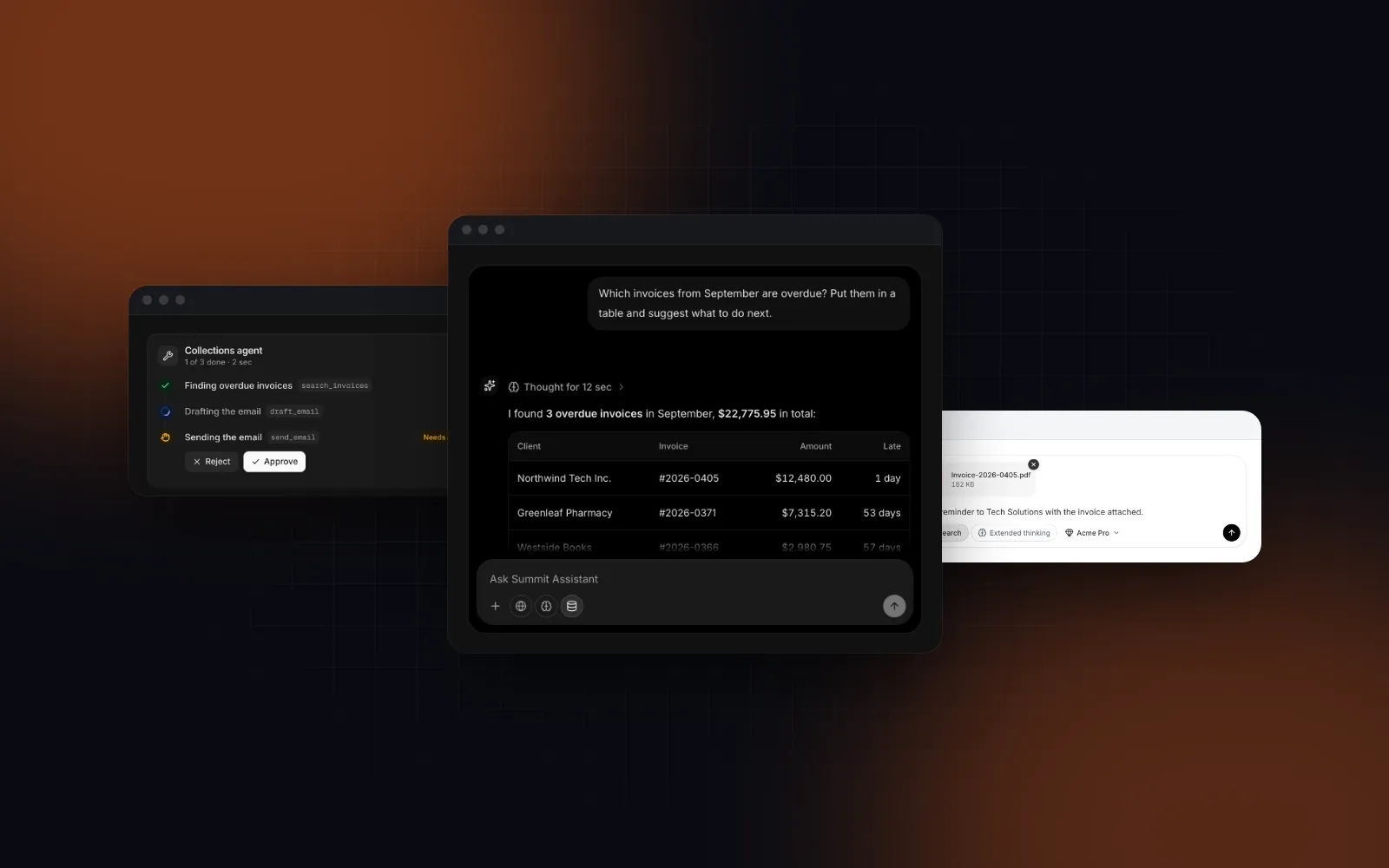
Each row in the timeline reads like a sentence: "Finding overdue invoices", then search_invoices in a small mono chip, then "0.8 s". Click or tap the row (or press Enter or Space on it) and it opens the input the model sent and the output the tool returned as highlighted JSON. Text results wrap instead of turning into one long string. Every block has a copy button, and a block taller than codeMaxHeight (240px by default) scrolls inside itself, so a 200-line response does not push the rest of the run off screen.
When JSON is the wrong view, swap it. renderOutput and renderInput take the call and return any React node: invoices as a small table, an email draft as text, a map. Return undefined to keep the JSON and null to hide the section.
$ npx wingo-ui@latest add tool-call-timelineThe shape behind each row is plain data:
startedAt and endedAt work too; durationMs wins when your server already measured the call. steps holds sub-steps, which render indented under their parent, and logs holds plain log lines.
How do you build a tool call UI in React with the AI SDK?
Convert each assistant message's tool parts into ToolCall objects, pass them to the timeline, and send approvals back with addToolApprovalResponse. That adapter is all an AI SDK tool UI needs on top of the component.
The adapter keeps the AI SDK on one side and the component on the other. The structural ToolPart type keeps it independent of your tool definitions:
Then render one timeline per assistant message:
useChat hands you a new object for the message that is streaming, so useMemo rebuilds the calls of that one message while older runs keep theirs. Your chat input stays as it is. The route handler in the next section adds the approval gate.
One pitfall: an approval-requested part is not always a question for a person. When a server-side policy approves or denies a call on its own, the AI SDK sets approval.isAutomatic to true and expects no response. The adapter shows those calls as running, so nobody gets Approve and Reject buttons that do nothing.
How should human in the loop approval UI work?
Pause before the side effect, show the exact arguments that will run, and keep the decision one tap away. A human in the loop approval UI that hides the input asks people to approve something they cannot see.
On the server, the gate goes on streamText. The chatbot tool usage docs (opens in a new tab) set a tool to "user-approval" in the toolApproval option and mark the older needsApproval tool property as deprecated (as of October 2026). The streamText reference (opens in a new tab) also accepts a function per tool that receives the input, so only risky calls stop. The tool keeps its execute; the SDK waits for the answer before running it:
The AI SDK's human in the loop recipe (opens in a new tab) still shows needsApproval: true on the tool. Both paths produce the same approval-requested parts, so the client code above does not change, and the streamText reference says toolApproval wins when both are set. Tool keys become part types (tool-sendEmail), which is why the adapter's TITLES map uses the same camelCase names.
On the client, a call with status awaiting-approval shows Reject and Approve under its title, and opening the row shows the arguments right above them. To open waiting calls by themselves, control expandedKeys and add their ids as they arrive. If onApprove returns a promise, Approve spins and Reject stays disabled until it settles; when the buttons go away, focus moves back to the row, so a keyboard user never lands on the page body. On a phone the two buttons are 44px tall and share the row's width.
Rejecting is a real outcome. Show the call as canceled (the adapter above does it from approval.approved === false). Keep the system line from the route above: the AI SDK recipe adds that instruction so the model does not retry a denied call and ask the person the same question twice.
Where do tool calls go: a chat message, a panel or an agent page?
All three, with a different variant for each place.
- In a chat message, use
variant="inline": a one-line summary like "Used 4 tools, 2.8 s" that opens while a call runs or waits for approval and closes 1.2 s after everything finished. It stays open if the person opened it or focus is inside it. Chat Message renders this on its own when the message hastoolCalls, andtoolCallPropspassesonApproveand the rest through. - In a side panel, use
variant="timeline"withsize="sm". Rows lay out by their own width, so in a narrow column the tool id moves under the title. - On an agent page, use
variant="card". The header shows the run's state in words, its progress while it runs ("2 of 5 done"), the total time and a button that opens or closes every row.
How do you show an agent run's overall status?
Put a status card above the agent steps timeline. When an agent runs in the background, people need an answer to "is it still working?" before anyone opens a row.
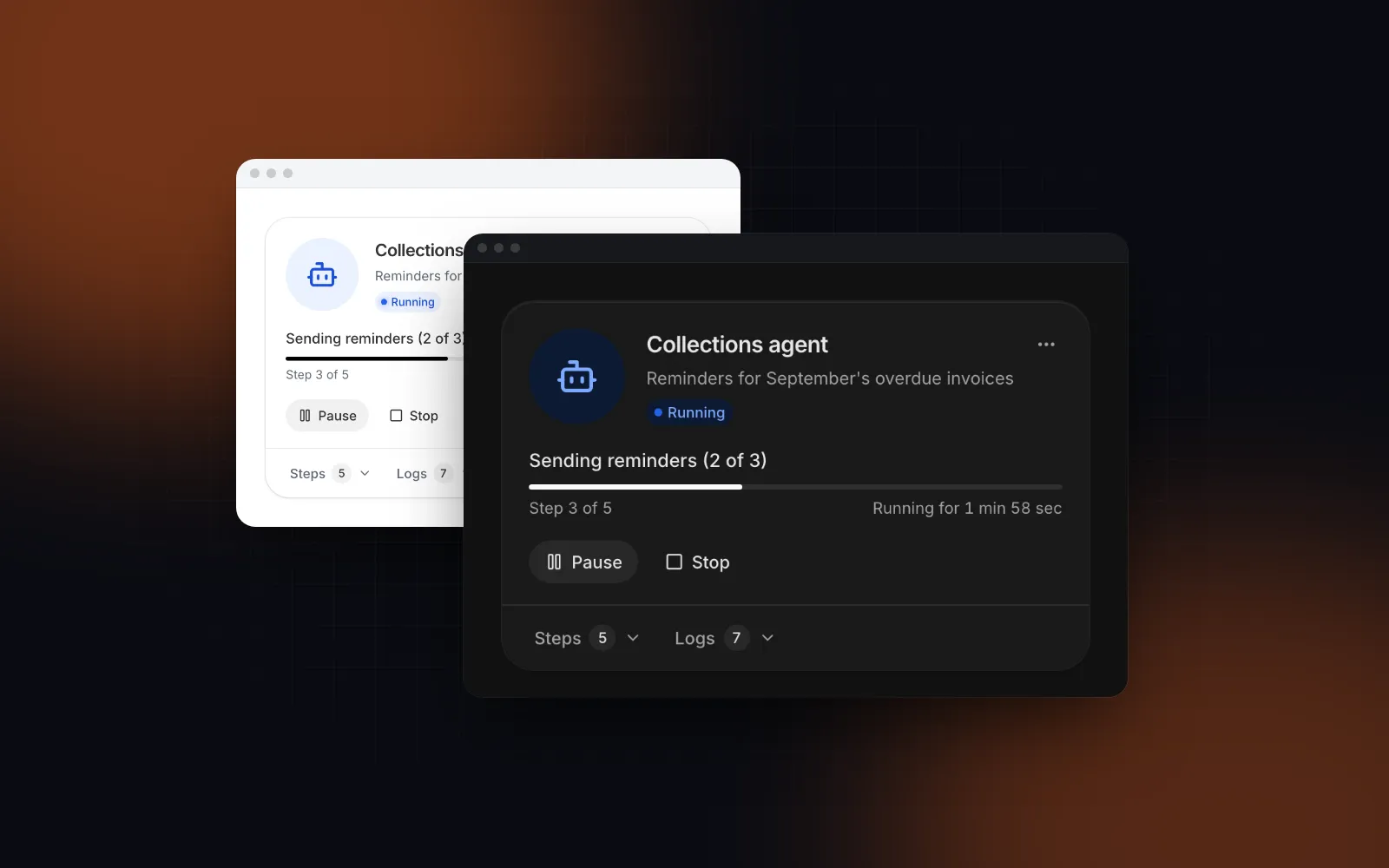
Agent Status Card takes the same ToolCall[] as steps and derives the progress ("Step 3 of 5"), the current step and the elapsed time from them. Only the controls that matter right now appear: Pause and Stop while it runs, Approve and Reject in an amber box while it waits, Retry in a red box when it failed, View result when it is done. Stop asks first in a dialog, so mount AlertDialogProvider once.
$ npx wingo-ui@latest add agent-status-cardUse variant="compact" for a grid of agents and variant="row" for a 64px list line with a progress ring. Below 400px the orb moves above the text and the buttons share the width.
How do reasoning and tool calls fit together?
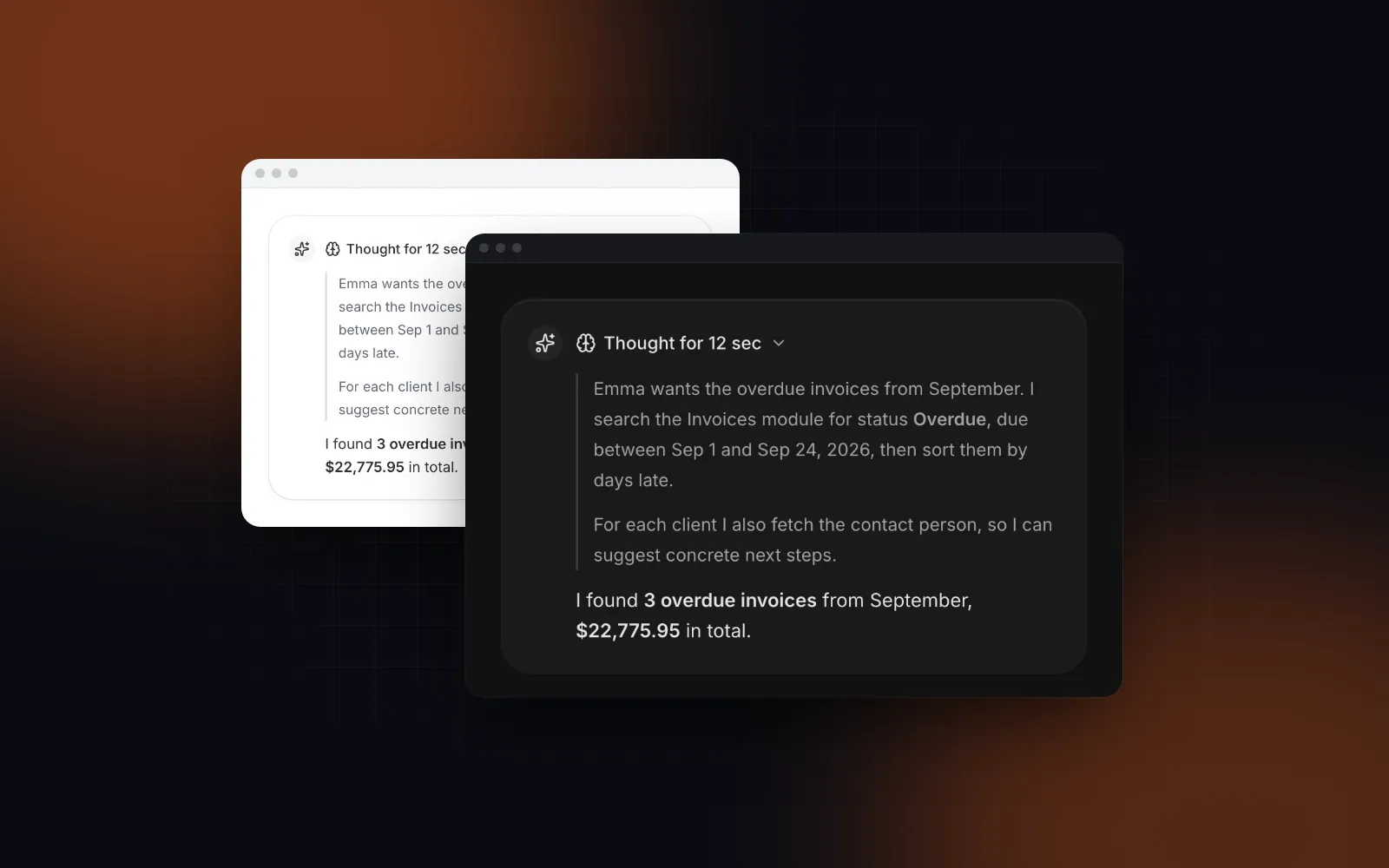
Reasoning comes before the first call and between calls, and it should fold the same way. Reasoning Indicator shows a shimmering label and a live timer while the model thinks, then settles on "Thought for 12 s" that opens on a tap. Its label prop replaces the text during a phase, for example "Searching the web", so a thinking step and a tool step read alike. Chat Message stacks the reasoning row above the tool summary, then the answer below both.
What makes a tool call UI accessible on a phone?
It needs three things: one announcement per status change, 44px touch targets and long content that scrolls inside its own block.
- Announce once per change. The list is not a live region; a screen reader reading every ticking duration is unusable. A separate polite region says "Sending the email: Needs approval" once when the status changes.
- Say the status in words. Failed and waiting calls say their status next to the title. The others carry it in the marker and a screen-reader-only word.
- Targets. On touch screens rows grow to 44px, and small rows keep their look with a 44px hit area.
- Keep scrolling inside the row. Code blocks scroll sideways inside themselves, so a long URL in a JSON output never widens the page at 360px. Agent logs stop at 40% of the screen height.
- Reduced motion. Springs become quick fades, and the shimmer and the ping stop.
When is AI Elements the better choice?
AI Elements is the better choice when your app already runs on the AI SDK and you want free components under the Apache 2.0 license (opens in a new tab). Vercel's AI Elements has a Tool (opens in a new tab) component whose header, input and output take the fields of the SDK's tool part (its state, input, output and errorText) and a Confirmation (opens in a new tab) component that takes a part's approval and state, all built on shadcn/ui. You skip the adapter above. Its docs (opens in a new tab) also say the project is moving to shadcn/ui and the current site will be deprecated at the end of November 2026, so new projects should install it from there (checked October 16, 2026). Wingo UI's timeline fits when you want the rail, durations, sub-steps, retry, the run-level card and the phone layouts built in, or when your agent does not use the AI SDK at all, since ToolCall is plain data. For the chat around it, see our guide to the React AI chat UI.
What should you try next?
Open the Tool Call Timeline docs, switch between the timeline, card and inline variants in the playground, then install it with npx wingo-ui@latest add tool-call-timeline. It and the other two components in this guide are part of Wingo UI Pro. If a coding agent builds your screens, the component library MCP guide shows how to let it read these props directly, and more posts like this one are in Building UI with AI agents.
FAQ
What states does a tool call UI need?
Six cover real agents: queued, running, done, failed, canceled and waiting for approval. The AI SDK's tool part states (input-streaming, input-available, approval-requested, approval-responded, output-available, output-error, output-denied) map onto them one to one or two to one.
How do I add human in the loop approval to an AI SDK tool?
Set the tool to 'user-approval' in the toolApproval option of streamText (the older needsApproval tool property is marked deprecated in the AI SDK docs as of October 2026). On the client, render Approve and Reject when the tool part's state is approval-requested and call addToolApprovalResponse with the approval id and approved true or false. Pass lastAssistantMessageIsCompleteWithApprovalResponses as sendAutomaticallyWhen so the chat continues once every approval is answered.
Should tool call details be open or collapsed by default?
Collapsed for calls that worked and open for calls that failed. People read a successful call's title and time; they need the error, the input and the logs of a failed one right away.
How do I show tool calls inside a chat message?
Use a one-line summary such as Used 4 tools, 2.8 s that opens while a call runs or waits for approval and folds away after the run finishes. Wingo UI's Chat Message does this when you pass toolCalls on the message.
Are the Wingo UI agent components free?
No. Tool Call Timeline, Agent Status Card and Reasoning Indicator are part of Wingo UI Pro. Free items they build on, such as Button, Badge, Code Block and Progress, install without a paid plan.
- AI agents
- Tool calls
- Human in the loop
- React
- Accessibility