React Swipe Cards: A Tinder-Style Deck With Undo
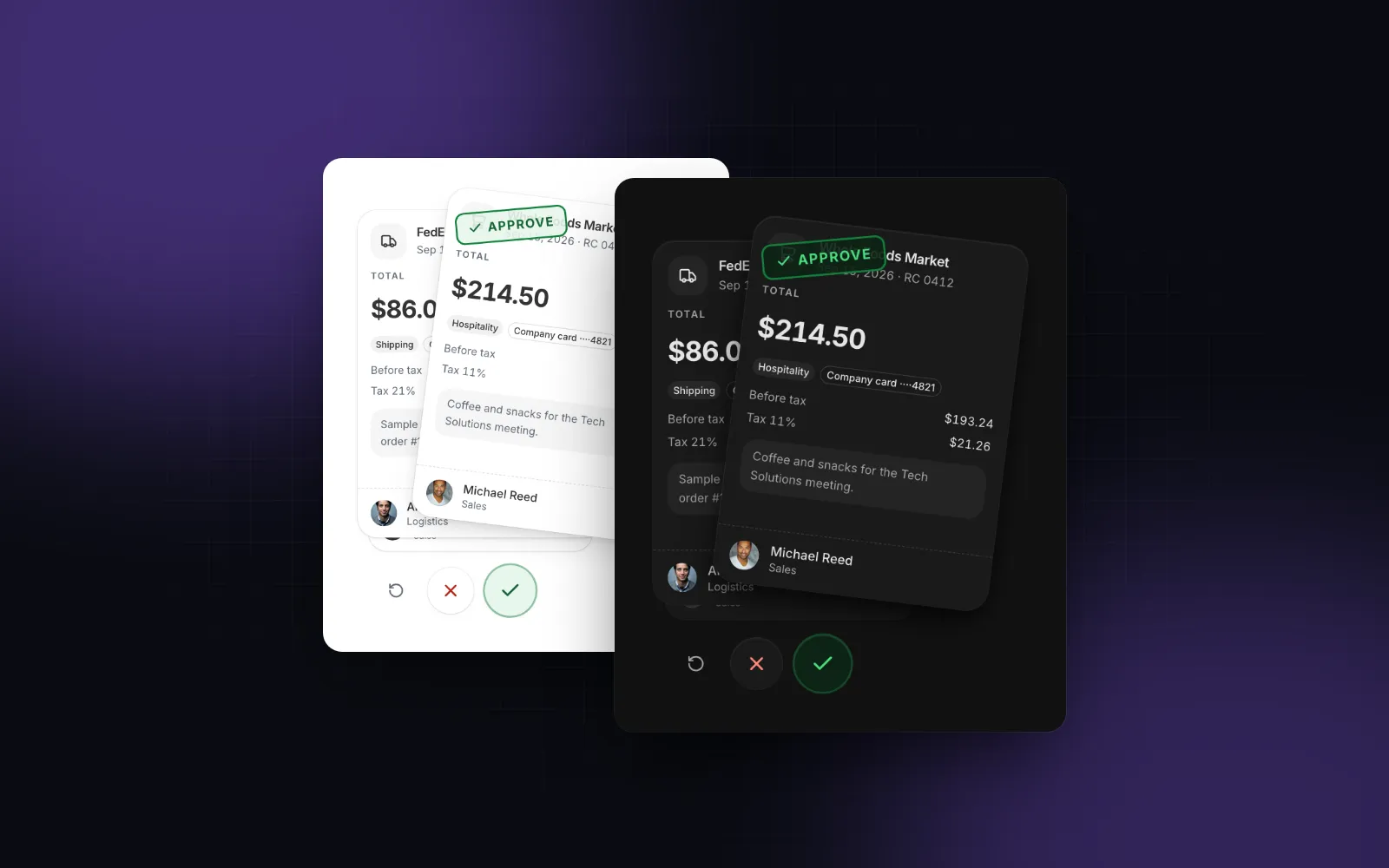
React swipe cards are the Tinder pattern outside of dating: a stack of cards, one decision at a time, swipe right to keep and left to pass. Teams use it to approve expenses, triage leads, review flashcards or browse rentals on a phone. The demos are easy to find; the hard parts are a drag that stays smooth on a mid-range Android phone, an undo that reverses the save, and a way to decide without swiping. This tutorial builds the card from scratch with motion, then shows the Wingo UI Swipe Deck, which adds stamps, a stack, undo, buttons and keyboard support.
What does a good swipe card interaction need?
Six things, in roughly the order people notice them:
- The card follows the finger and tilts. The tilt pivots around the bottom of the card, the way a card held at the bottom swings.
- A stamp shows where it is going. Like or Nope fades in on the side the card is heading for, with text and an icon so color is never the only cue.
- A clear threshold. Past a quarter of the card width, or with a quick flick, letting go decides. Anything less springs back.
- The throw keeps its speed. A hard flick leaves fast and a slow drag leaves slowly, so the card carries the momentum you gave it.
- The next card is already there. The cards behind rise into place while you drag, with their images loaded.
- Undo, buttons and keys. People swipe the wrong way, and some cannot swipe at all.
Check any package for swipeable cards against this list. Take react-tinder-card (opens in a new tab), a web package for the Tinder swipe: as of October 2026 it is at 1.6.4 (published November 7, 2023 (opens in a new tab), MIT). It lists React 16.8 to 18 as peer dependencies, so npm reports a peer conflict on React 19, needs @react-spring/web, offers swipe(dir) and restoreCard() on a ref, and its README does not mention keyboard support or screen readers.
How do you build a swipeable card in React from scratch?
Keep the position in a motion value and derive everything else from it. A swipeable card in React that stores x in state re-renders the card on every pointer move, and on a phone with a photo in the card that is where the lag comes from. With useMotionValue and useTransform, the tilt and the stamps update outside React, and the component renders once per card:
Render it with key={item.id} so each new card starts at zero. With drag="x", Motion sets touch-action: pan-y, so a vertical swipe on the card still scrolls the page. The 400px/s flick and the quarter-width threshold are the same numbers Wingo UI's lib/motion uses for every swipe, sheet and drawer in the library, so a card and a bottom sheet complete at the same point.
That covers the card swipe animation. What the skeleton still lacks: the cards behind, a throw that carries the release speed (the 0.3s tween ignores it), a click that fires after a drag ends on a button inside the card, a haptic tick when the threshold arms, undo, buttons, keys and announcements. That list is the rest of this post.
How do you build a swipe deck with Wingo UI?
Pass items (each with a stable id), a renderCard and an onSwipe. The deck draws the card surface, the stack, the stamps, the round buttons and the undo button. Here is a rentals screen where Save keeps a listing and the saved ones collect in a grid below the deck (the SavedRentals grid comes later in this post):
onSwipe runs once the card has left. When it returns a promise, the deck waits for it before the next decision, and a rejection brings the card back with the error label ("Couldn't save. Try again."). The cards are drawn as a stack (the ones behind peek out below at 0.95 and 0.9 scale), a fan (they lean 3 degrees either way) or none. rotation sets the tilt at a full-width drag (12 degrees by default, 0 keeps it upright), and visibleCards sets how many are drawn, 3 by default, so the next photos start loading before they reach the top.
$ npx wingo-ui@latest add swipe-deckHow does undo work in a swipe deck?
Undo in a swipe deck has two halves: the card comes back, and whatever the decision saved is reversed. The deck keeps an index of decided cards. Undo steps it back one, and the card flies in from the side it left. Three paths trigger it: the small circular arrow next to the round buttons, Backspace, and Cmd/Ctrl+Z. Each one calls onUndo(item, direction), so you reverse exactly what that decision saved; in the example above, only a Save needs undoing. showUndo={false} hides the button and turns the keys off.
To drive undo from your own UI, setApi hands you { swipe(direction), undo(), index }. And to control the deck from outside, pass index and onIndexChange; setting index to 0 starts over, which is how an empty state with a "Review again" button works.
How do you add a third direction?
Add "up" to directions for a Later choice. Its stamp sits at the bottom of the card and its round button is smaller and in the middle. Most apps should stop at three; diagonal or down swipes are hard to discover and easy to trigger by accident.
$ npx wingo-ui@latest add swipe-deckAllowing up has a cost on a phone. With only left and right, the card has touch-action: pan-y, so a vertical swipe that starts on the card still scrolls the page. With up allowed, the card needs vertical moves too and uses touch-action: none, so the page cannot scroll from the card. Leave room above or below the deck to scroll, or keep two directions on screens that scroll. Our Tailwind touch manipulation guide explains which touch-action value each draggable surface needs.
How do people decide without swiping?
With the buttons and keys, which do the same thing with the same animation. A swipe is a dragging movement, and WCAG 2.2 success criterion 2.5.7 (opens in a new tab) (level AA) asks for a single-pointer alternative. The deck provides:
- Round 56px buttons under the deck for each direction (
showActions, on by default). They tint and grow as a drag heads their way, which also teaches the gesture. - Keys. Tab to the card, then Left, Right (and Up when allowed) decide. Backspace or Cmd/Ctrl+Z undo. Focus follows to the next card, and to the empty state after the last one.
- Announcements. The top card carries instructions for screen readers ("Swipe or use Left and Right arrows to decide. Backspace undoes."), and every decision is announced with what is left, such as "Hilton Boston, $412.00: Accept. 2 left." when you set
getItemLabel. - Clickable content. Buttons, links and inputs inside a card never start a drag, so a "View details" button in the card still works.
- Reduced motion. The card does not tilt and leaves with a short fade and slide.
On phones the drag arms with a medium haptic tick, commits with a light one and plays an error pattern when a save fails. Treat that as a bonus: as of October 2026, caniuse (opens in a new tab) shows no navigator.vibrate in Safari. Our Web Vibration API guide covers the gaps.
Where does a listing card fit with swipe cards?
After the deck, not inside it. A card in a deck should be one big drag surface. The Listing card is built for grids: its photos are a carousel you swipe sideways, and its title and photos are links. Inside a deck, those gestures compete with the card swipe, and the deck refuses to start a drag on a link. So use the deck to decide and the Listing card to show what was kept, in a two-column phone grid:
size="sm" is the size meant for two-column phone grids. favorite: true starts each heart filled, and onFavoriteChange lets people unsave from the grid and save again if they change their mind: return the promise and the heart stays in its new state while it is pending, or rolls back if the request fails.
$ npx wingo-ui@latest add listing-cardWhich swipe card mistakes show up in production?
- State per frame. Calling
setStateinonDragre-renders the card on every move. Keep motion in motion values; the deck only sets state when a direction arms or a card is decided. - A card that escapes the page. A thrown card flies past the deck's edges and can create a horizontal scrollbar. Wrap the screen in
overflow-x-clip. - Saving before the card leaves. Save in
onSwipe, which runs after the card has gone, and return the promise so a failure brings it back instead of losing the decision. - Undo that only moves the card. If Save wrote to the server, undo must unsave.
onUndogives you the item and the direction for exactly that. - Stamps that rely on color. Green and red stamps alone fail for color-blind users. Keep the text and the icon.
Swipe rows are the smaller cousin of swipe cards; our React swipe to delete tutorial uses the same motion values for list rows. For the rest of the mobile layer, read our guide to mobile-first React components or browse Mobile UI in React.
What should you install next?
npx wingo-ui@latest add swipe-deck copies the Swipe Deck with the Button, the Empty State and the haptics, motion and state helpers it imports, and installs motion and lucide-react. Add the Listing card for the saved grid with npx wingo-ui@latest add listing-card. Both are part of Wingo UI Pro, so sign in first with npx wingo-ui@latest login.
FAQ
How do I make Tinder-style swipe cards in React?
Drag the top card horizontally on a motion value, derive the rotation and the Like and Nope stamps from that value with useTransform, and on release either throw the card off screen or spring it back. Render the next cards behind it so one is always ready.
Why do my swipe cards lag on a phone?
Usually because the drag position is stored in React state, which re-renders the card and everything in it on every pointer move. Keep the position in a motion value or a ref and only set state when the card is decided.
Does react-tinder-card work with React 19?
Its latest release, 1.6.4 from November 2023, lists React 16.8 to 18 as peer dependencies, so npm reports a peer conflict on React 19. It also needs @react-spring/web, and its README does not mention keyboard support.
How do I add undo to a swipe deck?
Keep the index of the top card and the direction of each decision. Undo decrements the index, reverses whatever the decision saved, and animates the card back in from the side it left. The Wingo UI Swipe Deck does this with a button, Backspace or Cmd/Ctrl+Z, and calls onUndo with the card and its direction.
Are swipe cards accessible?
Only with buttons or keys for every direction, because a swipe is a dragging movement under WCAG 2.2 success criterion 2.5.7. The deck should also announce each decision and move focus to the next card.
- Mobile UI
- Swipe cards
- Gestures
- Motion
- React