React Collapsing Header: iOS Large Title and Photo Hero
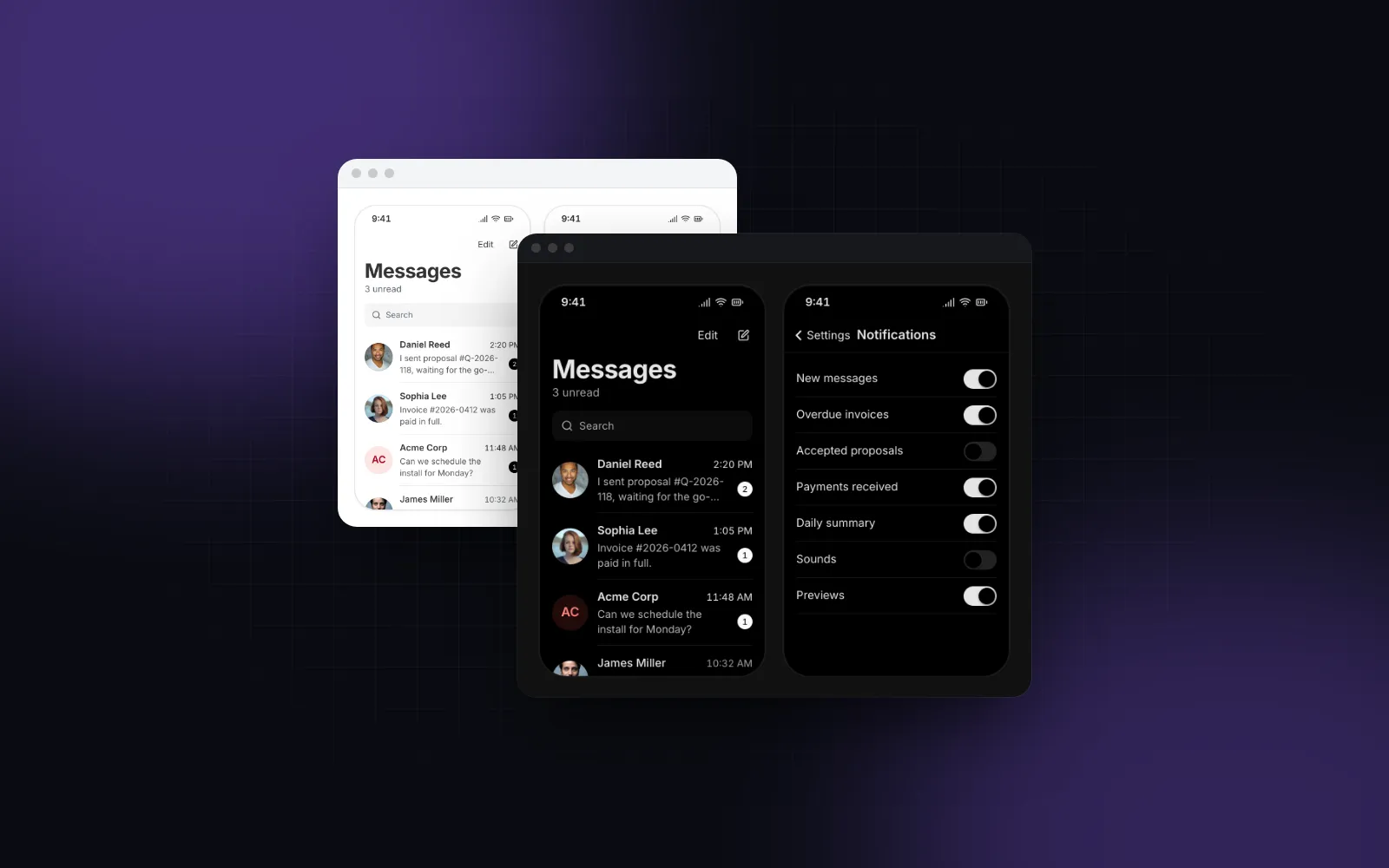
A react collapsing header is the bar at the top of a phone screen that changes as you scroll: the big iOS title that slides up and hands over to a small one, or the full-bleed photo that shrinks into a frosted bar on a listing page. The quick version writes scrollY into state from a scroll listener and animates the header's height. On a phone that stutters. This tutorial builds both patterns with scroll motion values, first by hand and then with the Wingo UI Large Title Header and Hero Header.
Which collapsing header does your screen need?
There are two patterns, and they belong on different screens: the large title for top-level lists, the photo hero for detail pages. Android developers know the second one as CollapsingToolbarLayout (opens in a new tab), which Material documents with a collapsing title, a scrim and parallax children. A collapsing toolbar web version rebuilds the same idea with scroll-linked styles.
Apple's SwiftUI documentation for the large title mode (opens in a new tab) describes the first one: the title starts below the toolbar and moves to its center as the content scrolls. On the web, Ionic ships the same effect as collapsible large titles, and its title docs (opens in a new tab) note that the feature is iOS only.
Why does a useState scroll listener make the header stutter?
Because it puts React in the middle of every frame. A typical shrink header on scroll React snippet looks like this:
Two things go wrong. Every scroll event renders the component and everything under it. And height is a layout property, so each frame re-lays out the whole page below the header. The web.dev animations guide (opens in a new tab) advises animating transform and opacity and avoiding properties that trigger layout or paint. The other common recipe, a boolean that flips at 50px, renders less but jumps between two states instead of following the finger.
The fix is to keep the offset outside React state. A motion value from motion/react can change 60 or 120 times a second and write straight to style, without a render. Booleans like collapsed still live in state, and they change only when they flip.
How do you drive a header from scroll without re-rendering?
Read the offset as a motion value and derive every style from it with useTransform. Motion's own useScroll returns scrollY as a motion value. The Wingo UI useScrollState hook does the same for the window or any container, and adds progress, a hideProgress for bars that slide away, and scrolled, hidden and atEnd flags that re-render only when they change.
Here is a minimal iOS large title React component. It uses motion's useScroll, so it needs nothing beyond the motion package; swap in useScrollState().offset when the page scrolls an inner container:
Nothing here changes height. The large h1 is a normal block in the page, so the browser scrolls it for free; the code only fades it. The bar has a fixed 44px height and fades its glass surface in. The compact copy is aria-hidden so screen readers hear the title once.
The weak spot is the hardcoded numbers. A title that wraps to two lines, a subtitle, or a larger font setting moves the point where the title passes under the bar, and the handover drifts off it. The component in the next section measures that point with a ResizeObserver (the title's bottom edge minus the bar's height) and stores it in a motion value too, so the transforms stay right without rendering. It also starts expanded until the first measurement lands, so the server HTML never paints a half-faded title.
You may also see CSS scroll-driven animations suggested for this. animation-timeline: scroll() runs in Chrome 115 and Safari 26 according to caniuse (opens in a new tab), and MDN (opens in a new tab) still marks it as limited availability as of October 2026. It handles a fixed-range fade well. It cannot measure the title, snap a half-collapsed header or move a search field under the bar, so we use it as an enhancement at most.
How do you build the iOS large title handover in React?
Install the component (it is Pro, and it brings useScrollState, the button and the input with it):
Then render it at the top of the page, before the content:
The root of the header is display: contents, so the sticky bar belongs to the page and stays pinned all the way down, instead of unsticking when its own wrapper scrolls away. The handover happens over 16px of scrolling around the measured edge: the compact title rises 4px into the bar while the glass surface and the hairline fade in. Scroll it in the phone frame:
$ npx wingo-ui@latest add large-title-headerWhat happens when the user stops halfway?
With snap on (the default), a scroll that rests between expanded and collapsed for 140ms settles to the nearer end, so the title never stays half under the bar. The check waits while a finger is still on the screen, and a page too short to collapse settles back to expanded.
What about pulling past the top?
On iOS the scroller reports a negative offset during the bounce. stretch scales the large title from its corner, up to 8% after 48px of overscroll, the way the native title does. Browsers that do not bounce never report a negative offset, so nothing happens there.
Which mode should each screen use?
Use collapse on top-level lists and compact on pushed detail screens. mode="collapse" is the handover above. mode="large" pins the title at full size and never collapses. mode="compact" renders only the bar with the title already in it, which suits a pushed detail screen. titleSize="md" drops the large title from 34px to 28px.
How do you build a parallax hero header for mobile?
Put a full-bleed photo under the status bar, float round buttons on it, and move the photo slower than the page until a bar takes over. That is the parallax hero header mobile apps use on listing and product pages. Install the Hero Header:
The parallax is one transform. With the default parallax={0.5}, the photo moves down by half the scroll offset while the page moves up over it, so it appears to scroll at half speed. This is the transform inside hero-header.tsx, where drift is the clamped parallax prop and mediaHeight is the measured hero height:
The function form of useTransform subscribes to every motion value it reads, which is why the component reads mediaHeight before it branches: a value read only inside a branch that did not run on the first pass would never update the transform.
During an iOS overscroll the photo holds its top edge and scales up to fill the gap instead of showing the page background. The photo also darkens to 45% as it leaves (fade), and a top gradient (scrim) keeps the status bar and the white icons readable on bright photos. In the last 32px before the photo's bottom edge meets the bar, the glass bar fades in, the compact title rises into it and the round glass buttons turn into tinted bar buttons.
$ npx wingo-ui@latest add hero-headerThe title prop here is the bar copy and is aria-hidden, which is why the page renders its own h1 below the hero. height defaults to 320px and is capped at 70dvh, so a tall photo never fills a short phone. Use onCollapsedChange when the status bar color should follow the handover.
How do you make it work in a scroll container or a PWA?
Both headers follow the window by default. When an app shell scrolls an inner element instead, hand that element down once with ScrollContainerProvider. Keep it in state through a callback ref, so the children update after it mounts:
Every header, tab bar and back-to-top button inside now reads that element. For one-off cases, both headers also take a scrollTarget prop.
In a standalone PWA the bar must clear the notch. safeArea (on by default) pads env(safe-area-inset-top) above the bar, which is 0 in desktop browsers and needs viewport-fit=cover in your viewport meta; our Tailwind safe area guide covers that setup. If the page sits on bg-surface instead of bg-background, set [--bar-bg:var(--surface)] so the glass matches. A header pairs naturally with a bottom bar, which the React bottom navigation bar tutorial builds.
Should the header hide on scroll instead?
Hide it on feeds with a plain top bar, and collapse it on screens that have a real title. On a feed, the bar slides away while you scroll down and returns on the way up, which gives the content the full height. That is useScrollState({ hideOnScroll: true }): hideProgress follows the finger from 0 to 1 over hideDistance pixels (56 by default) and snaps to shown or hidden when you stop.
$ npx wingo-ui@latest add use-scroll-stateHow do reduced motion and accessibility change it?
Under prefers-reduced-motion, the large title handover becomes an instant switch and nothing stretches; the hero drops the parallax and the stretch, and its bar takes over in one short fade. Both components read the preference through a hydration-safe hook, a problem our prefers reduced motion guide explains. The large title stays the page's only h1, the back button and actions are 44px on touch, and when Escape or Cancel ends a search from the keyboard, focus returns to the title.
For the rest of the phone details, from bottom sheets to touch targets, see the mobile-first React components guide and the Mobile UI in React category.
What should you do next?
If you only need a fade, the hand-rolled version above is enough. For the measured handover, the snap, the search field and the photo hero, both components are part of Wingo UI Pro: run npx wingo-ui@latest add large-title-header hero-header and replace the demo copy with your own screens.
FAQ
How do I shrink a header on scroll in React without re-rendering?
Keep the scroll offset in a motion value (motion's useScroll, or useScrollState from Wingo UI) and derive opacity and transform from it with useTransform. Motion values update the DOM directly, so React renders only when a boolean like collapsed actually flips.
Should I animate the header's height when it collapses?
No. Height is a layout property, so every frame re-lays out everything below the header. Let the large title scroll away with the content and fade a compact title into a fixed-height sticky bar, which only animates opacity and transform.
Can CSS scroll-driven animations replace the JavaScript?
For a simple fade, yes, in Chrome 115 and later and Safari 26 and later. MDN still lists animation-timeline as limited availability as of October 2026, and CSS alone cannot measure where the title ends, snap a half-collapsed header or react to a search field, so keep a fallback.
Which element should be the h1 in a large title header?
The large title. The compact copy in the bar is the same text, so mark it aria-hidden or the page announces its title twice. On a photo hero, the page keeps its own h1 below the photo and the bar title stays aria-hidden.
Are the Wingo UI Large Title Header and Hero Header free?
No. Both are Pro components, and so is the useScrollState hook they share. With a Pro account signed in through npx wingo-ui@latest login, npx wingo-ui@latest add large-title-header copies the component and everything it imports into your project.
- Mobile UI
- Header
- Scroll animation
- iOS
- React