Web App That Feels Native on a Phone: 12 React Fixes
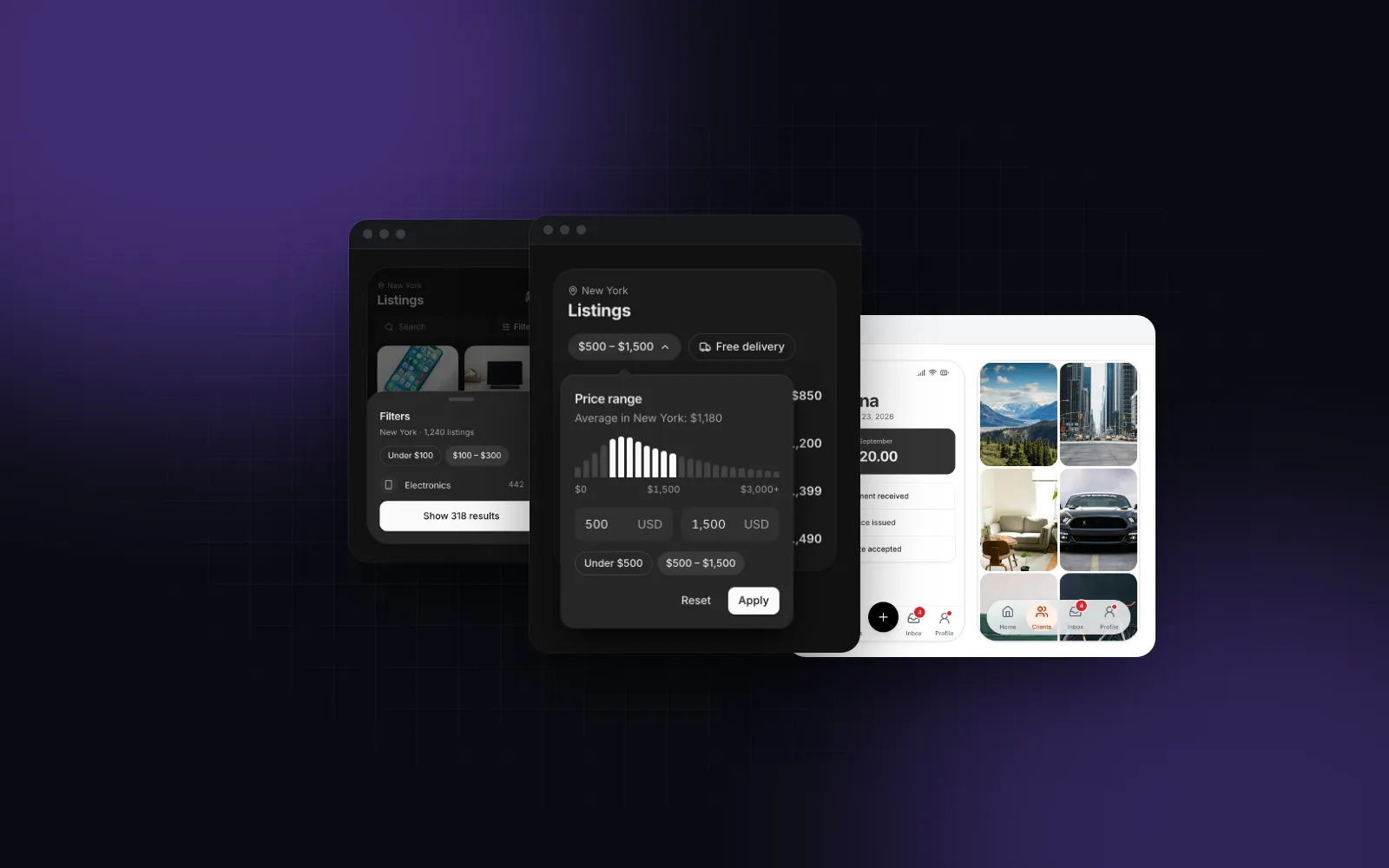
You built the app, added it to your home screen, and it still feels like a website: links flash gray when you tap them, a double tap on a button zooms the page, the menu opens as a tiny popover under your thumb, and the keyboard hides the message box. A web app that feels native gets a dozen small behaviors right, and most of them are free CSS or a few props. This list walks through twelve of them, from the launch to the keyboard, each with the component we built for it in Wingo UI, the code, and what a browser still cannot do.
The list is the practical companion to Mobile-first React components, which covers the layout rules behind it. More guides live in Mobile UI in React.
What makes a web app feel native on a phone?
Behavior first, looks second. Most advice on how to make a PWA feel native stops at a manifest and a few meta tags, which is step one of twelve. People forgive a web app that does not look exactly like Settings on an iPhone. They notice at once when a tap waits, a gesture does nothing, or the keyboard covers what they type. Web apps that feel native fix those first, so the twelve details below start with the ones every app needs and end with the polish.
1. Does it launch like an app?
An installed app opens without the address bar and fills the screen. That takes a manifest with display: "standalone" and a viewport that reaches the edges. In the Next.js App Router both are files and exports:
With viewportFit: "cover" the page draws under the notch and the home indicator, so every bar pinned to an edge must pad itself with env(safe-area-inset-*). Our Tailwind safe area guide has the utilities and the arithmetic for stacked bars. Some details only make sense once installed, like hiding your own install banner. A custom variant keeps that in CSS:
Then standalone:hidden hides an element inside the installed app. The React PWA install prompt guide covers how people get there on Chrome, Edge and iPhone.
2. Does a tap answer at once?
On a native control the press shows under your finger, with no gray box and no wait. Two CSS details get a web button there. touch-action: manipulation turns off double-tap zoom on the element, so a quick second tap on a stepper never zooms the page. WebKit's post on fast tapping (opens in a new tab) (December 2015) explains that it also keeps single taps immediate at every zoom level. And -webkit-tap-highlight-color: transparent removes the translucent box Safari and Chrome draw over a tapped link. Tailwind CSS v4's preflight already sets it to transparent on html, so in a Tailwind app the job is the opposite one: give every pressable its own pressed state.
The free Wingo UI Button carries both classes itself, so a copied button keeps them without a global stylesheet, and presses with a spring instead of a CSS transition. Our Tailwind touch-manipulation tutorial goes through every touch-* value and the bug each one fixes.
3. Does focusing a field zoom the page?
Safari on iOS zooms into a focused field whose text is smaller than 16px, and it does not zoom back out when the field loses focus. Adding maximum-scale=1 to the viewport stops that zoom, but Android browsers then block pinch zoom for the whole page, and Lighthouse fails the page on its viewport accessibility audit. Use 16px text on phones and your smaller size from md up:
The Wingo UI design system makes this one rule for every text field, text-base md:text-sm, and the shared field box and the Prompt Input follow it. Watch for the same bug in places that are easy to miss: a search field inside a header, a select, and a contenteditable editor all zoom the page when their computed font size is under 16px.
4. Does the interface act like a document?
Only where it should. A web page lets you select any text and chains a scroll from an inner list into the page behind it. An app does neither on its controls. Add select-none to buttons, tabs and bars, so a long press on a tab does not select its label, and leave real content selectable: people copy addresses, order numbers and error messages. Put overscroll-behavior: contain (overscroll-contain) on inner scrollers, so the end of a list inside a sheet does not scroll the page behind it; Safari supports it from version 16. Long press callouts on images in your chrome go away with [-webkit-touch-callout:none], which Safari supports and other browsers ignore.
5. Is the navigation at the thumb?
Native apps put their 3 to 5 main sections in a bar at the bottom, where the thumb already is. On the web that bar needs the home indicator inset, a hide-on-scroll behavior and a way to tell the rest of the page how tall it is. The Bottom Tab Bar does those three, and our React bottom navigation bar guide builds one step by step. Keep a sidebar from md up: a tab bar on a 1440px screen looks like a phone app stretched to fit.
6. Does the title behave like iOS?
The iOS large title is the most recognizable detail of an iPhone app: a 34px heading that scrolls up with the page and hands over to a small title in a frosted bar. The Large Title Header follows your finger through that handover, settles to fully expanded or fully collapsed when you stop halfway, and stretches the title by up to 8% when you pull past the top in Safari. The title stays the page's only h1, and under reduced motion the handover becomes an instant switch. The React collapsing header guide builds this handover, and a photo hero, on motion values.
$ npx wingo-ui@latest add large-title-headerUse it on top-level lists and settings pages. Detail screens read better with mode="compact", which shows only the bar, the way iOS does on a pushed page.
7. Can you swipe between tabs?
On a phone, tabs are pages side by side, and a sideways swipe moves between them. Plain tabs that only react to taps feel like a website. The Swipeable Tabs put the pages in a native scroll snap row, so the swipe has the browser's own momentum, and the underline stretches between tabs as the pages move. A vertical scroll inside a page never changes the tab, and tapping the active tab scrolls its page back to the top. The React swipeable tabs guide covers the scroll snap track and the indicator in detail.
$ npx wingo-ui@latest add swipeable-tabsSwiping is never the only way: every tab stays a button, and the arrow keys move between them. Pages mount lazily and stay mounted by default (lazy and keepMounted), so a page you swipe back to is not mounted again from scratch.
8. Do menus open as action sheets?
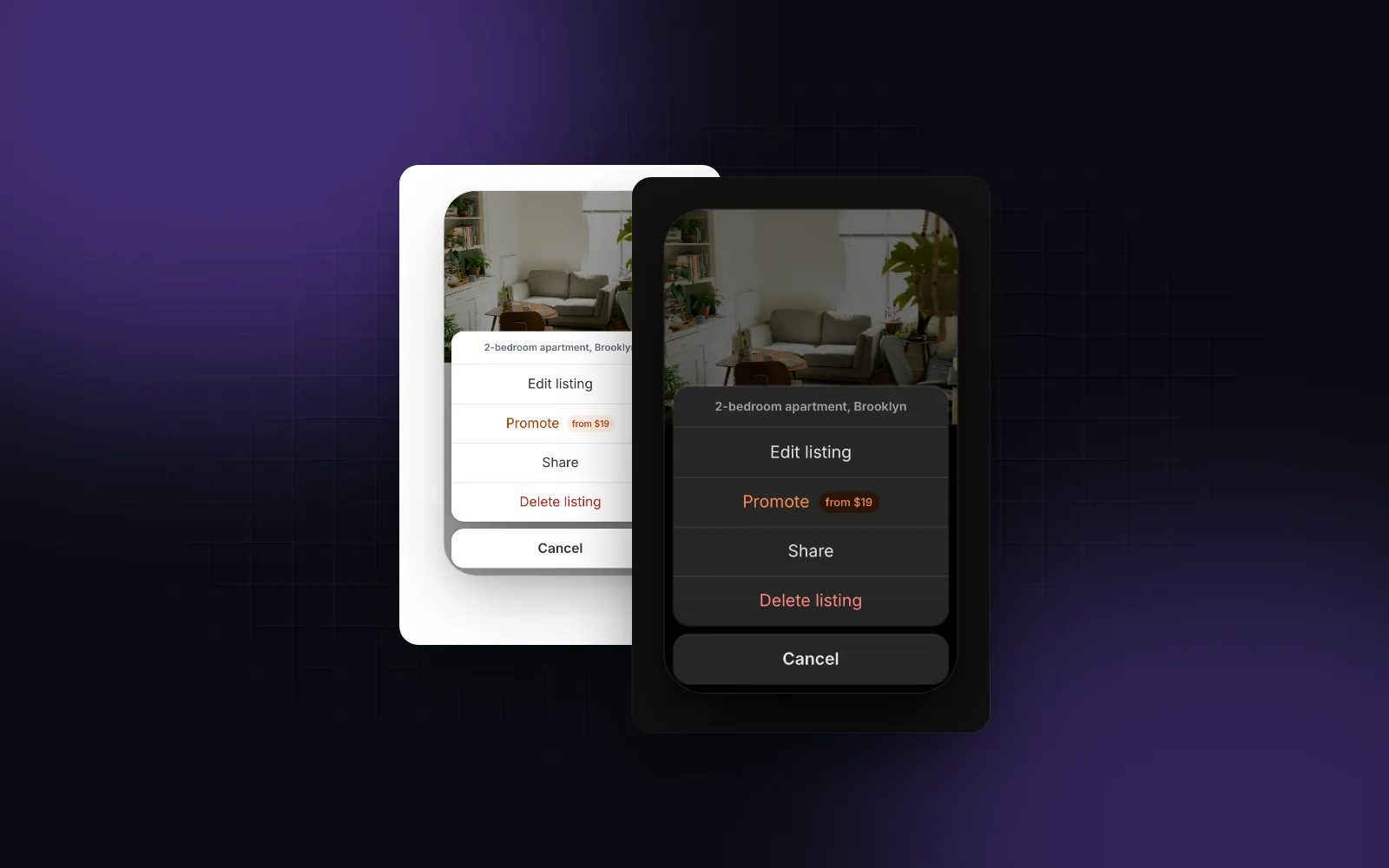
On a phone they should. Tap the "more" button in a native app and a sheet of actions rises from the bottom, with a red destructive row and a separate Cancel. A dropdown anchored to a 44px button covers the thumb that opened it. The Action Sheet always opens as a sheet on phones; from 768px it becomes a compact dialog by default, or a menu anchored to the trigger with desktop="popover". The React action sheet guide covers async rows and what happens when an action fails. It can also be awaited, which keeps the call site short:
show() needs an ActionSheetProvider near the root (it throws without one) and resolves with the chosen id, or null on cancel. An action that returns a promise shows a spinner in its row until it settles; if the promise rejects, the row shakes and stays open for a retry.
$ npx wingo-ui@latest add action-sheetSet variant="material" for one attached sheet with a handle and icon rows, closer to Android.
9. Do pickers and forms open from the bottom?
Everything that would float over the page on a desktop, such as filters, a date picker, a share menu or a short form, should rise from the bottom on a phone, where the thumb can reach it and drag it away. The free Drawer is the sheet the rest of the library uses: drag to dismiss, snap points, a scroll body that drags the sheet only once its list is back at the top, and from 768px a centered sheet, a side panel or a dialog, set with desktop. The React bottom sheet guide covers snap points and the keyboard in detail.
10. Can you pull to refresh?
In an installed PWA, only if you add the gesture yourself. People pull a list down to reload it without thinking, and in a standalone PWA the browser's own pull to refresh is gone or reloads the whole page. The Pull To Refresh adds the gesture with rubberband resistance and an arrow, iOS spokes or a Material ring:
It sets overscroll-behavior-y: contain on the scroller so Chrome does not reload the page, ignores sideways swipes, never starts a pull inside an input or a nested list that is not at its top, and spins for at least 500ms so the indicator never flashes. There is no keyboard gesture, so keep a reload button, or a shortcut, for mouse and keyboard users. The React pull to refresh guide explains why Safari needs a non-passive touchmove listener for this.
11. Do live events arrive like notifications?
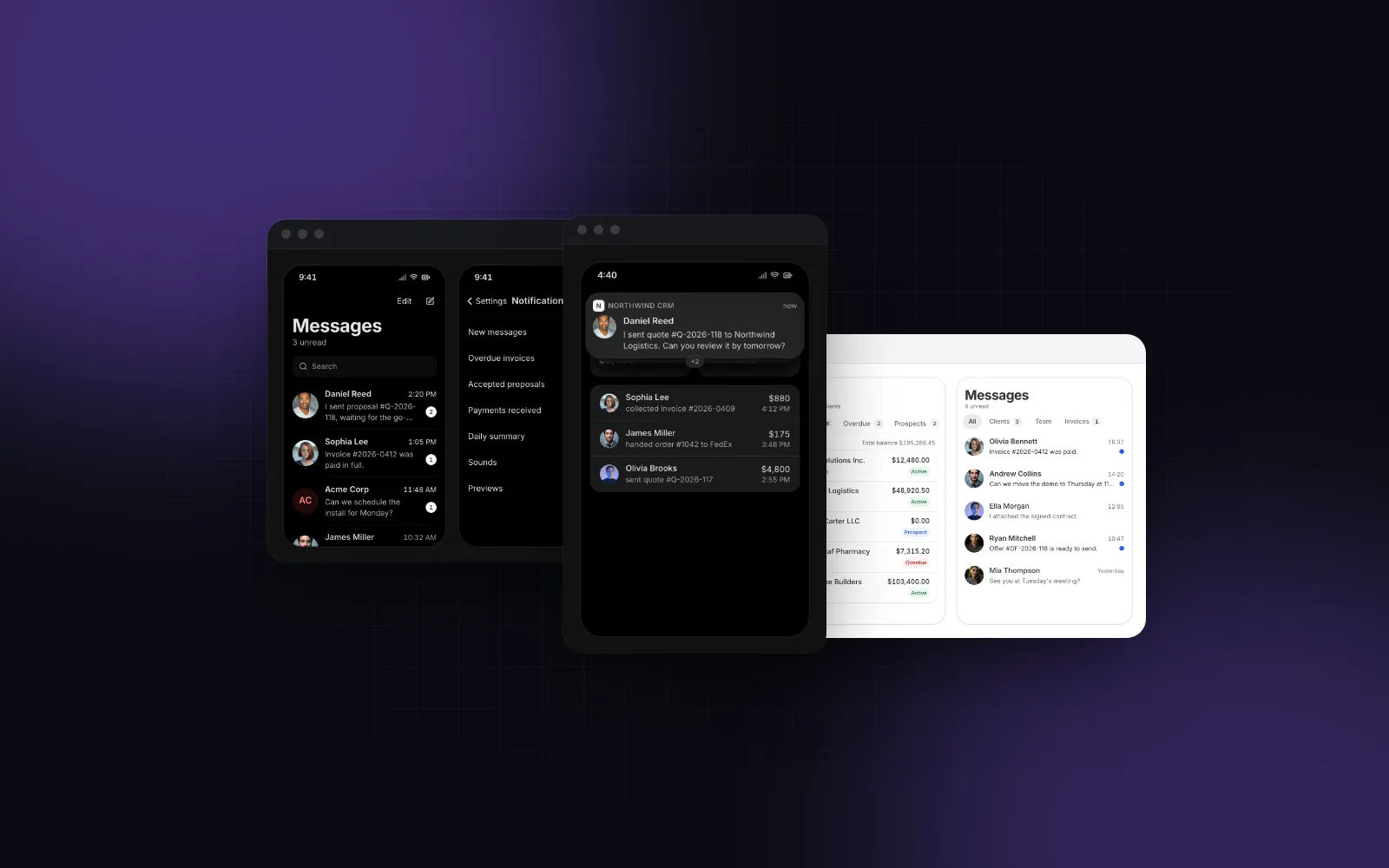
A toast at the bottom suits "Saved". A new message, an order or a reminder that arrives while someone uses the app reads better as a banner from the top, like the system's own. The Notification Banner queues them one at a time, lets you swipe a banner up to dismiss it or pull it down to expand its actions, and pauses its timer while you hold it:
Mount <NotificationBanner appName="Northwind CRM" /> once near the root. Sending the same id again updates the banner in place instead of stacking a duplicate, which matters when a socket delivers the same event twice. This is an in-app banner; it does not replace Web Push for people who have closed the app.
12. What about haptics, the keyboard and motion?
Three last details, each with a limit worth knowing.
Haptics. The Haptic Button presses on a spring, spreads a ripple from the touch point and plays a light tick on touch, and its mode="hold" fills while you hold to confirm a delete. The tick uses navigator.vibrate, which works in Chromium on Android after the first tap. Safari on iPhone has no Vibration API, and since iOS 26.5 a web page can no longer trigger the system tick of a hidden switch, so on a current iPhone the press and the fill carry the feedback alone. Our Web Vibration API guide covers what still ticks.
The keyboard. On iOS, and on Android since Chrome 108, the keyboard covers fixed bars instead of pushing them up. A chat composer pinned to the bottom needs to follow it. The useKeyboardInset hook reports the covered height as a motion value, and the iOS Safari keyboard guide builds the composer step by step.
Motion. Native transitions use springs and respect the system's reduced motion setting. The components in this post take their springs from one shared set in lib/motion and read the reduced motion preference, so the title handover becomes an instant switch, the action sheet fades instead of sliding, and the haptic button drops its dip, ripple and shake.
Which of these should you add first?
Start with the ones that cost nothing, because they fix the tells everyone notices: the launch (1), the taps (2), the zoom (3) and the document behavior (4) are CSS and a manifest. Then the sheets: npx wingo-ui@latest add drawer installs the free Drawer. The bottom tab bar, large title, swipeable tabs, action sheet, pull to refresh, banners, haptic button and keyboard hook are part of Wingo UI Pro, with live demos on each component page, so you can try the native app feel on your phone before you install them.
FAQ
How do I make a PWA feel native?
Launch it with display standalone and viewport-fit=cover, pad every pinned bar with the safe area insets, and fix the behaviors that give a web page away: slow or flashing taps, dropdown menus where a phone expects a sheet, fixed bars hidden by the keyboard, and pages that scroll like documents. Visual details like large titles come after that.
Can a web app use haptic feedback on iPhone?
Barely. Safari has no Vibration API, and since iOS 26.5 the system tick of a native switch plays only when the user's own tap toggles it, so a web app cannot tick on demand. Android Chrome supports navigator.vibrate after the first tap, so treat haptics as an extra and keep a visual response for every one.
Should a web app copy iOS design on Android?
Copy the behaviors both platforms share, such as sheets from the bottom, tabs you can swipe and instant press feedback. Platform-specific looks are a choice: several Wingo UI components offer an iOS and a Material variant, for example the action sheet and the pull to refresh indicator.
What gives away that an app is a website?
The usual tells are a gray box over tapped links, a page that zooms when you double tap a button or focus a small input, menus that open as tiny popovers, the keyboard covering a bottom bar, text that gets selected when you hold a button, and the whole page bouncing behind a scrolling list.
Are these components free?
The Button and the Drawer, which carry the tap and sheet basics, are free in Wingo UI. The Bottom Tab Bar, Large Title Header, Swipeable Tabs, Action Sheet, Pull To Refresh, Notification Banner, Haptic Button and the useKeyboardInset hook are part of Wingo UI Pro.
- Mobile UI
- PWA
- iOS
- React
- Native feel