Tailwind Touch Manipulation: touch-action for Every Control
Tap a plus button three times fast on an iPhone and the page zooms in instead of counting to three. Drag a slider thumb and the page scrolls along with it. Swipe a carousel sideways and the whole screen moves up. Each of these is one missing CSS property, touch-action, and Tailwind touch manipulation utilities set it per element: touch-manipulation, touch-none, touch-pan-y and seven more. This tutorial goes through what each value does, which controls need which one, and the tap highlight and zoom bugs they fix, with the classes we ship in the Wingo UI Button, Slider and Drawer.
It belongs to our Mobile UI in React series; the pillar guide, Mobile-first React components, puts these rules next to touch targets and safe areas.
What does touch-action actually control?
Which gestures the browser handles itself when a finger lands on an element. By default the browser owns panning (scrolling) and pinch zoom, and once it starts a pan, your pointer events stop: you get a pointercancel and no more pointermove (MDN (opens in a new tab)). That is why a drag built on pointer events works with a mouse and dies on a phone the moment the finger moves.
Three rules from the spec explain most surprises:
- It is not inherited, but it still reaches children. When a gesture starts, the browser intersects the
touch-actionof the touched element and its ancestors, up to the nearest scroll container. Atouch-manipulationon a button covers the icon inside it. - It stops at the scroll container. Values set above the element that scrolls do not apply to a touch inside it. A sheet with
touch-action: nonecan still have a list that scrolls natively, which we will use for the Drawer below. - It is read when the gesture starts. Changing it mid-drag does nothing for that drag.
Which Tailwind touch-action utilities are there?
Ten, each mapping to one value (Tailwind docs (opens in a new tab)):
The pan and zoom classes compose. In Tailwind CSS 4.3.3 (the version we checked in October 2026), each one sets a variable such as --tw-pan-y, and a single declaration reads them all: touch-action: var(--tw-pan-x,) var(--tw-pan-y,) var(--tw-pinch-zoom,). So touch-pan-y touch-pinch-zoom gives you pan-y pinch-zoom, a sideways swipe surface that still lets people zoom. Variants work as usual, for example touch-pan-y md:touch-auto.
What does touch-manipulation fix on buttons?
Double-tap zoom. manipulation allows panning and pinch zoom and turns off the rest, chiefly double-tap to zoom. MDN describes it as an alias for pan-x pan-y pinch-zoom, and notes that without double-tap zoom the browser no longer needs to delay clicks.
The 300ms double tap zoom delay is mostly history. Chrome dropped it in version 32 for pages with width=device-width, and Safari followed in iOS 9.3 (Chrome's post (opens in a new tab)). WebKit's own post on fast tapping (opens in a new tab) (December 2015) adds the detail that still matters: that fast path applies only while the page is at its initial scale. Once someone has zoomed in, Safari waits for a possible second tap again. touch-action: manipulation keeps taps immediate at every zoom level.
The bug you still see today is the zoom itself. A stepper's plus button, a calculator key or a "load more" tapped twice in a row can register as a double tap and zoom the page. Put the class on the control:
Put it on controls, not on html or body. Double-tap zoom on text is how some people read small print; turning it off for the whole page takes that away to fix a problem only your controls have.
The free Wingo UI Button puts touch-manipulation, select-none and the tap highlight reset in its own base classes, so a copied button keeps them in a project with any global stylesheet:
$ npx wingo-ui@latest add buttonHow do you handle the tap highlight color in Tailwind?
Mostly by adding a pressed state, because Tailwind already removed the highlight. -webkit-tap-highlight-color sets the translucent box that Safari and Chromium draw over a tapped link or button. It is non-standard, inherited, and supported in WebKit and Blink, not Firefox (MDN (opens in a new tab)).
Tailwind CSS v4's preflight sets -webkit-tap-highlight-color: transparent on html (in 4.3.3, the comment reads "Disable tap highlights on iOS"), and because the property is inherited, every element in a Tailwind v4 app starts without the highlight. That has a cost people miss: a plain <a> or <button> with no active: style gives no visual sign of a tap at all.
So in a Tailwind v4 app the rules run the other way around:
- Every pressable gets a pressed state.
active:bg-foreground/10,active:scale-[0.97], or a spring press like the Button's. - Components you share set it themselves. Code copied into a project without preflight, or one that resets the property, flashes gray again. Use the arbitrary property
[-webkit-tap-highlight-color:transparent]in the component, or define a utility once:
- Do not remove it without a replacement. If a control has no pressed style, a visible tap highlight is better than nothing.
When should you use touch-none in Tailwind?
When your code handles every direction of movement on that element and you are fine with a swipe that starts there never scrolling the page. That fits a slider, a signature pad, a drawing canvas, a map or a crop handle. It is the wrong call for anything large: a full-screen touch-none element traps people who try to scroll past it, and MDN warns that none also blocks pinch zoom, which people with low vision rely on.
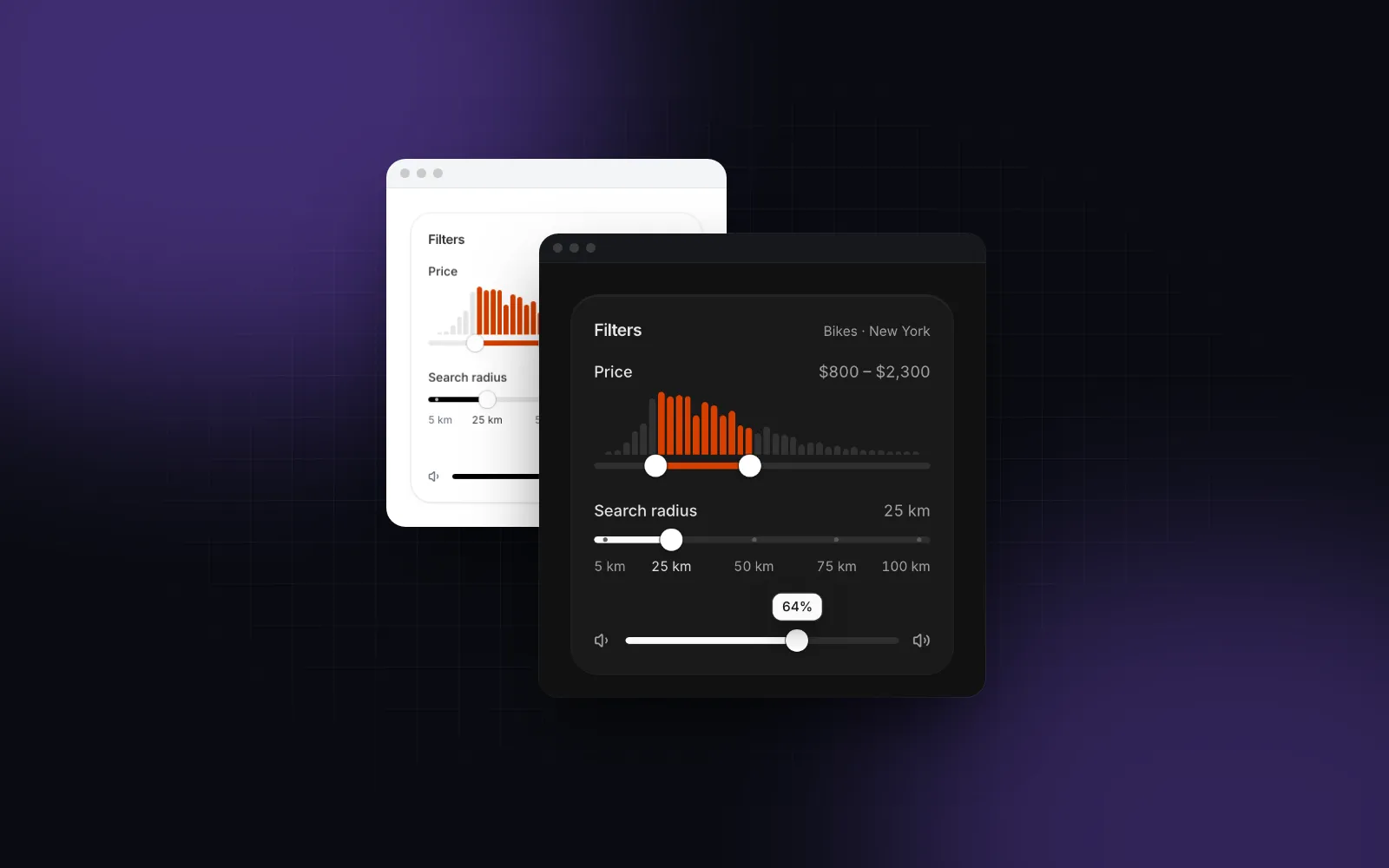
The Wingo UI Slider shows how to keep it small. The root is the only touch-none part, a thin row with a 44px hit area added by a pseudo-element on coarse pointers, so a drag on it never scrolls the page while the rest of the form scrolls normally:
$ npx wingo-ui@latest add sliderThe thumbs add touch-manipulation on top, so a quick double tap on a thumb never zooms either.
When should you use touch-pan-y or touch-pan-x?
When your element moves along one axis and the page scrolls along the other. A row you swipe left to delete, a card you swipe away, or a carousel slide should all have touch-pan-y: the browser keeps vertical scrolling, and a horizontal move goes to your pointer handlers.
With your own pointer handlers like these, the class is required: without it the browser treats the touch as a possible scroll, and a move with any vertical drift ends in pointercancel. setPointerCapture is the other half, so the row keeps getting moves after the finger slides off it. The handlers write the transform straight to the element instead of calling setState on every move. Motion does this for you. Its drag="x" writes touch-action: pan-y as an inline style (pan-x for drag="y", none for drag), and an inline style wins over any class you add. Our React swipe to delete and React swipe cards tutorials build both patterns.
touch-pan-x is the mirror case and rarer: a vertical drag, such as a reorder handle, inside a row that scrolls sideways. For sortable lists, the dnd kit mobile tutorial compares the touch-action and sensor combinations that let a long press drag while a swipe still scrolls.
How do sheets drag and scroll at the same time?
By relying on the rule that touch-action stops at the scroll container. vaul, the library under the free Drawer, sets touch-action: none on the whole sheet, so a drag anywhere on its header or footer moves the sheet. The Drawer's body is its own scroll container (overflow-y-auto overscroll-contain), so a touch in the body only intersects values up to the body itself, and the list inside scrolls natively. vaul then moves the sheet only once the list is back at its top.
$ npx wingo-ui@latest add draweroverscroll-contain does the other half: when the list reaches its end, the scroll does not chain into the page behind the sheet. touch-action does not control scroll chaining at all; overscroll-behavior does. For a sheet whose content has its own horizontal gestures, such as a carousel or a map, pass handleOnly so only the handle drags it. The React bottom sheet guide covers snap points and the keyboard.
Which class does each control need?
How do you test touch-action?
Read the computed value first: in Safari's Web Inspector or Chrome DevTools, the Computed panel shows touch-action on the element, and a parent's value matters too, up to the nearest scroller. Chrome's device mode emulates touch, so you can check that a drag on a touch-none surface does not scroll. Double-tap zoom and tap highlights need a real phone: tap your stepper rapidly on an iPhone and on an Android phone, zoom the page in, and tap again.
In Playwright, a context with hasTouch: true lets you call page.touchscreen.tap(), which is enough to check that clicks fire. It does not reproduce the browser's gesture recognition, so keep the device pass for the zoom behavior.
Where should you start?
Search your codebase for onClick on elements without touch-manipulation and for drag handlers without a touch-* class; those two lists are usually the whole fix. Then check that every pressable has a pressed state, since Tailwind v4 already hid the tap highlight. If you would rather start from components that carry these classes, the Button and the Drawer are free: npx wingo-ui@latest add button drawer. The Slider is part of Wingo UI Pro.
FAQ
What does touch-manipulation do in Tailwind?
It sets touch-action: manipulation, which lets the browser pan and pinch zoom but turns off other gestures such as double-tap zoom. Without double-tap zoom the browser has no reason to wait for a second tap, so taps on that element fire at once.
Is there still a 300ms tap delay on mobile?
Not on pages with width=device-width at their initial zoom: Chrome removed it in version 32 and Safari in iOS 9.3. WebKit documented that its fast tap applies only at the initial scale, and rapid taps can still trigger double-tap zoom, which is what touch-manipulation turns off per element.
When should I use touch-none in Tailwind?
Only on elements where your code handles every direction of movement, such as a slider, a signature pad, a canvas or a map. A swipe that starts there never scrolls or zooms the page, so keep those elements small or give the page another place to scroll.
How do I remove the tap highlight color in Tailwind?
In Tailwind CSS v4 you usually do not have to: preflight sets -webkit-tap-highlight-color: transparent on html, and the property is inherited. Without preflight use the arbitrary property [-webkit-tap-highlight-color:transparent], and always add an active or pressed style so a tap still shows.
Can I combine touch-pan-y and touch-pinch-zoom in Tailwind?
Yes. In Tailwind CSS v4 the pan and pinch utilities write separate CSS variables that one touch-action declaration reads, so touch-pan-y touch-pinch-zoom compiles to touch-action: pan-y pinch-zoom.
- Tailwind CSS
- Touch
- Mobile
- CSS
- Accessibility