Skip to content
WingoUI
ComponentsTemplatesDocsPricingAI agentsBlogChangelog
  1. Home
  2. Blog
  3. Build it: screens and apps
  4. React Marketplace Template That Works Like an App
Auf Deutsch lesen
  1. Blog
  2. Build it: screens and apps
  3. React Marketplace Template That Works Like an App
Build it: screens and apps

React Marketplace Template That Works Like an App

SR
Serban Rusu · Founder of Wingo UI
Oct 16, 2026 · 15 min read

On this page

0%
  1. What does a React marketplace template need?
  2. How do you build the marketplace shell?
  3. How do you build the home page?
  4. How should a React listing card behave on a phone?
  5. How do marketplace search filters work in React?
  6. How do you keep the search in the URL?
    1. What does the search function return?
  7. What goes on the listing detail page?
  8. What will you need to change for your market?
  9. Is there a free React marketplace template?
  10. Where do you go from here?
  11. FAQ
    1. Is there a free React marketplace template?
    2. What pages does a marketplace front end need?
    3. How should marketplace search filters work on mobile?
    4. Should marketplace filters be stored in the URL?
    5. Do the Wingo UI marketplace blocks only work with Romanian cities?

TL;DR

A React marketplace template needs four screens that share one listing shape: a home page with a what and where search, a search page with facets, listing cards and a listing detail page. Keep the whole search (query, place, filters, sort, view) in the URL, have one search endpoint return the results, the facet counts and a price histogram, and on phones put the filters in a full height sheet whose button counts the results before you apply them. The Wingo UI marketplace blocks cover all four screens and are Pro; the open source Sharetribe Web Template (Apache-2.0) is the alternative when your backend is Sharetribe.

Published Oct 16, 2026

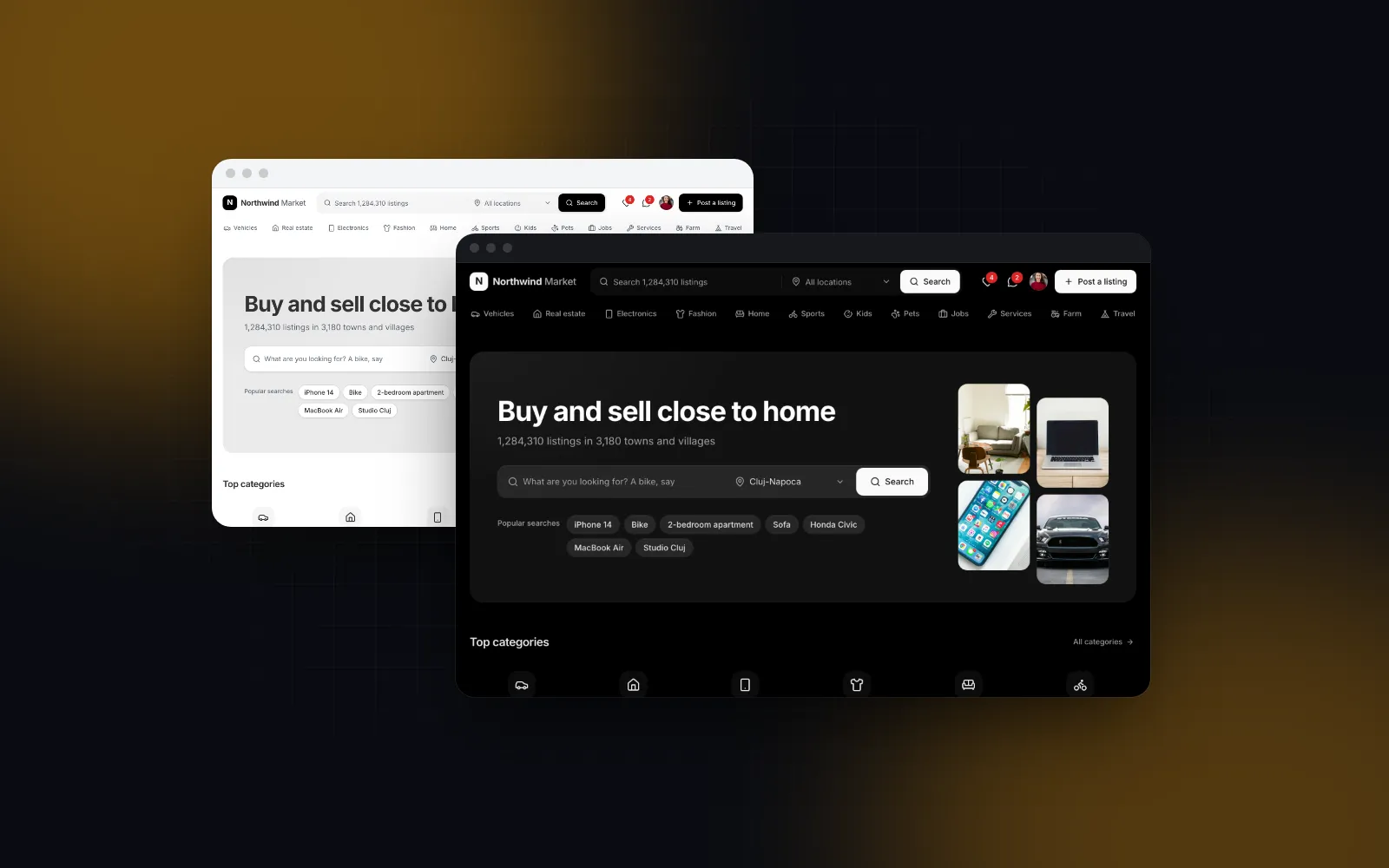
You want a marketplace front end: people search for something near them, narrow the results, save a few listings and message a seller. The usual starting point, a product grid next to a sidebar of checkboxes, turns into one long column on a phone. This tutorial builds the four screens a react marketplace template needs (home, search with facets, listing cards and a listing detail page) on the Next.js App Router, with the search state in the URL and a phone layout that behaves like an app. We build Wingo UI and the code uses our blocks, so we are not neutral; the URL and API patterns work with any components.

What does a React marketplace template need?

Four screens around one listing shape, plus a shell that holds them together. A rental site, a used gear market and a classifieds app all share them:

ScreenIts jobBuilt withOn a phone
ShellSearch, categories, account, footerMarketplace ShellA compact header, a search sheet and a bottom tab bar with a raised Post action
HomeStart a search, browse categories and new listingsMarketplace Home PageThe fields stack, the promoted rail shows 1.3 cards, the grid shows two columns
SearchNarrow the resultsMarketplace Search Page with the Filter PanelFilters in a full height sheet with a counted apply button
CardShow one listing in a grid, a list or a railListing CardSwipe the photos, tap anywhere to open, tap the heart to save
DetailDecide and contact the sellerListing Detail PageA bottom bar with the price, Call and Message once the contact buttons scroll away

Install the blocks you need. Each one pulls in the components and helpers it uses:

bash
npx wingo-ui@latest add marketplace-shell marketplace-home-page marketplace-search-page listing-detail-page

The routes live in one route group, so the shell renders once around every page:

text
app/(market)/layout.tsx the shell
app/(market)/page.tsx home
app/(market)/search/page.tsx search results
app/(market)/listings/[id]/page.tsx listing detail

The URL scheme is the one the blocks already use: the shell's header search and the home page's hero search both navigate to /search?q=…&loc=…&cat=… when you pass no onSearch, and the category tiles link to /search?cat=<id>. Build your search page around those three parameters and the default navigation works unchanged.

How do you build the marketplace shell?

The shell is a client component that takes your router's link and push. It renders the header search (what and where), the category strip, the footer and, below 768px, the tab bar. The tab bar keeps clear of the home indicator through the safe area inset, and the page content gets matching bottom padding so the last row is never hidden behind it.

Its defaults are a finished demo, and that is the trap. With no props it shows a signed in sample user, 4 saved listings, 2 unread messages, the sample brand "Northwind Market" and category links to /<id> routes you do not have. So read the session in the server layout and hand it to a client view:

tsx
// app/(market)/layout.tsx
import type { ReactNode } from "react"
import { getSession } from "@/server/session" // your auth
import { ShellView } from "./shell-view"
export default async function MarketLayout({ children }: { children: ReactNode }) {
const session = await getSession() // { user: { name, email, avatar }, saved, unread } or null
return <ShellView session={session}>{children}</ShellView>
}
tsx
// app/(market)/shell-view.tsx
"use client"
import { Aperture, Camera, Plane } from "lucide-react"
import Link from "next/link"
import { usePathname, useRouter } from "next/navigation"
import type { ReactNode } from "react"
import {
MarketplaceShell,
type MarketplaceCategory,
type MarketplaceShellUser,
} from "@/components/blocks/marketplace-shell"
import { Toaster } from "@/components/ui/toast"
// module scope: a new array on every render would reset the header search each time
const categories: MarketplaceCategory[] = [
{ id: "cameras", label: "Cameras", icon: <Camera />, href: "/search?cat=cameras" },
{ id: "lenses", label: "Lenses", icon: <Aperture />, href: "/search?cat=lenses" },
{ id: "drones", label: "Drones", icon: <Plane />, href: "/search?cat=drones" },
]
const noSearches: string[] = []
const labels = {
appName: "Gearloop",
home: "Gearloop, home",
tagline: "Buy and sell used camera gear near you.",
copyright: "© 2026 Gearloop",
}
type Session = { user: MarketplaceShellUser; saved: number; unread: number } | null
export function ShellView({ session, children }: { session: Session; children: ReactNode }) {
const pathname = usePathname()
const router = useRouter()
return (
<>
<MarketplaceShell
currentPath={pathname}
linkComponent={Link}
onNavigate={router.push}
user={session?.user ?? null}
favoritesCount={session?.saved ?? 0}
messagesCount={session?.unread ?? 0}
categories={categories}
popularSearches={noSearches}
recentSearches={noSearches}
searchPlaceholder="Search cameras, lenses and drones"
appBadges={false}
labels={labels}
>
{children}
</MarketplaceShell>
<Toaster />
</>
)
}

The module scope constants are not style. The shell restarts its search state when recentSearches changes identity, and it does that during render, so an inline recentSearches={[]} sets state on every render until React stops it with a "Too many re-renders" error. The shell does not mount a toast region either, and the search page (saved searches) and the detail page (favorite errors, copied links) both raise toasts, so the Toaster goes here once.

Every link inside the blocks, including the stretched link on each listing card, goes through the linkComponent the shell provides, so a tap on a card navigates on the client without a full page load.

How do you build the home page?

Fetch the listings in a server component and hand them to a small client view that owns the callbacks. The block is a client component, and a function such as onFavoriteChange cannot be passed from a server component to a client one.

tsx
// app/(market)/page.tsx
import { getPromoted, getRecent, getStats } from "@/server/listings" // your data layer
import { HomeView } from "./home-view"
export default async function Page() {
const [promoted, recent, stats] = await Promise.all([getPromoted(), getRecent({ limit: 24 }), getStats()])
// stats: { listings, sellers, cities }
return <HomeView promoted={promoted} recent={recent} stats={stats} />
}
tsx
// app/(market)/home-view.tsx
"use client"
import { Aperture, Camera, Plane } from "lucide-react"
import {
MarketplaceHomePage,
type MarketplaceHomeCategory,
type MarketplaceHomeStats,
} from "@/components/blocks/marketplace-home-page"
import type { ListingData } from "@/components/ui/listing-card"
import { saveFavorite } from "@/lib/favorites"
// each tile links to /search?cat=<id> unless it has an href
const categories: MarketplaceHomeCategory[] = [
{ id: "cameras", label: "Cameras", icon: <Camera /> },
{ id: "lenses", label: "Lenses", icon: <Aperture /> },
{ id: "drones", label: "Drones", icon: <Plane /> },
]
const popularSearches = ["Fujifilm X100", "Sony A7 III", "DJI Mini"]
type Props = { promoted: ListingData[]; recent: ListingData[]; stats: MarketplaceHomeStats }
export function HomeView({ promoted, recent, stats }: Props) {
return (
<MarketplaceHomePage
promoted={promoted}
recent={recent}
stats={stats}
categories={categories}
popularSearches={popularSearches}
defaultLocation=""
showTrust={false}
showApp={false}
onFavoriteChange={saveFavorite}
/>
)
}

defaultLocation="" is the prop that is easiest to miss. The New listings grid keeps only the listings whose location, up to the first comma, equals the chosen town's name, and the default town is Cluj-Napoca. Listings in New York or Berlin would leave the grid on "No listings in Cluj-Napoca yet". An empty string means every location.

The heart is optimistic: it fills at once and rolls back when the promise you return rejects. fetch only rejects on a network error, so the helper throws on an error status itself:

ts
// lib/favorites.ts
export async function saveFavorite(id: string, favorite: boolean) {
const response = await fetch(`/api/favorites/${id}`, { method: favorite ? "PUT" : "DELETE" })
if (!response.ok) throw new Error("Could not save the listing")
}
Type a search, pick a place and press Search. Then swipe the Promoted rail, change the city chip above New listings and tap a heart: it fills in the rail and the grid together
$ npx wingo-ui@latest add marketplace-home-page
ProMarketplace Home Page docs

The other props in the view replace sample content that would otherwise ship. stats feeds the line under the headline, which defaults to "1,284,310 listings in 3,180 towns and villages". showTrust and showApp hide the trust tiles (cash on delivery, couriers from $9.99, verified sellers) and the app band with its QR code, until your own labels and appUrl say something true about your service. loading turns the tiles, the rail and the grid into skeletons of their real shape while the hero stays usable.

How should a React listing card behave on a phone?

A listing card looks simple until you put it on a phone. The photos should swipe sideways without fighting the page scroll, a tap anywhere should open the listing, the heart must not open the listing, and a grid of 48 cards should not load 240 images. The Listing Card handles those: the title is one link stretched over the card (so long press gives the native link menu), and vertical scrolling always wins over a photo swipe. Each card renders one plain image until the carousel is needed: with a mouse, on the first pointer or focus on the photo; on a touch screen, when the card comes within 240px of the viewport.

Every block in this tutorial passes the same ListingData object around:

ts
import type { ListingData } from "@/components/ui/listing-card"
export const camera: ListingData = {
id: "l2041",
title: "Fujifilm X-T4 body, low shutter count",
href: "/listings/l2041",
images: ["/uploads/l2041-1.jpg", "/uploads/l2041-2.jpg", "/uploads/l2041-3.jpg"],
price: 950,
currency: "USD",
priceType: "negotiable",
location: "New York, Brooklyn",
postedAt: "2026-10-15T09:12:00",
delivery: true,
condition: "used",
attributes: ["26 MP", "4K video", "Box included"],
seller: { name: "Emma Carter", verified: true, rating: 4.9 },
}

When you use the card on your own pages, such as a saved listings screen, three props matter. size="sm" fits two columns on a phone, priority loads the first row eagerly, and maxImages={1} turns the photo carousel off for cards inside a horizontal rail, because a carousel inside a carousel is a gesture nobody can predict.

tsx
"use client"
import { ListingCard, type ListingData } from "@/components/ui/listing-card"
import { saveFavorite } from "@/lib/favorites"
export function SavedListings({ listings }: { listings: ListingData[] }) {
return (
<div className="grid grid-cols-2 gap-3 md:grid-cols-4">
{listings.map((listing, index) => (
<ListingCard
key={listing.id}
listing={listing}
size="sm"
priority={index < 4}
defaultFavorite
onFavoriteChange={(favorite) => saveFavorite(listing.id, favorite)}
/>
))}
</div>
)
}
Swipe or drag the photos, then tap the heart: it pops when it saves and shakes back if saving fails. Switch layout to list or compact in the playground to see the other shapes
$ npx wingo-ui@latest add listing-card
ProListing card docs

How do marketplace search filters work in React?

Marketplace search filters need two layouts and live counts. A sidebar of checkboxes breaks in two places: on phones, where it has no room, and on the server, where every facet needs a count. The Filter Panel takes a list of FilterDef objects and ships both layouts in the server HTML with CSS classes that show one of them, so a phone never flashes the sidebar before hydration. From 1024px it is a sticky sidebar where each change applies at once. Below that it becomes a Filters button with the active count, and the button opens a full height sheet that keeps a draft. The apply button counts the draft as you change it, so people see "No results, try fewer filters" before they commit. Swiping the sheet down or pressing Escape throws the draft away. We cover why a sheet beats a popover on a phone in our guide to the React bottom sheet for the web.

The search page builds its facets from the category by default. For your own category, pass filters:

ts
// app/(market)/search/filters.ts
import type { FilterDef } from "@/components/ui/filter-panel"
export const cameraFilters: FilterDef[] = [
{
type: "price",
id: "price",
label: "Price",
min: 0,
max: 5000,
presets: [
{ min: null, max: 300 },
{ min: 300, max: 1000 },
{ min: 1000, max: null },
],
},
{
type: "chips",
id: "condition",
label: "Condition",
options: [
{ value: "new", label: "New" },
{ value: "used", label: "Used" },
],
},
{
type: "checkbox",
id: "brand",
label: "Brand",
options: [
{ value: "canon", label: "Canon" },
{ value: "fujifilm", label: "Fujifilm" },
{ value: "nikon", label: "Nikon" },
{ value: "sony", label: "Sony" },
],
},
{ type: "toggle", id: "delivery", label: "Delivery available" },
]

With a search function, the apply button's count is one more call: the page runs search(draft, 0) and reads total, debounced by 250ms, with stale answers dropped. So every pause in a draft costs one page 0 request: keep that query fast.

The options carry no count on purpose. When a checkbox, chips or radio option has none, the page fills it from the counts your search returns, so the numbers next to Canon and Sony always match the current results. An option with a count of 0 is disabled. The price filter has no histogram either: the page draws the bars from the histogram your search returns.

How do you keep the search in the URL?

Parse the URL in the server page, then let a client view own the state and write it back with window.history.replaceState. Next.js integrates native pushState and replaceState calls with its router (usePathname and useSearchParams stay in sync), so the address bar updates without a request to the server on every checkbox. searchParams is a promise in Next.js 16, so the page awaits it.

tsx
// app/(market)/search/page.tsx
import type { MarketplaceSearchState } from "@/components/blocks/marketplace-search-page"
import { SearchView } from "./search-view"
type Params = Record<string, string | string[] | undefined>
const one = (value: string | string[] | undefined) => (Array.isArray(value) ? value[0] : value)
function parseFilters(raw: string | undefined) {
try {
return raw ? JSON.parse(raw) : {}
} catch {
return {}
}
}
export default async function SearchPage({ searchParams }: { searchParams: Promise<Params> }) {
const params = await searchParams
const state: MarketplaceSearchState = {
query: one(params.q) ?? "",
category: one(params.cat) ?? "",
location: one(params.loc) ?? "",
filters: parseFilters(one(params.f)),
sort: one(params.sort) ?? "newest",
view: one(params.view) === "list" ? "list" : "grid",
}
// a new search from the header remounts the view with the new state
return <SearchView key={JSON.stringify(state)} initialState={state} />
}
tsx
// app/(market)/search/search-view.tsx
"use client"
import { useState } from "react"
import {
MarketplaceSearchPage,
type MarketplaceSearchResult,
type MarketplaceSearchState,
} from "@/components/blocks/marketplace-search-page"
import { saveFavorite } from "@/lib/favorites"
import { cameraFilters } from "./filters"
const relatedSearches = ["Mirrorless camera", "50mm lens", "Camera bag"]
function toQuery(state: MarketplaceSearchState) {
const params = new URLSearchParams()
if (state.query) params.set("q", state.query)
if (state.category) params.set("cat", state.category)
if (state.location) params.set("loc", state.location)
if (Object.keys(state.filters).length) params.set("f", JSON.stringify(state.filters))
if (state.sort !== "newest") params.set("sort", state.sort)
if (state.view === "list") params.set("view", "list")
return params.toString()
}
async function search(state: MarketplaceSearchState, page: number): Promise<MarketplaceSearchResult> {
const response = await fetch(`/api/search?${toQuery(state)}&page=${page}`)
if (!response.ok) throw new Error("Search failed")
return response.json()
}
export function SearchView({ initialState }: { initialState: MarketplaceSearchState }) {
const [state, setState] = useState(initialState)
return (
<MarketplaceSearchPage
state={state}
onStateChange={(next) => {
setState(next)
const query = toQuery(next)
window.history.replaceState(null, "", query ? `/search?${query}` : "/search")
}}
filters={cameraFilters}
search={search}
relatedSearches={relatedSearches}
viewPersistKey=""
onFavoriteChange={saveFavorite}
labels={{ title: ({ query, place }) => `${query ? `“${query}”` : "Cameras"} in ${place || "every location"}` }}
/>
)
}

Two details in this code prevent real bugs. The key on SearchView: when someone runs a new search from the shell's header while already on /search, Next.js renders the same page with new searchParams, and without the key React would keep the old useState value. And search is defined outside the component: the page fetches page 0 again whenever the search function changes, so an inline arrow would refetch on every render.

We use replaceState so Back leaves the search page instead of undoing one checkbox at a time. Switch to pushState if your users expect Back to step through their filters.

What does the search function return?

One page of results per call. Page 0 replaces the results and shows skeletons while it is pending; later pages append as the reader nears the end of the list (or presses Show more with loadMode="button"). Return this shape from /api/search:

ts
type MarketplaceSearchResult = {
items: ListingData[]
total: number
promoted?: ListingData[] // only with page 0
histogram?: number[] // the price bars over the price slider
counts?: Record<string, Record<string, number>> // filter id, then option value, then matches
}

Compute each facet's counts with every other filter applied, which is what the sample search (searchListings in the block's data file) does. That is the difference between a count that predicts the next click and one that only describes the whole catalog.

In this frame the filters sit behind the Filters button. Open it, drag the price thumbs and tick a condition: the apply button counts the draft before you apply it. Then remove a chip or switch to the list view
$ npx wingo-ui@latest add marketplace-search-page
ProMarketplace Search Page docs

One trade-off: with a search function, the first page loads in the browser after hydration, so the server HTML holds skeletons. Without search, the page runs searchListings over items (listings plus a cityId, a facets value per filter id and keywords) during render, and the results are in the HTML. For a small catalog you can fetch every listing on the server and pass items; for a large one, build indexable category pages separately and keep /search as the app screen.

What goes on the listing detail page?

The photos, the price, the attributes, the seller and a way to make contact. The Listing Detail Page takes the listing and the seller as data and the actions as callbacks. The phone number stays masked until someone presses Show phone, which calls your onRevealPhone, so you can log reveals and rate limit them.

tsx
// app/(market)/listings/[id]/page.tsx
import { notFound } from "next/navigation"
import { getListing } from "@/server/listings" // your data layer
import { ListingView } from "./listing-view"
export default async function ListingPage({ params }: { params: Promise<{ id: string }> }) {
const { id } = await params
const data = await getListing(id) // { listing, seller, sellerListings, similar } or null
if (!data) notFound()
return <ListingView {...data} />
}

Props you leave out fall back to sample data or a pretend request: no sellerListings shows the sample seller's other ads, no onReport reports a fake success, and no onRevealPhone reveals "(503) 555-0142". The callbacks drive the UI: a rejected onMessage keeps the text and shows the error in the dialog, and whatever onRevealPhone resolves to is shown as the number. Because fetch resolves on a 429 or a 500, check the status before you hand the response back, or a rate limit page ends up printed as a phone number:

tsx
// app/(market)/listings/[id]/listing-view.tsx
"use client"
import { useRouter } from "next/navigation"
import { ListingDetailPage, type ListingDetail } from "@/components/blocks/listing-detail-page"
import type { ListingData } from "@/components/ui/listing-card"
import type { SellerData } from "@/components/ui/seller-card"
import { saveFavorite } from "@/lib/favorites"
type Props = { listing: ListingDetail; seller: SellerData; sellerListings: ListingData[]; similar: ListingData[] }
async function request(url: string, init: RequestInit | undefined, error: string) {
const response = await fetch(url, init)
if (!response.ok) throw new Error(error)
return response
}
export function ListingView({ listing, seller, sellerListings, similar }: Props) {
const router = useRouter()
return (
<ListingDetailPage
listing={listing}
seller={seller}
sellerListings={sellerListings}
similar={similar}
status={listing.status === "sold" || listing.status === "reserved" ? listing.status : "active"}
onMessage={(text) =>
request("/api/messages", { method: "POST", body: JSON.stringify({ listing: listing.id, text }) }, "Your message was not sent. Try again.")
}
onRevealPhone={() =>
request(`/api/listings/${listing.id}/phone`, undefined, "Could not load the number").then((response) => response.text())
}
onReport={(report) =>
request(`/api/listings/${listing.id}/reports`, { method: "POST", body: JSON.stringify(report) }, "Your report was not sent")
}
onFavoriteChange={(favorite) => saveFavorite(listing.id, favorite)}
onOpenConversation={() => router.push(`/messages?listing=${listing.id}`)}
/>
)
}

Below 1024px, stickyBar (on by default) adds a bottom bar with the price, Call and Message once the contact buttons scroll out of view. The page's status prop is separate from listing.status, which is why the view maps one to the other. status="sold" greys the photos, disables contact and moves the similar listings up, so the page still leads somewhere; "reserved" shows a warning banner and keeps contact open. Return the number in international format (+1 503 555 0142): the tel: link adds a Romanian +4 to a number that starts with 0.

What will you need to change for your market?

The place data, and the category table behind the search page's title and breadcrumb. The blocks ship with sample data, and some of it is regional: the place fields, the radius filter and the distances use the Romanian town list in lib/ro-locations, because the kit started as a classifieds kit for that market.

BlockWhere the places come fromWhat to change
Shelllocations prop, default cityOptions() from lib/ro-locationsPass your cities as { value, label } options
Home pagecityOptions() and getCity() imported in the filePass defaultLocation="" and point the import at your own list
Search pagestate.location is looked up with getCity()An unknown id shows as typed in the title; pass your own location filter in filters

The sample categories (Bikes, Apartments for sale) live in marketplace-search-page-data.ts. An unknown category id falls back to the last entry, "All listings", with its sample related searches (iPhone 14, Sofa), so replace that table with your own categories, or at least pass relatedSearches and override labels.title as in the search view above.

The sample brand also hides in a few strings the snippets above do not touch. Search the installed files for "Northwind" before launch:

WhereSample valueWhat to change
ShellconsentStorageKey, the cookie banner's link to /cookiesYour own key, a /cookies page, or cookieConsent={false} if you already ask for consent
ShellfooterLinks sample groupsPass your own { title, links } groups
Search pageviewPersistKey, the localStorage key for grid or list"" when the view lives in the URL, as in the search view above
Detail pagelabels.safetyTips ("Keep the conversation in the Northwind Market chat")Your own tips

For the rest of the phone details, such as safe areas, tap highlights and touch targets, our list of fixes for a web app that feels native applies to every screen here.

Is there a free React marketplace template?

If you need a react marketplace template free of license fees, one open source option is the Sharetribe Web Template (opens in a new tab), licensed Apache-2.0 on GitHub (opens in a new tab). As of October 2026 its docs describe a React app on a vendored copy of Create React App (which they call deprecated), with Redux, CSS Modules and server-side rendering on a Node.js server, so serverless hosts are out. It talks to the Sharetribe APIs, which makes it the better choice when you run your marketplace on Sharetribe and want its backend instead of building your own. If you have your own backend and want App Router pages you own, the blocks in this tutorial are the shorter path.

Where do you go from here?

Posting is the screen we left out: the Post Listing Wizard covers category, details, photos, price, place and a preview with an autosaved draft. The marketplace blocks and the Listing Card are Pro (see pricing); the Button, Card, Dialog and other basics they build on are free. If you are building more screens than a storefront, the Next.js admin dashboard tutorial covers the back office side, and the Build category has the other screen by screen guides.

Components in this post

  • Marketplace Home Page

    A React marketplace home page with a what and where search, category tiles, a promoted rail, new listings near you and an app band.

    Pro
  • Marketplace Search Page

    A React marketplace search results page: count, facets in a sidebar or phone sheet, filter chips, sort, grid or list and endless results.

    Pro
  • Listing card

    A React listing card for marketplaces: swipeable photos, price, place and time, badges and a heart, in grid, list and compact layouts.

    Pro
  • Filter panel

    A React filter panel for faceted search: a sidebar that applies as you go on desktop, a full-height sheet with a live count on phones.

    Pro
  • Marketplace Shell

    A React marketplace layout shell with a what and where search header, a category strip, a footer, bottom tabs on phones and cookie consent.

    Pro
  • Listing Detail Page

    A React listing detail page for a classifieds marketplace: photo gallery, price card, seller, map, contact actions and similar listings.

    Pro

FAQ

Is there a free React marketplace template?

Yes. The Sharetribe Web Template is open source under the Apache-2.0 license, but it is built to talk to the Sharetribe APIs and runs on a Node.js server. The Wingo UI marketplace blocks (shell, home, search, listing card, filter panel and detail page) are Pro.

What pages does a marketplace front end need?

At minimum a layout shell with search, a home page, a search results page with filters, a listing detail page and a way to post a listing. Saved listings, messages and an account area usually follow, and they reuse the same listing card.

How should marketplace search filters work on mobile?

Open them in a full height sheet from a Filters button that shows how many filters are active. Keep a draft while the sheet is open, count the results on the apply button as the draft changes, and throw the draft away when the sheet is swiped down or closed.

Should marketplace filters be stored in the URL?

Yes. A search that lives in the URL survives a reload, the back button and a shared link, and the server can render the right page on the first request. In Next.js you can update it with window.history.replaceState without a round trip to the server.

Do the Wingo UI marketplace blocks only work with Romanian cities?

No, but the sample place data is the Romanian town list in lib/ro-locations. The shell takes your own cities through its locations prop and the search page takes your own location filter; the home page reads the town list directly, so pass defaultLocation="" and point its import at your own list, since the block installs as source code.

  • Marketplace
  • Next.js
  • Faceted search
  • Mobile UI
  • React

Share

SR

About the author

Serban Rusu

Founder of Wingo UI

Serban Rusu founded Wingo UI. He builds its component library, CLI and MCP server, and writes about React interfaces for phones and AI coding agents.

More from Serban
Keep reading

Related posts

All posts
Mobile UI in React

React Swipe Cards: A Tinder-Style Deck With Undo

Build React swipe cards like Tinder: tilt and stamps on motion values, a throw that keeps your speed, undo, and buttons and keys for people who cannot swipe.

SRSerban Rusu·Oct 13, 2026·9 min read
Build it: screens and apps

Nextjs Blog Template: Markdown, Live Demos and JSON-LD

How we built a nextjs blog template on Markdown files: zod frontmatter, live React demos, a sticky table of contents, JSON-LD, feeds and a strict validator.

SRSerban Rusu·Oct 16, 2026·10 min read
Build it: screens and apps

Nextjs SaaS Landing Page: What Each Section Must Prove

Build a nextjs saas landing page section by section: what the hero, proof, features, pricing and FAQ must prove, what to cut, and how each reads on a phone.

SRSerban Rusu·Oct 16, 2026·11 min read
Newsletter

Get new posts by email

New guides, tutorials and comparisons from the Wingo UI blog, sent when they are published.

No spam. Unsubscribe at any time.

WingoUI

Animated, configurable, mobile-first React components and blocks. Copy the source, make it yours, and let your coding agent build with it.

Product

  • Components
  • Templates
  • Pricing
  • AI agents
  • Theme generator

Resources

  • Docs
  • Blog
  • Changelog
  • Changelog RSS
  • llms.txt

Legal

  • Terms
  • Privacy
  • Refunds
  • License
  • Imprint

Component categories

  • Buttons & Actions
  • Inputs
  • Forms
  • Navigation
  • Overlays
  • Feedback
  • Data Display
  • Tables & Lists
  • Charts & Stats
  • Layout
  • Media
  • AI Kit
  • Text & Effects
  • Mobile
  • Commerce
  • Marketing Sections
  • Blocks
  • Hooks & Utilities

© 2026 Wingo UI

Wingo UI