Skip to content
WingoUI
ComponentsTemplatesDocsPricingAI agentsBlogChangelogContact
  1. Home
  2. Blog
  3. Mobile UI in React
  4. Nextjs PWA Without next-pwa: Offline Page and App Shell
Auf Deutsch lesen
  1. Blog
  2. Mobile UI in React
  3. Nextjs PWA Without next-pwa: Offline Page and App Shell
Mobile UI in React
Mobile UI in React

Nextjs PWA Without next-pwa: Offline Page and App Shell

SR
Serban Rusu · Founder of Wingo UI
Nov 5, 2026 · 12 min read

On this page

0%
  1. What does a Nextjs PWA need in 2026?
  2. How do you add a web app manifest in the App Router?
  3. Do you still need next-pwa for a Next.js 16 PWA?
  4. How do you show an offline page in a Nextjs PWA?
    1. 1. A self-contained offline page
    2. 2. The service worker
    3. 3. Register it from a client component
    4. 4. Test it
  5. What happens to client-side navigations when the network drops?
  6. How do you add an install prompt to a Next.js PWA?
  7. How do you make a Nextjs PWA feel native on phones?
    1. Hide browser-only UI in the installed app
    2. Start from a full home screen
  8. What should you check before shipping the PWA?
  9. What should you build next?
  10. FAQ
    1. Does next-pwa work with Next.js 16?
    2. Does a Next.js PWA need a service worker to be installable?
    3. Why does my offline page in Next.js show up without styles?
    4. How do I test a Next.js service worker locally?
    5. Is there a Next.js PWA template with an app shell?

TL;DR

A Nextjs PWA on the App Router needs four files of your own: app/manifest.ts with the name, icons and standalone display, a self-contained public/offline.html, a small public/sw.js that serves it when a page load fails, and a client component that registers the worker. Skip next-pwa on Next.js 16: it is a webpack plugin and next build now runs on Turbopack, so write the worker by hand and move to Serwist only when you need cached routes and assets. Set viewportFit cover in the viewport export, then add an install prompt and an app shell whose top bar and bottom tabs pad the safe areas.

Published Nov 5, 2026

A Nextjs PWA is a normal App Router app plus a few files: a web app manifest, icons, a service worker and a layout that still looks right when the browser chrome is gone. The official guide covers the manifest and push notifications, and many tutorials then install next-pwa, a webpack plugin, into a framework that now builds with Turbopack by default. This tutorial takes a smaller path for Next.js 16: a hand-written worker that shows an offline page, an install prompt, and an app shell with a top bar and bottom tabs that clear the notch and the home indicator.

What does a Nextjs PWA need in 2026?

Less than older guides suggest. Here is the whole list for a Nextjs PWA App Router setup, with what each piece buys you:

PieceFileNeeded to install?What it gives you
Web app manifestapp/manifest.tsyesname, icons, standalone display, start URL
Iconspublic/icon-192.png, public/icon-512.png, app/apple-icon.pngyeshome screen and task switcher icons
HTTPSyour hostyes (localhost is exempt)a secure context for the worker
Service workerpublic/sw.js + a register componentnoan offline page, push, Chrome's automatic install event
Viewport and themeexport const viewport in app/layout.tsxnoedge-to-edge drawing, a colored status bar
Install prompta client component in the root layoutnoyour own Install button and iPhone steps
App shellapp/(app)/layout.tsxnotop bar, bottom tabs, safe areas

The installability rules per browser, including why Chrome may hold back its install event on a first visit, are in our React PWA install prompt guide, so this post does not repeat them.

How do you add a web app manifest in the App Router?

With the manifest file convention. An app/manifest.ts that default exports a function is served at /manifest.webmanifest and linked from every page's <head> for you:

ts
// app/manifest.ts
import type { MetadataRoute } from "next";
export default function manifest(): MetadataRoute.Manifest {
return {
id: "/",
name: "Northwind CRM",
short_name: "Northwind",
description: "Clients, quotes and invoices on your phone.",
start_url: "/",
scope: "/",
display: "standalone",
background_color: "#ffffff",
theme_color: "#ffffff",
icons: [
{ src: "/icon-192.png", sizes: "192x192", type: "image/png" },
{ src: "/icon-512.png", sizes: "512x512", type: "image/png" },
{ src: "/icon-maskable-512.png", sizes: "512x512", type: "image/png", purpose: "maskable" },
],
};
}

Put the three PNGs in public/. The maskable one keeps its logo inside the middle 80% so Android can crop it into a circle or a squircle. For iPhone, drop a 180x180 app/apple-icon.png next to the layout; Next.js turns it into the apple-touch-icon link.

Then tell the browser how the installed app should draw. viewport and metadata are separate exports in the App Router, and both only work in Server Components:

tsx
// app/layout.tsx
import type { Metadata, Viewport } from "next";
import type { ReactNode } from "react";
import { RegisterServiceWorker } from "./register-sw";
import "./globals.css";
export const metadata: Metadata = {
title: "Northwind CRM",
appleWebApp: { capable: true, title: "Northwind", statusBarStyle: "black-translucent" },
};
export const viewport: Viewport = {
// lets the page draw under the notch and the home indicator; the shell pads them back
viewportFit: "cover",
themeColor: [
{ media: "(prefers-color-scheme: light)", color: "#ffffff" },
{ media: "(prefers-color-scheme: dark)", color: "#0b0b0f" },
],
};
export default function RootLayout({ children }: { children: ReactNode }) {
return (
<html lang="en">
<body>
{children}
<RegisterServiceWorker />
</body>
</html>
);
}

viewportFit: "cover" matters more than it looks. Without it, iOS letterboxes the page and env(safe-area-inset-*) stays 0, so any component that pads the safe areas has nothing to pad. With it, the page runs under the status bar and the home indicator, and your header and tab bar must add that space back. The shell section below does exactly that.

One iPhone catch: statusBarStyle: "black-translucent" is what lets the installed app draw under the status bar, but it keeps the clock and battery icons white. Give the top bar a dark enough fill in light mode, or use "default" for an opaque status bar above the page, in which case the top inset is simply 0.

Do you still need next-pwa for a Next.js 16 PWA?

No. The original next-pwa (opens in a new tab) plugin's latest version, 5.6.0, was published in August 2022, and the maintained fork @ducanh2912/next-pwa (opens in a new tab) last shipped 10.2.9 in September 2024 (npm registry, checked November 5, 2026). Both hook into webpack, while Next.js 16 runs next dev and next build on Turbopack unless you pass --webpack. The Next.js 16 upgrade guide (opens in a new tab) says next build fails when it finds a webpack config, and a plugin that adds one counts. So a Nextjs 16 PWA built on next-pwa either stays on webpack with --webpack or ships without a generated worker under next build --turbopack, which ignores the config.

Two options work with Turbopack:

  • A hand-written worker for an offline page and push. It is one file in public/, no build step, no dependency. This post builds it.
  • Serwist (opens in a new tab) when you want to precache routes and cache assets with Workbox-style strategies. Its @serwist/turbopack package (9.5.13, October 4, 2026) serves the worker from a route handler built with createSerwistRoute, compiles app/sw.ts with esbuild, and wraps the tree in a SerwistProvider. The Next.js PWA guide (opens in a new tab) points to Serwist for full offline caching too.

Start with the hand-written worker. Move to Serwist the day you need cached data screens, not before, because every cached asset is a version you have to expire.

How do you show an offline page in a Nextjs PWA?

Catch failed page loads in the worker and answer them with a page you cached at install time. This is the offline fallback page (opens in a new tab) recipe from web.dev, adapted to Next.js. It is the cheapest Nextjs PWA offline setup that still feels like an app instead of the browser's dinosaur.

1. A self-contained offline page

Do not make the offline page a Next.js route. Its CSS and JavaScript live in hashed files under /_next/static that your worker never cached, so offline it would load as unstyled HTML. Write plain HTML with inline styles instead:

html
<!-- public/offline.html -->
<!doctype html>
<html lang="en">
<head>
<meta charset="utf-8" />
<meta name="viewport" content="width=device-width, initial-scale=1, viewport-fit=cover" />
<title>You are offline</title>
<style>
:root { color-scheme: light dark; --bg: #ffffff; --fg: #0b0b0f; --muted: #5b5b66; }
@media (prefers-color-scheme: dark) { :root { --bg: #0b0b0f; --fg: #f5f5f7; --muted: #a1a1aa; } }
body { margin: 0; min-height: 100dvh; display: grid; place-items: center; background: var(--bg); color: var(--fg);
font: 16px/1.5 system-ui, sans-serif; padding: env(safe-area-inset-top) 24px env(safe-area-inset-bottom); }
main { max-width: 22rem; text-align: center; }
p { color: var(--muted); }
button { min-height: 44px; padding: 0 20px; border: 0; border-radius: 12px; background: var(--fg); color: var(--bg);
font: inherit; font-weight: 600; touch-action: manipulation; }
</style>
</head>
<body>
<main>
<h1>You are offline</h1>
<p>Northwind needs a connection to load this page. It reloads on its own when you are back online.</p>
<button type="button" onclick="location.reload()">Try again</button>
</main>
<script>
// reload on its own when the connection comes back
addEventListener("online", () => location.reload());
</script>
</body>
</html>

2. The service worker

js
// public/sw.js
const CACHE = "offline-v1";
const OFFLINE_URL = "/offline.html";
self.addEventListener("install", (event) => {
// cache: "reload" skips the HTTP cache, so the page comes fresh from the server
event.waitUntil(caches.open(CACHE).then((cache) => cache.add(new Request(OFFLINE_URL, { cache: "reload" }))));
self.skipWaiting();
});
self.addEventListener("activate", (event) => {
event.waitUntil(
(async () => {
if (self.registration.navigationPreload) await self.registration.navigationPreload.enable();
const keys = await caches.keys();
await Promise.all(keys.filter((key) => key !== CACHE).map((key) => caches.delete(key)));
await self.clients.claim();
})(),
);
});
self.addEventListener("fetch", (event) => {
// only full page loads; RSC payloads, images and API calls go straight to the network
if (event.request.mode !== "navigate") return;
event.respondWith(
(async () => {
try {
const preloaded = await event.preloadResponse;
if (preloaded) return preloaded;
return await fetch(event.request);
} catch {
// a network error, not a 404 or 500: those still reach the page
const cache = await caches.open(CACHE);
return (await cache.match(OFFLINE_URL)) ?? Response.error();
}
})(),
);
});

skipWaiting() and clients.claim() are safe here because this worker serves no app code. Once a worker caches your JavaScript chunks, activating a new one under an open tab can mix old and new files, and you need an "Update available" prompt instead. Bump CACHE to offline-v2 whenever offline.html changes; the activate step deletes the old cache.

3. Register it from a client component

tsx
// app/register-sw.tsx
"use client";
import { useEffect } from "react";
export function RegisterServiceWorker() {
useEffect(() => {
// dev rebuilds constantly; test the worker with next build && next start
if (process.env.NODE_ENV !== "production" || !("serviceWorker" in navigator)) return;
navigator.serviceWorker.register("/sw.js", { scope: "/", updateViaCache: "none" }).catch(() => {});
}, []);
return null;
}

updateViaCache: "none" makes the update check that runs on navigations fetch sw.js from the server instead of the HTTP cache. Back it with a header so CDNs do not hold an old worker either:

ts
// next.config.ts
import type { NextConfig } from "next";
const nextConfig: NextConfig = {
async headers() {
return [
{
source: "/sw.js",
headers: [
{ key: "Cache-Control", value: "no-cache, no-store, must-revalidate" },
{ key: "Content-Security-Policy", value: "default-src 'self'; script-src 'self'" },
],
},
];
},
};
export default nextConfig;

4. Test it

Run next build && next start and open http://localhost:3000. Localhost is a secure context, so no certificate is needed. In Chrome DevTools, Application lists the manifest and the active worker. Switch the Network panel to Offline and reload: you get your page instead of the browser's error.

What happens to client-side navigations when the network drops?

They fail like any other request, because the worker above only sees full page loads. A tap on a <Link> fetches a React Server Components payload with fetch(), not a navigation request, so the worker lets it through to the network. Next.js 16 has an answer for that layer, still marked experimental: with experimental.useOffline: true in next.config.ts, a failed navigation, prefetch or Server Action stays pending and retries when the connection returns, and the useOffline() hook from next/offline tells your UI it is offline. The offline support guide (opens in a new tab) shows a banner in the root layout built on it. Treat it as a nice extra for now and keep the worker as the floor, since an experimental flag can change between minor versions.

How do you add an install prompt to a Next.js PWA?

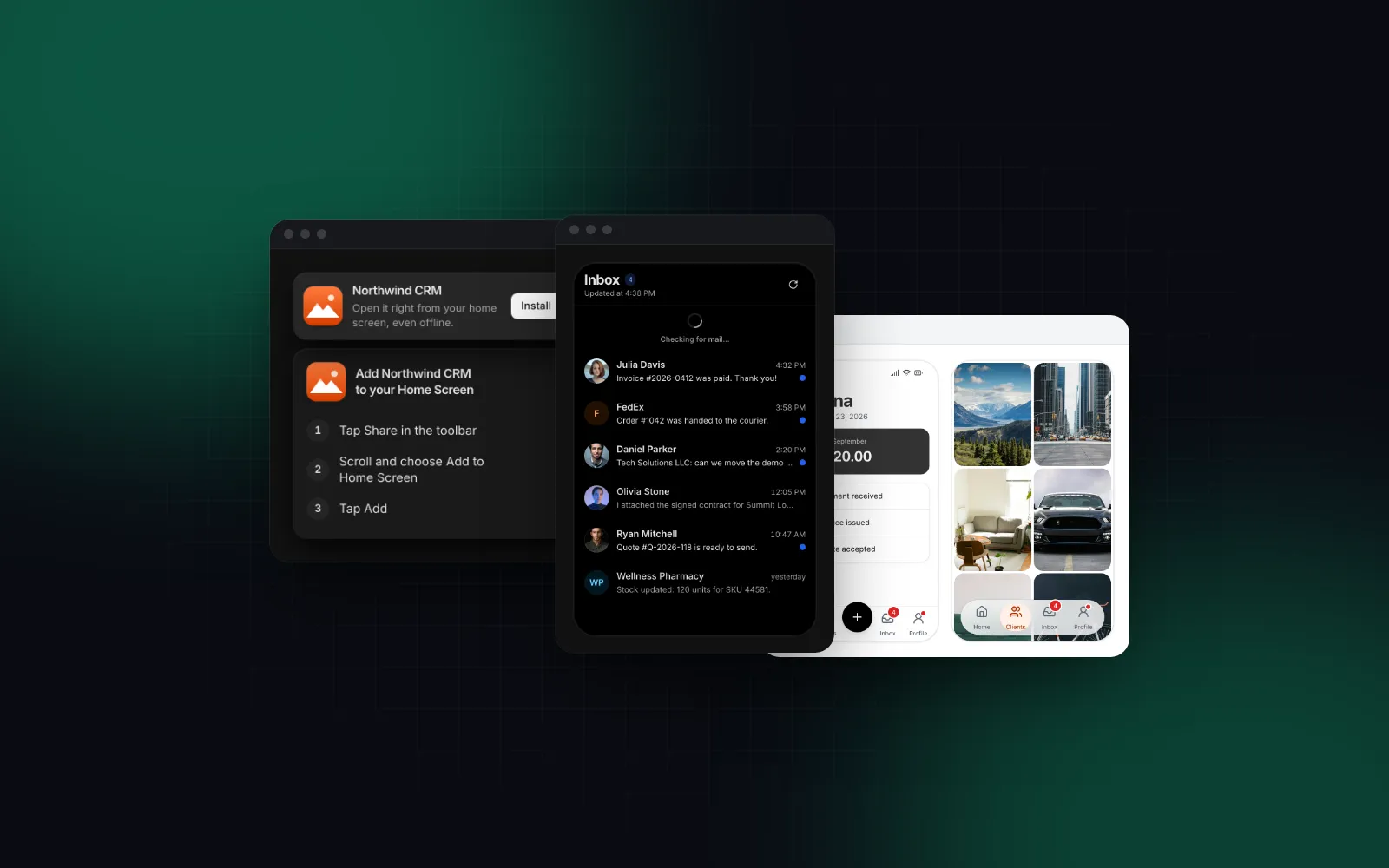
Mount one component in the root layout, because Chrome fires beforeinstallprompt early in the page load and a component that mounts later on one route can miss it. The full story, from beforeinstallprompt to the iPhone's Share sheet and when not to ask, is in React PWA install prompt for Chrome, Edge and iPhone. The short version with our Install Prompt:

tsx
// in app/layout.tsx, next to <RegisterServiceWorker />
import { InstallPrompt } from "@/components/ui/install-prompt";
<InstallPrompt
appName="Northwind CRM"
appIcon="/icon-192.png"
description="Open it right from your home screen, even offline."
/>

It shows the browser's install dialog in Chrome and Edge, the Add to Home Screen steps on iPhone, stays hidden inside the installed app and in in-app browsers, and remembers a dismissal for 14 days by default. On phones it sits above the bottom tab bar from the next section, because it reads the bar's --bottom-bar-offset. The offline page from the previous section is what makes "even offline" an honest promise.

How do you make a Nextjs PWA feel native on phones?

Give the installed app its own chrome. In standalone mode there is no address bar and no back button, so the app has to supply a header, a way back and primary navigation within thumb reach. On phones that means a top bar and a bottom tab bar, both padded for the safe areas you opened up with viewportFit: "cover".

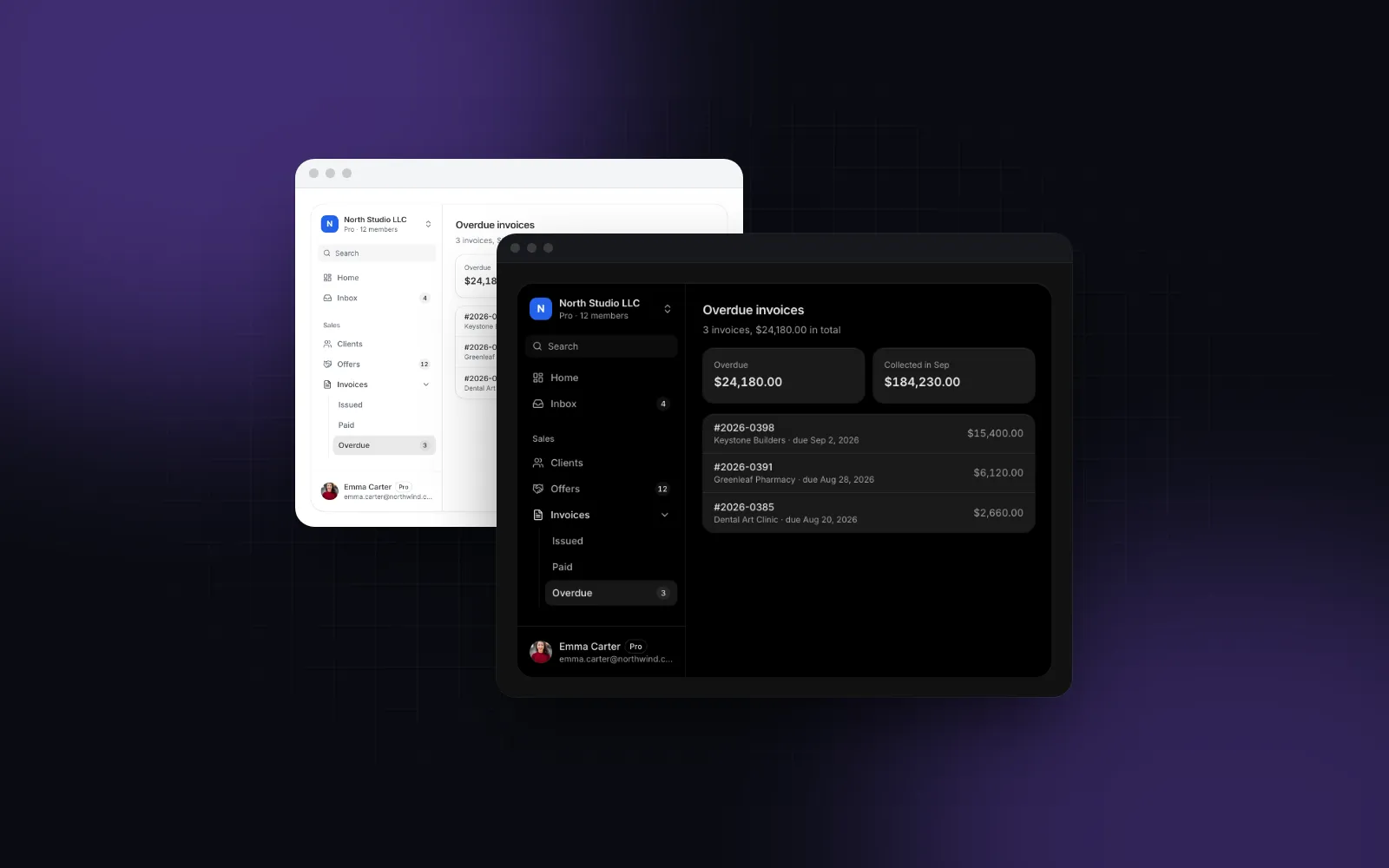
The App Shell does this as one layout: a sidebar and top bar on desktop, a drawer and a Bottom Tab Bar below 768px. Resize the demo below to a phone width, or open it on your phone, and switch tabs at the bottom:

The same shell on desktop and phone: shrink the window under 768px and the sidebar turns into a drawer behind the menu button, with tabs at the bottom.
$ npx wingo-ui@latest add app-shell
ProApp Shell docs

Install it with npx wingo-ui@latest add app-shell, which also copies the Sidebar, Topbar and Bottom Tab Bar it imports. Then make it the layout of the signed-in routes. First, a provider so every tab and sidebar link renders through next/link:

tsx
// app/providers.tsx
"use client";
import Link from "next/link";
import type { ReactNode } from "react";
import { usePathname, useRouter } from "next/navigation";
import { LinkProvider } from "@/lib/navigation";
export function Providers({ children }: { children: ReactNode }) {
const router = useRouter();
return (
<LinkProvider component={Link} currentPath={usePathname()} navigate={router.push}>
{children}
</LinkProvider>
);
}

Wrap {children} in the root layout with <Providers>, then build the shell:

tsx
// app/(app)/layout.tsx
import type { ReactNode } from "react";
import { FileText, House, Inbox, Settings, Users } from "lucide-react";
import { AppShell } from "@/components/ui/app-shell";
import type { SidebarNavGroup } from "@/components/ui/sidebar";
import { Topbar } from "@/components/ui/topbar";
import type { NavItem } from "@/lib/navigation";
const nav: SidebarNavGroup[] = [
{
items: [
{ label: "Home", href: "/", icon: <House /> },
{ label: "Inbox", href: "/inbox", icon: <Inbox />, badge: 4 },
],
},
{
label: "Sales",
items: [
{ label: "Clients", href: "/clients", icon: <Users /> },
{ label: "Invoices", href: "/invoices", icon: <FileText /> },
],
},
{ label: "Account", items: [{ label: "Settings", href: "/settings", icon: <Settings /> }] },
];
// four tabs: the phone's primary destinations
const tabs: NavItem[] = [
{ label: "Home", href: "/", icon: <House /> },
{ label: "Clients", href: "/clients", icon: <Users /> },
{ label: "Inbox", href: "/inbox", icon: <Inbox />, badge: 4 },
{ label: "Settings", href: "/settings", icon: <Settings /> },
];
export default function AppLayout({ children }: { children: ReactNode }) {
return (
<AppShell nav={nav} topbar={<Topbar title="Northwind" />} tabs={tabs}>
{children}
</AppShell>
);
}

Three details make it feel installed rather than embedded:

  • Safe areas. The Topbar pads env(safe-area-inset-top) and the Bottom Tab Bar pads env(safe-area-inset-bottom), both on by default (safeArea). Our Tailwind safe area insets post covers the rest of the page.
  • Real viewport height. The shell sizes itself with dvh instead of vh, so a short page ends at the visible bottom edge instead of behind Safari's toolbar. The background is in 100vh on mobile and dvh in Tailwind.
  • Window scroll. The default scroll="window" keeps router scroll restoration working, and the fixed tab bar writes --bottom-bar-offset so floating buttons clear it.

Hide browser-only UI in the installed app

A marketing footer or a "Get the app" link looks odd inside the app itself. Add a Tailwind v4 variant for the display mode in app/globals.css:

css
@custom-variant standalone (@media (display-mode: standalone));

Then className="standalone:hidden" removes an element only in the installed app, and standalone:pb-4 can add room that only matters there. It is CSS, so it is right on the first paint, with no hydration flash.

Start from a full home screen

For a consumer app, the Mobile App Home block is a complete first screen built on the same tab bar: a large title that shrinks into the bar, search, stories, quick actions, feed tabs and pull to refresh. Scroll it, pull down at the top and switch feed tabs:

A marketplace home screen as an installed PWA would show it: scroll to shrink the title, pull down to refresh, tap the tabs at the bottom.
$ npx wingo-ui@latest add mobile-app-home
ProMobile App Home docs

Its desktop="full" prop stretches it on a tablet instead of keeping a centered 440px column, which suits an installed app on an iPad.

What should you check before shipping the PWA?

Six checks, run on real devices where you can, because DevTools cannot show you the notch, the launcher icon or airplane mode:

  1. Manifest. DevTools, Application, Manifest shows no errors, and both icon sizes load.
  2. Offline. Install the app, turn on airplane mode, open it: you see offline.html, and it reloads once you reconnect.
  3. iPhone. Add it to the Home Screen from Safari. The status bar text is readable over your top bar, nothing sits under the notch, and the tab bar clears the home indicator.
  4. Android. Install from Chrome, check the maskable icon in the launcher, and rotate the phone once.
  5. Updates. Change offline.html, bump CACHE, deploy, reopen the app twice: the new page shows and DevTools lists one cache.
  6. Desktop. Install from Chrome or Edge; the shell should show the sidebar layout in its own window.

If you came looking for a Nextjs PWA template, run this checklist against it before you adopt it; step 3 is the one a desktop browser cannot test for you.

What should you build next?

Ship the four files first: app/manifest.ts, public/offline.html, public/sw.js and the register component. They are plain Next.js, free, and give you an installable app with an honest offline state. For the installed-app layer, npx wingo-ui@latest add app-shell install-prompt copies the shell, the bottom tabs and the install banner into your project as source; they are part of Wingo UI Pro ($8 a month, $80 a year or $150 once). More patterns for apps people hold in one hand are in the pillar on mobile-first React components and the Mobile UI in React category, and React Native vs PWA helps if you are still deciding whether the web is enough.

Components in this post

  • Install Prompt

    A React PWA install prompt: the browser's install dialog in Chrome and Edge, and an Add to Home Screen guide on iPhone and Mac.

    Pro
  • App Shell

    A React app shell for admin layouts: a collapsible, resizable sidebar, a top bar and the page, with a drawer and a tab bar on phones.

    Pro
  • Bottom Tab Bar

    A React bottom tab bar for phones: 3 to 5 tabs at the thumb with an animated pill, badges, a raised center action and hide on scroll.

    Pro
  • Mobile App Home

    A React mobile app home screen for a marketplace: large title, search, stories, quick actions, recommended ads, feed tabs and a tab bar.

    Pro

FAQ

Does next-pwa work with Next.js 16?

Not by default. The original next-pwa package is a webpack plugin whose latest release, 5.6.0, dates from August 2022, and Next.js 16 builds with Turbopack, so next build stops on the webpack config the plugin adds unless you pass --webpack. Use a hand-written service worker for an offline page, or Serwist, whose @serwist/turbopack package (9.5.13, October 2026) has a Turbopack setup in its docs.

Does a Next.js PWA need a service worker to be installable?

Not in current Chromium browsers or on iPhone: a manifest with a name, 192px and 512px icons, a start_url and a standalone display, served over HTTPS, is enough to install from the browser menu. You still want one for an offline page, push notifications and the automatic beforeinstallprompt event in Chrome.

Why does my offline page in Next.js show up without styles?

The page's CSS and JavaScript live in hashed files under /_next/static that were never cached by your worker, so offline the HTML loads and its stylesheet fails. Keep the offline page self-contained with inline CSS in public/offline.html, as web.dev's offline fallback recipe does.

How do I test a Next.js service worker locally?

Run next build and next start, then open http://localhost:3000 (opens in a new tab): localhost counts as a secure context, so the worker registers without HTTPS. In Chrome DevTools, Application shows the manifest and the worker, and the Network panel's Offline option lets you reload into the offline page.

Is there a Next.js PWA template with an app shell?

The Wingo UI App Shell, Bottom Tab Bar, Install Prompt and Mobile App Home block give you the installed-app layer: top bar, bottom tabs with safe areas, a drawer on phones and an install banner. They are Pro items, installed as source with npx wingo-ui@latest add.

Try it in your project

Install Prompt

Pro

A React PWA install prompt: the browser's install dialog in Chrome and Edge, and an Add to Home Screen guide on iPhone and Mac.

75 components free, no account needed. Pro from $8 a month.

Open Install Prompt liveSee pricing
  • Mobile UI
  • PWA
  • Next.js
  • Service worker
  • App Router

Share

SR

About the author

Serban Rusu

Founder of Wingo UI

Serban Rusu founded Wingo UI. He builds its component library, CLI and MCP server, and writes about React interfaces for phones and AI coding agents.

More from Serban
Keep reading

Related posts

All posts
Mobile UI in React

Shadcn Sidebar Mobile: Fix the Sheet and Add a Tab Bar

Shadcn sidebar mobile fixes: close the sheet on navigation, add the hidden title, stop height bugs, then pair the drawer with a bottom tab bar on phones.

SRSerban Rusu·Nov 5, 2026·9 min read
Mobile UI in React

React Bottom Navigation Bar in Next.js: Safe Areas, Badges

Build a React bottom navigation bar in Next.js: 3 to 5 link tabs, safe areas, badges screen readers announce, hide on scroll, and when a sidebar fits better.

SRSerban Rusu·Oct 9, 2026·8 min read
Comparisons and alternatives

React Native vs PWA in 2026: Which One Do You Need?

React Native vs PWA in 2026, judged on push, offline, install, gestures and store presence: the iPhone limits that decide it and when a React PWA is enough.

SRSerban Rusu·Oct 16, 2026·12 min read
Newsletter

Get new posts by email

New posts, product news and occasional offers from Wingo UI. We count clicks to keep it relevant.

No spam. Unsubscribe at any time.

WingoUI

Animated, configurable, mobile-first React components and blocks. Copy the source, make it yours, and let your coding agent build with it.

Product

  • Components
  • Templates
  • Pricing
  • AI agents
  • For teams
  • Theme generator

Resources

  • Docs
  • Contact
  • Programs
  • Blog
  • Changelog
  • Changelog RSS
  • llms.txt

Compare

  • Wingo UI vs paid kits
  • Wingo UI vs shadcn/ui
  • shadcn/ui alternatives
  • MUI alternatives
  • Tailwind Plus alternatives
  • Magic UI alternatives
  • Free components

Legal

  • Terms
  • Privacy
  • Refunds
  • License
  • Imprint

Component categories

  • Buttons & Actions
  • Inputs
  • Forms
  • Navigation
  • Overlays
  • Feedback
  • Data Display
  • Tables & Lists
  • Charts & Stats
  • Layout
  • Media
  • AI Kit
  • Text & Effects
  • Mobile
  • Commerce
  • Marketing Sections
  • Blocks
  • Hooks & Utilities

© 2026 Wingo UI

Wingo UI