React Slide to Confirm: When It Beats a Confirm Dialog
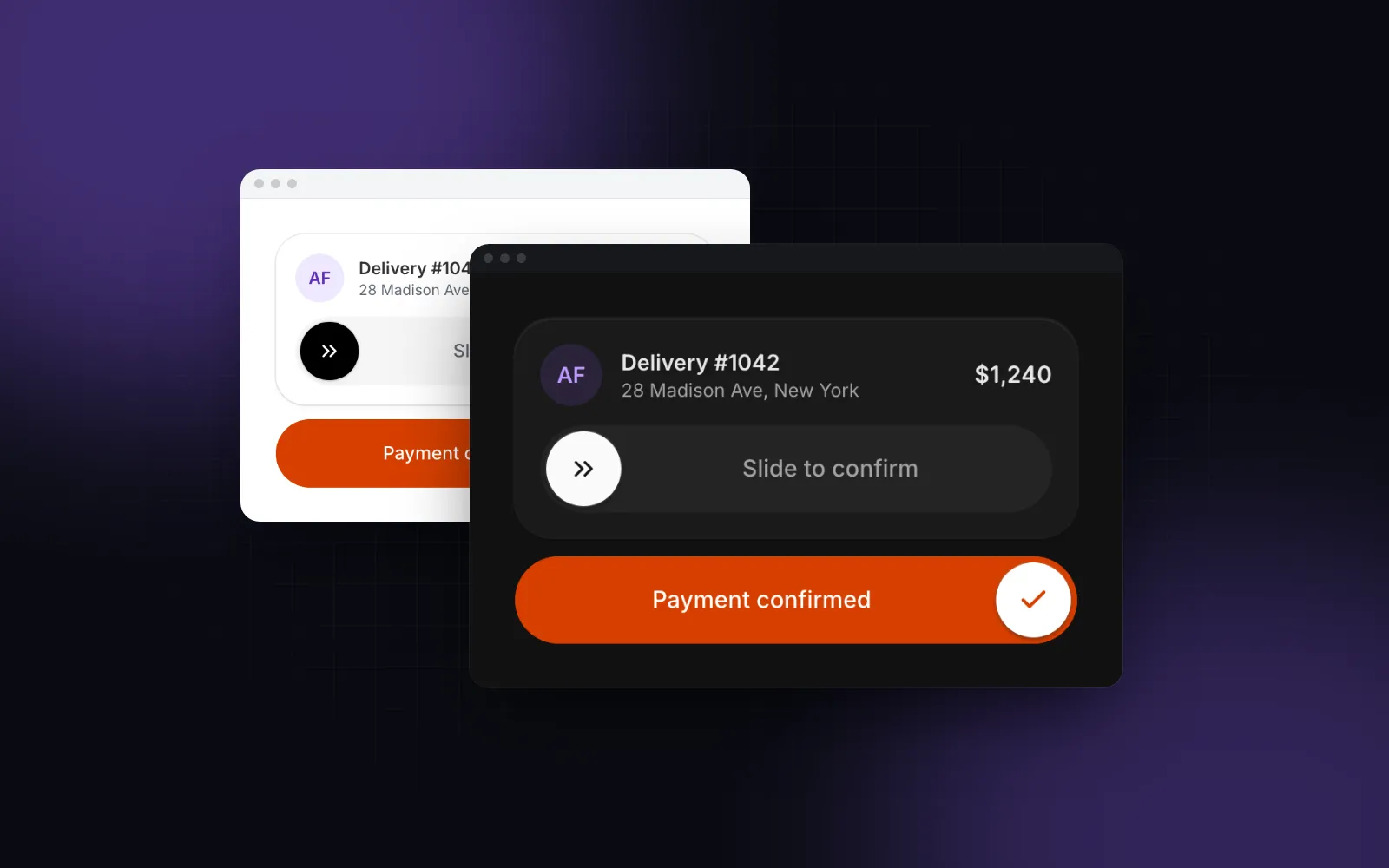
A React slide to confirm is the control you see in delivery and payment apps: a track with a thumb that you drag to the end before anything happens. It looks like a gimmick until you watch someone tap Pay with a phone in one hand on a moving bus. This guide covers when a slide beats a confirm dialog for irreversible actions, the props that matter on the Wingo UI Slide To Confirm, and how to keep it usable for keyboard and screen reader users.
When should you use a slide to confirm instead of a dialog?
When one irreversible action is the reason the screen exists, and the person is on a phone. A confirm dialog adds a second tap in a different place, which stops accidents but also adds a step every single time. A slide turns the confirmation into the action itself: one deliberate gesture, and a stray tap does nothing. Apple uses the same idea for an action nobody should trigger from a pocket: its iPhone guide tells you to drag the Power Off slider (opens in a new tab) to turn the phone off.
Here is how we pick between the four ways to guard an action:
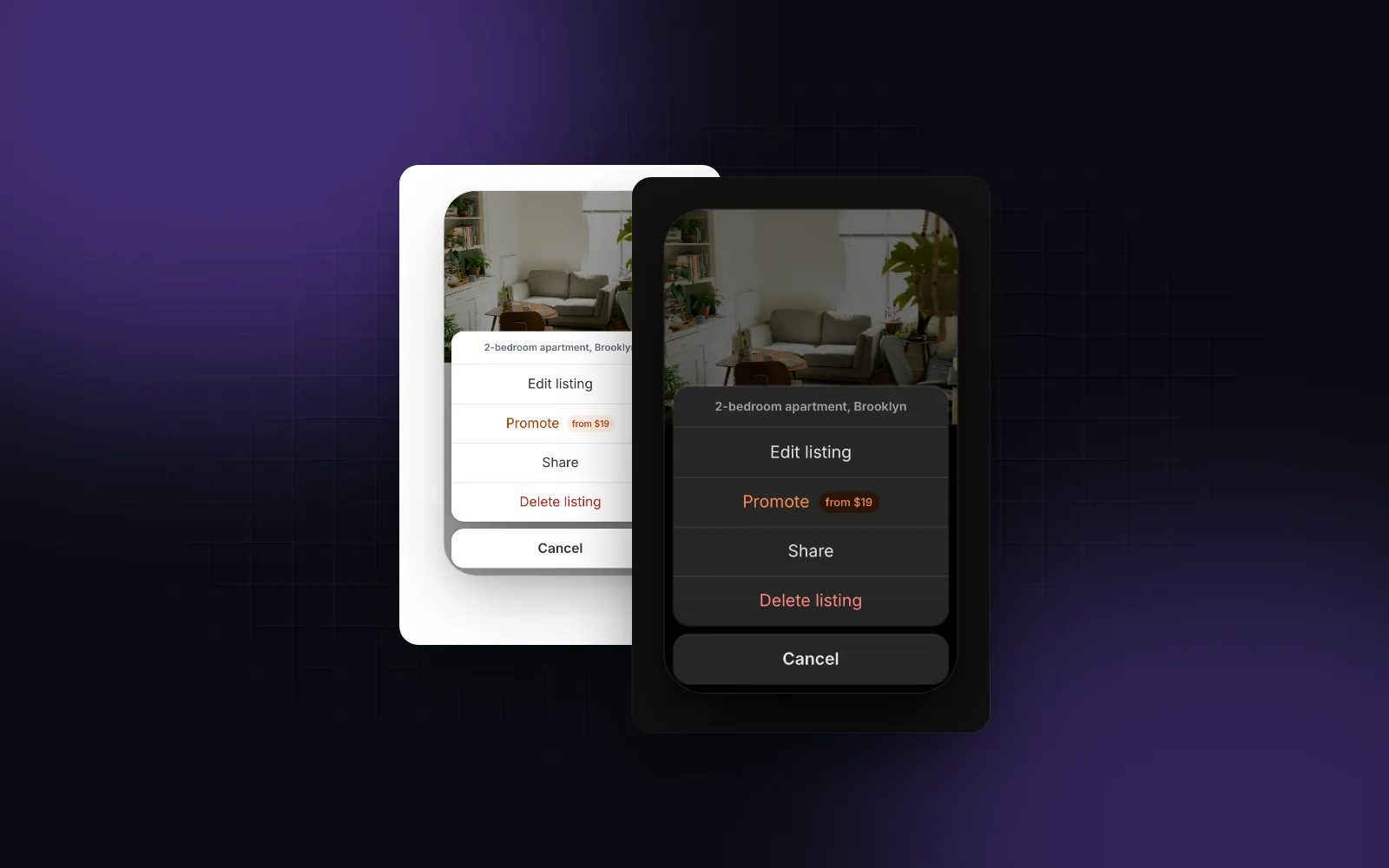
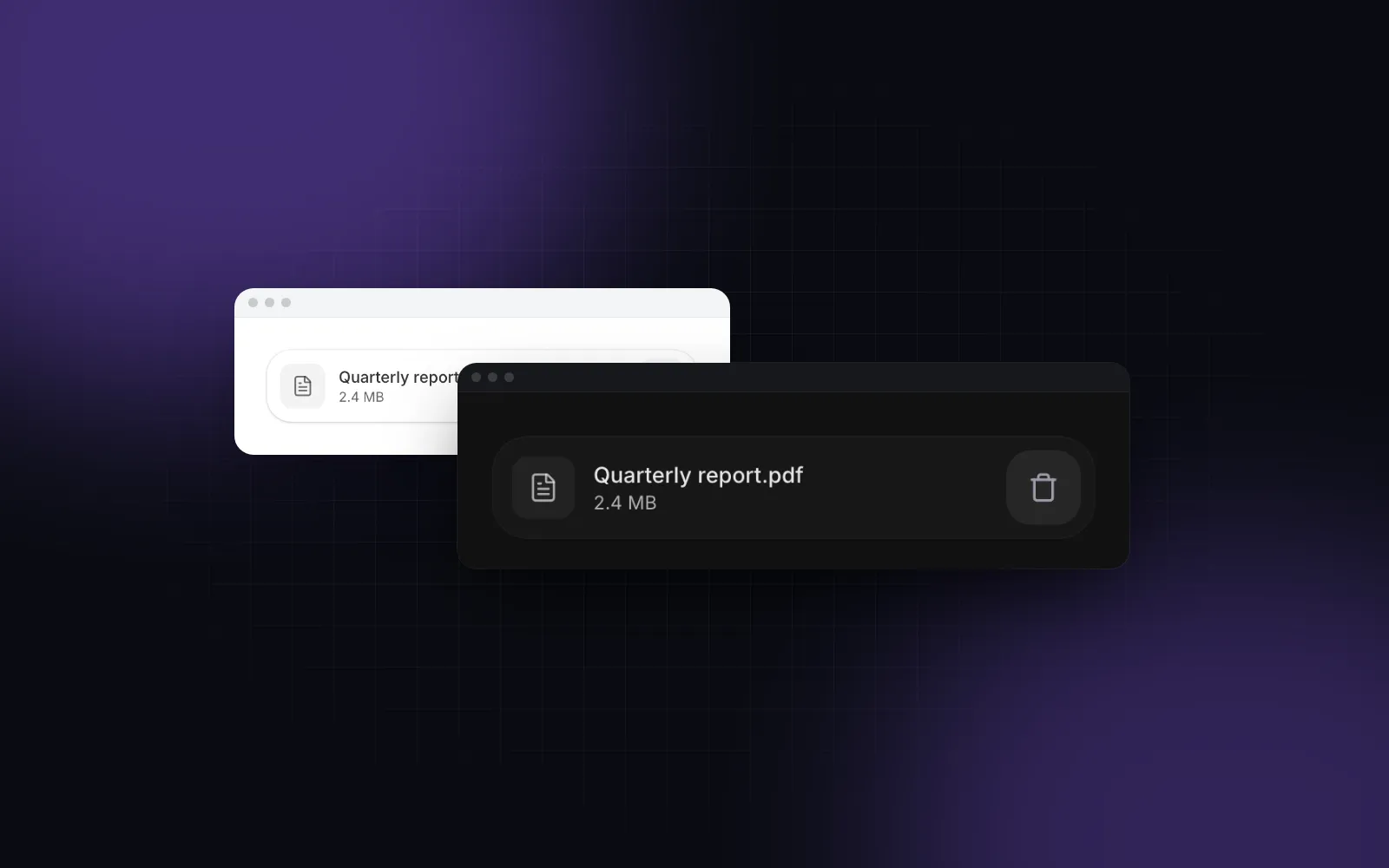
Two rules settle most cases. If the action can be undone, offer undo and skip the confirmation; our React swipe to delete tutorial shows that pattern. If the person needs to read something before deciding ("Your 14 listings and every conversation will be deleted"), use a dialog, because a slider label truncates on a narrow track and cannot hold a warning. Never stack a slide and a dialog for the same action. The slide already is the confirmation.
$ npx wingo-ui@latest add slide-to-confirmWhich props matter on the Slide To Confirm?
Most screens need label, onConfirm and the status labels. The rest tune how hard the slide is and how it looks.
onConfirmruns when the thumb reaches the end or on Enter. Return a promise: the thumb parks with a spinner, then a check pops in and the fill covers the track when it resolves, or the track shakes, the thumb goes home and the error text shows for 2 seconds when it rejects. A synchronous throw counts as a rejection, and it never runs twice for one slide.threshold(default0.9) is the share of the travel past which a release confirms. That is deliberately harder than other swipes in the library, which complete at a quarter of their size. A flick only counts past 60%. For comparison, Coinbase's React Native SlideButton (opens in a new tab) defaults itscheckThresholdto 0.7 (checked October 2026).resetAfter(default0, never) slides back to idle after success. Keep it at 0 for a delivery that stays done, and set it for repeatable actions like clocking in.statusandonStatusChangemake it controlled for server-driven flows: set"idle"to reset, or"success"to show it confirmed without callingonConfirm.labelsholds the status texts:loading("Processing…"),success("Confirmed"),error("Something went wrong. Try again.") andhint("Drag to the end, or press Enter"), which is the thumb's screen reader description.variant,tone,sizeandradiuscover the look.variant="solid"is for the one hero action,toneis neutral by default (black in light mode, white in dark), and the track is 48, 56 or 64px tall, a comfortable touch target at every size.haptics(default on) ticks when the thumb arms and plays success or error patterns on phones that support vibration.
Here is a delivery confirmation for a driver app. The request throws on a failed response, because fetch only rejects on network errors, and a 500 that resolves would show a success.
The same control is your slide to unlock React component: pass label="Slide to unlock", an unlock icon and resetAfter={1500}, and unlock in onConfirm. Swipe to confirm is the same pattern under another name.
How do you keep a slide to confirm accessible?
Make the thumb a real button and give it a path that never drags. A slide to confirm button built from a div with pointer handlers fails both. A slide is a dragging movement, and WCAG 2.2 success criterion 2.5.7 (opens in a new tab) (level AA) asks for a single-pointer alternative. Apple's gestures guidelines (opens in a new tab) say the same in plain words: "Don't assume that people can use a specific gesture to perform a given task." This is what the Wingo UI component does, and what to check in any other:
- The thumb is a
<button>. Its accessible name is the label ("Slide to confirm delivery"), it switches to the status text while loading and after success, andaria-describedbypoints at the hint: "Drag to the end, or press Enter". - The keyboard confirms without dragging. Tab to the thumb, then Enter, Space or End glide it to the end and confirm. Left and Right preview the travel in 10% steps and spring back after a moment, so arrow keys alone never confirm by accident. Home returns it.
- Screen readers confirm with one activation. The component treats a click that arrives without a pointer press, such as a double tap in VoiceOver or TalkBack, as a confirm. A mouse click or a finger tap on the thumb only hops it forward 16px to teach the gesture.
- Status is announced. A
role="status"live region reads loading, success and error, so a blind user hears "Delivered" instead of silence. - Disabled stays findable.
disableddims the control and blocks dragging and keys, but the thumb stays focusable witharia-disabled, so a screen reader still finds it. Say why it is disabled in the text next to it. - Reduced motion is respected. The idle shimmer across the label turns off, and so does the 16px hop.
For a dialog, the Alert Dialog handles the equivalent: focus lands on Cancel, the safe choice, Escape cancels, a click on the dimmed page does nothing, and focus returns to the trigger when it closes.
When onConfirm returns a promise, the action shows a spinner, Cancel and Escape wait, and a failure shakes the card and shows the error above the buttons, ready to retry.
$ npx wingo-ui@latest add alert-dialogHow does it behave on a phone?
It scrolls, arms and confirms like a native control, as long as it sits outside other swipeable areas. A vertical swipe that starts on the track still scrolls the page, because the drag locks to one axis once it starts and the track sets touch-pan-y (our Tailwind touch manipulation guide explains that value). Past the threshold the thumb grows a little, the fill deepens and the phone ticks; release there and it glides to the end. A tap on the track hops the thumb forward to show which way it goes. In right-to-left layouts the thumb starts on the right and the icon mirrors.
The tick is a bonus. As of October 2026, caniuse (opens in a new tab) shows no navigator.vibrate in Safari, so iPhone users rely on the visual armed state. Our Web Vibration API guide covers the gaps.
Which slide to confirm pitfalls should you avoid?
- A slide for everyday actions. Save, Send message or Add to cart do not need a guard, and a slide on them is friction. Keep it for the action that costs money or cannot be taken back.
- A slide inside a horizontal swiper. In a carousel or swipeable tabs the two drags compete. Put the slide outside the swiping area, or pin it in a sticky bottom bar.
- A label that does not fit. The label truncates on narrow tracks. "Slide to pay" fits anywhere; a sentence does not. Put the amount and the details above the control.
- Trusting the client alone. The component never runs
onConfirmtwice for one slide, but a flaky network can still retry a request. Make the endpoint idempotent, for example with an idempotency key per order. - A track on a desktop-only form. A slide works with a mouse and a keyboard, but on a desktop admin screen a button with a dialog is what people expect.
For the full mobile layer, from bottom sheets to safe areas, read our guide to mobile-first React components or browse Mobile UI in React.
What should you install next?
npx wingo-ui@latest add slide-to-confirm copies the component with the Spinner and the motion, haptics and state helpers it imports, and installs motion and lucide-react. Slide To Confirm is part of Wingo UI Pro, so sign in first with npx wingo-ui@latest login. For small deletes, the free Delete Button is one command away: npx wingo-ui@latest add delete-button.
FAQ
Is slide to confirm better than a confirm dialog?
For one irreversible action on a phone screen, often yes: it takes one deliberate gesture instead of two taps, and it is hard to trigger by accident. For rare actions on desktop, or actions that need an explanation, a confirm dialog is clearer.
Is a slide to confirm accessible?
Only if it has a non-drag path. WCAG 2.2 success criterion 2.5.7 Dragging Movements asks for a single-pointer alternative, so the thumb should be a real button that confirms on Enter, Space or a screen reader activation, with a description that says so and a live region that announces the result.
How far should the thumb travel before it confirms?
Far enough that a stray swipe does not count. The Wingo UI Slide To Confirm confirms on release past 90% of the track by default, or on a flick past 60%; Coinbase's React Native SlideButton defaults to 70% (as of October 2026).
How do I build slide to unlock in React?
Slide to unlock is the same control with a different label: a track, a draggable thumb on a motion value, a threshold near the end, and a reset after success. With Wingo UI, pass label="Slide to unlock" and resetAfter to SlideToConfirm.
Is the Wingo UI Slide To Confirm free?
No. Slide To Confirm and Alert Dialog are Pro components. The Delete Button with its inline confirm is free.
- Mobile UI
- Confirmation
- Accessibility
- React
- Gestures