React Gauge Chart: Zones, Targets and Small Sizes
You need a React gauge chart for a dashboard: sales against the monthly goal, an NPS score, a support SLA, disk usage. One number, a scale, and a sense of whether that number is good or bad. The first version is usually an SVG arc with a big number in the middle, and it looks fine at 280px. Then it lands in a KPI card at 120px, the label overflows the bowl, the min and max collide with the arc ends, and a screen reader announces an unlabeled image. This guide covers when a gauge is the right chart, the props that matter in the Wingo UI Gauge and Radial Bar, and how to keep both readable on a phone.
When should I use a gauge chart instead of a bar or a ring?
Use a gauge when a single value sits on a scale with a meaningful minimum and maximum and the zones matter as much as the number. A speedometer has a red zone; a monthly goal has "behind", "close" and "good". If you only need a percent of a task, a progress bar or ring says the same thing in less space. If you have several goals at once, radial bars compare them better than a row of gauges.
The WAI-ARIA meter pattern (opens in a new tab) draws the same line: a meter is a value within a known range, such as a battery level, and it should not be used for progress or for values without a meaningful maximum. That is a good test for any gauge. If you cannot name the max, pick another chart.
Which React gauge chart packages exist?
Three names come up first when you search for a react gauge chart component or a react speedometer chart, plus MUI X if you already use MUI. Facts are from each project's npm entry and docs, as of October 2026.
If you already ship MUI, its Gauge is the obvious choice: it is accessible and you add no new dependency. If you want a needle gauge with zones from one npm install and do not mind a client-only import, pick react-gauge-component over react-gauge-chart: it had a release in April 2026 and lists React 19 as a peer. The Wingo UI Gauge is source you copy into your project, with zones, a target and three variants built in.
What props does a React gauge chart need?
A value, a scale and zones. value is required, min and max default to 0 and 100, and thresholds lists where each zone starts. Zones are sorted for you, and each one runs to the next threshold or to max.
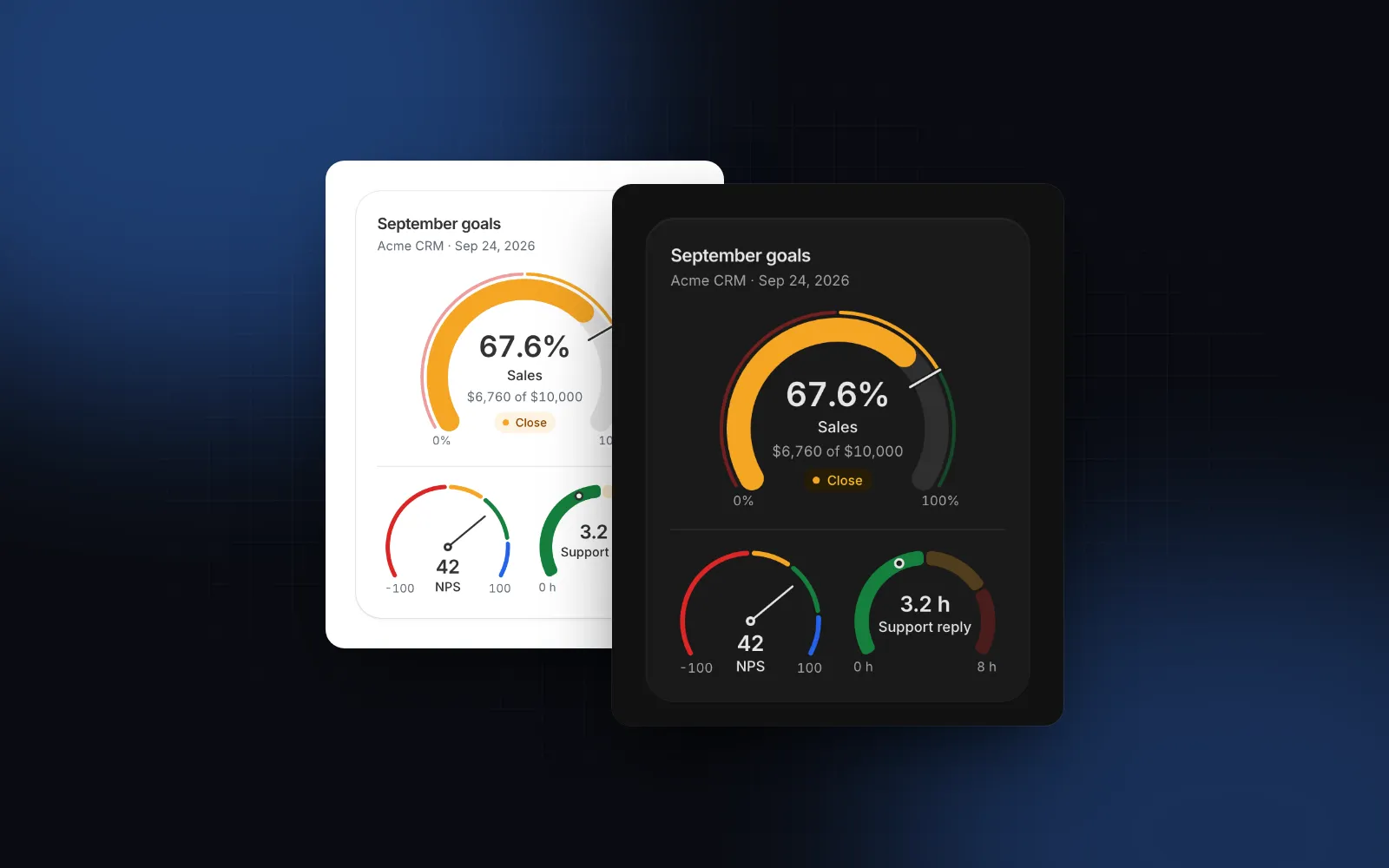
The arc takes the tone of the zone the value is in (colorByZone, on by default), a thin band outside the arc shows every zone (showBands), and a chip under the value names the current zone. target draws a tick across the track that is cut into the surface color, so it reads over any zone color.
The props you will change next:
variant:arcfills the track up to the value,needledraws a thin zone-colored track and a needle (the react speedometer chart look),segmentssplits the track into zones or intosegmentsequal steps.sweep:180for a half circle,240(the default) or270for an open ring.size:sm,mdorlg, a nominal width of 120, 200 or 280px with the value at 18, 28 or 40px.valueFormat:number,compact,currencyorpercent, withcurrencyandlocale. For anything else,formatValue(value, { kind })gets"value","tick"for the min and max, or"label"for the spoken text.
Drag the slider below the dial. The arc changes color as the value crosses 50% and 75%, and the dollar line under the label follows it.
$ npx wingo-ui@latest add gaugeHow do I keep a gauge readable at small sizes?
Let the component make room for the text. Most gauge examples put the value, the label and the description in the bowl at a fixed font size. That works at 280px and breaks at 120px, where a label like "Average reply time" is wider than the hole.
The Gauge handles this in three steps, all without measuring the DOM:
- The value shrinks to fit. The big number scales down when its formatted text is wider than the space inside the arc, so "$128,450" never touches the track.
- The label moves under the dial when the label and description would run into the min and max row. It first tries a narrower column between the two scale ends, and only moves out when that is still too tall. The value stays in the bowl.
- The scale ends turn compact. With
valueFormat="currency"and a range of 10,000 or more, a max of 190000 prints as "$190K" under the arc end.
Because the layout comes from estimated text widths, the server HTML already has everything in place, and nothing jumps on hydration. The dial also shrinks with a narrower container, but the root carries min-w-[120px], so a two-column grid of gauges fits a 360px phone and a third column does not.
For list rows, a half circle reads better than a 240-degree arc, because it is shorter. Hide the scale ends, put the label text next to the dial, and pass min-w-0 with a width when the row needs the dial below 120px:
How do I show a lower-is-better value?
List the zones from good to bad. Response times, error rates and costs are better when they are low, so the first zone is the success tone:
The "use client" line matters here: formatValue is a function, and a Server Component cannot pass a function to a Client Component. The segments variant shows each zone as its own piece, the current one solid and the others at 25%, with a ring marker at the value. For a score with a negative range, such as NPS from -100 to 100, set min={-100} and max={100} and the zones work the same way. Values outside the range are clamped for drawing while the text still shows the real number, and value={null} draws the track with a dash for "no data yet".
$ npx wingo-ui@latest add gaugeHow do I show several goals as a React radial progress chart?
Use the Radial Bar. A react radial progress chart with several rings answers a different question than a gauge: how far along is each goal, side by side. Each item in data is a ring with its own max, outermost first.
A ring past its target keeps going for a second lap, so 18 of 15 quotes reads as more than done without breaking the scale. variant="bars" draws 270-degree bars instead of full rings, each named just left of its start at 12 o'clock. The legend sits beside the chart from 480px of container width and moves below it on narrower containers.
Small sizes are handled the same way as on the Gauge. size takes sm, md, lg or any number of pixels, so a 52px ring set fits a list row. When the hole is too small for a readout, the hovered or focused ring's value floats beside its end instead, and on touch screens it is pinned above the chart (tooltipMode="auto").
$ npx wingo-ui@latest add radial-barHow do I make a gauge chart accessible?
Give it the meter role, a name and a sentence that a person can understand. The Gauge renders role="meter" with aria-valuemin, aria-valuemax and aria-valuenow. A string label names it; other label nodes are linked through aria-labelledby, and description through aria-describedby. The spoken value includes the zone and the target, for example "67.6%, Close zone, target 75%". Replace that sentence with labels.valueText(value, min, max, info), where info has the formatted text, the zone and the target. The gauge is read-only and never takes focus, because there is nothing to operate.
The Radial Bar is interactive, so it works differently. It renders a hidden meter per ring, a screen reader table with value, target and percent, and keyboard support: Tab to the chart, arrow keys walk the rings, Home and End jump to the outermost and innermost one, Enter or Space selects, Escape clears. A live region reads each ring as you move.
Color alone never carries the zone on either chart. The Gauge prints the zone name in the chip and in the spoken text; the Radial Bar prints values and percentages in the legend. Under reduced motion both skip the sweep and show the final state.
What are the common gauge chart pitfalls?
- A gauge for a number without a max. Revenue this month has no natural ceiling. Use a goal as the max, or show a stat card with a trend.
- The target notch on a different background. The tick is cut in the surface color. If the gauge sits on a card or a custom fill, pass that color as
surface. - Zone labels left out. Without
labelon each threshold, the chip disappears and screen readers hear the number and the target but not the zone. - Animation in thumbnails and print. The arc sweeps in the first time it scrolls into view. Pass
animated={false}for static exports. - A row of gauges for related goals. Five dials side by side are hard to compare. Radial bars or a bar chart put them side by side in one chart.
How do I add it to my project?
Run npx wingo-ui@latest add gauge or npx wingo-ui@latest add radial-bar. The CLI copies the source into your project, adds the chart kit, motion and number helpers they import, and installs motion and d3-shape. Both are Pro components (pricing); the Progress ring is free if one percent is all you need. For the screen around a gauge, the Next.js admin dashboard tutorial builds the shell, KPI row and tables, and the dashboard component library comparison covers the rest of the chart set. More single-component deep dives are in the component guides category, including the React sparkline guide for trends inside KPI tiles.
FAQ
How do I make a gauge chart in React?
Use a gauge component that takes a value, a min and a max, then add zones and a target. With Wingo UI that is , installed with npx wingo-ui@latest add gauge.
What is the difference between a gauge and a radial bar chart?
A gauge shows one value on a scale with zones, like a speedometer. A radial bar chart shows several values as concentric rings, each filling toward its own target, like fitness activity rings.
Which ARIA role should a gauge use?
role="meter" with aria-valuenow, aria-valuemin, aria-valuemax and a label, as described in the WAI-ARIA Authoring Practices meter pattern. Use progressbar instead when the value is task progress, such as an upload.
Can I use a React gauge chart in Next.js with server rendering?
Some packages need a dynamic import with ssr set to false; the react-gauge-component README shows that for Next.js. The Wingo UI Gauge places its text from estimated widths instead of measuring the DOM, so the server HTML already has the dial, the value and the label in place.
Are the Wingo UI Gauge and Radial Bar free?
No. Both are Pro components. The Progress component, which has a ring variant for a single percent, is in the free tier.
- Charts
- Gauge
- Dashboard
- Accessibility
- React