React Cron Generator: Schedules Without Writing Cron
You are adding scheduled reports, backups or reminders to an app, and you need a React cron generator so your users can say when the job runs. The backend wants 0 9 * * 1-5. The person filling in the form wants "every weekday at 9 in the morning" and has never heard of crontab. A plain text input fails them, and a pile of dropdowns that mirror the five fields only moves the syntax into a different shape. This guide covers what a cron expression UI should do, the props that matter in the Wingo UI Cron Picker, how to save the value safely, and the cron rules that trip up most schedulers.
What should a React cron generator do?
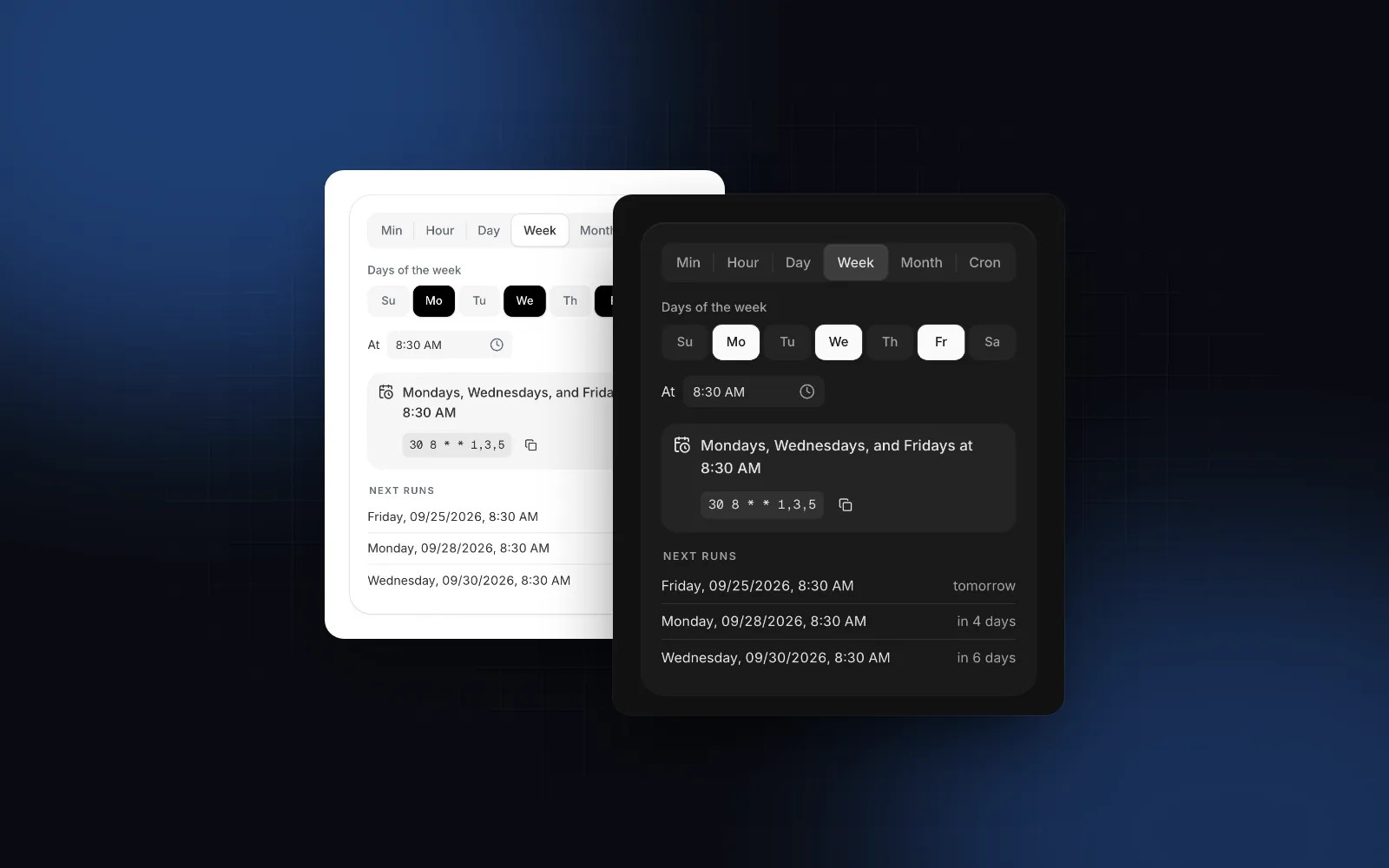
Let people pick a schedule in their own words, then prove it back to them. A react cron editor, a react cron builder and a schedule picker React apps drop into a form are one control under three names, and the good ones share five traits:
- Frequency first. Tabs for every few minutes, hourly, daily, weekly and monthly cover most real jobs. Each tab shows only the fields it needs.
- Chips for days. Weekdays as seven chips and days of the month as a grid of 1 to 31, so nobody types
1,3,5. - A sentence that reads it back. "Mondays, Wednesdays, and Fridays at 8:30 AM" is how a person checks their own choice.
- The next runs. Concrete dates catch what a sentence hides: a wrong time zone, a 30 February that never comes, a job that runs sixty times an hour.
- An escape hatch. A Custom tab for people who already know cron, validated as they type.
Which React cron libraries are there?
Two open source packages cover the same job: react-js-cron, built on Ant Design, and react-cron-generator, which defaults to Quartz syntax. Facts are from each project's GitHub README, as of October 2026.
If your app already uses Ant Design, react-js-cron fits right in. If your scheduler is Quartz or Spring, react-cron-generator speaks that format and the Cron Picker does not. The rest of this guide covers the Cron Picker.
What props does the Cron Picker need?
One string. value (or defaultValue, which is 0 9 * * 1-5 when you pass nothing) holds the expression, and onValueChange gets the new one after every tab, chip or field change.
The picker opens on the tab that fits the expression. 0 2 * * 0 opens Weekly with Sunday selected and reads "Sundays at 2:00 AM". Anything the tabs cannot express, such as */15 9-17 * * 1-5, opens Custom with the text as it is. The props you will change most often:
frequencies: the tabs, in order. The default is minutes, hourly, daily, weekly, monthly and custom; add"yearly"for dates like January 1.minuteIntervalsandhourIntervals: the choices for every N minutes ([5, 10, 15, 30]) and every N hours ([1, 2, 3, 4, 6, 12]).showNextRuns: how many upcoming runs to list, 5 by default, 0 to hide them.showSummaryandshowExpression: the sentence and the mono expression chip with its copy button.allowCustom: the Custom tab, on by default.weekStartsOn: the chip order.-1follows the locale, soen-USstarts on Sunday.
The demo starts on 0 9 * * 1-5, so it opens on Weekly with Monday to Friday picked. Tap a few days off and change the time. The sentence, the expression and the next runs follow on every change.
$ npx wingo-ui@latest add cron-pickerA weekly or monthly tab with nothing picked sets the value to "" and says "Pick at least one day", so a form can block saving instead of storing an empty schedule.
How do I show the next runs in the right time zone?
Pass the zone your scheduler uses. A cron expression has no time zone of its own: the machine that runs it decides. Vercel's Cron Jobs docs (opens in a new tab) say the time zone is always UTC. GitHub Actions scheduled workflows (opens in a new tab) run in UTC by default and take an optional IANA timezone. Cronie reads a CRON_TZ variable per crontab, per the crontab man page (opens in a new tab).
Set timeZone to that zone and the picker computes and shows the next runs in it, with a badge that names it. Leave it empty and the runs use the device's zone, which is only correct when the server and the user share one.
layout="split" puts the fields on the left and the sentence and runs on the right once the picker is 672px wide. It is a container query, so the same picker stacks on a phone or in a narrow side panel. hourCycle switches between 12 and 24 hours (auto follows the locale), and now sets the moment the runs count from, which is how the demos stay stable.
$ npx wingo-ui@latest add cron-pickerDaylight saving time is the other half. The cronie man page says local times skipped by the change never match and times that occur twice run twice. Depending on the zone, a 2:30 AM job can be skipped on the spring change or run twice on the autumn one, so pick a time outside the switch hour for anything that must run exactly once.
How do I save the schedule from a form?
Give the picker a name. It renders a hidden input with the expression, or an empty value while the expression is invalid, so a plain form post or a Server Action gets a string to check again on the server.
The picker's helpers (isValidCron, describeCron, getNextRuns) live in a "use client" file, so a Server Action cannot call them. Use a server-side parser such as cron-parser (opens in a new tab), and keep the field count at five because cron-parser also accepts a seconds field. The picker accepts @daily style macros in Custom, and its README does not list @midnight or @annually, so the action below expands the picker's macros to five fields before it checks anything.
Enter inside the picker's minute field and the Custom inputs never submits the form around it, so a user editing the minute or typing an expression does not save half a schedule. The time field is a plain Time Picker: on a desktop, Enter there commits the time and then submits like any text input. For a list of saved jobs, readOnly drops the fields and keeps only the sentence and the expression with copy: <CronPicker value={job.cron} readOnly size="sm" /> fits in a table row.
How does the custom tab validate cron?
As you type, with one message per problem. The Custom tab takes a raw expression or, under By field, five small labeled boxes. An hour of 25 says "Hour must be between 0 and 23". Four fields say "Use 5 fields: minute, hour, day, month, weekday". An L in the day field says which forms the field accepts. @daily, @weekly and the other time-based macros are accepted, while @reboot is rejected.
$ npx wingo-ui@latest add cron-pickerThe same rules ship as functions for your own code: validateCron returns the field and bounds of an error, cronErrorMessage turns it into a sentence, and detectFrequency tells you which tab an expression would open on.
Is the Cron Picker accessible and usable on a phone?
Yes. The frequency tabs are a Segmented Control: arrow keys move between them, and when the full names do not fit, as on a phone, they show short ones (Min, Hour, Day). The weekday and day chips are a Toggle Group: Space toggles a chip and arrows move between chips. Chips are 32, 36 or 40px for sm, md and lg, and 44px on touch screens.
The every N minutes choice is a Select that opens as a bottom sheet on phones. The time opens columns on a desktop and a wheel sheet on a phone, from the Time Picker, which the React time picker guide covers in depth. Screen readers hear the new sentence half a second after the last change, through a polite live region, so a run of chip taps is announced once. Clicking the label focuses the tabs, and reduced motion turns the slides into fades.
What cron rules trip up a schedule builder?
Four come up again and again, and the picker answers each one in a specific way.
- Day of month OR day of week. When both day fields are restricted, cron runs on either one.
0 9 13 * 5reads "At 9:00 AM on the 13th of the month or on Fridays", which is rarely what someone meant. The tabs never write both fields, which also keeps the output valid on Vercel, where an expression with both is refused. - Names on platforms that reject them. Vercel does not accept
MONorJAN. The tabs always write numbers (1-5). An expression typed into Custom is kept as typed, so names there pass through. - Dates that never come.
0 0 30 2 *is valid syntax, and the run list says "No runs in the next 4 years" instead of staying silent. - A busy hour field.
* 2 * * *is every minute from 2:00 to 2:59, read back as "Every minute during hour 2". GitHub Actions also caps schedules at once every 5 minutes, and the defaultminuteIntervalsstart at 5.
How do I add it to my project?
Run npx wingo-ui@latest add cron-picker. The CLI copies the source into components/ui, adds the Field, Select, Segmented Control, Toggle Group, Time Picker and other parts it imports, and installs motion and lucide-react. The Cron Picker is a Pro component (pricing). If you are building a whole automation screen, the Automation Builder Page already uses it for scheduled triggers, as shown in the React workflow builder guide. More single-component deep dives live in the component guides category, and the React form components guide covers the labels, errors and mobile rules every field in that form shares.
FAQ
What is a React cron generator?
It is a form control that builds a cron expression from friendly inputs such as a frequency, a list of weekdays and a time, so people can schedule a job without learning the five fields. Most also show the expression and a plain-English description of it.
Should a cron builder show the next run times?
Yes. A sentence like Every weekday at 9:00 AM can still hide a wrong time zone or a date that never comes, while five concrete dates make the mistake obvious. The Wingo UI Cron Picker lists five by default through showNextRuns.
What happens when both day of month and day of week are set in cron?
Standard cron runs the job when either field matches, so 0 9 13 * 5 runs on the 13th and on every Friday. The cronie crontab man page documents this rule, and Vercel Cron Jobs refuse expressions that set both.
Does the Wingo UI Cron Picker support Quartz cron expressions?
No. It reads and writes 5-field Unix cron with lists, ranges, steps, MON and JAN names and macros such as @daily. Six or seven field Quartz expressions show the error Use 5 fields in the Custom tab.
Is the Wingo UI Cron Picker free?
No, it is a Pro component. The Select, Segmented Control, Field and Copy Button it builds on are free.
- Cron
- Scheduling
- Forms
- Accessibility
- React