React Time Picker: Typed Input, 12 or 24 Hours by Locale
You need a React time picker for a pickup slot, a meeting or a delivery window. The native <input type="time"> is the first thing to try, and it often ends there: you cannot style its popup, a US visitor sees 2:30 PM while your design shows 14:30, and it has no way to grey out a lunch break. Most packages swap it for a row of hour and minute boxes that you fill one at a time. This guide covers what a time field should do instead (accept "1430" or "2p" typed in one go, follow the locale, respect opening hours, open wheels on a phone), the props that matter in the Wingo UI Time Picker, and a full form example.
When is input type="time" enough?
When you do not need to style it, block single slots or control 12 versus 24 hours. The native element is free, accessible and already works with forms. MDN (opens in a new tab) documents its value as always a 24-hour HH:mm (or HH:mm:ss) string, while the display is chosen from the user's locale or by the browser. It supports min, max and step, and a min later than max wraps past midnight.
The trouble starts when the field has to look like the rest of your form or follow business rules. You cannot add a Now button, show that 1 PM is taken, or keep the hour format the same for every visitor. The long-running react-time-picker (opens in a new tab), says in its README to consider the native time input if you do not need legacy browser support or its extra features.
What should a React time picker handle?
Five things, and the native input covers two of them:
- Typing in one go. "1430", "14.30", "9", "2:30pm" and "2p" should all mean what they say. Separate hour and minute boxes make people tab or wait for an auto advance.
- 12 or 24 hours from the locale. en-US writes 2:30 PM, en-GB writes 14:30. The stored value should not change with the display.
- Limits and blocked times. Opening hours, a lunch break, booked slots. Blocked options should look disabled before anyone submits.
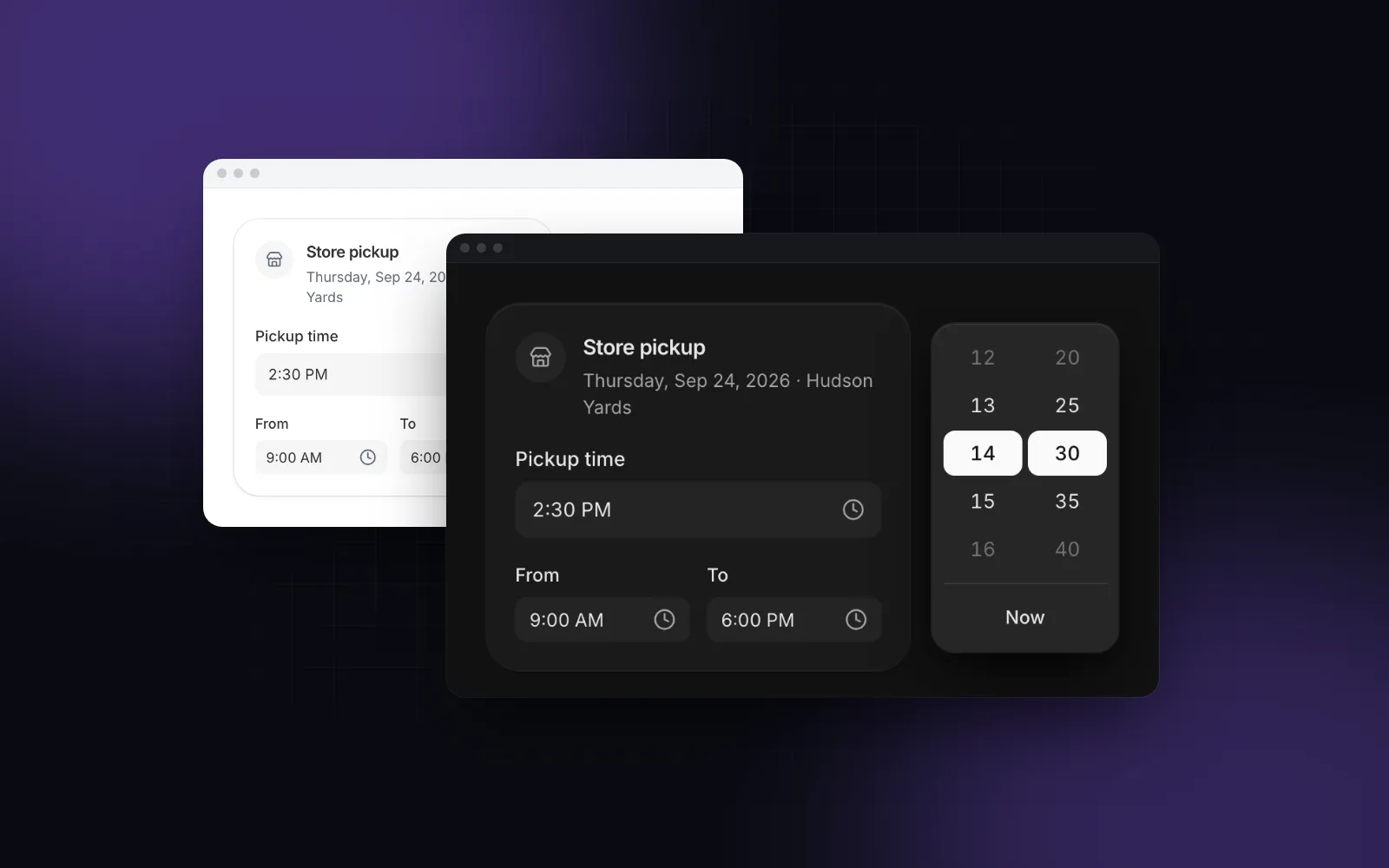
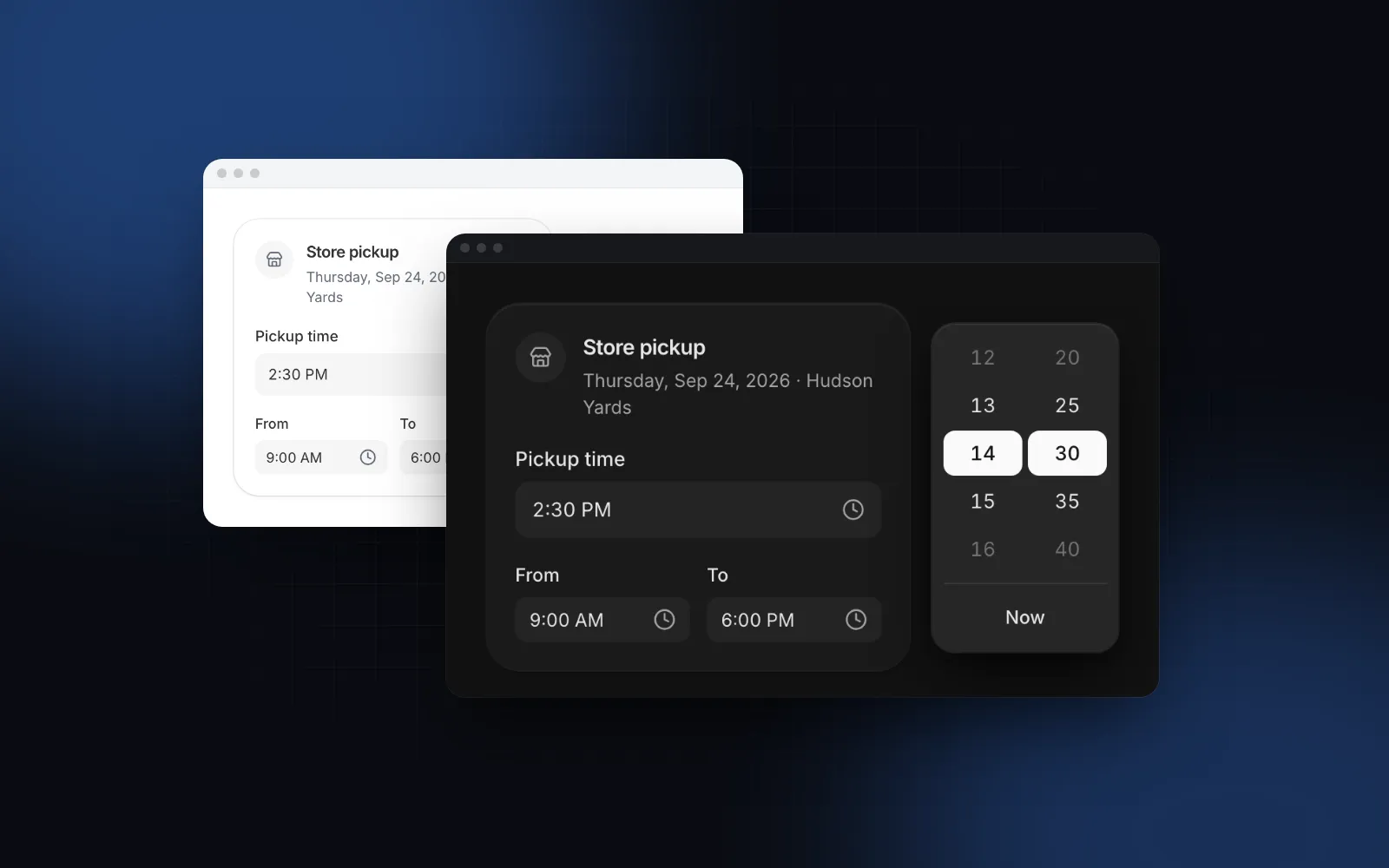
- A picker for the mouse. Columns of hours and minutes with the current time centered.
- A phone layout. Wheels in a bottom sheet, so a tap does not raise a keyboard over half the screen.
How do the React time picker options compare?
A search for "time input react" mostly turns up segmented fields, one box per hour, minute and AM / PM. Facts are from each project's public docs, as of October 2026.
Mantine is the better pick if your app already uses Mantine, and Dice UI if you want a free shadcn time picker and are happy with segments. Segments are a real design choice: they make an invalid time impossible to type. The cost is that a fast typist cannot just write "1430" and press Tab, which is the case the rest of this guide is about.
How does typing a time work?
The field reads the text when you leave it or press Enter. Type 14 and a colon appears, so "1430" reads as 14:30 as you go. "9" becomes 09:00, "930" becomes 09:30, "14h30" and "14.30" work too, and an a, am, p or pm at the end sets the half of the day. Text that does not parse turns the field red while you type and goes back to the last good time on blur. A time outside min and max moves to the nearest limit.
ArrowUp and ArrowDown step the minutes by minuteStep and commit at once, Shift with an arrow steps an hour, and both skip blocked times. Alt + ArrowDown opens the panel with focus on the hours column.
disabledTimes gets "HH:mm" strings, and because they are zero padded you can compare them as text. Blocked options are disabled in the columns, an hour with nothing left greys out, and a typed blocked time moves to the nearest free slot.
Type 2:30pm or 1430 into the field below and press Tab, then click it to see the columns.
$ npx wingo-ui@latest add time-pickerHow do I show 12 or 24 hours by locale?
Pass locale, and hourCycle="auto" (the default) follows it: en-US shows 2:30 PM, en-GB shows 14:30, and midnight in 12 hours reads 12:00 AM. The value is "HH:mm" in 24 hours whatever the display, so a 12-hour field and a 24-hour field share the same state and the same database column. To force the clock, use hourCycle="h23" for 24 hours everywhere, or "h12" for AM and PM. If you searched for "react time picker 24 hours", hourCycle="h23" is the whole answer.
Without a locale prop, the component reads the UIProvider locale, then the nearest LocaleProvider, then the page's lang and the browser language. With none of them set, it renders en-US on the server and during hydration, because Intl would otherwise format with the server's language and the HTML would not match. Set the React time picker locale once at the root so the first paint is already right. UIProvider is a client component, so the root layout can stay a Server Component:
Here is the same field with locale="en-GB". Type "2:30pm" anyway: it reads as 14:30.
$ npx wingo-ui@latest add time-pickerWhat happens on a phone?
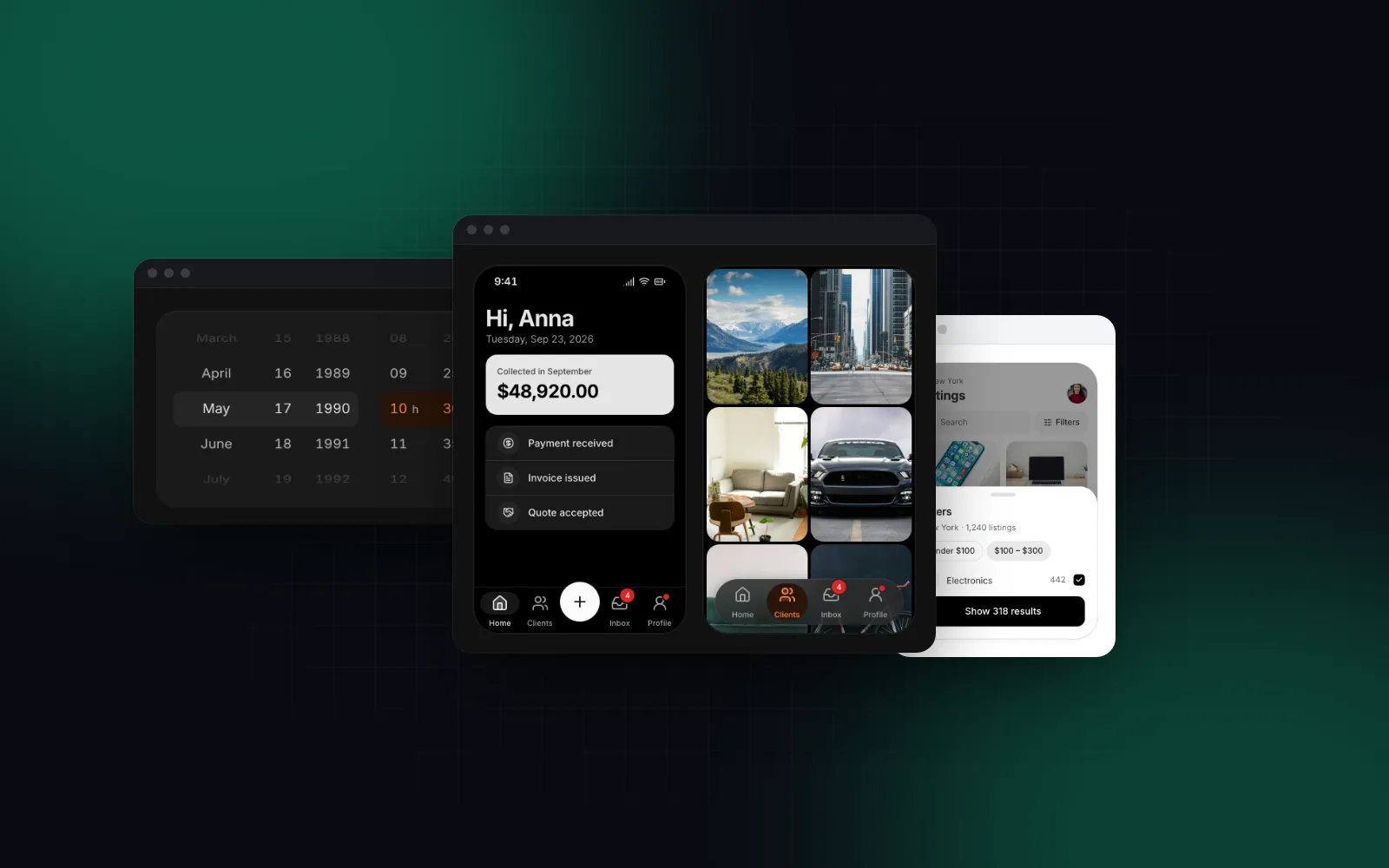
Below 768px the field opens a bottom sheet with wheels that snap like iOS, and the input is read-only with inputMode="none", so no keyboard opens. The wheels tick under the thumb where the browser supports vibration (Chromium browsers on Android; Safari has no Vibration API). Done commits the time, and dragging the sheet away keeps the old one. responsive={false} gives phones the desktop panel instead.
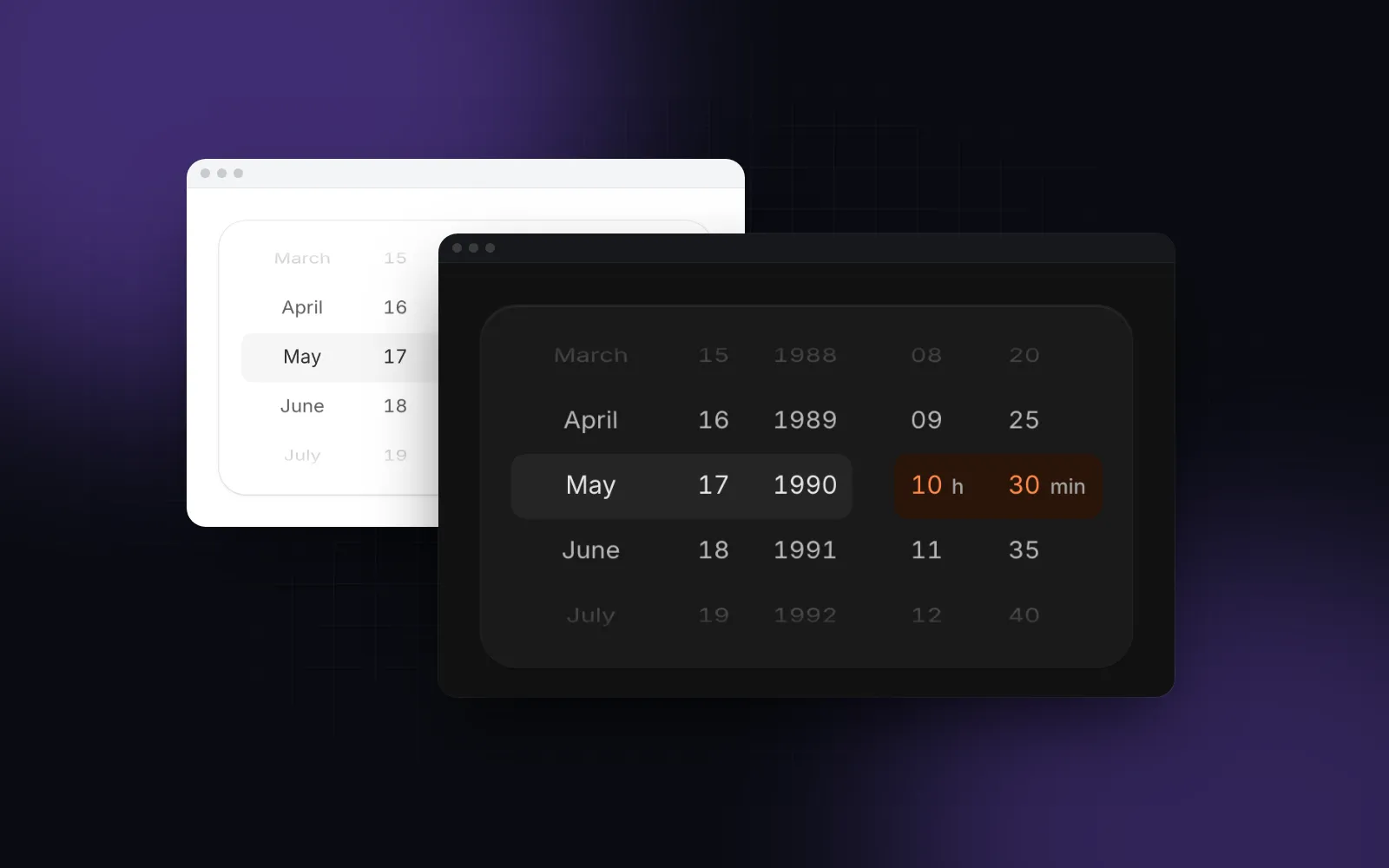
The wheel itself is exported as TimePickerWheel for alarms and short lists. For durations, dates and other columns, the Picker Wheel is the full component, and the React wheel picker guide explains how the native scroll snap and the 3D rows work. This post stays on the typed field.
How do I submit and validate the time?
name renders a hidden input with the "HH:mm" value, so a plain form or a Server Action gets the same string the native time input would send. The visible input has no name. A form reset returns the field to defaultValue, and Enter commits the typed text before the form reads it.
Validate again on the server, since a client limit is a convenience:
Show a server error through the error prop: it replaces the description, marks the field invalid and links the message with aria-describedby. withSeconds switches the value to "HH:mm:ss" and adds a seconds column, and strictStep rounds typed minutes to the step on blur (14:37 becomes 14:35 with a 5 minute step).
Is the time picker accessible?
Yes. The text field is a real input linked to its label and description, with a screen reader hint for the format ("Format HH:mm", from labels.format). Each column in the panel and each wheel is a listbox with options. In the columns, ArrowUp and ArrowDown move and pick, PageUp and PageDown jump five, Home and End go to the ends, ArrowLeft and ArrowRight switch columns, Enter confirms and Escape returns focus to the field. Every visible and spoken string lives in labels, so a German or Romanian app translates the picker without forking it. The React form components guide applies the same rules to every field in a form.
What are the common time input pitfalls in React?
Four mistakes show up as soon as real people use the field: reading "2:30" as afternoon, storing formatted text, dropping the day, and overnight windows.
- "2:30" in a 12-hour field means 2:30 AM. Without a period the parser reads the hour as written. Type "2:30p", or use 24 hours for schedules that are mostly afternoon.
- Storing a formatted string. Save
"14:30", never "2:30 PM". The formatted text changes with the locale; the value does not. - A time without a day. "14:30" has no time zone and no date. When the moment matters (a call across time zones, a reminder), use a date and time field instead.
- Overnight windows. A night shift from 22:00 to 06:00 is
min="22:00"andmax="06:00": aminlater thanmaxwraps past midnight, like the native input.
When should I use the Date Time Picker instead?
Use the Date Time Picker when you need an absolute moment: a booking, a deadline, a reminder. Its value is a Date, and it shows a calendar beside a column of time slots for the chosen day, with an IANA timeZone, presets such as Tomorrow 9:00, and getTimeSlots for per-day availability (taken slots are struck through). name submits value.toISOString().
$ npx wingo-ui@latest add date-time-pickerFor a start and an end date, the React date range picker guide covers the range calendar.
How do I add it to my project?
Run npx wingo-ui@latest add time-picker. The CLI copies the source into components/ui, adds the Button, Field, Drawer and the date, locale and motion helpers it imports, and installs the npm packages they need, such as @radix-ui/react-popover, motion, lucide-react, vaul for the phone sheet and date-fns for the date helpers. npx wingo-ui@latest add date-time-picker also brings the Calendar and the Select for the time zone. The Time Picker, Date Time Picker and Picker Wheel are Pro components (pricing). More single-component deep dives are in the component guides category.
FAQ
How do I show a 24-hour time picker in React?
Use a locale that writes 24 hours, such as en-GB or de-DE, or force it with an hour cycle option. In the Wingo UI Time Picker, hourCycle="h23" shows 14:30 whatever the locale, and the value is "14:30" either way.
Can I force input type="time" to show 24 hours?
Not reliably. MDN says the display format is chosen from the user's locale or by the browser, and there is no attribute to override it. The value is always 24-hour HH:mm, so only the display changes.
Is there a shadcn time picker?
shadcn/ui itself has no time picker component as of October 2026; its Date Picker docs pair the calendar with a separate time field. Third-party registries fill the gap: Dice UI installs one through the shadcn CLI, and the Wingo UI Time Picker installs as source with npx wingo-ui@latest add time-picker.
What value format should a React time picker use?
Store "HH:mm" in 24 hours, the same string input type="time" submits. It sorts and compares as text, survives a locale change, and is easy to validate on the server.
Is the Wingo UI Time Picker free?
No. The Time Picker, Date Time Picker and Picker Wheel are Pro components. The Field and Drawer they build on are free, and so is the Duration Picker.
- Time picker
- Forms
- Localization
- Mobile UI
- React