React Checkout Page: Cart, Steps, Coupons and a Pay Bar
Most tutorials for a React checkout page stop at a form with a Pay button. The real work sits around that form: a cart that edits quantities without losing the total, coupon codes that stop applying when the cart shrinks, a step that fails without wiping what the buyer typed, and a pay button that stays under the thumb on a phone. This tutorial builds the whole flow, from cart to confirmation, with the Checkout Page block from Wingo UI, the library we build, and shows the smaller parts you can use on their own.
What does a React checkout page need?
It needs three stages and a short list of details that decide whether people finish. The stages:
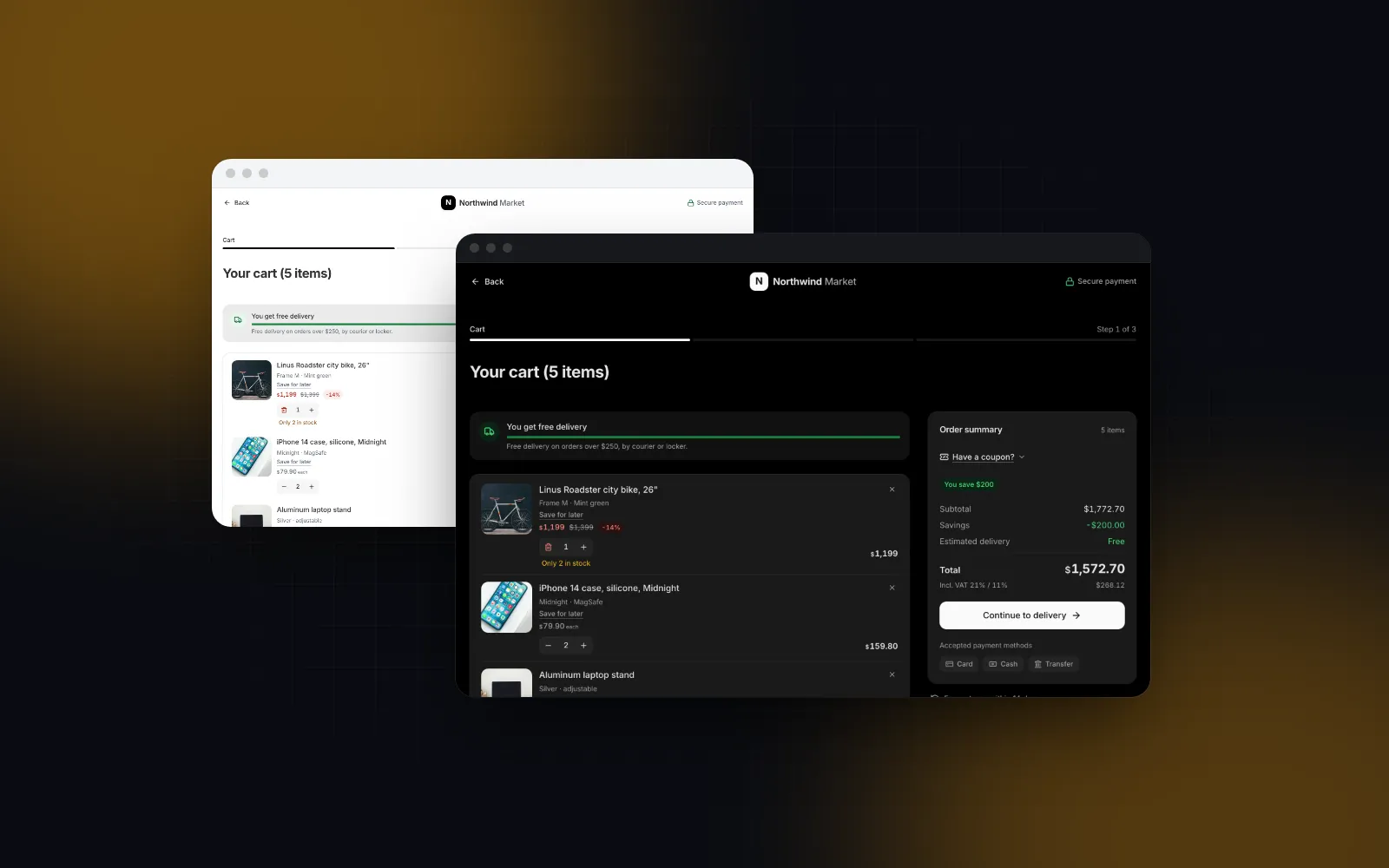
- Cart. Lines with quantity steppers, remove with undo, a free delivery bar, a coupon field and a summary whose total updates on every change.
- Checkout steps. Address, delivery, payment and review. Each step validates on Continue, Back keeps everything, and the review step places the order and shows a refusal in place.
- Confirmation. The order number, the email it went to, Track order and Continue shopping, with focus moved to the heading so a screen reader announces it.
The details come from research on why people leave. Baymard Institute's cart abandonment page (opens in a new tab) (updated September 22, 2025) lists the top reasons shoppers in its survey gave for abandoning a checkout: extra costs too high (40%), slow delivery (20%), not trusting the site with card details (19%), required account creation (18%) and a checkout that was too long or complicated (17%). Another 12% could not see or calculate the total up front. Four of those are UI problems: show the total and delivery cost early, allow guest checkout, keep the form short, and make the payment step look trustworthy.
Baymard's checkout benchmark (opens in a new tab) (published June 26, 2024) puts the average checkout at 5.1 steps and 11.3 form fields, and says most sites need only 8 fields. Fields cost more than steps, so the checkout below asks for one name field instead of first and last, and hides the company fields behind a switch.
Install the block. The CLI pulls in the cart, steps, coupon, sticky bar and order tracker it composes:
$ npx wingo-ui@latest add checkout-pageHow do I wire the checkout page into Next.js?
Render CheckoutPage in a client component and hand it four callbacks: one that saves the cart, one that checks a coupon on the server, one that places the order and one that opens the order. The block owns the stages, the step state, focus and the transitions. It works as a checkout page template in one import: every string sits in labels and every visual choice is a prop.
One pitfall first. The checkout steps inside the block default to Romanian rules (6 digit postal codes, the CUI tax ID check, phones starting at +40), and the block has no country prop of its own. A US ZIP code such as 94103 then fails the address step with "The postal code has 6 digits". With a non-Romanian locale the block already swaps the county picker for US states, but the country rules stay. Set the country once through UIProvider defaults, which the steps read for any prop the block leaves out, and rename the company fields through labels.checkout:
The page itself stays a server component that loads the data. getCart and getShop stand for your own data layer:
Every data prop you leave out falls back to the block's sample shop (including the sample buyer's email when customerEmail is undefined), which is why the wrapper passes the cart, the coupons, the addresses, the delivery methods with their lockers, the payment methods and an empty recommended rail. Use items with onItemsChange instead of defaultItems when another part of the page, such as a header badge, also reads the cart. Each line is a CartItem: id, title, price, quantity, and optionally compareAtPrice, maxQuantity, taxRate, image, variant and href. guest drops the saved addresses and the prefilled email and adds a Create an account hint to the confirmation, so nobody is asked for an account up front. Save for later confirms itself with a toast, so mount <Toaster /> from @/components/ui/toast once in the shop layout.
Two rules for the server side. First, recompute the total from your own prices and never trust totals.total from the browser. The block sums the cart with computeCartTotals from @/lib/commerce, a plain module without "use client", so a route handler can run the same math and reject an order whose total moved:
Second, keep the response honest: a declined card should be a non-2xx response with a message the buyer can act on, because the block shows that message above Place order and keeps the review step open.
How should the React cart page handle quantities and coupons?
Every change to the cart moves the total, and nothing the buyer does is lost without a way back. The cart stage follows four rules:
- Every change moves the summary. Steppers, removals and coupons update the subtotal, the savings badge, the delivery estimate and the total in place, so the buyer never wonders what they will pay.
- Removal is undoable. The × (or a swipe left on touch) folds the line into a row with Undo and a five second countdown. Save for later moves a line to a list below the cart instead of deleting it.
- Free delivery is visible. A bar shows how much more is needed and turns green at the threshold, which answers the "extra costs" question before checkout starts.
- Coupons recheck. A code with a minimum order is rechecked when a quantity changes. If it stops applying, the block removes it and says why, instead of showing a discount the server will refuse.
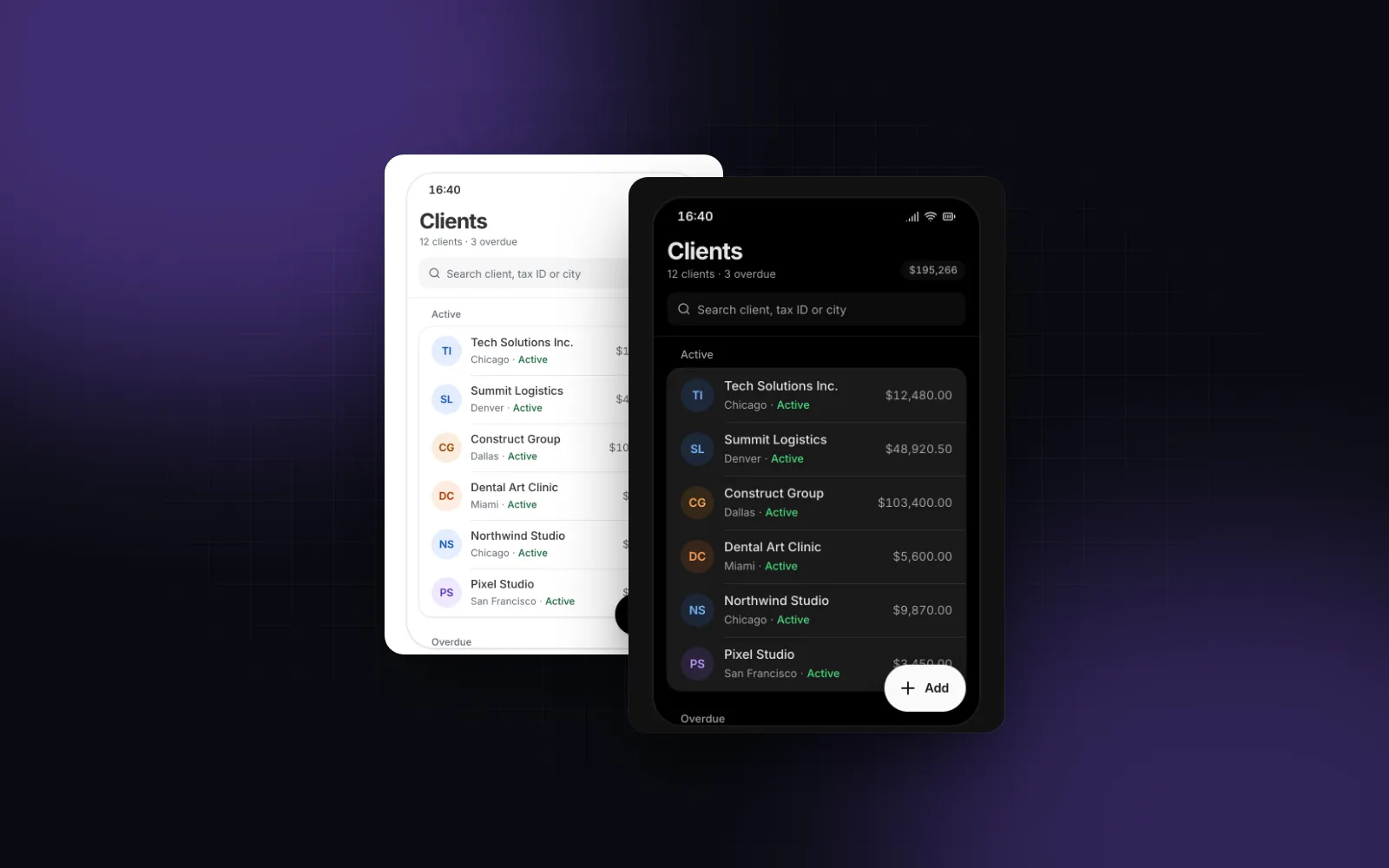
The coupon field is the Coupon Input, and it works on its own in any cart. Give it a local catalogue for instant checks, or onApply for a server check that resolves { ok: true, coupon } or { ok: false, error }:
Pass the items' subtotal and the current shipping cost on every render, in the same currency units as the coupon values (dollars, not cents). They are what a catalogue code is checked against, and when they change, applied codes recount what they save. A code that no longer applies turns amber with a note under it, so the buyer sees why the discount went before the server refuses it.
$ npx wingo-ui@latest add coupon-inputEnter inside the coupon field never submits the checkout form around it, which is a common bug when the code field sits inside a <form>. Escape clears the typed code, and a second Escape closes the field and returns focus to the "Have a promo code?" button.
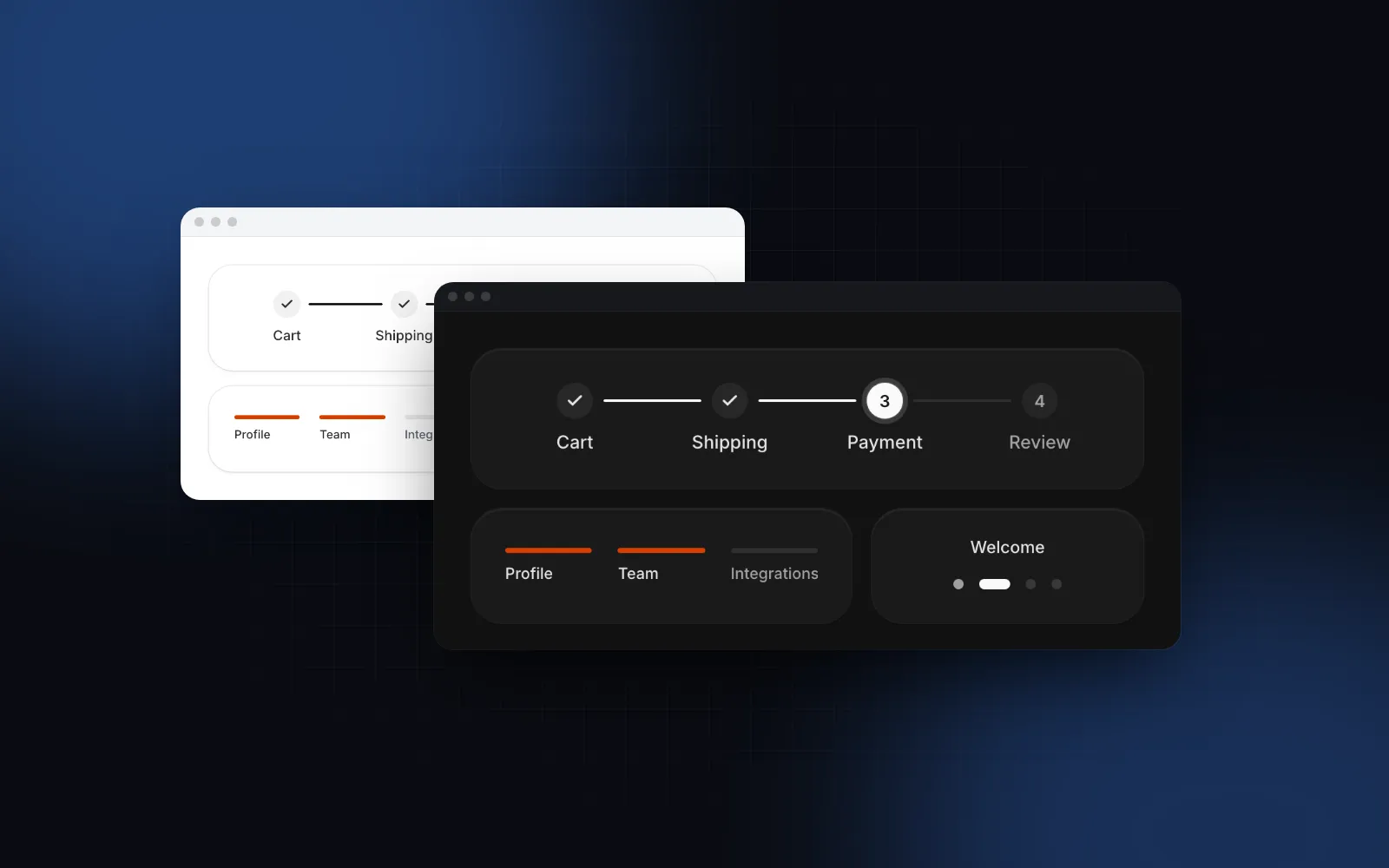
How do I use React checkout steps without the full page?
Use Checkout Steps directly when the cart lives somewhere else, such as a drawer, or when you sell something without delivery. Most stepper examples stop at three forms behind Next buttons. This is the same four step flow the block uses, with validation, saved addresses, lockers and payment fees built in, beside a summary that is a sticky column on wide screens and a Show summary bar on narrow ones. It defaults to Romanian rules (country="RO", RON), so set the country, currency and locale for a US shop:
For a digital product, pass steps={["payment", "review"]} and leave out deliveryMethods. Watch one catch: the email field lives in the address step, so without that step nothing collects it. Take the email from the signed-in account, or ask for it before the checkout opens. A payment method with fee adds a row to the summary and the total, and one with minTotal stays disabled with an Available from note until the cart reaches it. The field checks are exported as validateCheckoutStep(step, value, options), which returns errors keyed like "address.phone" or "invoice.cui". It lives in a "use client" file, so call it from client code (a custom flow, a unit test) and validate the submitted value on the server with your own schema.
The mechanics are the same as any wizard: one value object, validation per step, focus on the first invalid field, and slides that follow direction. If you want that pattern for a form that is not a checkout, the React multi step form tutorial builds it with react-hook-form and zod.
Which form details reduce checkout drop-off?
Autofill, fewer fields, errors that keep what was typed, a useful Enter key, an early total and guest checkout. The steps build in each one:
- Let the browser fill the form. Every address field carries its
autocompletevalue (email,name,tel,address-line1,address-line2,address-level1,address-level2,postal-code,organization), so one tap on a saved address fills the step. Card fields should come from your payment provider's hosted element, so card data never touches your server. - Ask for less. One name field, the company fields only after the Company switch, and notes as optional.
- Fail without losing anything. Continue marks the wrong fields, shakes the button and focuses the first one. Back never validates, and a declined payment keeps the review step and every choice intact.
- Make Enter useful. On a phone the keyboard's action key moves to the next field and continues from the last one, so the buyer does not hunt for a button behind the keyboard.
- Show the total early. The summary, with delivery and any payment fee, is visible on every step, and the Place order button carries the final amount.
- Do not force an account. Guest checkout first, the account offer on the confirmation.
How do I keep the pay button reachable in a mobile checkout UI?
On a phone the summary's Continue button scrolls out of view fast, and, as Stripe's mobile checkout guide (opens in a new tab) (updated July 8, 2025) points out, the on-screen keyboard takes nearly half the screen once a field has focus. A good mobile checkout UI handles both: a bar with the total and the action appears while the page's own button is off screen, sits above the home indicator, and steps aside while the keyboard is open.
The block does this with the Sticky CTA Bar in the cart stage, below 1024px. Inside the checkout steps, each step on a phone is a full-height page with its own footer holding the total, Back and Continue, hidden while the keyboard is up. To use the bar on your own product or cart page, point it at your in-page button:
$ npx wingo-ui@latest add sticky-cta-barkeyboard="hide" is the default, so the bar never sits on top of a focused coupon field. safeArea pads the home indicator, and the bar writes its height to --cta-bar-offset so a floating button can sit above it. The reasons behind both are in our posts on Tailwind safe area insets and position fixed under the iOS Safari keyboard.
Do I need a cart drawer as well as a cart page?
Yes, if buyers add to the cart from product pages: they want to check the cart from the header without leaving the page. The Cart Drawer is a side panel on desktop and a bottom sheet on phones, with the same undo, free delivery bar, coupon field and summary as the cart stage. Point its button at the checkout with checkoutHref="/cart", and as long as both read the same cart API, the buyer lands in the block's cart stage with the same lines.
How do I try the checkout page before wiring it up?
Start from the Checkout Page docs: the playground lets you open it on any stage or step, switch to a guest buyer, change the free delivery threshold and the tone, and try the declined card ending 0002. The block and the commerce components in this post are part of Wingo UI Pro, which costs $8 a month, $80 a year or $150 for lifetime access as of October 2026 (pricing). For the other screens a product needs, read the Next.js admin dashboard tutorial and the rest of the build tutorials.
FAQ
How many steps should a checkout have?
Fewer fields matter more than fewer steps. Baymard's 2024 benchmark found an average of 5.1 steps and 11.3 form fields, and says most sites need only 8 fields, so cut fields first and split what remains into address, delivery, payment and review.
Should a React checkout page force account creation?
No. In Baymard's cart abandonment survey (page updated September 2025), 18% of shoppers who abandoned a checkout did so because the site wanted them to create an account. Offer guest checkout and suggest an account on the confirmation page, after the order is placed.
Where should coupon codes be validated?
Check them twice: on the client for instant feedback when the buyer applies a code, and on the server when the order is placed. Recheck applied codes whenever the cart changes, because a minimum order code can stop applying after a quantity drops.
How do I keep the pay button visible on a mobile checkout?
Render a fixed bar at the bottom with the total and the main action, padded by the safe area inset so it clears the home indicator. Show it only while the page's own button is off screen, and hide it while the on-screen keyboard is open so it never covers the focused field.
Can the browser autofill a custom React checkout form?
Yes, as long as every field is a real input with the right autocomplete value, such as name, email, tel, address-line1, address-level2, postal-code and the cc- values for cards. Fields built from divs, or inputs with autocomplete turned off, break it.
- E-commerce
- Checkout
- Forms
- Mobile UI
- Next.js