React Stepper Component: States, Variants and Phones
A React stepper component answers one question at a glance: how far along am I, and what is left? Checkouts, onboarding flows, identity checks (KYC) and long settings forms all use one. The hard parts are the states (what does a failed or loading step look like?), the layout (five steps with titles do not fit a phone) and accessibility (a row of circles means nothing to a screen reader without the right markup). This guide covers each with the Steps component from Wingo UI, the library we build, and compares it with the main alternatives. If the stepper sits on top of a form, the React multi step form tutorial covers validation, saved drafts and transitions.
When should you use a stepper?
Use one when the task has a fixed order, three to seven steps, and a clear end. Each step should depend on the one before it, or at least read better in that order: shipping before payment, ID before proof of address.
Skip it in two cases. If the sections are independent and people jump between them freely, use Tabs; a stepper implies an order that is not there. If there is only one long step, a plain Progress bar is enough.
Which stepper variant fits which flow?
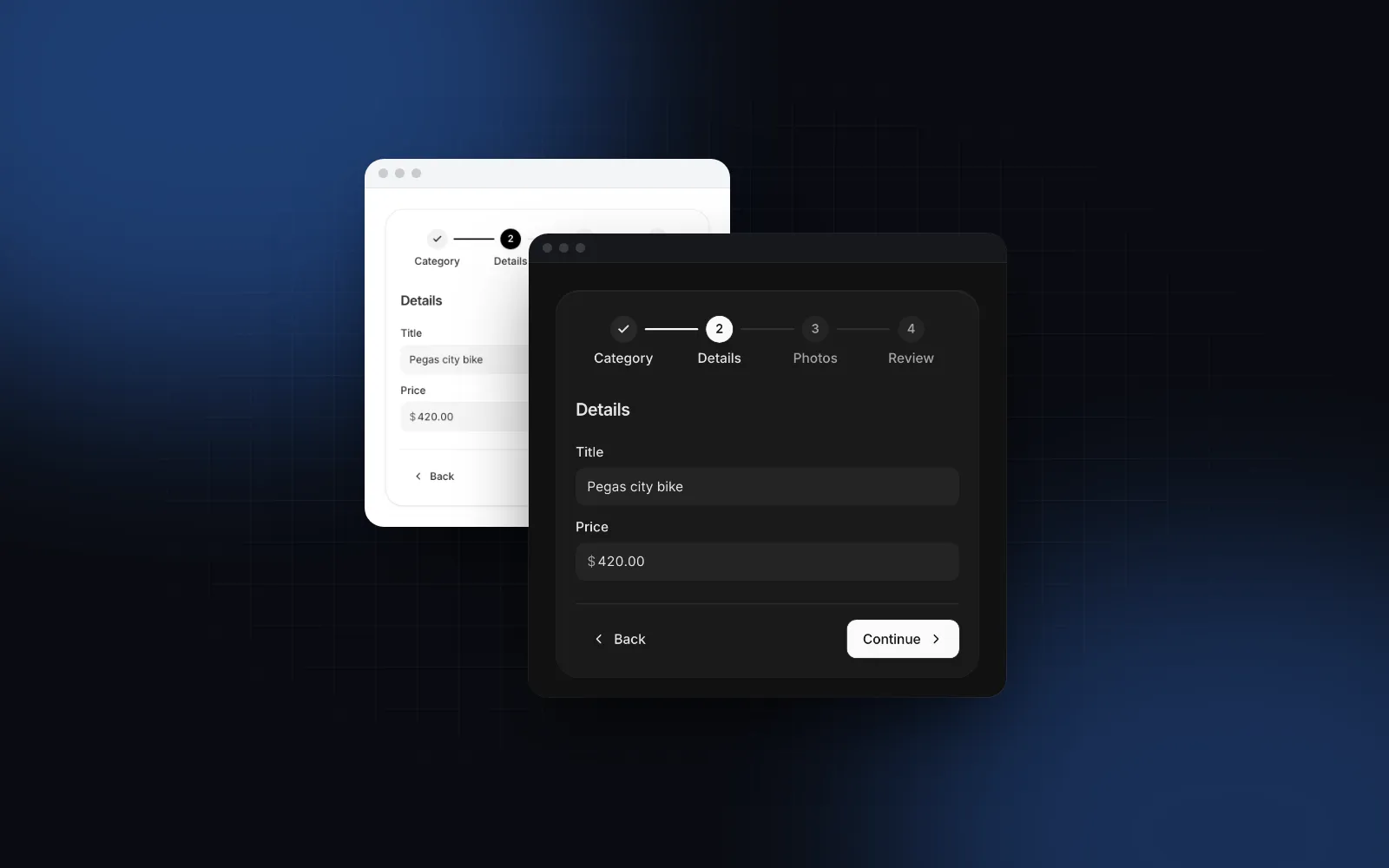
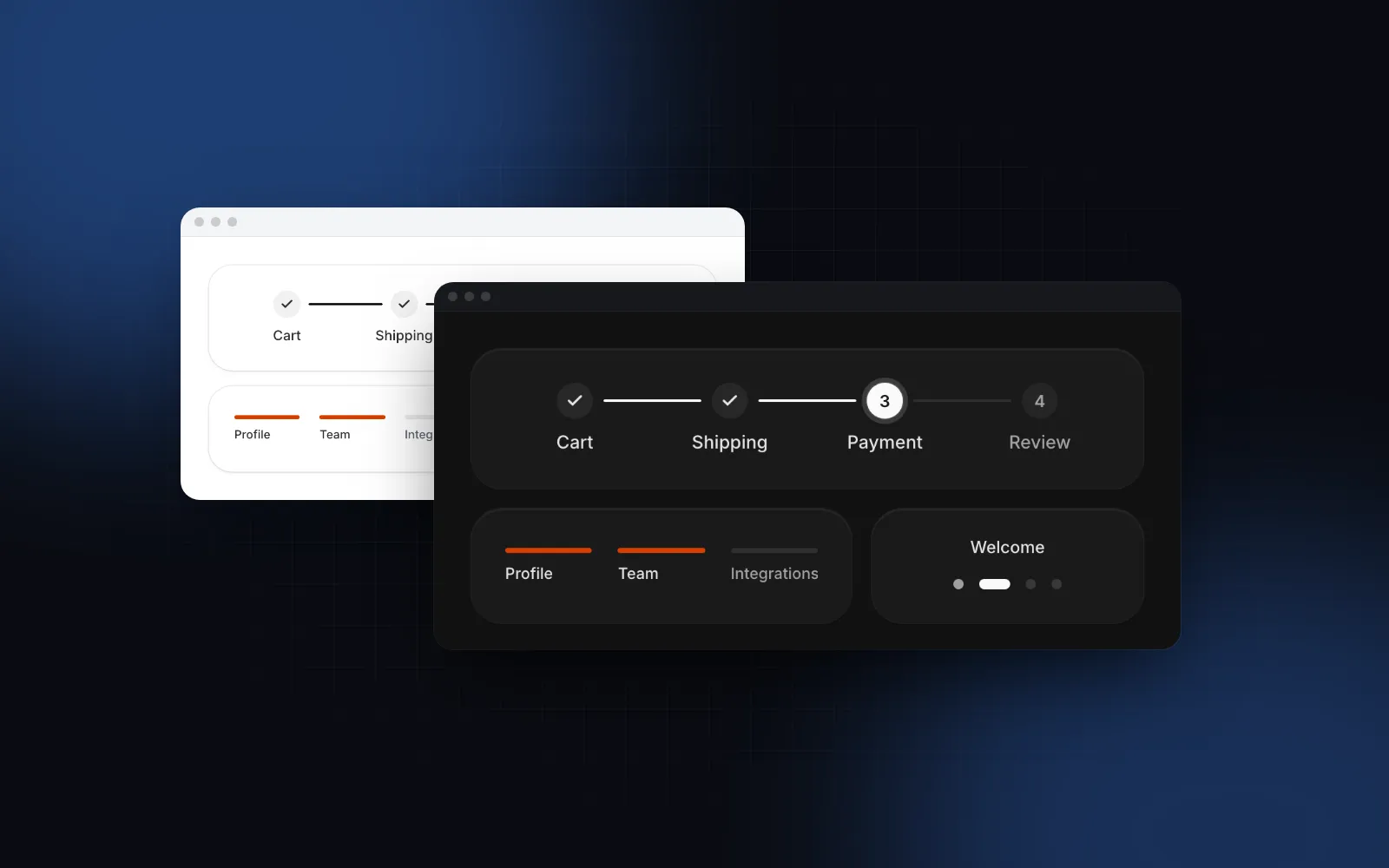
Numbered circles fit forms, bars fit checkout and dots fit onboarding. In Steps you pick one with variant:
Two layout props change the rest. orientation="vertical" stacks the steps in a column with descriptions beside the markers. A vertical stepper fits KYC and account opening, where each step needs a line of explanation ("A bank statement or utility bill"), and it works at any width. labelPlacement="end" puts horizontal titles beside the markers instead of under them.
Then the visual props every Wingo UI component shares: size (sm, md, lg: 24, 28 or 32px markers), tone (neutral by default, or brand, success, warning, danger, info), color for any CSS color, and connector="dashed" to draw the connectors still ahead as dashes.
$ npx wingo-ui@latest add stepsWhat does each step state mean?
Every step is in one of five states. Steps derives three from the current value: steps before it are complete, the one at it is current, the ones after it are upcoming. The other two are always explicit, set with status on the step:
Errors and loading are explicit because only your code knows them. A KYC flow is the clearest case: the identity check runs on a server, can take seconds, and can fail for a reason the person can fix.
Put the reason for an error in the step's description, as above. A red "!" tells people that something is wrong; the text tells them what to do. optional: true shows an "Optional" note under the title (dots, which have no visible title, add it for screen readers only), and disabled: true keeps a step from ever being clickable.
Which steps should be clickable?
clickable decides which steps are buttons. The default, "completed", makes completed steps, the current one and failed ones clickable, which covers the common "go back and fix the address" case without letting anyone skip ahead. "all" makes every enabled step a button, for flows where order is a suggestion. "none" turns the stepper into a pure indicator, as in the KYC example, where only the server moves you forward.
Clicks call onValueChange(id, step). A checkout stepper usually spans several routes, so the URL is the source of truth: give each step an href and pass your router's link. Steps renders clickable steps as links and the current one gets aria-current="step":
With the default clickable, the upcoming steps stay plain text, so nobody lands on the payment page with an empty cart. Guard the routes on the server too; a stepper is not access control.
One pitfall: comparing usePathname() with href breaks as soon as the path carries a locale prefix or a trailing slash. If the stepper renders from app/checkout/layout.tsx, useSelectedLayoutSegment() from next/navigation returns "shipping" directly, and you can match it against the step id instead.
How does a stepper collapse on a phone?
Below 640px, a horizontal circles or bars stepper turns into a compact header: "Step 2 of 4" in small text, the current title, "Next: Payment" on the right and a thin progress bar under them. Both layouts are in the HTML and a CSS breakpoint picks one, so the server render is already right on a phone and nothing shifts after hydration. mobileVariant="same" keeps the full stepper on phones, and compact shows the compact header at every width, for a narrow card or a sheet.
Vertical steppers and dots keep their layout at every size, since both already fit a narrow screen. When a horizontal list is wider than its container and you opted out of the compact header, it scrolls sideways and keeps the current step in view.
On touch screens, clickable markers and dots get a 44px hit area, the minimum we use for every control. The reasoning is in our touch target size post.
How do you make a stepper accessible?
Use an ordered list, mark the current step with aria-current="step", put each step's state in words and support the arrow keys. In Steps the markup looks like this:
- An ordered list. Steps renders an
<ol>named "Progress" (labels.progress), so a screen reader announces a list of four items and the position of each. aria-current="step"on the current step, the attribute value the ARIA spec defines for exactly this case.- Status in words. Each step's accessible name includes its state ("Shipping, Completed"), because color and a check icon are invisible to a screen reader.
- Keyboard. Tab reaches each clickable step; Left and Right (Up and Down when vertical) move between them, Home and End jump to the ends.
- The compact header is a
progressbarwitharia-valuenowand "Step 2 of 4" as its text value.
All of that copy is in labels, so a translation or a different tone of voice is one prop.
What about a full checkout stepper in React?
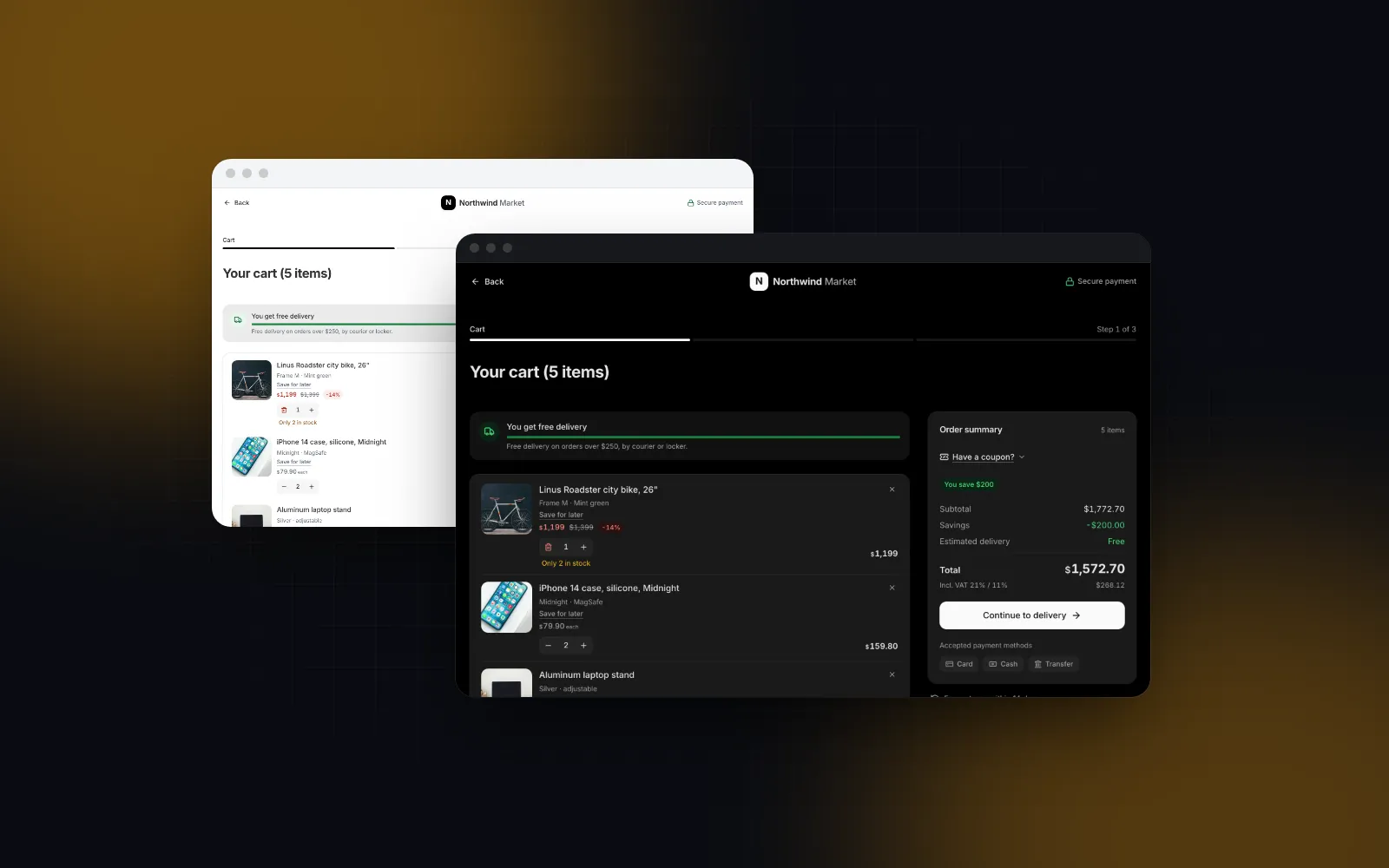
For a complete checkout instead of only the indicator, the Checkout Steps block puts four steps (delivery details, shipping, payment and review) beside a sticky order summary. It validates each step, shows lockers and pickup points, adds payment fees to the total, and turns each step into a full-height page on a phone with the total and Continue above the home indicator. Its header uses the Form Wizard stepper, "horizontal" or "progress".
Be aware of its defaults: it was built for the Romanian market, so country is "RO" (postal code and company tax ID checks), currency is "RON", and the Company switch asks for a CUI. Set country, currency and invoice={false} for other markets.
$ npx wingo-ui@latest add checkout-stepsHow does it compare with MUI and shadcn?
MUI ships a mature stepper inside Material UI, shadcn/ui has none, and Wingo UI Steps is the one with a built-in phone header and error and loading states. The details, as of October 2026 (Material UI v9.5 docs):
Sources: MUI Stepper docs (opens in a new tab), shadcn/ui component list (opens in a new tab), ReUI stepper docs (opens in a new tab).
MUI is the better pick if your app already uses Material UI: its stepper follows the rest of that design system, and its docs say vertical steppers "are designed for narrow screen sizes." If you want a shadcn stepper that installs with the shadcn CLI, ReUI's composed API (Stepper, StepperItem, StepperIndicator) fits that style. Wingo UI Steps suits a Tailwind stepper that should arrive with the states, the phone header and the keyboard support already built.
Where should you start?
Start with the Steps docs: the playground and examples for vertical steps with icons, a loading and error flow, bars, dots, linked steps and the phone header. Steps, Checkout Steps and Form Wizard are part of Wingo UI Pro: $8 a month, $80 a year or $150 once as of October 2026 (pricing). More guides like this one live in the component guides category, starting with the React form components guide.
FAQ
What is a stepper component in React?
It is a progress indicator for a task split into ordered steps, such as a checkout or a sign-up. It shows which steps are done, which one is current and what is left, and it can let people jump back to a completed step.
Does shadcn/ui have a stepper component?
No. As of October 2026 the official shadcn/ui component list has no stepper. Community registries such as ReUI publish one that installs with the shadcn CLI, and you can also build one from an ordered list and Tailwind classes.
How do I make a React stepper vertical?
Stack the steps in a column with the markers on one side and the titles and descriptions beside them, and join the markers with a vertical connector. In Wingo UI Steps that is orientation="vertical", which also works at any screen width.
How should a stepper look on mobile?
A row of numbered circles with titles rarely fits a 360px screen. Show a compact header instead: the step count, the current title, what comes next and a progress bar, or switch to a vertical list when people need to see every step.
Should completed steps in a stepper be clickable?
Usually yes: going back to a completed step to fix something is the most common reason to click a stepper. Jumping forward past steps that were never filled in should stay blocked unless the steps are truly independent.
- Stepper
- Checkout
- Onboarding
- Accessibility
- Mobile UI