Skip to content
WingoUI
ComponentsTemplatesDocsPricingAI agentsBlogChangelog
  1. Home
  2. Blog
  3. Component guides
  4. React Tag Input: Chips from Typing, Paste and Suggestions
Auf Deutsch lesen
  1. Blog
  2. Component guides
  3. React Tag Input: Chips from Typing, Paste and Suggestions
Component guides
Component guides

React Tag Input: Chips from Typing, Paste and Suggestions

SR
Serban Rusu · Founder of Wingo UI
Oct 13, 2026 · 8 min read

On this page

0%
  1. What should a React tag input handle?
  2. Which props matter most?
  3. How do I use a tag input with react-hook-form and zod?
  4. Is the tag input accessible?
  5. How does it behave on a phone?
  6. When is a multi-select the better control?
  7. What about a list of email addresses?
  8. How does it compare with shadcn and other libraries?
  9. Where should you start?
  10. FAQ
    1. How do I create a tag input in React?
    2. Does shadcn/ui have a tag input?
    3. How do I handle pasting a list into a tag input?
    4. What is the difference between a tag input and a multi-select?
    5. How do I submit tags with a form in React?

TL;DR

A React tag input turns free text into removable chips: Enter, a comma or a semicolon adds one, a pasted list becomes several at once, duplicates and invalid entries stay out with a visible reason, and Backspace in the empty field edits the last chip. Use it when people type their own values, such as keywords, hashtags or email addresses. When every value comes from a known list, a multi-select with checkboxes is the better control.

Published Oct 13, 2026

A React tag input looks like a text field with chips in it, and the basic version is twenty lines: an array in state, a chip per item, add on Enter. Then people paste "emma@acme.com, liam@acme.com; olivia@acme.com" and get one long chip. They type a tag that already exists, hit a limit nobody explained, or tap a 12px × on a phone. This guide covers what a React tag input component has to handle, the props that matter in the Tag Input from Wingo UI (the library we build), accessibility, mobile behavior and the cases where a Multi Select or an Email Input is the better control.

What should a React tag input handle?

It should handle eight things: adding, paste, duplicates, validation, limits, editing, the keyboard and forms. This is the checklist we hold any React chips input to, ours included:

  • Adding. Enter always adds. A comma or a semicolon adds too, and so does leaving the field, so typed text is never lost.
  • Paste. A pasted list with commas, semicolons, tabs or new lines becomes one chip per entry, trimmed, duplicates once.
  • Duplicates. A tag that already exists is not added again, compared without case or accents, and the existing chip shows where it is.
  • Validation. A bad entry stays in the text field with a reason under it, instead of disappearing.
  • Limits. A maximum number of tags and a maximum length per tag, both explained in the description.
  • Editing. Backspace in the empty field brings the last chip back as text. A chip can be edited in place.
  • Keyboard. Arrow keys move between chips, Delete removes the focused one, Escape returns to the text.
  • Forms. The values reach FormData and react-hook-form without glue code.

The Tag Input does all of it. Install it and render it with suggestions:

bash
npx wingo-ui@latest add tag-input
tsx
"use client";
import { useState } from "react";
import { TagInput } from "@/components/ui/tag-input";
const TOPICS = [
{ value: "react", label: "React" },
{ value: "nextjs", label: "Next.js" },
{ value: "tailwind", label: "Tailwind CSS" },
{ value: "typescript", label: "TypeScript" },
{ value: "accessibility", label: "Accessibility" },
];
export function PostTopics() {
const [tags, setTags] = useState<string[]>(["react"]);
return (
<TagInput
label="Topics"
description="Up to 5 topics. Press Enter or type a comma after each one."
value={tags}
onValueChange={setTags}
suggestions={TOPICS}
max={5}
maxLength={24}
name="topics"
/>
);
}

A picked suggestion stores its value and the chip shows its label, so "nextjs" in your data reads "Next.js" on screen. Typing a label exactly also adds the value.

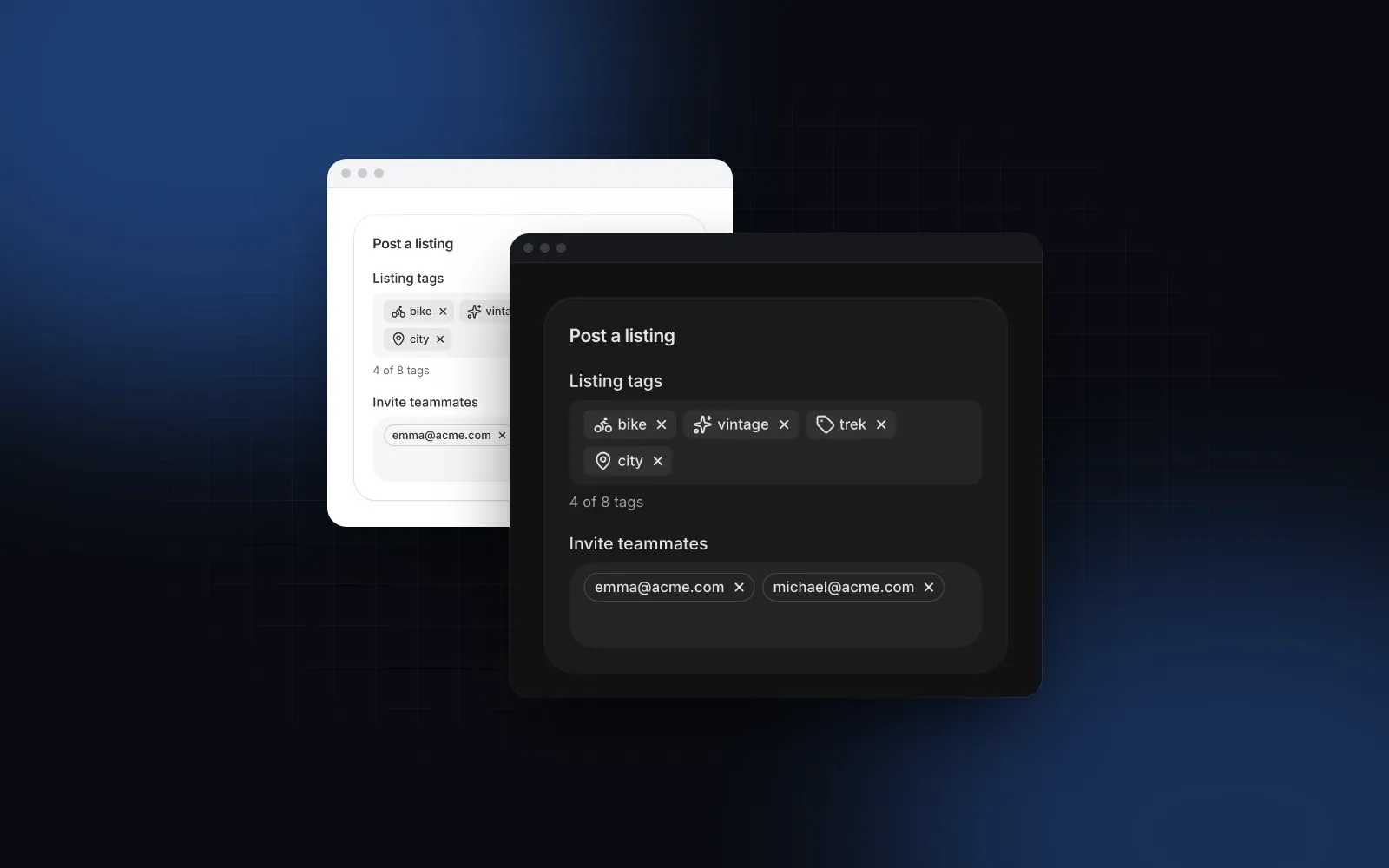
Type a word and press Enter, then paste "city, commuter; steel" to add three tags at once. Type an existing tag such as bike and watch its chip pulse instead of a copy appearing
$ npx wingo-ui@latest add tag-input
ProTag Input docs

Which props matter most?

delimiters, max, maxLength, transform and validate cover most forms. The rest decide how duplicates, strict lists, Backspace, blur and paste behave:

Prop and defaultWhat it does
delimiters, default [",", ";"]Characters that add the current text as a tag. Enter always adds.
max, default 0 (no limit)At the limit the text field hides and the description says so.
maxLength, default 0 (no limit)Characters per tag; longer text is cut while typing or pasting.
transform, default trim and collapse spacesNormalizes text before validation, such as lowercasing.
validate, no defaultReturn false or a message string to reject a tag.
allowDuplicates, default falseOff, a repeat is turned away and the existing chip pulses.
restrictToSuggestions, default falseOnly suggestions can become tags.
backspace, default "edit"Backspace in the empty field: edit the last tag, select it first, or remove it.
addOnBlur, addOnPaste, default trueAdd the typed text on blur; split a pasted list.

transform and validate together cover most custom rules. Hashtags are a good example: lowercase the text, strip spaces, add the #, then check the result with the ready-made validator:

tsx
import { TagInput, tagValidators } from "@/components/ui/tag-input";
export function Hashtags() {
return (
<TagInput
label="Hashtags"
defaultValue={["#newyork"]}
transform={(tag) => "#" + tag.toLowerCase().replace(/^#+/, "").replace(/\s+/g, "")}
validate={tagValidators.hashtag}
labels={{ invalid: () => "Letters, digits and _ only" }}
/>
);
}

tagValidators also has email and url. With the email one the phone keyboard switches to the email layout. Every reason a tag is turned away ("invalid", "duplicate", "limit", "notInList") goes to onReject as well, in case you want to count them or show your own message.

How do I use a tag input with react-hook-form and zod?

Wrap it in Controller and validate the array with zod (our React multi step form tutorial shows the same pattern across several steps). register does not fit, because there is no single native input holding the value:

tsx
"use client";
import { Controller, useForm } from "react-hook-form";
import { zodResolver } from "@hookform/resolvers/zod";
import { z } from "zod";
import { TagInput } from "@/components/ui/tag-input";
import { Button } from "@/components/ui/button";
const schema = z.object({
title: z.string().trim().min(1, { error: "Add a title" }),
tags: z
.array(z.string())
.min(1, { error: "Add at least one tag" })
.max(8, { error: "Use 8 tags at most" }),
});
type Listing = z.infer<typeof schema>;
export function ListingForm({ save }: { save: (listing: Listing) => Promise<void> }) {
const form = useForm<Listing>({ resolver: zodResolver(schema), defaultValues: { title: "", tags: [] } });
return (
<form onSubmit={form.handleSubmit(save)} className="flex flex-col gap-4">
<Controller
name="tags"
control={form.control}
render={({ field, fieldState }) => (
<TagInput
label="Tags"
value={field.value}
onValueChange={field.onChange}
onBlur={field.onBlur}
ref={field.ref}
transform={(tag) => tag.trim().toLowerCase()}
max={8}
error={fieldState.error?.message}
/>
)}
/>
<Button type="submit">Save</Button>
</form>
);
}

ref and onBlur land on the text input, so react-hook-form can focus the field when the array fails validation. Keep max in the component and the .max() rule in the schema: the first stops people early, the second protects the server.

Without react-hook-form, pass name and the Tag Input renders one hidden input per tag. A Server Action reads them with getAll:

tsx
// app/actions.ts
"use server";
import { z } from "zod";
// the same limits as the component: hidden inputs are as editable as any other field
const topicsSchema = z.array(z.string().trim().min(1).max(24)).max(5);
export async function saveTopics(formData: FormData) {
const topics = topicsSchema.parse(formData.getAll("topics"));
// save topics here
return { topics };
}

Is the tag input accessible?

The text input keeps its label, and the box is a group named by that label. Each chip is focusable with a name that says what to do: "Tag bike, press Delete to remove", which labels.tag lets you change. Additions, removals, duplicates and the limit are announced through a polite live region, so a screen reader user hears "bike is already added" instead of nothing.

The keyboard model follows the text: Arrow Left at the start of the text moves onto the chips, Left and Right walk between them, Home and End jump, Delete or Backspace removes the focused chip and moves focus to its neighbor, Enter or F2 edits it in place, and Escape returns to the text. Suggestions open under the field with Arrow Down; Enter picks the highlighted one.

How does it behave on a phone?

Three details decide whether a tag input works on a phone:

  • 16px text. iOS Safari zooms into inputs with smaller text. The Tag Input uses 16px on phones whatever the size.
  • Delimiters read from the value. Android virtual keyboards usually fire keydown with key: "Unidentified" (keyCode 229), so a handler that waits for event.key === "," never sees the comma. The component checks the text in onChange instead, so a comma always splits.
  • Touch targets. The × on each chip has a hit area larger than the icon, and the suggestions stay in the page under the field, above the keyboard, instead of in a floating layer the keyboard can cover.

More on these rules in mobile-first React components.

When is a multi-select the better control?

Use a multi-select when the options are known and finite: assignees, categories, countries, permissions. People can scan the whole list, they cannot misspell anything, and your data never gets "Tailwind", "tailwind" and "tailwindcss" as three values.

Values come fromUse
The user, open-ended (keywords, hashtags, skills)Tag Input
The user, but you want to nudge toward known valuesTag Input with suggestions
A list only (strict)Multi Select, or Tag Input with restrictToSuggestions
A list, plus the odd new valueMulti Select with creatable and onCreate
Email addressesEmail Input with multiple

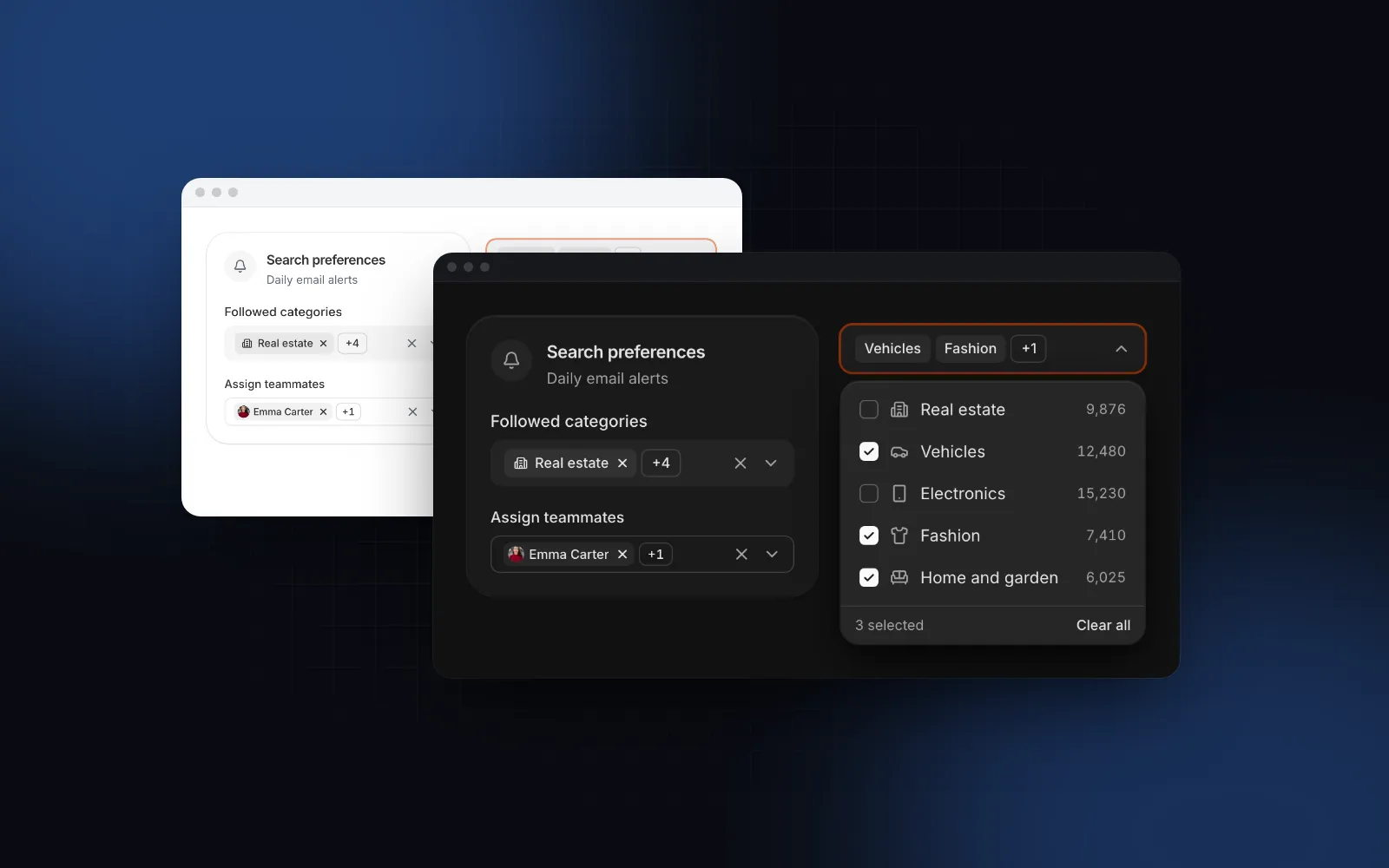
The Multi Select, covered in depth in the React multi select guide, shows chips with a +N overflow, has a search row above eight options, selectAll, maxSelected, async loadOptions, and on a phone it opens a bottom sheet with 48px checkbox rows and a Done button:

tsx
import { useState } from "react";
import { MultiSelect, type MultiSelectOption } from "@/components/ui/multi-select";
const ASSIGNEES: MultiSelectOption[] = [
{ value: "emma", label: "Emma Carter" },
{ value: "liam", label: "Liam Brooks" },
{ value: "olivia", label: "Olivia Bennett" },
];
export function Assignees() {
const [ids, setIds] = useState<string[]>([]);
return <MultiSelect label="Assignees" options={ASSIGNEES} value={ids} onValueChange={setIds} maxSelected={3} name="assignees" />;
}
Open the list and tick a few rows: the chips collapse into +N when they no longer fit on one line. On a phone the list opens as a bottom sheet with a Done button
$ npx wingo-ui@latest add multi-select
ProMulti Select docs

What about a list of email addresses?

Email recipients look like tags but need more: a name next to the address, contacts to pick from, and typo hints. The Email Input with multiple turns a pasted "Emma Carter emma@acme.com, liam@acme.com" into chips with names, keeps a bad address as a red chip to fix later (like a mail app does), and marks a likely typo such as gmial.com in amber with a one-tap fix:

tsx
<EmailInput multiple label="Invite by email" value={to} onValueChange={setTo} contacts={CONTACTS} max={20} name="invites" clearable />
Paste "Ava Reed <ava@acme.com>, olivia@gmial.com": the first chip shows the name, the second turns amber with a one-tap fix for the typo
$ npx wingo-ui@latest add email-input
ProEmail Input docs

How does it compare with shadcn and other libraries?

shadcn/ui has no tag input, Mantine's TagsInput is the closest match feature for feature, and react-tag-input is the older standalone package with drag to reorder on by default. The details, as of October 2026 (Mantine v9.7 docs, react-tag-input README):

Wingo UI Tag Inputshadcn/uiMantine TagsInputreact-tag-input
Typed valuesYesNo tag input; Combobox multiple with chips picks from a listYesYes
Split on, ; Enter, paste with new lines and tabsn/a, by default (splitChars), also on pasteEnter and Tab by default; separators adds Space, Comma or Semicolon
DuplicatesOff by default, existing chip pulsesn/aOff by default (allowDuplicates)Unique by default (allowUnique)
Limitmax, maxLengthn/amaxTagsmaxTags, maxLength
Drag to reorderNon/aYes (withPillsReorder)Yes, on by default (allowDragDrop)
StylingTailwind v4, source in your repoTailwind, source in your repoMantine stylesYour own CSS

Sources: shadcn/ui component list (opens in a new tab) and Combobox docs (opens in a new tab), Mantine TagsInput (opens in a new tab), react-tag-input README (opens in a new tab).

If you need a shadcn tag input, the closest official piece is the Combobox in multiple mode, which is the right choice when values come from a list. Mantine's TagsInput is the better pick if your app already uses Mantine. If people must drag tags into an order, choose Mantine or react-tag-input: our Tag Input does not reorder. If you want a Tailwind tag input with paste splitting, validation with reasons, chip keyboard navigation and phone behavior already built, that is what the Wingo UI Tag Input covers.

Where should you start?

Start with the Tag Input docs: the playground and examples for emails, Backspace modes, a strict list, limits, chip styles and hashtags. Tag Input, Multi Select and Email Input are part of Wingo UI Pro: $8 a month, $80 a year or $150 once as of October 2026 (pricing). For the rest of a form, read the React form components guide, and find more guides in the component guides category.

Components in this post

  • Tag Input

    A React tag input that turns typed, pasted or suggested text into removable chips, for tags, keywords and email recipients.

    Pro
  • Multi Select

    A React multi select: pick several options shown as chips with a +N overflow, with search, select all, a maximum and async options.

    Pro
  • Email Input

    A React email input for one address or a list of recipients, with domain completion, typo hints, contact suggestions and validation.

    Pro

FAQ

How do I create a tag input in React?

Keep an array of strings in state, render each one as a chip with a remove button, and add the trimmed text on Enter or a comma, skipping empty and duplicate values. A ready React tag input component such as Wingo UI's Tag Input adds paste splitting, suggestions, limits, validation and keyboard navigation between chips.

Does shadcn/ui have a tag input?

No. As of October 2026 the official shadcn/ui component list has no tag input. Its Combobox supports multiple selection with chips, which covers picking from a list, but its docs show no way to keep typed values that are not in the list, so those need your own code or a community component.

How do I handle pasting a list into a tag input?

Split the pasted text on commas, semicolons, tabs and new lines, trim each part, drop empty and duplicate entries, and validate each one before adding it. Wingo UI's Tag Input does this when addOnPaste is on, which is the default.

What is the difference between a tag input and a multi-select?

A tag input accepts values the user types, so the set of possible values is open. A multi-select picks from a fixed list of options with checkboxes, which is easier to scan and impossible to misspell.

How do I submit tags with a form in React?

Render one hidden input per tag with the same name and read them with formData.getAll(name), or wrap the tag input in react-hook-form's Controller and validate the array with zod. Wingo UI's Tag Input renders the hidden inputs when you pass name.

  • Forms
  • Tag Input
  • Chips
  • Accessibility
  • Mobile UI

Share

SR

About the author

Serban Rusu

Founder of Wingo UI

Serban Rusu founded Wingo UI. He builds its component library, CLI and MCP server, and writes about React interfaces for phones and AI coding agents.

More from Serban
Keep reading

Related posts

All posts
Component guides

React Multi Select: Search, Chips, Select All and Mobile

Build a React multi select that holds up with real data: chips that fold into +N, search, select all over filtered rows, a maximum and a phone bottom sheet.

SRSerban Rusu·Oct 16, 2026·10 min read
Component guides

React Combobox: Async Search Without Race Conditions

Build a React combobox that searches a server without race conditions, ignores accents, follows the ARIA keys and opens a full-height search sheet on phones.

SRSerban Rusu·Oct 16, 2026·10 min read
Component guides

Embla Carousel React: Accessible Slides, No Layout Shift

Build an embla carousel react component for photos, listings, testimonials and onboarding, with keyboard controls, pausable autoplay and no layout shift.

SRSerban Rusu·Oct 19, 2026·9 min read
Newsletter

Get new posts by email

New guides, tutorials and comparisons from the Wingo UI blog, sent when they are published.

No spam. Unsubscribe at any time.

WingoUI

Animated, configurable, mobile-first React components and blocks. Copy the source, make it yours, and let your coding agent build with it.

Product

  • Components
  • Templates
  • Pricing
  • AI agents
  • Theme generator

Resources

  • Docs
  • Blog
  • Changelog
  • Changelog RSS
  • llms.txt

Legal

  • Terms
  • Privacy
  • Refunds
  • License
  • Imprint

Component categories

  • Buttons & Actions
  • Inputs
  • Forms
  • Navigation
  • Overlays
  • Feedback
  • Data Display
  • Tables & Lists
  • Charts & Stats
  • Layout
  • Media
  • AI Kit
  • Text & Effects
  • Mobile
  • Commerce
  • Marketing Sections
  • Blocks
  • Hooks & Utilities

© 2026 Wingo UI

Wingo UI