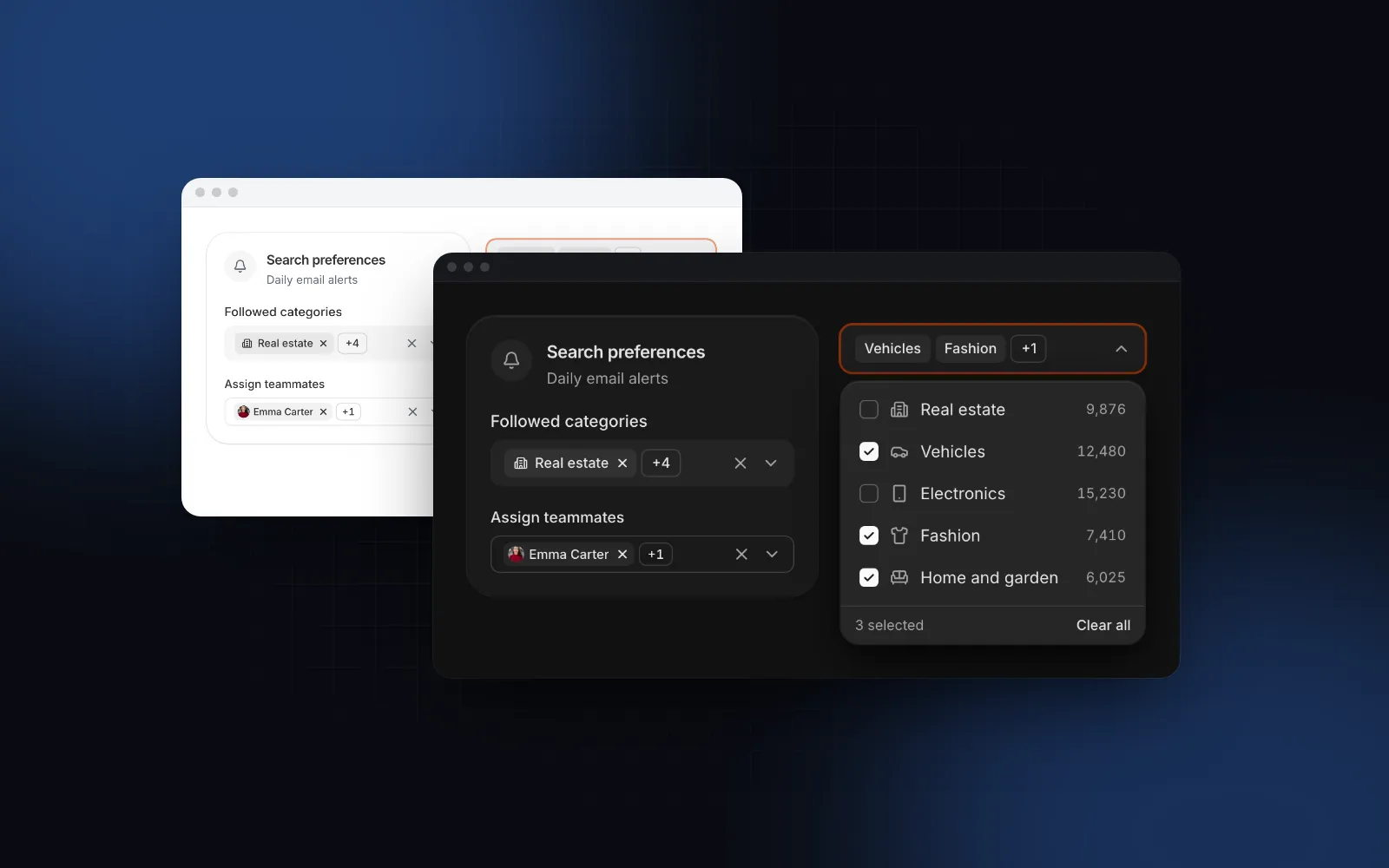
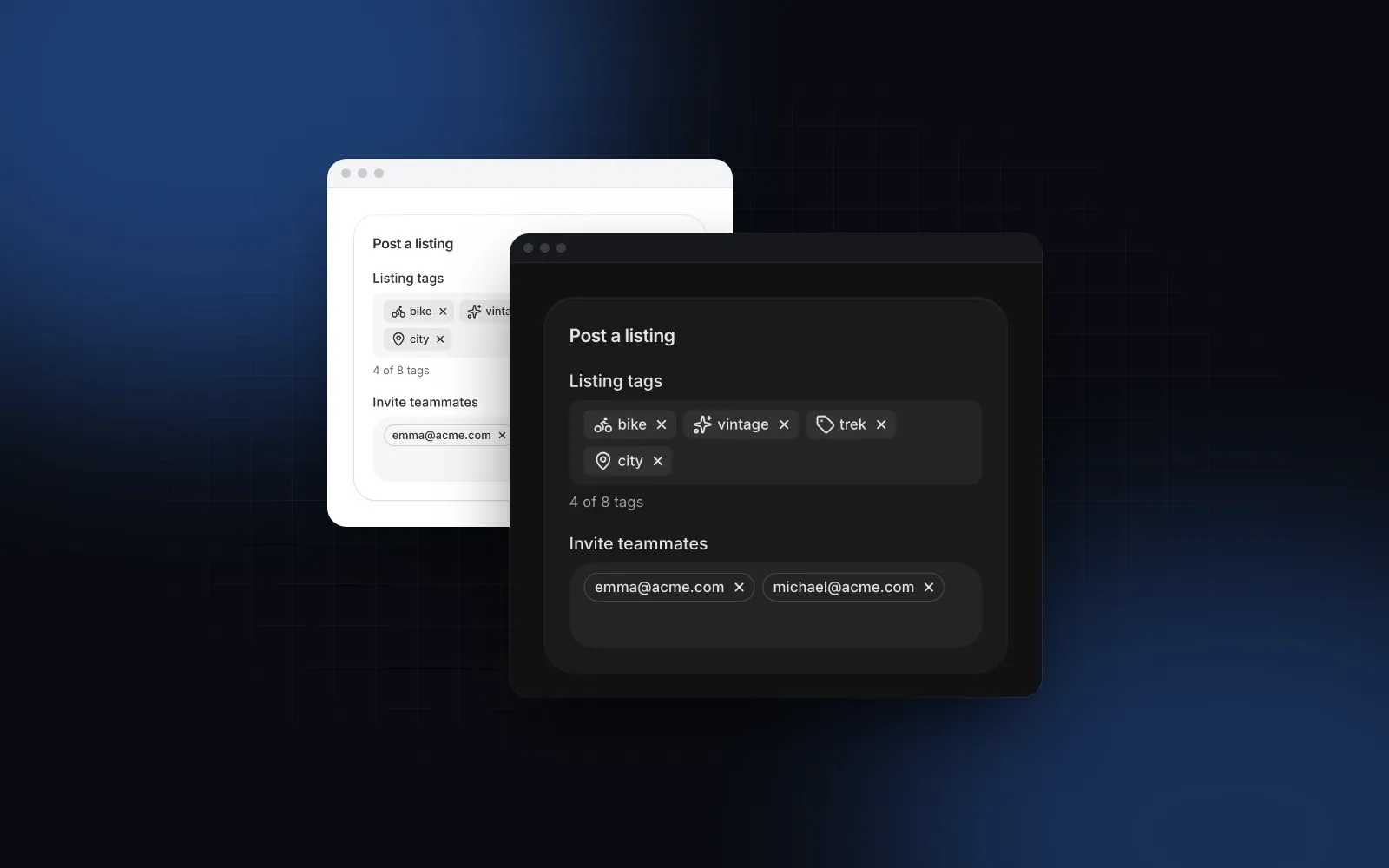
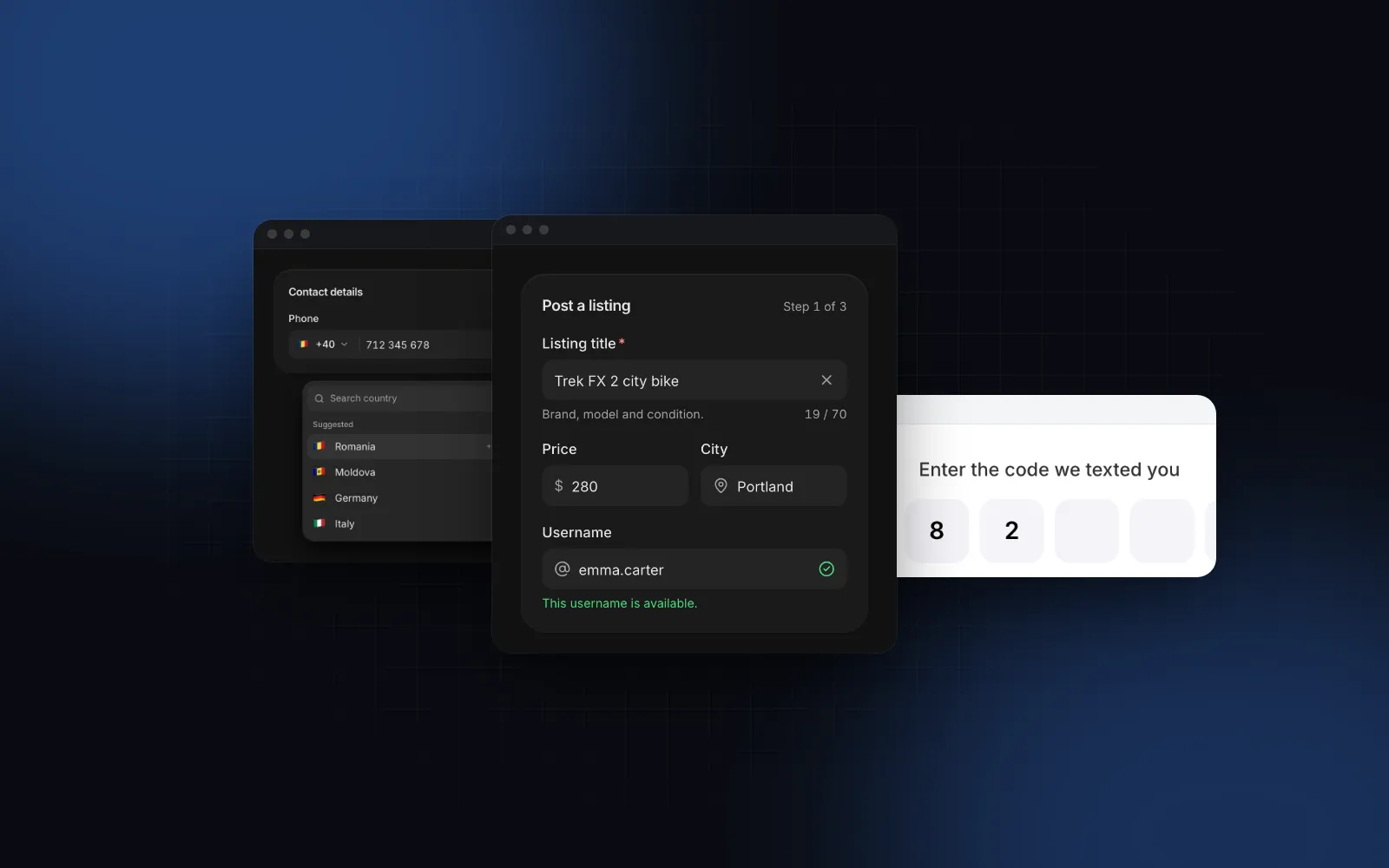
React Combobox: Async Search Without Race Conditions
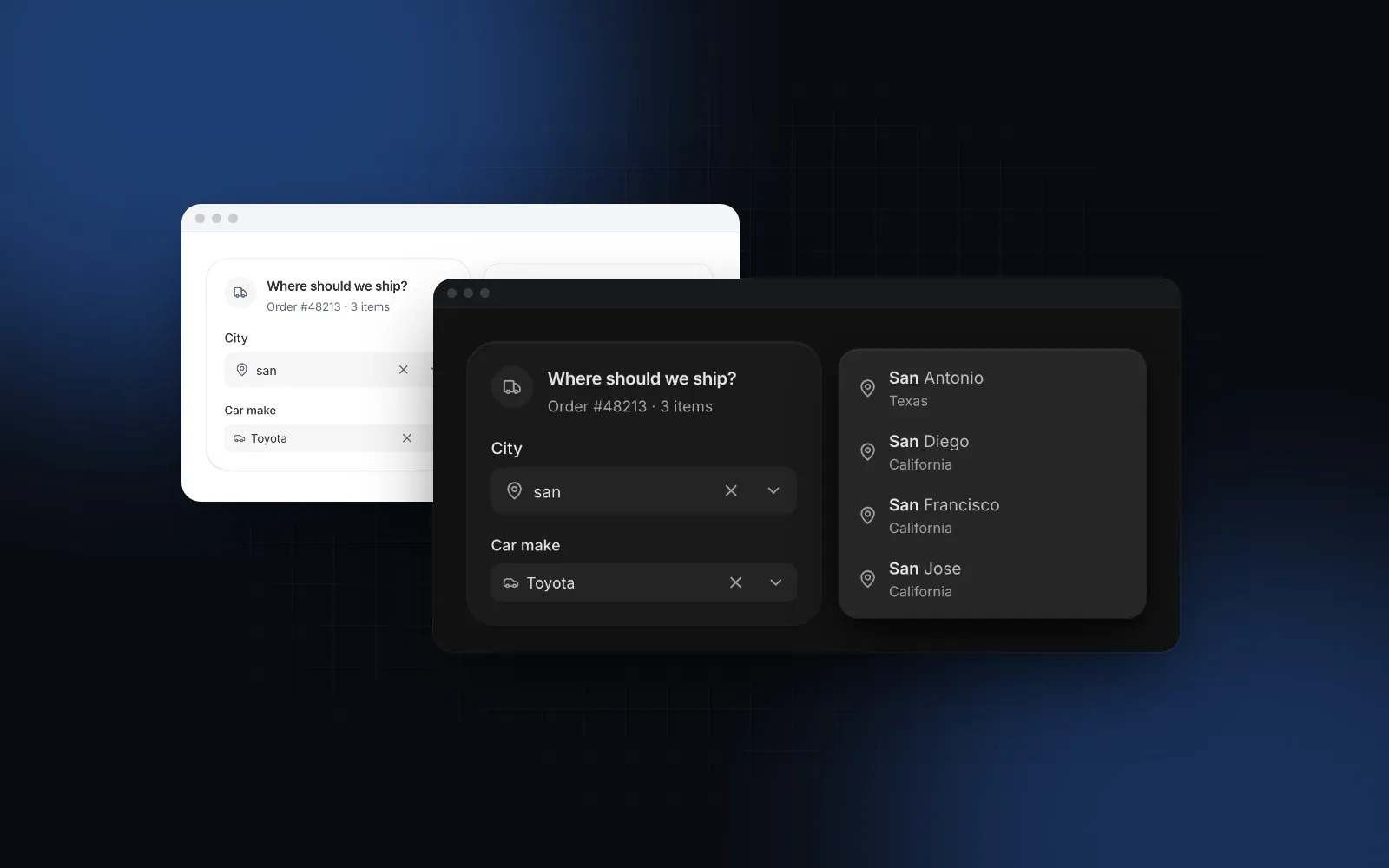
A React combobox is the field where people type "san" and pick San Diego from a list under it. The first version takes an afternoon: an input, a filtered array, a popup. Then the list comes from a server and an old response overwrites a newer one, "jose" does not find "José", the arrow keys scroll the page instead of the list, and on a phone the popup sits under the keyboard. This guide covers when a combobox is the right control instead of a Select or a Listbox, and how to build a server-backed autocomplete with the Combobox from Wingo UI, the library we build.
What is a combobox, and how is it different from a select or a listbox?
A combobox is a text field with a popup of suggestions, a select is a button that opens a list, and a listbox is the list itself, always on the page. All three use the same ARIA building blocks. The difference is where the choice happens and whether people type.
The WAI-ARIA combobox pattern (opens in a new tab) defines a combobox as an input with a popup, usually a listbox, that helps people set its value. An editable combobox has a text field. A select-only combobox has no text field and behaves like a native <select>. A plain listbox is the list itself, always on the page, with no popup.
The rule of thumb we use: if people know what they are looking for and typing it is faster than scrolling, use a combobox. If they need to see the options to decide, use a select. If the options are the main content of that part of the screen, use a listbox. Two to five options people should compare belong in a radio group or a segmented control, as the React form components guide explains.
What should a React combobox with search handle?
A React combobox with search has to handle seven things beyond filtering an array: spelling, aliases, async results, the keyboard, committing the text, phones and forms. Our checklist:
- Matching people's spelling. Case and diacritics never matter, every word must match, best matches first, matched letters in bold.
- Aliases. "St. Louis" should find Saint Louis and "NY" should find New York. Search terms that are not in the label go in the option's
keywords, which rank a little below a label match. - Async results. Debounce, cancel the older request, keep the old rows while the new ones load, show an error with a retry.
- Keyboard. The ARIA keys, with focus staying in the input.
- Committing the text. On blur the text snaps back to the chosen option or becomes the value, never something in between.
- Phones. A popup under a text field ends up under the keyboard.
- Forms. The option value, not the label people read, reaches
FormDataand your form library.
How do I build an async React combobox with server search?
Pass a loadOptions function and let the component own the timing. Install the Combobox first. The CLI copies the source into your project and adds what it imports (the Listbox, the field anatomy, the text matcher):
The loadOptions prop receives the query and an AbortSignal, and returns the options. This is the full field:
The hard part of React combobox async search is timing, and the component handles it:
- It waits for
debouncemilliseconds of quiet (250 by default) before callingloadOptions, and not beforeminQueryLengthcharacters. The very first load runs at once, so the first results do not lag. - A newer query aborts the older request through the signal you passed to
fetch, and an answer that arrives late never overwrites a newer one. - The previous results stay visible while the next ones load, with a spinner in the field, so the list does not flash empty on every keystroke.
- The last 20 answers are cached by trimmed query, so Backspace back to a previous query is instant. Failed requests are not cached.
- A rejected promise shows
errorTextwith a retry button (retryLabel), and the last results stay.
Throwing on a non-OK response matters: a 500 that resolves with an error body would otherwise render as "No cities found", which tells people the city does not exist.
The demo's fake API answers after 400ms, so you can watch the old results stay while the new ones load.
$ npx wingo-ui@latest add comboboxHow do I make the search ignore accents and case?
Fold both sides the same way. Lowercase, decompose with Unicode NFD, drop the combining marks: "José" becomes "jose", "Zürich" becomes "zurich". Letters that do not decompose, like "ß" or "ø", need a small table.
The Combobox does this for local options through the text-match helper, which ships with it and has no React dependency. The helper is free on its own (npx wingo-ui@latest add text-match), and you can import the same function in a Next.js route handler to get identical matching on the server:
filterByText returns the items best first: an exact match, then a prefix of the whole text, then a word prefix, then a match inside a word. Keywords after the label count a little lower. CITIES is your own array of { id, name, state }.
For a database, fold in the query instead. PostgreSQL ships the unaccent extension (opens in a new tab), whose unaccent() function strips the marks (unaccent('Hôtel') returns Hotel). Store the folded, lowercased name in its own column and index that, so a search does not fold every row on every keystroke.
Two more props change the matching on the client. fuzzy lets the letters have gaps, so "sfco" finds San Francisco. filter={false} tells it your options are already filtered.
Which keyboard keys should a combobox support?
A combobox should support the arrow keys, Enter, Escape and Tab while focus stays in the text field, as the WAI-ARIA pattern describes. The Combobox maps them like this:
Focus stays in the input the whole time. The input has role="combobox", aria-autocomplete="list", aria-expanded, aria-controls pointing at the list while it is open, and aria-activedescendant pointing at the highlighted row, so screen readers announce the row while the caret stays where you were typing.
autoHighlight (on by default) highlights the first match so Enter picks it. Turn it off when the field accepts free text, because then Enter should keep what was typed.
When should the combobox accept free text?
Accept free text when any answer is valid and the suggestions only save typing; require an option when the value has to exist in your data. By default the text snaps back to the chosen option when the field loses focus, or empties if nothing was chosen. That is right for a city that has to exist in your database.
A street address is different: suggestions help, but any street is valid. Pass allowCustomValue and the typed text becomes the value on blur or Enter. This is the React autocomplete input most address forms need. Base UI handles the same case with a separate Autocomplete component, because its Combobox does not allow free-form text.
When people should add the missing option to the list, use creatable. A "Create" row appears when nothing matches exactly, and onCreate can return a promise. The row shows a spinner until it resolves, then the returned value is selected:
Add the new option to options yourself, as above. The Combobox selects the returned value, but the list is yours.
How does a combobox work on a phone?
On a phone the Combobox opens a full-height search sheet instead of a popup. The keyboard takes the lower half of the screen, so a popup under the field would sit under it. Below 768px the field on the page never raises the keyboard itself. A tap opens the sheet with a search box at the top, which takes focus so the keyboard comes up there, a Cancel button (cancelLabel), and 48px rows. A tap on a result fills the field and closes the sheet, and the keyboard's search key picks the first result. Pass responsive={false} to keep the popup.
The Select goes the other way: a bottom sheet titled with the label, and its search row waits for a tap, because people usually scroll a short list instead of typing.
$ npx wingo-ui@latest add selectDoes shadcn/ui have a combobox with async search?
Yes, shadcn/ui has a combobox, but the shadcn combobox docs have no server search example, so the async part is code you write. As of October 2026, the shadcn/ui Combobox (opens in a new tab) page offers Base UI, Radix UI and React Aria versions. The default Base UI version links to the Base UI Combobox (opens in a new tab) for its API and shows groups, a clear button, an input group addon and multiple selection with chips. It has no example for server search or for creating a missing option.
The older recipe, which many tutorials still copy and which still sits in the shadcn repo as combobox-demo.tsx (opens in a new tab), composes a Popover with the Command component (cmdk). Server search there means turning off cmdk's built-in filter with shouldFilter={false}, which the cmdk README (opens in a new tab) documents, then rendering the results you fetched yourself.
For async search, Base UI's own examples pass filter={null}, start a search in onInputValueChange, abort the previous AbortController so a stale answer is dropped, and render loading and error text from their own state. That is example code you copy and maintain. It has no debounce, and the signal is not passed to the fake fetch, so an older request still runs to the end. If you go this way, add the debounce, pass the signal to fetch, and decide what the field does on a phone. Our command palette guide covers the related case of searching actions instead of values.
When is a listbox the better control?
When the options are the main content of that area: filters in a sidebar, a step in an onboarding flow, a picker inside an open sheet. A popup there adds a tap and hides the choice. The Listbox renders the same rows inline, with an optional search row (search), multiple with checkboxes, loadOptions for server search with the same debounce and cache, and creatable.
$ npx wingo-ui@latest add listboxThe Select and the Listbox are free. For several values in a popup, the React multi select guide covers the Multi Select, and the Tag Input guide covers the case where people type values of their own.
What are the common combobox pitfalls?
- Highlighting the first match in a free text field. With
allowCustomValue, turn offautoHighlight, or Enter replaces what people typed. - A value without a label. When the controlled
valueis not in the current results, the field needs the option's text. The Combobox keeps the text of options it has seen, and shows the raw value otherwise. - Submitting the label instead of the value. Pass
nameand the option value (san-diego, not "San Diego") goes out through a hidden input, soFormDataand Server Actions get the id. react-hook-form'sregisteris different: it reads the text input and its nativeonChange, so it records what is typed. That is right withallowCustomValue. For option values, useControllerand wirevalueandonValueChange. - Stale cached answers. With
loadOptions, the 20-query cache lives as long as the field is mounted and has no expiry. After a write that changes what the server returns, a query people already typed shows the old answer, so give the Combobox a newkeywhen your data changes.
Where do I go from here?
Install the Combobox with npx wingo-ui@latest add combobox and point loadOptions at your search endpoint. It is a Pro component (see pricing); the Select and the Listbox are free. More guides like this one are in the component guides category.
FAQ
What is the difference between a combobox and a select?
A combobox has an editable text field: you type to filter the options, and some comboboxes accept text that is not in the list. A select is a button that opens a list you scroll or search, and its value is always one of the options. The WAI-ARIA Authoring Practices call a combobox without a text field a select-only combobox and compare it to an HTML select.
Is a combobox the same as an autocomplete?
Mostly. Autocomplete describes the behavior (suggestions as you type) and combobox is the ARIA role of the input that shows them. Some libraries split the two: as of October 2026, Base UI's docs say its Combobox does not allow free-form text and point search widgets to its Autocomplete.
How do I make a React combobox async?
Wait for a short pause in typing (250ms is a good default), send the query with an AbortSignal, abort the previous request when a new one starts, and ignore any answer that arrives after a newer query. Keep the previous results visible with a spinner instead of clearing the list on every keystroke.
How do I make a combobox ignore accents?
Normalize both the query and the option text before comparing: lowercase, Unicode NFD, then strip the combining marks, so "jose" matches "José". Letters such as ß and ø do not decompose and need a small lookup table. On the server, run the same function or use the database's own tool, such as PostgreSQL's unaccent extension.
Does shadcn/ui have a combobox?
Yes. As of October 2026 the shadcn/ui Combobox docs offer Base UI, Radix UI and React Aria versions, and the default Base UI page covers groups, a clear button and multiple selection with chips. The page has no example for server search or for creating new options, so that part is your own code.
- Combobox
- Autocomplete
- Forms
- Accessibility
- Mobile UI