React Speech to Text Input: Mic, Waveform, Fallback
A React speech to text input looks like one button: tap the mic, talk, get text. Building one that holds up takes more. The browser has to ask for the microphone at the right moment, the person needs to see that it is listening, the words should appear as they speak, and the whole thing has to keep working in Firefox, in a Home Screen app on iOS and when the recognition service drops. This guide covers each of those with the code of the Wingo UI Voice Input, the mic that grows into a recording pill with a live waveform. We build that library, so we are not neutral; browser facts link to their sources.
What does a good speech to text input look like?
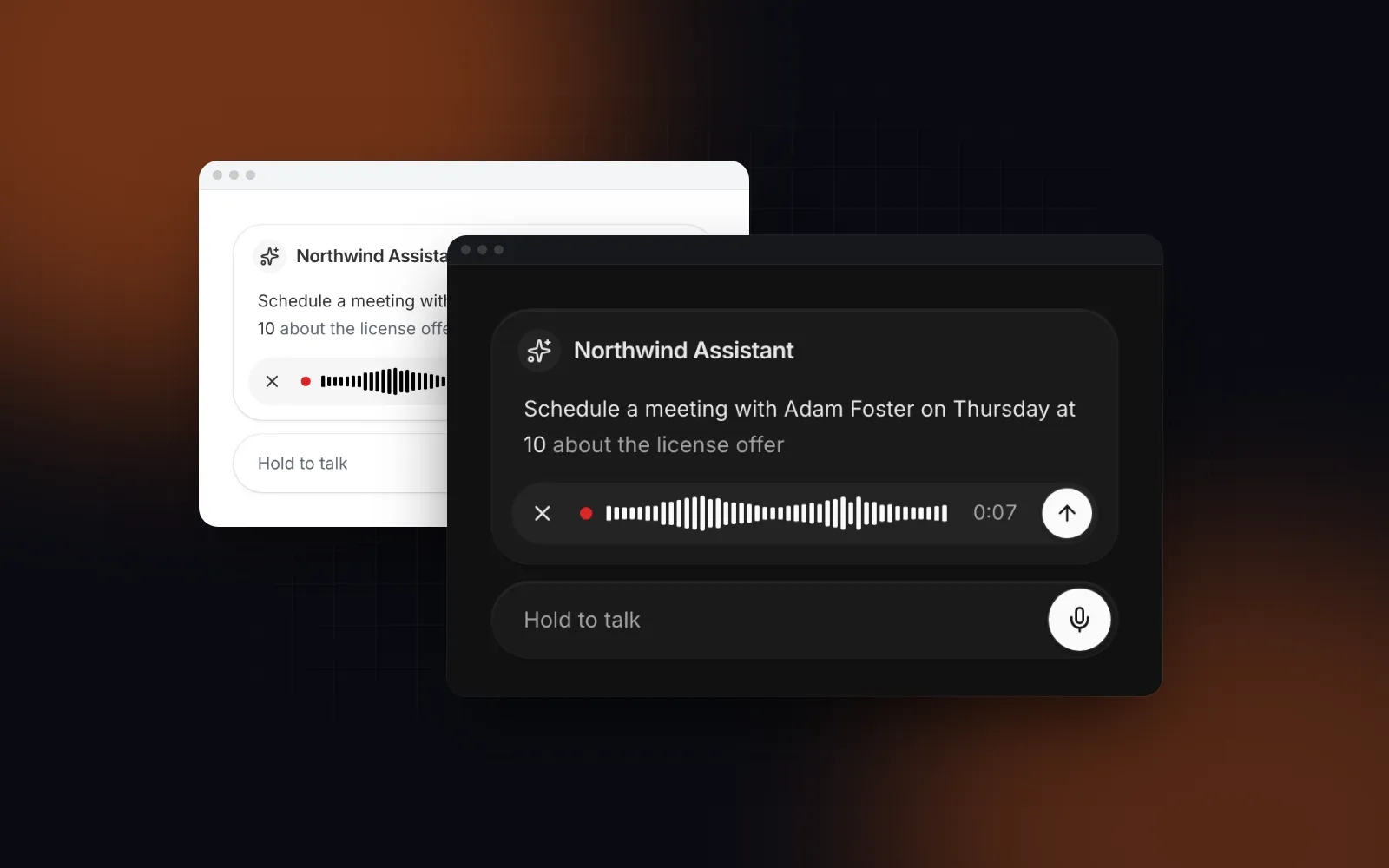
A mic button at rest, a recording pill while you talk, the text when you are done. Voice Input has three shapes behind variant:
button(default): a round mic for composers and toolbars. On tap it grows on a spring into a pill with Cancel, a pulsing red dot, a waveform, a timer and Send, then shrinks back into the mic.bar: a full-width bar that is always visible, the messaging-app layout, with the transcript above it.orb: a voice mode built on the Matrix Orb that listens, thinks while your promise runs and blooms while the app talks back.
The live words sit above the pill, four lines tall, with the words the recognizer is still unsure of muted. The recording dot stays red whatever tone you pick, because red means recording.
$ npx wingo-ui@latest add voice-inputHow does the Web Speech API work in React, and where does it break?
A Web Speech API React hook is short. It wraps SpeechRecognition: create a recognizer, set continuous and interimResults, read onresult, stop on unmount. It breaks in the browsers and modes around it:
Sources, checked October 2026: MDN SpeechRecognition (opens in a new tab), MDN browser compat data (opens in a new tab), Can I use (opens in a new tab) and WebKit bug 225298 (opens in a new tab), where the reply from WebKit says the API is not available in SafariViewController or Home Screen web apps "for now".
Three more limits shape the design:
- It is not private by default. MDN says that in Chrome "your audio is sent to a web service for recognition processing, so it won't work offline." Chrome 139 added an experimental
processLocallyoption andSpeechRecognition.available()/install()for on-device language packs on desktop; Android and Safari do not have them in MDN's data. - Chrome stops on its own. A continuous run ends after a pause,
onendfires and the transcript stops growing. Voice Input restarts the recognizer fromonendwhile you are still recording and joins the finished text of each run. - It needs a gesture and HTTPS. Browsers open the microphone only from a tap or a key press, and on plain HTTP
navigator.mediaDevicesdoes not exist. Voice Input asks for permission after the first tap, never on page load, and shows "Voice input isn't available in this browser." when it cannot record at all.
So treat the browser transcript as a fast preview. The audio is the source of truth.
How do I get the audio Blob and the transcript in React?
When the person presses Send, onRecordingComplete receives { blob, mimeType, durationMs, transcript }. The audio comes from MediaRecorder, which picks the first type the browser can record: audio/webm;codecs=opus in Chrome, audio/mp4 in Safari versions without WebM recording. The transcript comes from the browser recognizer, or from your transcript prop when you stream words from your own service. Turn each source on or off:
audio={false}: no recording, only words and length. Good for plain dictation.transcribe="none": no browser recognizer, for server transcription only.lang="en-US": the recognition language. Empty falls back to thelocaleprop, theUIProviderlocale, then the page's<html lang>and the browser language.
Return a promise and the pill shows a spinner until it settles. If it rejects, the error line appears with Try again, which sends the same recording again.
How do I add a dictation button in React to any text field?
This is the dictation button React forms usually want: words only, appended to what is already typed.
onTranscript(text, { final }) fires while the person talks, if you want the words to land in the field live. In Firefox this version records nothing useful, because there is no recognizer and no audio. The next section fixes that.
How do I fall back to server transcription?
Keep the audio, and when the browser hands you no words, send the Blob to your own endpoint. The client stays the same in every browser:
The route handler keeps the API key on the server. This one uses OpenAI's transcription endpoint; any provider that takes a file works the same way.
As of October 2026, OpenAI's speech to text guide (opens in a new tab) lists gpt-transcribe for recorded speech, a 25 MB upload limit and webm, mp4, m4a, wav and mp3 among the accepted formats, so both browsers' recordings go in as they are. maxDuration (120 seconds by default) keeps a forgotten recording from growing past what you want to upload.
If you want the same words in every browser, set transcribe="none" and always use the server. The pill then says Transcribing while your promise runs.
How does voice input fit a chat UI?
In a voice input chat UI the mic lives in the composer. The Prompt Input does that with one prop: voice adds the mic to the toolbar, the pill takes the toolbar while recording, and the words go in at the caret, replacing a selection. Cancel puts the text back as it was.
Pass onVoice as well and the mic sends voice messages, { blob, mimeType, durationMs, transcript }, instead of dictating. The React prompt input guide covers the rest of the composer, and the React AI chat UI guide covers the thread around it.
$ npx wingo-ui@latest add prompt-inputHow do you play back a voice message with its waveform?
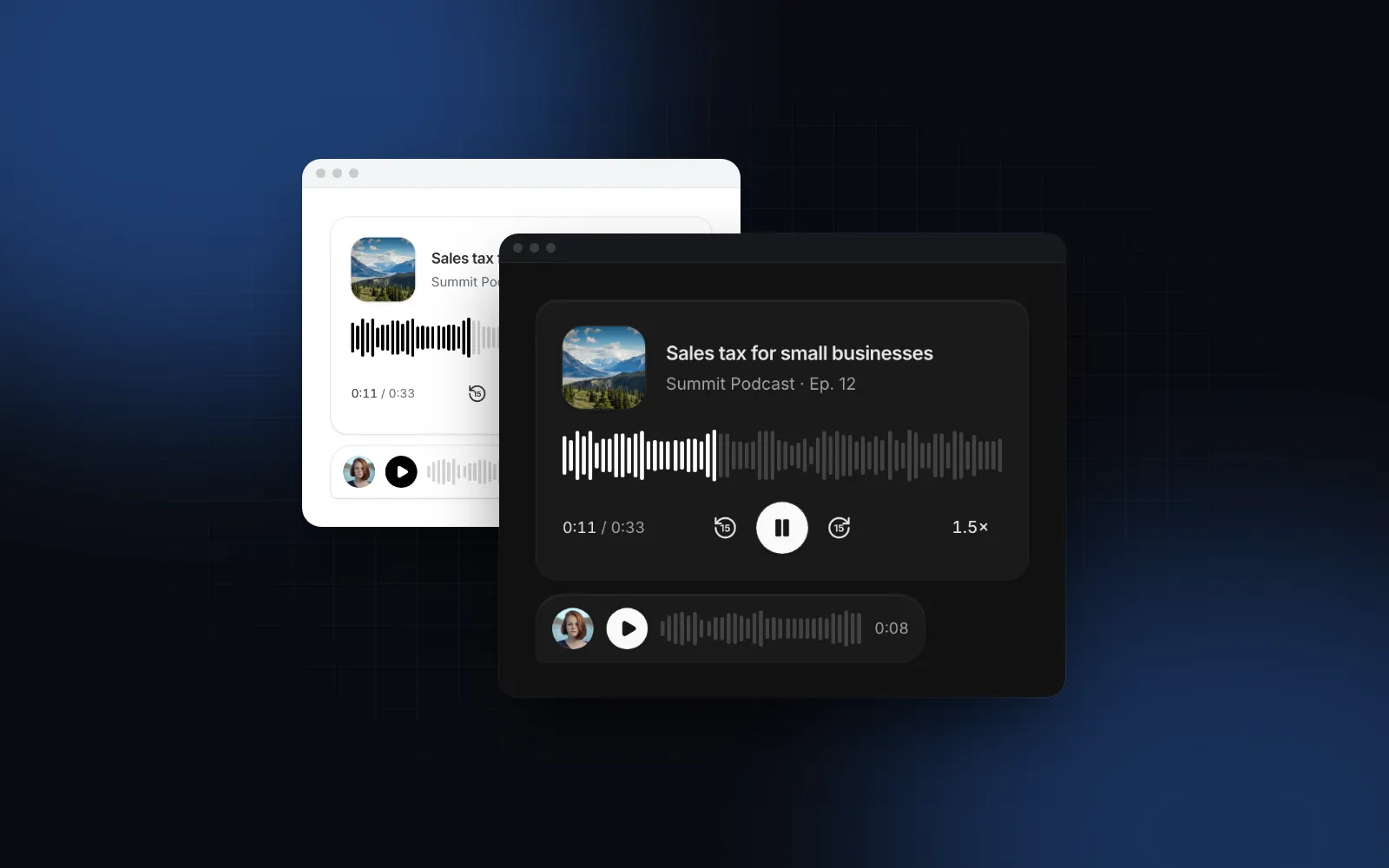
A React voice recorder waveform has two jobs: live while recording, still once the message is sent. While recording, Voice Input reads the microphone through an analyser and writes the bar transforms straight to the DOM in a requestAnimationFrame loop, never through React state, and pauses it off screen. The same bars ship as VoiceWaveform for your own layouts; give it values for a still waveform of a recorded note.
For playback, the Audio Player has a compact variant made for chat bubbles: play, bars you can scrub, time and a speed chip. Without peaks it decodes the file with Web Audio once it is on screen, so an object URL from the Blob gets its real waveform.
Once the upload finishes, swap the object URL for the stored file's URL and pass peaks if your server already computed them.
$ npx wingo-ui@latest add audio-playerHow do I make voice input accessible on keyboards, screen readers and phones?
Give the mic a real button, announce state changes once and size every target for a thumb. Voice Input does each of these:
- Keyboard. Tab to the mic and press Enter or Space. Focus moves to Send while recording, and Escape cancels.
- Screen readers. They hear Listening, Transcribing and the recorded length once, never the ticking timer.
- Phones. Every target is 44px on touch.
mode="hold"gives push to talk: hold, let go to send, slide more than 80px toward the start to arm cancel, with a haptic tick (the Vibration API post explains where that works). The held mic setstouch-action: noneso the page does not scroll under your thumb. - Mis-taps. A recording shorter than
minDuration(500 ms by default) is dropped, and a hint asks for a longer message. - Errors. A blocked or missing microphone explains itself in place with Try again.
- Reduced motion. The morph becomes a cross-fade and the waveform a still level meter.
What are the common speech to text pitfalls?
Most bugs come from the permission prompt, leaked microphone streams and testing in one browser.
- Asking for the microphone on page load. People deny a prompt they did not ask for, and a denial sticks. Ask on the first tap.
- Trusting the interim text. Interim words change. Store the final transcript, or the server's.
- Forgetting the tracks. Stop every
MediaStreamtrack, audio context and recognizer on stop, cancel and unmount, or the browser's recording indicator stays on. TheuseVoiceRecorderhook does this if you build a custom UI on the same engine. - One file extension for all browsers. A Safari recording named
.webmconfuses some APIs. Name it after the mime type. - Two mics on one page. A composer mic and a voice-note mic can both start. In Voice Input a second recorder that starts stops and sends the first, so only one stream holds the microphone.
- Testing only in Chrome. Try Firefox, Safari with Dictation off and a Home Screen install before you ship.
Where to go next
Open the Voice Input docs, switch variant, mode and transcribe in the playground, then install it with npx wingo-ui@latest add voice-input. Voice Input, Prompt Input and Audio Player are part of Wingo UI Pro. If a coding agent builds your screens, the component library MCP guide shows how to point it at these components, and more posts live in Building UI with AI agents.
FAQ
Does the Web Speech API work in every browser?
No. MDN lists SpeechRecognition as limited availability: Chrome and Safari 14.1+ ship it (Safari with the webkit prefix), Firefox keeps it off by default, and Safari does not offer it in Home Screen web apps. Feature detect both SpeechRecognition and webkitSpeechRecognition and keep a fallback.
Is browser speech recognition private or offline?
Not by default. MDN notes that in Chrome the audio is sent to a web service for recognition, so it does not work offline. Chrome 139 added an experimental processLocally option on desktop, but you should not rely on it yet.
How do I send recorded audio to a speech to text API from React?
Record with MediaRecorder, put the Blob in a FormData body and POST it to your own route handler, which forwards it to the transcription API with the server-side key. Pick the file extension from the recorder's mime type, since Chrome records audio/webm and Safari can record audio/mp4.
Why does my Web Speech API transcript stop after a pause?
Chrome ends a continuous recognition run on its own after silence, and the onend event fires. Restart it from onend while the user is still recording, and join the finished text of each run so nothing is lost.
Is the Wingo UI Voice Input free?
No. Voice Input, Prompt Input and Audio Player are part of Wingo UI Pro. As of October 2026, the 75 free items include the Button, Tooltip, Spinner and Matrix Orb that Voice Input builds on.
- Voice input
- Speech to text
- AI chat
- React
- Mobile UI