React Notification Center: Inbox, Bell and Toasts
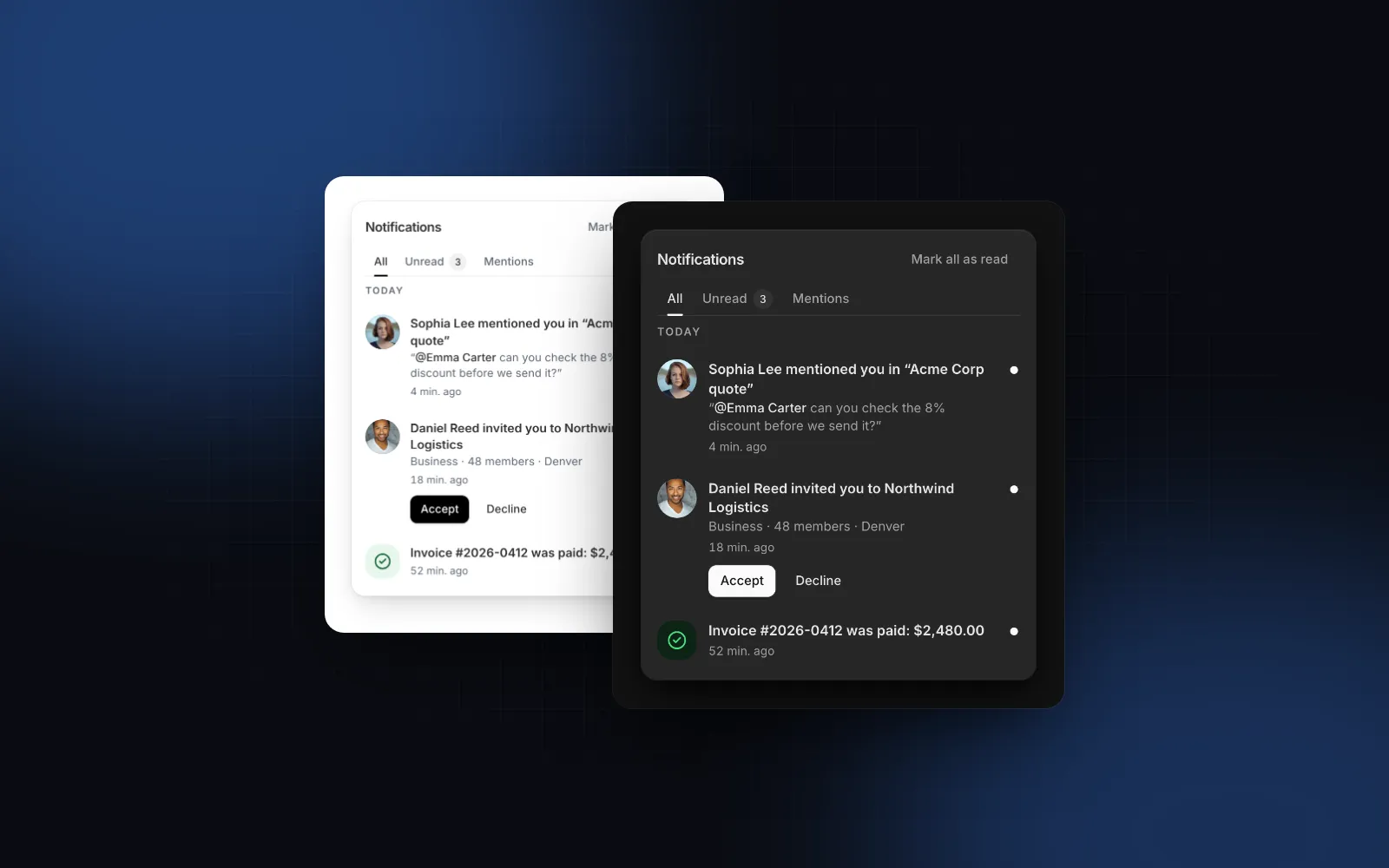
A React notification center is the bell in your top bar and the inbox behind it: an unread count, a list of what happened, a way to mark things read and a way to get rid of them. Most notification panel React examples stop at a popover with a list. Then real data arrives: forty rows that need grouping, a mention buried under billing events, an invite that needs an Accept button, a phone where the popover covers half the screen. This guide covers when an event belongs in the inbox and when in a toast, the props that matter in the Wingo UI Notification Center, syncing reads with a server, phones, accessibility and real-time updates.
What is a React notification center?
It is a persistent, in-app record of events, opened from a bell. An in-app notification inbox does four jobs that a plain list does not:
- Counts. A badge on the bell with the number of unread items, capped (99+), hidden at zero.
- Sorts. Filter tabs (All, Unread, Mentions) and day groups (Today, Yesterday, then dates), newest first.
- Acts. Open a row, accept an invite inline, mark read or unread, dismiss.
- Updates. New rows slide in, the bell reacts, older pages load as you scroll.
When does an event need a toast, the inbox or both?
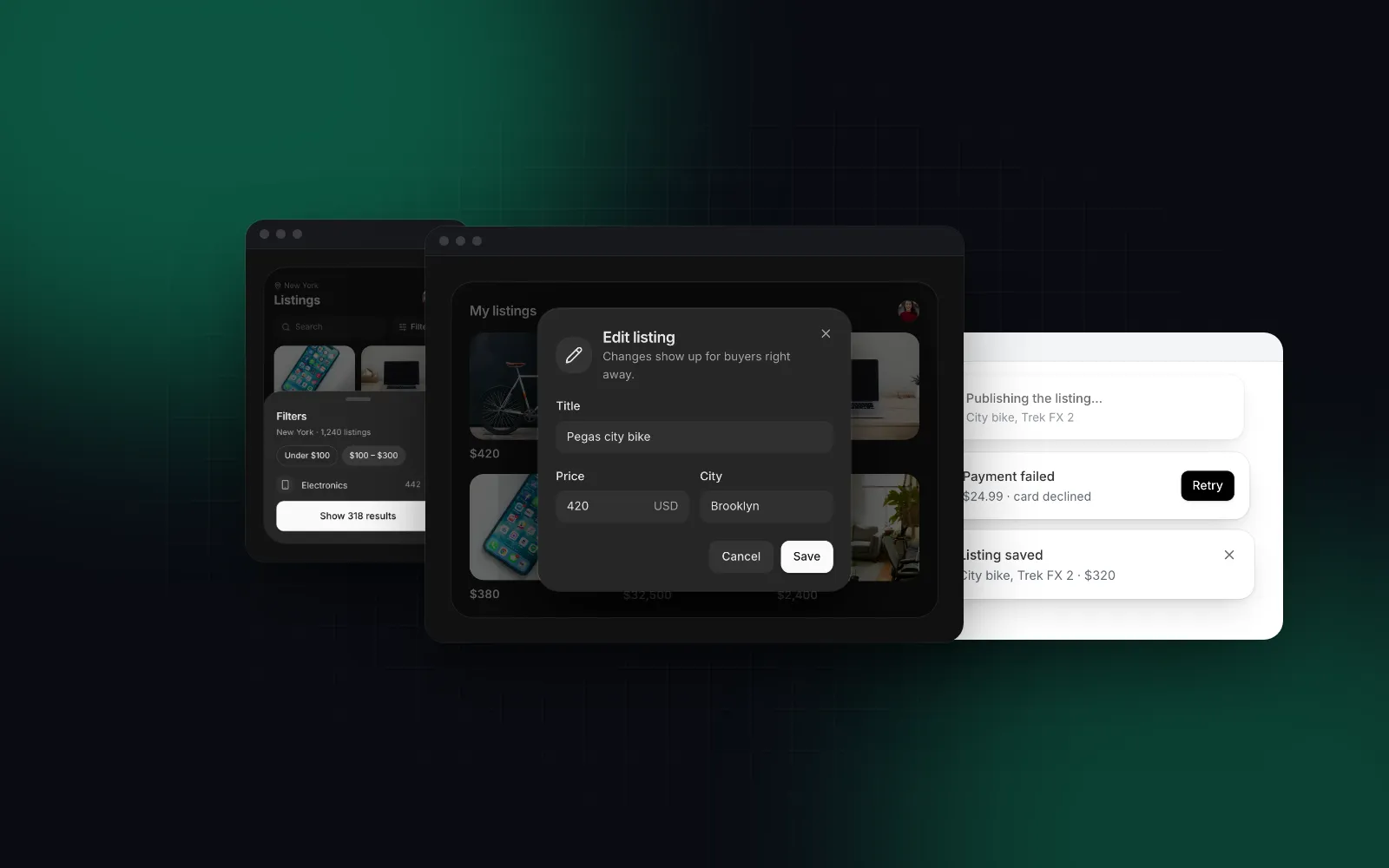
Use a toast for feedback on something the user just did, and the inbox for anything they may need later. Courier's guide to toasts in web apps (opens in a new tab) puts it as a rule worth keeping: every important event goes to the notification center, and only some of them also get a toast. GitHub goes further: its Primer accessibility guidance (opens in a new tab) says toasts pose significant accessibility concerns and recommends banners and dialogs instead. That is a reason to never put anything only in a toast.
For choosing the toast itself, see the Sonner alternative comparison; the free Wingo UI Toast is the one used in the examples below.
What are the options for a React notification center?
You either use a hosted service that stores and delivers notifications for you, or a UI component you feed your own data. As of October 2026:
Pick Novu or Knock when you need delivery across email, push and in-app with user preferences: that is a backend problem a component does not solve. Pick a source component when your app already stores notifications.
What props does the notification center need?
One array and the callbacks that change it. notifications is newest first; each item has an id, a title, a createdAt (Date, string or number) and optional body, read, type, avatar with name, or an icon with a tone, an href and inline actions.
type: "mention" feeds the Mentions tab, and @Name inside string titles and bodies is highlighted. An action whose onSelect returns a promise keeps its button spinning until it settles. Rows with an href render through the router link you set with LinkProvider or the linkComponent prop, so next/link works without the component importing it.
Open the bell in the demo, then press Simulate a notification: the bell swings and the row slides in.
$ npx wingo-ui@latest add notification-centerHow do read, unread and dismiss stay in sync with a server?
The panel updates at once and calls your handler; you save the change. The component keeps that local state until your notifications data agrees, so a slow request never makes a dot blink back on. onReadAll runs for the header button; without it, onRead gets every unread id. onDismiss fires after the row has collapsed out, which is the moment to remove it from your data.
hasMore adds a Load more row that also loads by itself when it scrolls into view. Return a promise from onLoadMore and the row shows a spinner until it settles.
Should the bell count unread or unseen?
The badge counts unread items by default. Some apps prefer unseen: the count resets when the panel opens, even if nothing was read. Knock exposes the same choice through badgeCountType. Here, count takes any number:
How do filter tabs and day groups work?
filters replaces the default All / Unread / Mentions tabs. Each tab has a value, a label, an optional filter function, a badge and its own empty state. A tab whose value is "unread" shows the live unread count without a badge.
Fewer than two filters hide the tab row. groupByDay (on by default) adds sticky labels: Today, Yesterday, weekday names this week, then dates in the locale. Times read "5 min ago" through Intl.RelativeTimeFormat and refresh every minute while the panel is open. Relative times are computed after mount and the server prints clock times, so there is no hydration mismatch.
How does a notification panel work on a phone?
Below 768px the panel becomes a full-height bottom sheet with full-width tabs, because a 400px popover anchored to a small bell leaves no room on a 390px screen. Drag the handle down to close it. Swipe a row left to dismiss it or right to toggle read: a colored layer follows your finger, the swipe commits past a quarter of the row or on a flick, and the phone gives a short haptic tick where the browser supports vibration. The ⋯ menu is always visible on touch, so swiping is never the only way. responsive={false} keeps the popover, swipeActions={false} turns swiping off. The gesture is the same one covered in the React swipe to delete guide, and the sheet is the pattern from the React bottom sheet guide.
Is the notification center accessible?
The bell's label carries the count ("Notifications, 3 unread"), and it changes as the count does. New notifications that arrive while the component is mounted are announced through a polite live region ("New notification: ..."), and older pages from Load more are not announced as news. With the panel open, Down or Home jumps to the first row, Up and Down move between rows, End jumps to the last, Enter opens one, and Escape closes the panel and returns focus to the bell. The row menu shows on hover and on keyboard focus. shortcut="alt+n" opens the panel from anywhere, and every string lives in labels for translation.
How do I add real-time notifications and toasts?
Stream new notifications into the same array, and toast only the urgent ones while the panel is closed. This example uses Server-Sent Events with the browser's EventSource; a WebSocket works the same way. Mount <Toaster /> once in your root layout.
The duplicate check matters: a reconnecting stream can send the same event twice.
Can I use just the bell, or a full notifications page?
Yes to both. The free Notification Bell is a standalone react notification bell: an iOS-style count badge whose digits roll, a swing when the count goes up and a 44px hit area on touch. Use it with your own panel, or pass it to the center as its trigger with your unread count. For a /notifications page or a sidebar panel, NotificationList renders the same tabs, groups, rows and load more without the bell.
$ npx wingo-ui@latest add notification-bellWhat are the common notification center pitfalls?
- Toast-only events. If an event matters, it goes in the inbox too. Toasts time out.
- Dropping the row before it collapses. Remove it in
onDismiss, which runs after the animation, not in your own swipe handler. - Unstable ids. Reads and dismissals are tracked by
id. Generate it on the server, never from the array index. - Announcing the first fetch. The component treats the first non-empty list as the baseline, so a page load does not read forty titles aloud. Keep that behavior if you build your own.
How do I add it to my project?
Run npx wingo-ui@latest add notification-center. The CLI copies the source into components/ui, adds the Wingo UI components, hooks and helpers it imports, and installs @radix-ui/react-popover, motion and lucide-react. The Notification Center is a Pro component (pricing); the Notification Bell and the Toast are free. More single-component deep dives are in the component guides category, and the React form components guide applies the same touch, keyboard and screen reader rules to every form control.
FAQ
What is the difference between a toast and a notification center?
A toast confirms something the user just did and disappears after a few seconds. A notification center keeps a record of what happened, including while the user was away, so they can read and act on it later. Send every important event to the inbox and only the urgent ones to a toast as well.
Should the bell count unread or unseen notifications?
Unread counts drop as each notification is opened or marked read; unseen counts reset as soon as the panel opens. Knock lets you pick either for its bell through badgeCountType. The Wingo UI Notification Center counts unread by default, and its count prop takes any number, such as an unseen count.
How do I get real-time notifications into a React inbox?
Open a WebSocket or a Server-Sent Events stream in an effect, prepend each new notification to your state and pass the array to the inbox. The component animates the new row, swings the bell and announces it to screen readers; your server decides what is sent.
Do I need Novu or Knock to build a notification center?
Only if you want a hosted service to deliver and store notifications across channels such as email, push and in-app. If your backend already stores notifications, a UI component that takes an array is enough, and you keep your own data model.
Is the Wingo UI Notification Center free?
The Notification Center is a Pro component. The standalone Notification Bell and the Toast are free.
- Notifications
- Inbox
- Toast
- Mobile UI
- Accessibility
- React