React Image Lightbox: Zoom, Swipe and Pull to Close
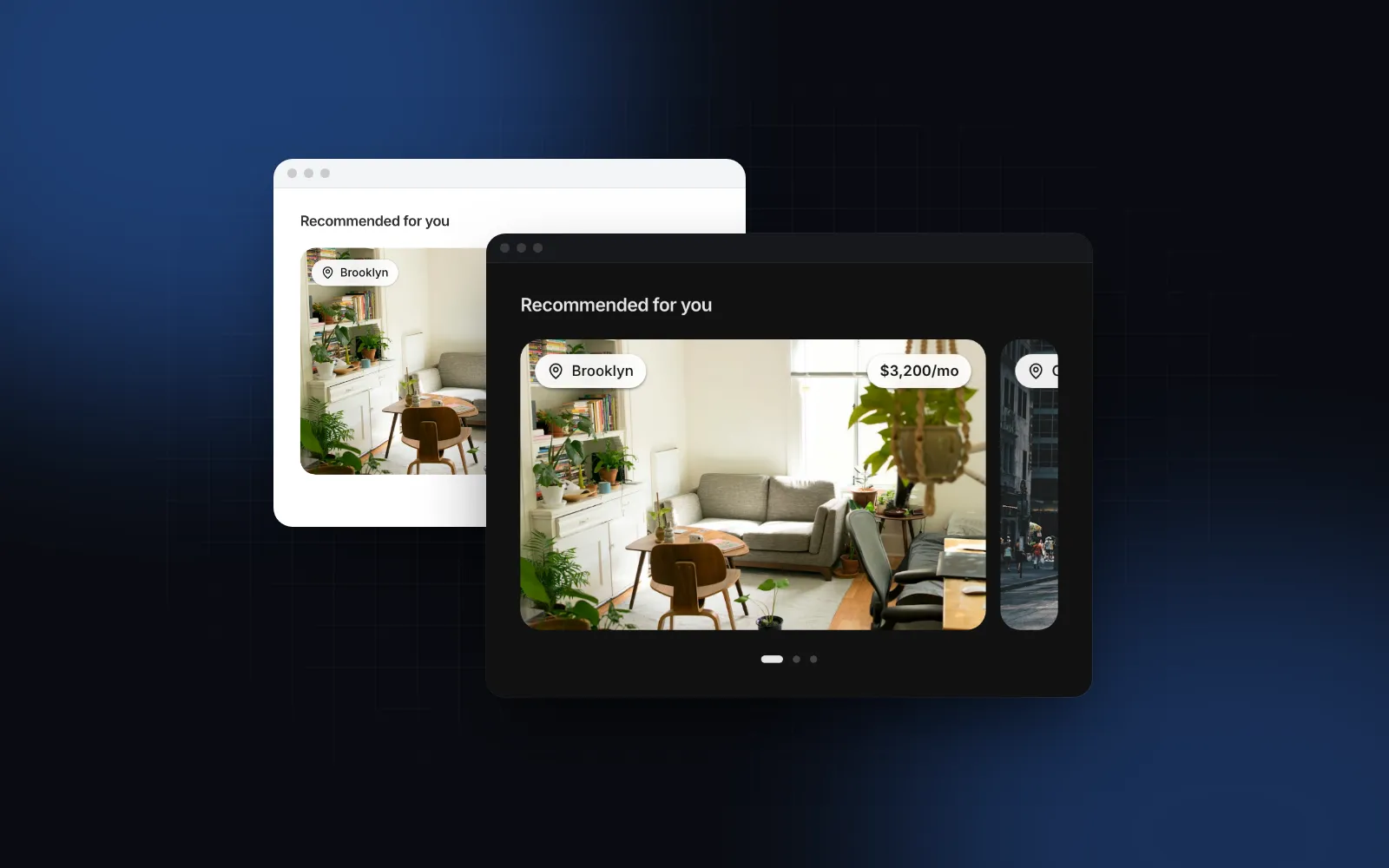
You have a grid of photos and want a React image lightbox: tap a photo, see it full screen, swipe to the next one, zoom in on a detail. The happy path is quick. Then the photo pops in from nowhere instead of growing out of the tile, the frame jumps when the file arrives, a pinch zooms the whole page, a swipe down does nothing on a phone, and after closing, keyboard focus lands at the top of the document. This guide covers what a production lightbox has to handle, the props that matter in the Wingo UI Image Lightbox, and when the Product Gallery is the better fit.
What should a React image lightbox do?
Open from the thumbnail, page one photo per swipe, zoom where the user points, close the way a phone's photo app closes, and keep keyboard and screen reader users oriented. Here is the list we hold our own viewer to:
- Grow out of the thumbnail on open, and fly back into the current photo's tile on close.
- Swipe between photos, one per swipe, with arrows and a thumbnail strip on desktop.
- Zoom with a pinch, a double tap or a trackpad pinch, and pan with momentum.
- Close with a swipe down on touch screens.
- No layout shift while images load, and no loading of every full size file up front.
- Keyboard and focus: arrows, Escape, a focus trap, and focus returned to the thumbnail of the photo on screen when the viewer closes.
Which React lightbox libraries are still maintained?
Yet Another React Lightbox still ships: version 3.32.2 went to npm in July 2026. PhotoSwipe's latest release is 5.4.4 from May 2024, and its README says v6 is in development. The package literally named react-image-lightbox was archived on January 19, 2023, and its README points to react-photoswipe-gallery instead. Facts below come from each project's docs, README and npm page, as of October 2026.
PhotoSwipe is a good pick if you want a mature, framework agnostic viewer and you are fine wiring it into React yourself; its docs have a dedicated page on animating from a cropped thumbnail. Yet Another React Lightbox fits if you want a React package with zoom and thumbnails as opt-in plugins. If you searched for a shadcn lightbox, note that shadcn/ui has none: it ships a Carousel built on Embla (opens in a new tab) and a Dialog, and you would combine them yourself. The Wingo UI viewer is that combination already built: an Embla based Carousel inside a Radix dialog primitive (the same one our Dialog uses), with the gestures on top.
What props does the Image Lightbox need?
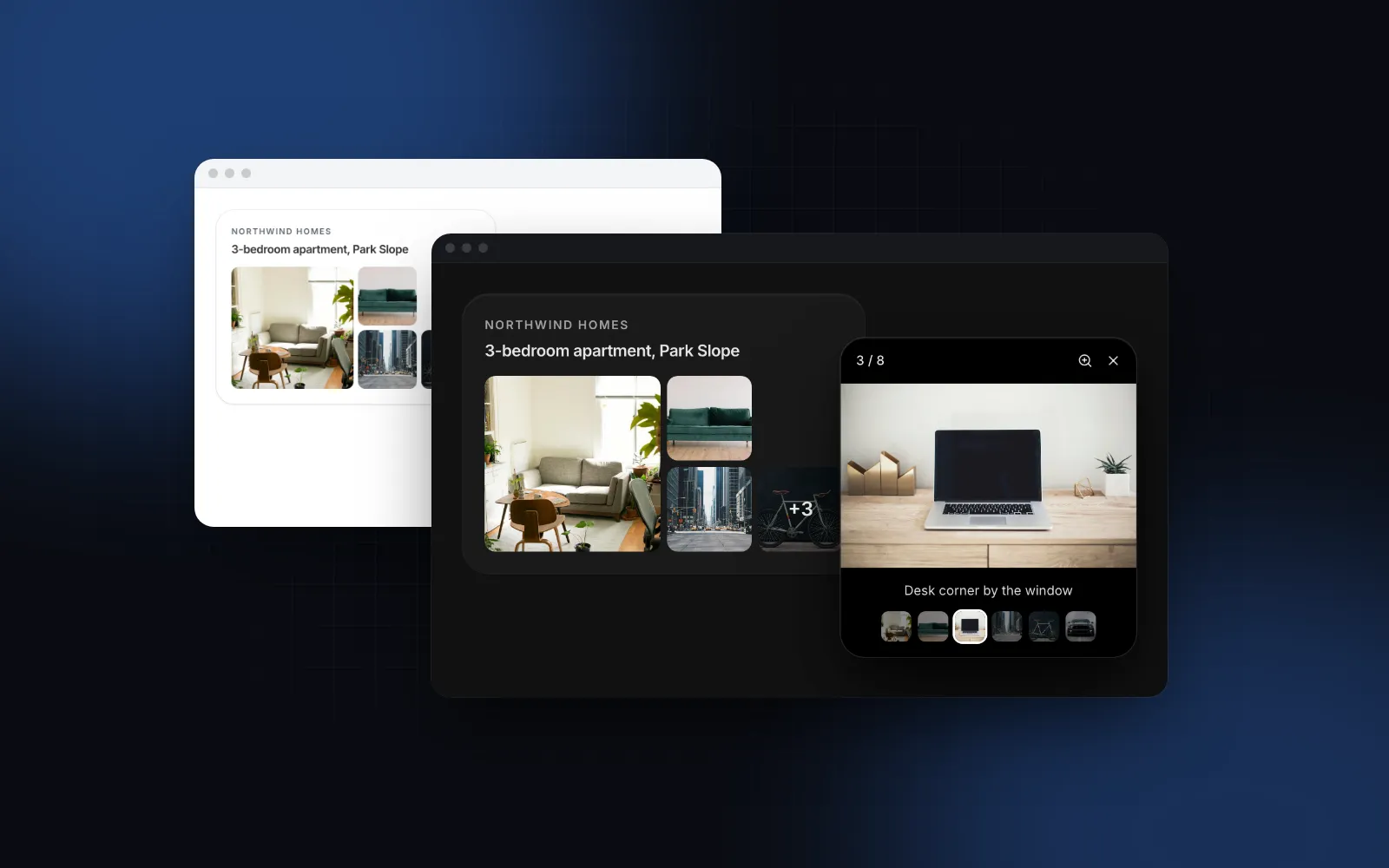
One: images, an array of { src, alt, caption?, width?, height?, srcSet?, sizes?, thumbnail?, downloadName? }. The quickest way to a React lightbox gallery is LightboxGallery, which renders a grid of thumbnail buttons and wires each tile up as the origin its photo flies out of.
featured makes the first tile span 2 by 2, and maxVisible={5} turns the fifth tile into "+N" when there are more photos. The grid defaults to 2 columns, 3 from 640px and 4 from 768px, with square tiles and 12px corners; aspect, gap and radius change that.
Give every image its width and height so the frame takes the photo's shape before the file loads, and a small thumbnail file for the grid, the strip and the loading placeholder. Only the current photo and its neighbors load, and a spinner sits over the placeholder until the file is ready.
The props you will reach for next are zoom (on by default), maxZoom (4), doubleTapZoom (2.5), loop (off), download and share (both off), and hideControlsDelay, which fades the desktop toolbar after 3000ms without a mouse move. Every string lives in labels, merged over DEFAULT_IMAGE_LIGHTBOX_LABELS.
$ npx wingo-ui@latest add image-lightboxHow does the lightbox zoom out of its thumbnail?
The viewer measures the element the photo came from, starts the photo at that rectangle with that crop and corner radius, and animates it to the fitted size with a spring. LightboxGallery does the wiring for you. For your own layout, such as one big cover photo with an outside thumbnail strip, use ImageLightbox directly with a trigger and a getOrigin that returns the element for each index:
Because index is controlled, the cover follows the photo the user swiped to, so the viewer closes into the right image. Inside a LightboxGallery with custom children, the useLightbox hook gives you open(index, origin): call open(2, event.currentTarget) from any button and photo 3 zooms out of it, with focus returning there on close.
Under reduced motion the viewer fades instead of flying (see the prefers-reduced-motion guide).
How do swipe, pinch zoom and swipe down to close work on phones?
On a phone the viewer is full bleed, black with white controls in both themes, and clears the notch and home indicator with env(safe-area-inset-*). A tap toggles the controls.
- Swipe sideways to page, with Embla's physics.
- Pinch to zoom around your fingers. It resists past 1x and past
maxZoom, then settles. A double tap zooms todoubleTapZoomat the tapped point, and a second double tap goes back. - While zoomed, a swipe pans the photo instead of paging, and swipe down is off. Changing photo resets the zoom.
- Pull down on an unzoomed photo and it shrinks toward 0.85 while the black fades and the page shows through. Let go past a quarter of the screen height, or flick faster than 400px per second, and it closes; otherwise it springs back.
People expect pull to close after years of native photo apps, so the close button is the fallback here and the gesture is the main way out. Set swipeToClose={false} when the viewer sits on top of something that already uses vertical drags. The React bottom sheet guide covers the same drag to dismiss pattern for panels.
How do I make an image lightbox accessible?
Treat it as a modal dialog. The viewer is built on the Radix dialog primitive, so focus is trapped inside while it is open. On close, focus goes to the tile of the photo on screen, or back to whatever opened the viewer when that tile is not focusable. The hidden dialog title defaults to "Image viewer", the current caption describes the dialog, and the "3 / 8" counter is a polite live region, so a screen reader hears each page turn.
Keys: Left and Right for previous and next, Home and End for the first and last photo, + or = to zoom in, - to zoom out, 0 to reset. Escape resets a zoom first and closes on the second press, so a user who zoomed in by accident does not lose their place. Each LightboxGallery tile is a real button named from labels.openImage and the image's alt, so write real alt text.
When should I use the Product Gallery instead?
Use it on a product or listing detail page, where the photos are the page's main content. The Product Gallery is a product gallery React component with a swipeable stage, a thumbnail rail and the Image Lightbox behind it:
With a mouse, zoom="hover" (the default) scales the photo in place and pans with the cursor, and zoom="lens" shows a round magnifier instead. Either way the zoom never goes past twice the photo's natural width, so small files do not turn to mush. fit="contain" letterboxes product shots on white in light mode. Thumbnails sit in a rail beside the stage once the gallery is at least 512px wide (a container query, so it works in a narrow column too), and the last visible one reads "+N".
On a phone there is no hover zoom and no thumbnail rail: the stage swipes, a "3 / 12" counter or dots show the position, and a tap opens the full-screen viewer where pinch zoom and swipe down to close work as above. That split is the honest answer to "react image gallery zoom": hover zoom is for mice, pinch is for fingers, and one component should not pretend otherwise.
$ npx wingo-ui@latest add product-galleryWhat are the common React lightbox pitfalls?
Three more show up once real photos replace the demo set. Missing dimensions is covered above; the fix is to store width and height when the photo is uploaded.
- Full size files in the grid. Pass a
thumbnailper image, or asrcSetandsizes. - Swipe down on a zoomed photo. In your own viewer, turn the close gesture off while the scale is above 1, or a pan closes it.
- A broken file that blocks paging. A missing image in the Wingo UI viewer shows an icon in the tile and in the viewer, and swiping past it still works. Test that case with your own data.
If users upload these photos, the React image cropper guide covers fixing the aspect ratio before they reach the gallery.
How do I add it to my project?
Run npx wingo-ui@latest add image-lightbox for the viewer and grid, or npx wingo-ui@latest add product-gallery for the detail page gallery (it pulls in the lightbox). The CLI copies the component into components/ui, adds the carousel, hooks and helpers it imports, and installs its npm packages. Both are Pro components (pricing). More single component deep dives are in the component guides category, and the React form components guide applies the same touch, keyboard and screen reader rules to every form control.
FAQ
What is the best React image lightbox library?
For a packaged library, Yet Another React Lightbox (MIT, React 16.8 to 19, zoom and thumbnails as plugins) and PhotoSwipe (MIT, framework agnostic, with a React guide) are the usual choices. The original react-image-lightbox package was archived in January 2023. The Wingo UI Image Lightbox is a Pro source component you copy into your project.
Is there a shadcn lightbox component?
No. shadcn/ui ships a Carousel built on Embla and a Dialog, but no lightbox or image viewer as of October 2026. The Wingo UI Image Lightbox combines the same two ideas (an Embla carousel inside a Radix dialog) and installs with npx wingo-ui@latest add image-lightbox.
How do I close a lightbox with a swipe down on mobile?
Track the vertical drag on the photo, scale the photo down and fade the backdrop as it follows the finger, and close when the drag passes a set share of the screen or a fast flick. The Wingo UI viewer closes past a quarter of the screen height or a flick faster than 400px per second, and springs back otherwise.
Why does my lightbox jump when the image loads?
The viewer does not know the photo's shape until the file arrives. Pass width and height for each image so the frame takes its final aspect ratio at once, and pass a small thumbnail file to show as a placeholder while the full one loads.
Is the Wingo UI Image Lightbox free?
No. The Image Lightbox, the Product Gallery and the Carousel they build on are Pro components. The Button and the Spinner they use are free.
- Lightbox
- Image gallery
- Gestures
- Mobile UI
- React