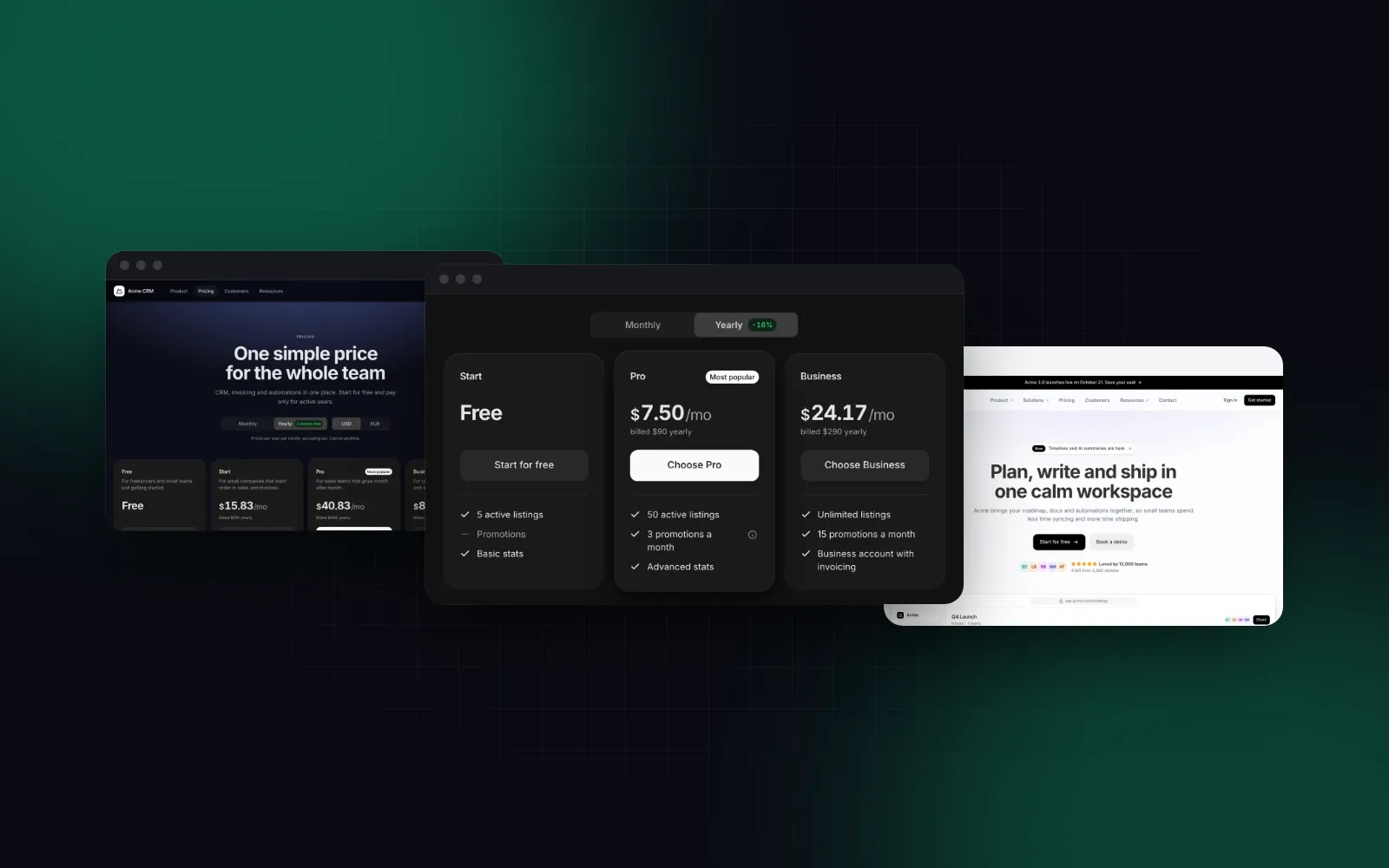
Shadcn Pricing Page: Yearly Toggle, Table, Phone Layout
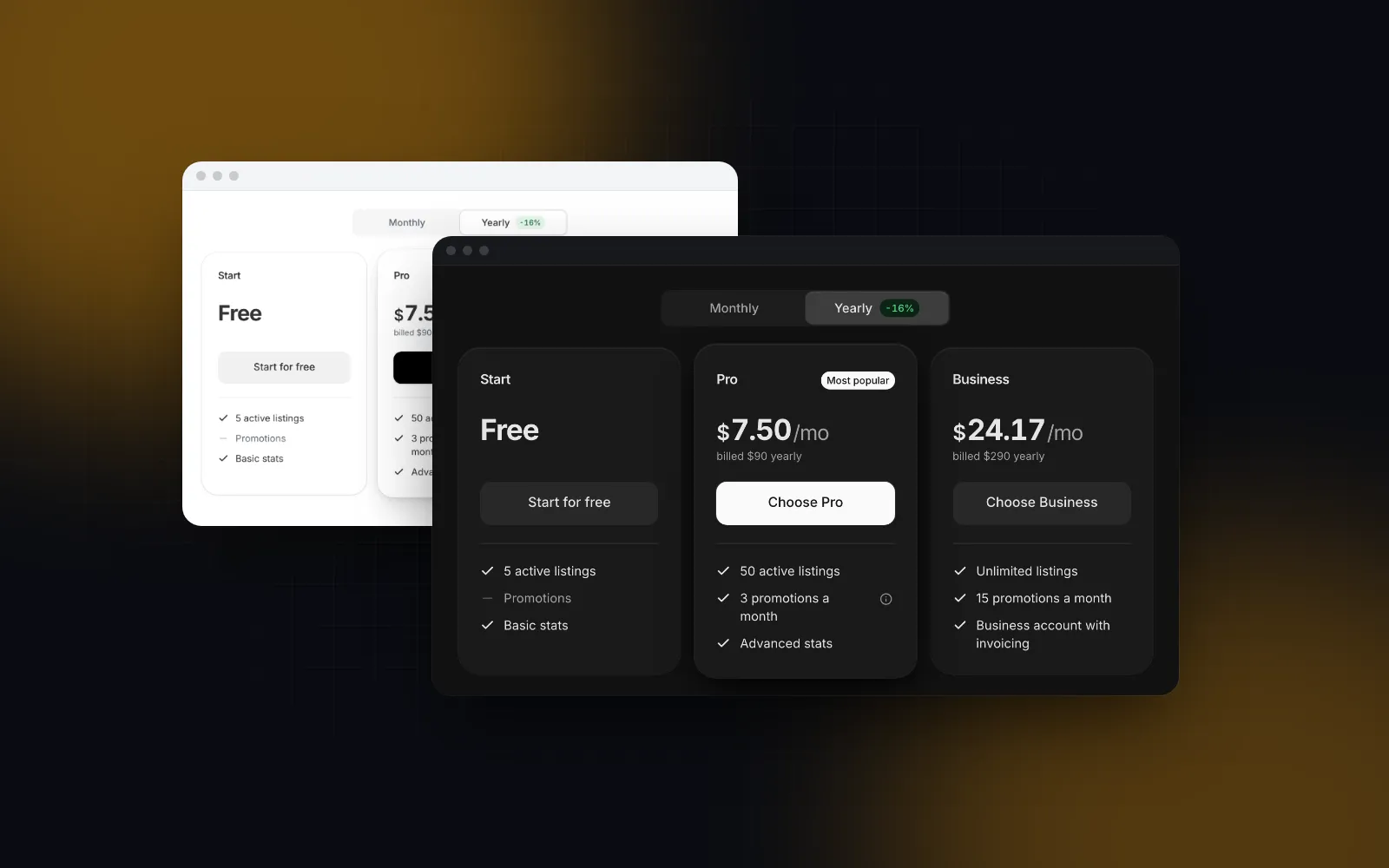
A shadcn pricing page looks simple until you build one: a Monthly / Yearly switch, three plan cards, a comparison table, buttons that start a checkout. shadcn/ui itself ships no pricing block as of October 2026, so most people start from a gallery. shadcnblocks (opens in a new tab) lists five pricing page layouts, shadcn/studio (opens in a new tab) lists twenty with one marked free, and 21st.dev hosts community pricing tables such as Kokonut UI's (opens in a new tab), which animates prices with NumberFlow (all checked on October 16, 2026). What those pages rarely spell out is the part that breaks: the yearly math, what the comparison table does on a 390px screen, and what a screen reader hears when the prices change.
This tutorial builds a React pricing page with the Pricing Table from Wingo UI. We build that library, so we are not neutral. Every snippet uses the component's real props, and every outside fact links to its source.
What does a shadcn pricing page need?
A shadcn pricing page needs five parts, in this order:
- A period switch. Monthly and Yearly, with the yearly saving on the Yearly option. It changes prices already on screen, so it is a radio group; tabs are for swapping panels.
- Plan cards. Two to four plans, one featured. Each card has a name, a one-line "who it is for", a price, a short feature list and one button.
- A comparison table. Every feature in rows, plans in columns. Nielsen Norman Group's comparison table guidelines (opens in a new tab) recommend about five items at most, consistent attributes for every item, and a header that stays visible while long tables scroll.
- Buttons wired to checkout. A button that shows it is working while your server creates the checkout session.
- Objection handling. An FAQ and a closing call to action. These belong to the page around the table.
If you assemble this from shadcn/ui parts, you reach for Card, Toggle Group or Tabs, and Table, then write the price formatting, the savings math, the screen reader announcement and the phone layout yourself. The rest of this post uses a React pricing table component that already does those and installs as source, like any shadcn component. It covers the first four parts in one file.
How do you install the pricing table?
One CLI command copies this shadcn pricing table and everything it imports into your project:
The CLI copies components/ui/pricing-table.tsx into your project as source, plus the items it imports: the Segmented Control for the period switch, Price for the rolling digits, Carousel for phones, Table for the comparison, and the shared tones, motion and locale helpers. It also installs motion and lucide-react. The file is a client component ("use client"), so it works inside an App Router page.
How do you model plans and yearly prices?
Plans are plain data. A price is a number when it never changes, { monthly, yearly } when it follows the switch, 0 for free and null for a custom plan (its button defaults to "Contact us").
The one decision to get right: yearly is what the customer pays per year, the full annual amount. Store the number your billing provider charges and let the component do the division.
With these numbers, Yearly shows Starter as $12/mo with "Billed $144 yearly" under it, and Team as $32/mo with "Billed $384 yearly". The Yearly option gets a "Save 20%" badge: the component computes 1 - yearly / (monthly * 12) for every plan, rounds it down and shows the best one. If you prefer the yearly amount on the card, set yearlyDisplay="per-year", and the line under it reads "You save $36" instead.
A feature can be a string (included) or { label, included?, hint? }. included: false draws it as missing, and a hint adds an (i) button that opens on hover, focus or tap.
Rendering it takes one element:
That page can stay a server component: the plans are plain data, and PricingTable is the client boundary.
$ npx wingo-ui@latest add pricing-tableHow does the Monthly / Yearly toggle work?
The pricing toggle is the free Segmented Control, rendered with aria-label="Billing period". It is a radio group with one tab stop: Left and Right move and select, and on touch you can press the thumb and drag it across. We explain the control in depth, including when Tabs or a Toggle Group fit better, in our React segmented control guide.
Three details matter on a pricing page:
- The prices roll. Each digit rolls to its new value when the period changes. With reduced motion turned on, the new value appears at once. Set
animatePrice={false}to skip the roll for everyone. - A screen reader hears the change once. A polite live region announces the period and the featured plan's new price, for example "Yearly. Starter: $12 per month, Billed $144 yearly". It stays quiet on the first render, so the page load is not read twice.
- The switch hides itself when no plan has a yearly price. Hide it on purpose with
showToggle={false}.
The component opens on Monthly. To open on Yearly without tracking state, pass defaultPeriod="yearly". To read the period from outside (for checkout or analytics), control it with period and onPeriodChange, typed with the exported BillingPeriod. The checkout section below shows the full controlled version.
How do you add the comparison table?
Pass comparison as groups of rows. Each row has one value per plan id: true is a check, false a dash, and anything else prints as text. Add it to the same plans.ts, keyed by the plan ids from above:
A plan id missing from values renders a dash, the same as false, so a typo or a renamed plan id silently reads as "not included". Keep the keys in sync with plans. On a wide layout this pricing comparison table renders as a real <table> whose header row of plan names and buttons sticks while you scroll, which is the sticky header the NN/g article asks for. If your site has a fixed top bar, set the --topbar-offset CSS variable on a parent to its height so the sticky header stops under it instead of behind it.
How should plans stack on a phone?
On a phone, plans should become swipeable cards and the comparison should show one plan at a time. Stacking alone is not enough: three plan cards stacked on a phone push the comparison several screens down, and a comparison table with four columns at 390px either squeezes the labels or scrolls sideways and loses them.
The Pricing Table switches layout at 768px of its own width, measured with container queries instead of the viewport. It lays out correctly in a narrow docs column or next to a sidebar, and because it is pure CSS the server HTML already has the right layout, with no flash on hydration.
Below 768px:
- Plans become swipeable cards that open on the featured plan, with a peek of the next card and dots to jump between them. Left and Right work with focus inside. With two plans,
mobileLayout="stack"puts them one under the other instead. - The comparison becomes a plan picker (another Segmented Control) above one column of rows for the picked plan, ending in that plan's button. This is the same move as turning a table into cards, which we cover for data tables in responsive tables as mobile cards.
- The switch goes full width, and on touch screens it is 44px tall.
The narrow column on the docs page shows the phone layout, so you can try both: open the Pricing Table docs on a laptop and on a phone.
How do you connect the buttons to checkout?
A plan's cta takes either an href (renders a link) or an onClick. When onClick returns a promise, that plan's button shows a spinner until it settles, and repeated taps are ignored. Here is the final page, with the period controlled and each paid plan starting a checkout on your own API route:
Functions cannot cross from a server component to a client component, which is why the onClick plans live in pricing-plans.tsx. If every plan only has an href, you can render PricingTable straight from the server page.
tone="brand" colors the featured plan's badge and button, and any tone other than neutral turns the feature checks green. The tone defaults to neutral, which keeps the checks in the text color, and color takes any CSS color if your brand is not one of the tones. featuredStyle picks how the featured plan stands out: raised (default), outline or inverted.
Do you want the whole pricing page instead?
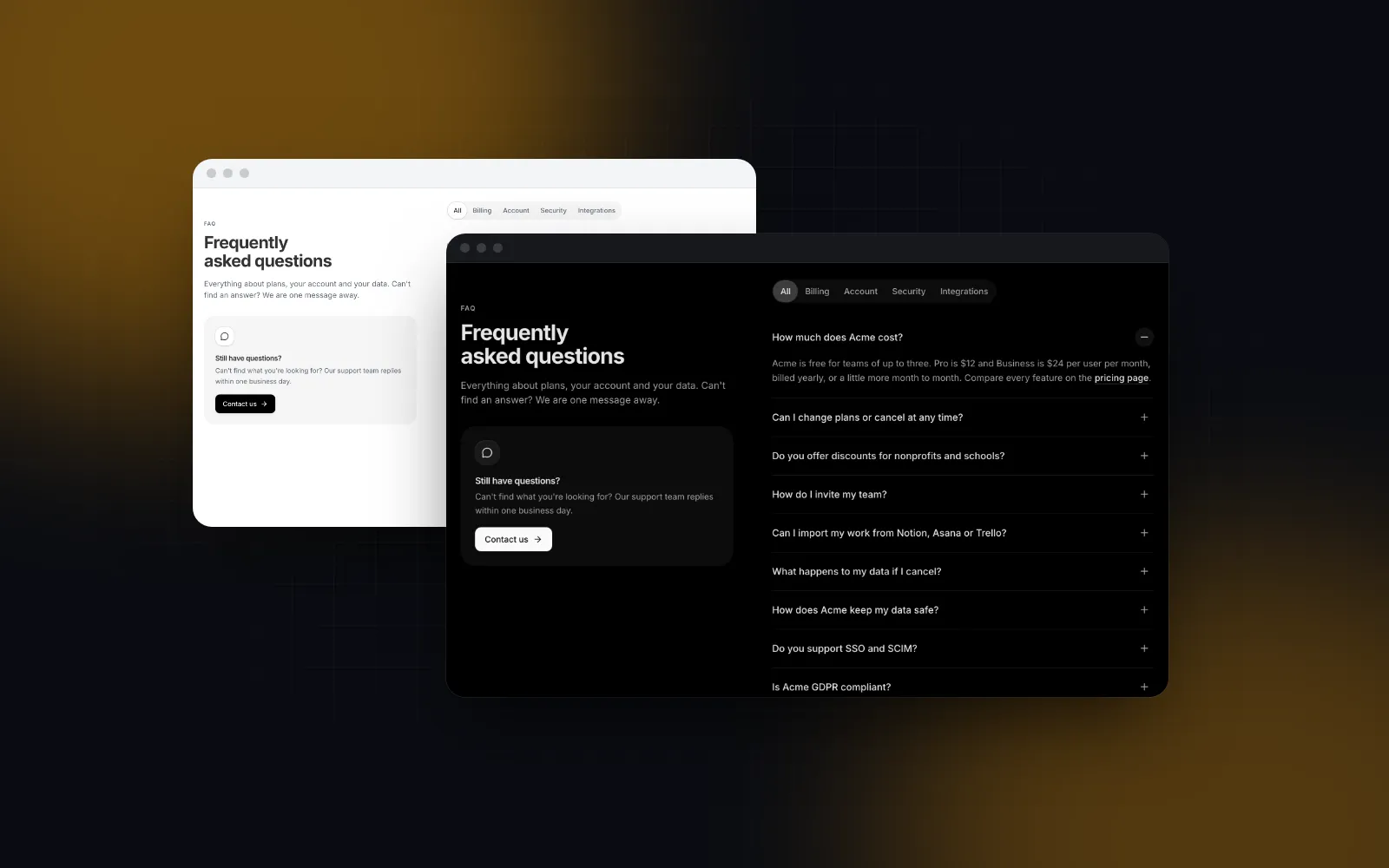
If you want the full route and not only the table, install the Pricing Page block. It puts the table inside a whole page: a marketing header with a phone menu in a bottom sheet, the plans with a Monthly / Yearly switch and a USD / EUR switch, customer logos, three quotes, an FAQ accordion, a closing call to action and a footer.
It ships with sample data (PRICING_PAGE_SAMPLE), so it renders finished with zero props. Pass your own plans, comparison, faqs and testimonials to replace it, and turn sections off with showLogos, showTestimonials, showFaq or showCta. Euro prices are converted from your base prices at eurRate (1.08 by default) and rounded to whole euros. The conversion runs whenever the currency is EUR, so if you pass plans already priced in euros, also set currency="EUR", currencies={["EUR"]} (a single entry hides the switch) and eurRate={1}, or your euro prices get divided a second time. design="bold" swaps the classic look for heavy display type and an inverted featured plan. Set header={false} and footer={false} when the page sits inside your own site layout.
$ npx wingo-ui@latest add pricing-pageThis block replaces the two files from the previous section: pick one or the other for /pricing. Because this page.tsx is a client component, it cannot export metadata. If you need a page title, move the PricingPage element into its own client file and keep page.tsx a server component, as in the previous section.
For a pricing band on a landing page instead of a full route, the Pricing Section is the compact version with four layouts and a "Compare all features" link. One difference to watch: its yearly price is the monthly equivalent when paid yearly, while the Pricing Table's yearly is the yearly total.
What is the next step?
Install the table with npx wingo-ui@latest add pricing-table, paste your plans, and check it at 390px before anything else. The Pricing Table and the Pricing Page are part of Wingo UI Pro; the Segmented Control that drives the switch is free. For the other screens of a SaaS app, start from our Next.js admin dashboard tutorial or browse the rest of the Build it category.
FAQ
Does shadcn/ui have a pricing page or pricing table?
Not as of October 2026. The official blocks page features dashboard, sidebar, login and signup blocks, and the component list has Card, Table, Tabs and Toggle Group but no pricing component, so pricing pages come from community galleries or from composing those parts yourself.
Should a yearly plan show the monthly equivalent or the yearly total?
Show the monthly equivalent with the yearly total under it ("$12/mo, Billed $144 yearly"), so the number compares directly with the monthly price. The Wingo UI Pricing Table does this by default and switches to the yearly amount plus what it saves with yearlyDisplay="per-year".
How is the yearly savings percentage calculated?
It is 1 minus the yearly price divided by twelve monthly payments, rounded down. $144 a year against $15 a month is 1 - 144 / 180, which is 20%. The Pricing Table takes the best saving across all plans for the badge on the Yearly option.
How do I make a pricing table responsive on mobile?
Turn the plans into a swipeable row of cards that opens on the featured plan, or stack them when there are only two, and replace the comparison table with a plan picker above one column of rows. Wide comparison tables that scroll sideways on a 390px screen lose the row labels.
Is the Wingo UI pricing table free?
The Segmented Control it uses for the period switch is free. The Pricing Table, the Pricing Section and the full Pricing Page block are part of Wingo UI Pro, and all of them install with npx wingo-ui@latest add.
- Pricing
- React
- shadcn/ui
- Next.js
- Tailwind CSS