Shadcn Login Page: Magic Link, Codes, 2FA and Recovery
A shadcn login page usually starts as a block you copy in an afternoon and ends as a week of edge cases. The form posts, then someone mistypes their password twice, asks for a reset link, opens it on their phone, or signs in with Google and gets a spinner that never stops. shadcn/ui ships five login blocks (login-01 to login-05), but they are layouts. The form in login-03, for example, has no onSubmit, no error message and a "Forgot your password?" link that points to # (checked on October 16, 2026 in the shadcn/ui login blocks (opens in a new tab)). Galleries such as shadcnblocks (opens in a new tab) and Tailark (opens in a new tab) add more layouts, and wiring them to your auth backend is still your job.
This tutorial builds a complete Next.js login page with the Login Page block from Wingo UI, the library we build, so we are not neutral. It covers password sign-in, magic links, email codes, social providers, two-step verification and password recovery, plus the error states most templates skip.
What does a production login page need?
Eight screens, even if the person only ever sees two of them:
- Sign in. Email, password, "Remember me", a forgot password link, social buttons, and a switch to a passwordless method.
- Check your email. After a magic link: the address, a resend button that waits, and a way to use another address.
- Enter the code. A 6 digit code sent by email, for passwordless sign-in.
- Two-step verification. The authenticator code after a correct password, with a backup code fallback.
- Forgot password. One email field.
- Reset link sent. A message that never confirms whether the account exists.
- Set a new password. Strength rules and a confirmation field.
- Password changed. A clear way back to sign in.
The Login Page block renders all eight as views of one component (sign-in, magic-link-sent, otp, two-factor, forgot, forgot-sent, reset, reset-done). Each view slides in from the side it belongs to, focus moves to its title and the change is announced to screen readers. On phones the form fills the screen with 48px fields and the hero is gone.
$ npx wingo-ui@latest add login-pageHow do you install the login page block?
One CLI command copies the block and everything it imports into your project:
The CLI copies components/blocks/login-page.tsx, its layout frame and its sample data into your project as source, plus the pieces it imports: Password Input for the reveal toggle and Caps Lock warning, OTP Input for the code cells, Input, Button, Alert, Checkbox, Toast, the use-cooldown hook and the form validation helpers. It also installs motion, lucide-react, react-hook-form and zod. The file starts with "use client". A Server Component can render it, but the props you need in production (onSuccess with the router, linkComponent={Link}, handlers that turn returned errors into rejections) are functions defined in the browser, so in practice you wrap it in a small client component.
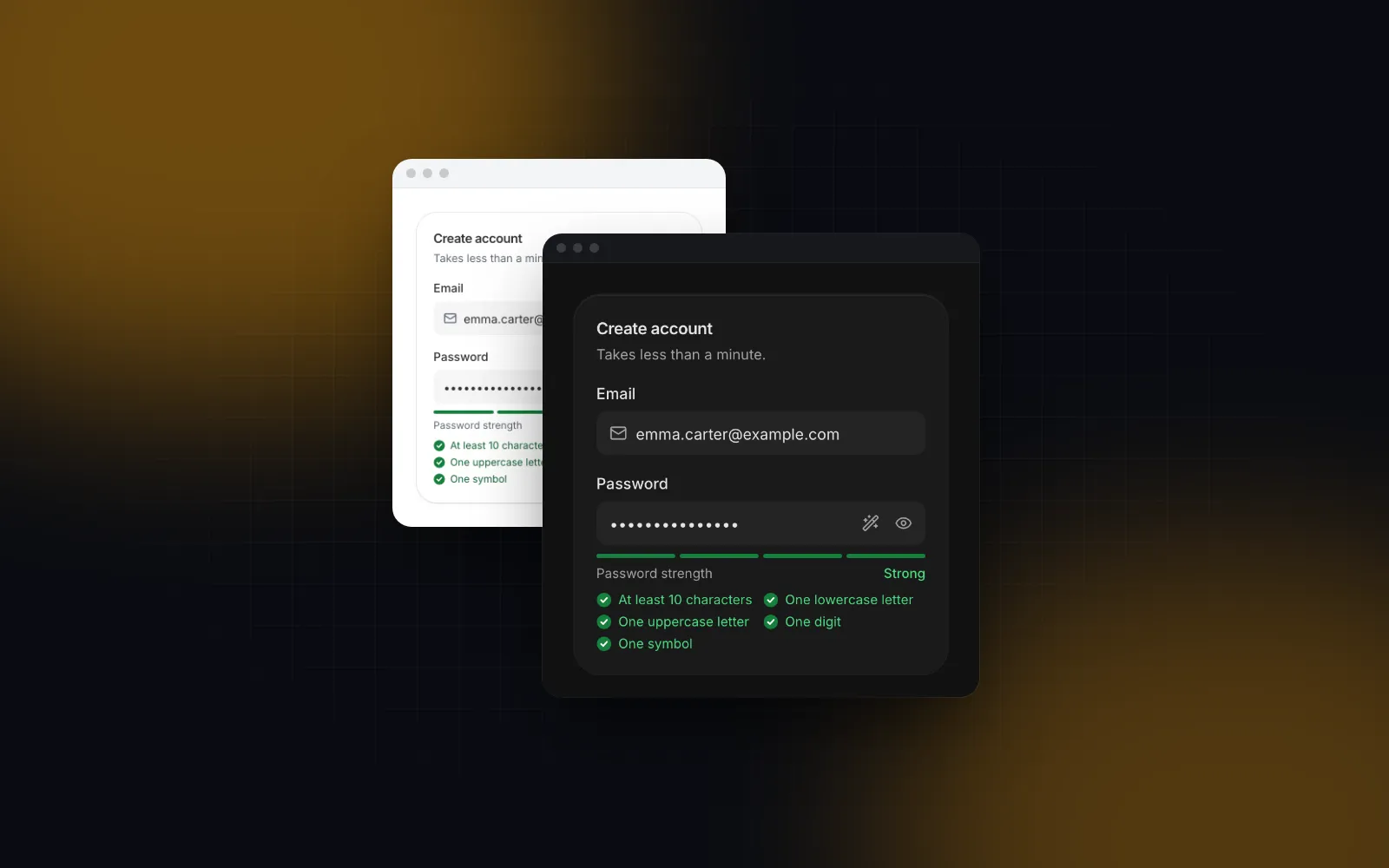
Unlike a static Tailwind login page, the block keeps its state, validation and view changes inside the file, and every class uses the theme tokens (bg-background, text-muted-foreground, border-border), so it follows your light and dark themes without edits. Because it is source, you can still change any line.
How do you connect it to Next.js Server Actions?
Every handler prop (onSignIn, onMagicLink, onSendCode, onVerifyCode, onForgot, onReset, onProvider) can return a promise. While it is pending, the button shows a spinner. When it rejects, the message of the error goes into the red alert above the form. When it resolves, the block moves to the next view or calls onSuccess.
The Next.js authentication guide (opens in a new tab) uses Server Actions for sign-in logic because they always run on the server, and the error handling guide (opens in a new tab) says to model expected errors, such as a wrong password, as return values instead of throwing them (both checked October 16, 2026). There is a practical reason too: in a production build, Next.js replaces the message of an error forwarded from the server with a generic one plus a digest id, so sensitive details do not leak (error.js reference (opens in a new tab)). A "Wrong code" thrown inside the action would reach the alert as noise. The action returns its error as data, and the client turns it into a rejection for the block.
The Server Actions
The auth object stands for whatever library you use. The block does not care how the session is made, only whether the promise resolves or rejects.
The client screen
That server file is the whole Next.js login page route, and everything interactive lives in the client screen. Three choices in that code are worth explaining.
Two-step only for the accounts that have it. The twoFactor prop is a plain boolean that sends every successful password sign-in to the code view. Most apps only know after the password check, so the screen controls view and switches to two-factor in onSuccess when the server said so. After the code passes, onSuccess runs again and the router moves on.
Methods in order. methods={["password", "magic-link", "otp"]} shows the password form first, with "Email me a sign-in link" and "Email me a code" under it. Put "otp" first and the page opens as a passwordless login UI. Pass methods={[]} with providers and only the provider buttons remain, which fits a company that uses single sign-on.
Real links. linkComponent={Link} makes the "Create one" link and the footer links use next/link. The Create one link goes to registerHref, where the Register Page block handles sign-up with the same layout.
Which error states should a login page handle?
At least nine, from a wrong password to a locked code input, and they are the part a static shadcn login block leaves out. Here is what each failure does in the Login Page, with the default English copy.
Two of these follow the OWASP Authentication Cheat Sheet (opens in a new tab) directly: failed sign-ins get one generic message that never says which part was wrong, and the Forgot Password Cheat Sheet (opens in a new tab) asks for a consistent message for existing and non-existing accounts. Keep that promise on the server too: same response, similar timing.
The 60 second lock and the resend wait are client-side courtesy. They stop a person from hammering the button, and they do nothing against a script calling your endpoint. Rate limit codes, sign-ins and reset requests on the server, per account, and send the attempts left back in the error message so the alert tells the truth.
$ npx wingo-ui@latest add login-pageMagic link or one-time code: which is better for passwordless login?
Offer a code when people switch devices or sit behind a corporate mail filter, and a link when they mostly sign in on the device that reads their email. Both send something to the inbox, so both are as safe as the email account; the difference is what the person does next.
A magic link is one click when the email opens on the same device. It breaks in two common cases: the person starts on a laptop and opens the email on a phone, or a corporate mail scanner opens the link first. Scalekit's comparison of OTPs and magic links (opens in a new tab) notes that scanners can use up a single-use link before the person clicks it. A defensive pattern is a link that opens a page with a "Continue" button, and only the button's POST spends the token.
A code keeps the person in the tab where they started and works across devices. The OTP Input inside the block sets autocomplete="one-time-code", so iOS and Android can offer the code from the message, and pasting "123 456" fills all six cells. The sixth digit submits by itself.
After either email is sent, the "Check your email" view shows the address in bold, an "Open Gmail" or "Open Outlook" button when the domain matches, a spam hint and the resend button. The wait comes from resendSeconds (30 by default) and is kept in local storage, so a reload does not reset it.
How do you build the forgot and reset password flow?
The forgot view takes the email that was typed on the sign-in form, so nobody types it twice. onForgot sends the link, and when it resolves the block moves to the "forgot-sent" view.
The reset link opens a separate route. Read the token on the server and pass it to a small client screen that starts on the reset view:
resetPassword is the last Server Action in the actions file above. The page checks the token before it renders anything, because the block has no "link expired" view. A token that expires while the person types still fails safely: the action returns the error and the alert shows it. The reset view shows a strength meter and a checklist (length, lowercase, uppercase, a number, a symbol), and onReset only runs when the password has the minimum length, scores at least Fair and matches its confirmation. passwordMinLength sets the length rule (8 by default). OWASP treats passwords under 15 characters as weak when there is no second factor, so raise it if your app does not offer two-step verification.
The last view says "We signed you out on your other devices", so make that true on the server, and send a confirmation email. Its "Sign in" button calls onSuccess, which goes back to the sign-in route instead of signing the person in automatically, as the OWASP reset guidance suggests.
$ npx wingo-ui@latest add login-pageHow do you customize the login page layout and copy?
Through props: everything visual has one, with a default.
layout:"split"(form beside a hero from 1024px),"centered"or"card"(a raised card on a dotted backdrop).heroImageputs a photo behind the hero;heroreplaces its content. The default hero is sample copy for a made-up CRM, so replace it.logo,tone(neutral by default,"brand"for your accent on the primary buttons),radius("sm","md","lg") andsize("lg", the default, is 48px fields;"md"is 40px, 44px on touch screens).labelstakes any string, merged overDEFAULT_LOGIN_PAGE_LABELS, which is how you translate the page.localeonly sets thelangattribute, so translated copy still goes throughlabels.providerLayout="row"turns the stacked "Continue with Google" buttons into icon buttons side by side.
If you only need one piece in a form of your own, the parts work alone. A code step with the free OTP Input:
Our React OTP input guide covers paste, SMS autofill and resend timers in more depth, and the React form components guide covers the field, label and error anatomy the block uses.
What is the next step?
Install the blocks and replace the simulated default handlers with your Server Actions:
The Login Page, the Register Page and the Password Input are part of Wingo UI Pro, which costs $8 a month, $80 a year or $150 once as of October 2026 (see pricing); the OTP Input is free. For the screens that come after sign-in, the Next.js admin dashboard tutorial builds the app shell, and the Build it category collects the other full-screen tutorials.
FAQ
Does shadcn/ui have a login page?
Yes. The shadcn/ui blocks page lists five login blocks (login-01 to login-05) and five signup blocks as of October 2026. They are layouts with no submit handler, no error state and no recovery views, so the auth flow is yours to build.
Should a login error say whether the email exists?
No. OWASP recommends one generic message such as "Invalid user ID or password" for every failed sign-in, and the same answer on the forgot password form whether or not an account exists. The Login Page block follows both rules by default.
Magic link or one-time code: which is better for passwordless login?
A code keeps people in your tab and survives corporate mail scanners, which can open a link and use up a single-use token before the person clicks it. A link is one click on the same device. The Login Page supports both through the methods prop, so you can offer one first and the other as a fallback.
How do I show Server Action errors in a client login form?
Return the error from the Server Action as data, for example { error: "The email or the password is not correct" }, and throw it in the client handler. The Next.js docs say to model expected errors as return values, and a message thrown on the server does not reach the client intact in production. The Login Page shows the message of any rejection in its alert.
Is the Wingo UI login page free?
The OTP Input it uses for codes is free. The Login Page block, the Register Page block and the Password Input are part of Wingo UI Pro, and all of them install with npx wingo-ui@latest add.
- Authentication
- Next.js
- shadcn/ui
- React
- Tailwind CSS