Skip to content
WingoUI
ComponentsTemplatesDocsPricingAI agentsBlogChangelog
  1. Home
  2. Blog
  3. Building UI with AI agents
  4. Codex MCP Setup: Build React UI With Real Components
Auf Deutsch lesen
  1. Blog
  2. Building UI with AI agents
  3. Codex MCP Setup: Build React UI With Real Components
Building UI with AI agents

Codex MCP Setup: Build React UI With Real Components

SR
Serban Rusu · Founder of Wingo UI
Oct 13, 2026 · 11 min read

On this page

0%
  1. What does a Codex MCP server setup need?
  2. Step 1: How do I get a key?
  3. Step 2: What does agents install codex write?
    1. Should Codex use HTTP or the stdio proxy?
  4. Step 3: How do I export the key for Codex?
  5. Step 4: How do I check the connection?
  6. What do the AGENTS.md rules tell Codex?
  7. Which prompts get OpenAI Codex to build React UI from real components?
    1. Prompt 1: a settings screen from settings-page
    2. Prompt 2: a sign-in from login-page
    3. Prompt 3: swap a hand-written component
  8. What goes wrong, and how do I fix it?
  9. Where should I start?
  10. FAQ
    1. Where does Codex store MCP servers?
    2. How do I pass an API key to a remote MCP server in Codex?
    3. Why does Codex not see my MCP server?
    4. Does Codex read AGENTS.md from my home folder?
    5. Can Codex install Pro components with a free key?

TL;DR

Run npx wingo-ui@latest login, then npx wingo-ui@latest agents install codex. It adds an [mcp_servers.wingo-ui] table to ~/.codex/config.toml and a short rules block to ~/.codex/AGENTS.md; with WINGO_UI_API_KEY exported, the table uses url and bearer_token_env_var, otherwise it runs the local npx -y wingo-ui@latest mcp proxy. Restart Codex, check the server with codex mcp list or /mcp, and ask for screens by block name so Codex calls search_components and get_block before it writes code.

Published Oct 13, 2026

OpenAI Codex writes React fast, and left alone it writes the components it remembers: a settings page from scratch, a modal without a phone layout, a button with a hand-rolled spinner. A Codex MCP connection to your component library fixes that, because Codex can search the real catalog, read props with their defaults and install the source with a CLI before it writes a line. This tutorial sets that up end to end with our library, Wingo UI: the key, the config.toml entry, the rules file, the restart and the check, three prompts that produce whole screens from real blocks, and the errors you are likely to hit.

We tested it on October 13, 2026 with Codex CLI 0.162.1, our CLI 1.0.3 and Wingo UI release 1.8.0, and checked the config syntax against OpenAI's Codex MCP docs (opens in a new tab) and config reference (opens in a new tab) on the same day. What an MCP server for components is and why agents need one is covered in our component library MCP guide; this post is the Codex half of it, in detail.

What does a Codex MCP server setup need?

Four pieces, and one command writes the two files:

PieceWhereWho writes it
An API key~/.config/wingo-ui or WINGO_UI_API_KEYnpx wingo-ui@latest login, or your account page
The MCP server entry~/.codex/config.toml, table [mcp_servers.wingo-ui]npx wingo-ui@latest agents install codex
The rules~/.codex/AGENTS.md, a marked blockthe same command
A restartCodex reads both files when it startsyou

Step 1: How do I get a key?

Sign the CLI in once per computer:

bash
npx wingo-ui@latest login

It opens the browser to approve the device and saves an API key in ~/.config/wingo-ui. A free account needs only an email. The key decides what Codex receives:

  • No key: search, props, docs, design rules and tokens all answer, with no source. We called get_account_status without one and the server said exactly that.
  • Free key: adds the source of the 75 free items, the Button among them.
  • Pro key: adds the source of every item, including blocks like the Settings Page and Login Page used below.

For the HTTP setup in step 3 you also want the key as a value: create one for Codex on your account's API keys page, so you can revoke it on its own later.

Step 2: What does agents install codex write?

Run it in the project:

bash
npx wingo-ui@latest agents install codex

Without WINGO_UI_API_KEY in the environment, on a clean machine, it printed these lines (plus a note about the key):

text
Coding agents (Codex; MCP over the local stdio proxy)
created ~/.codex/AGENTS.md
created ~/.codex/config.toml

The default is your user config on purpose. OpenAI's config reference says Codex "loads project-scoped config files only when you trust the project", and untrusted projects skip the whole .codex/ folder. A server in your home folder works in every project, trusted or not.

For a repository your team shares, --scope project writes .codex/config.toml and a marked block in the project's AGENTS.md instead. In our test project, create-next-app had already written an AGENTS.md; the CLI appended its block and kept the rest. Running the command again changes nothing, and it keeps other servers in the file.

Should Codex use HTTP or the stdio proxy?

The CLI picks HTTP when WINGO_UI_API_KEY is set and the proxy otherwise; --mcp http or --mcp stdio picks for you. This is the Codex config.toml mcp_servers table each one writes:

toml
# HTTP: Codex calls the server directly and sends $WINGO_UI_API_KEY as a bearer token
[mcp_servers.wingo-ui]
url = "https://wingo-ui.com/mcp"
bearer_token_env_var = "WINGO_UI_API_KEY"
toml
# stdio: Codex starts a local proxy that uses the key saved by wingo-ui login
[mcp_servers.wingo-ui]
command = "npx"
args = ["-y", "wingo-ui@latest", "mcp"]

bearer_token_env_var holds the name of a variable, never the key itself, so the file is safe to sync or share. HTTP is one less process and starts instantly. The proxy needs no environment setup: if you already ran login, it works. Pick the proxy if you start Codex from an editor or app that may not load your shell profile.

Step 3: How do I export the key for Codex?

HTTP mode only. Codex reads the variable when it starts, so it has to be in the environment of the shell that launches it. Put it in your shell profile:

bash
# ~/.zshrc or ~/.bashrc
export WINGO_UI_API_KEY="wui_..."

Open a new terminal, and check that the variable is there before you start Codex: echo $WINGO_UI_API_KEY | cut -c1-4 should print wui_.

Step 4: How do I check the connection?

Restart Codex, then check from the shell. In our test project codex mcp list printed:

text
Name Url Bearer Token Env Var Status Auth
wingo-ui https://wingo-ui.com/mcp WINGO_UI_API_KEY enabled Bearer token

codex mcp get wingo-ui shows the transport (streamable_http for HTTP). Inside a Codex session, type /mcp to see the active servers. Then ask one question that only the server can answer:

text
Call get_account_status on the wingo-ui MCP server and tell me what it says.

If the answer mentions your plan, the key reached the server. If it says "Anonymous", Codex connected without a key: check step 3.

What do the AGENTS.md rules tell Codex?

When to call which tool, how to install, and what never to do. This is the block the CLI wrote, between version markers that npx wingo-ui@latest agents update rewrites later:

md
<!-- wingo-ui:start v=2 -->
## Wingo UI
This project builds its UI with Wingo UI (React 19 + Tailwind CSS v4 components installed as source, see `wingo-ui.json`).
- Before writing UI, use the `wingo-ui` MCP tools: `search_components` to find what exists (blocks for whole screens), `get_component` / `get_block` for props and usage, `get_design_rules` for tokens, sizes, motion and mobile rules. Never recreate a component the library has.
- Install with `npx wingo-ui@latest add <slug...>`. At the start of UI work run `check_updates` (or `npx wingo-ui@latest outdated`) and mention updates; update with `npx wingo-ui@latest update`.
- Semantic tokens only (`bg-background`, `bg-surface`, `text-muted-foreground`, `border-border`), configure components through props, keep `cn()`, `data-slot` and license headers in copied files. Check 390px and 1440px, light and dark.
- No MCP tools available? The CLI has `search`, `info`, `add`, `outdated`, `update`; the docs for models are at https://wingo-ui.com/llms.txt.
<!-- wingo-ui:end -->

How Codex finds it, from OpenAI's AGENTS.md guide (opens in a new tab): first ~/.codex/AGENTS.md (or AGENTS.override.md), then one file per folder from the project root down to where you started Codex, joined in that order up to project_doc_max_bytes, 32 KiB by default. Files closer to your working folder come later, so a project's own rules can refine the global block.

That order is the one trade-off of the default setup: the global block says "This project builds its UI with Wingo UI" in every repository on your machine. If you also work on projects that use something else, install with --scope project there, or add a line to those projects' AGENTS.md that says which library they use. If you want a fuller Codex AGENTS.md React template, with commands, tokens and the checks for every screen, our AGENTS.md vs CLAUDE.md comparison has one.

Which prompts get OpenAI Codex to build React UI from real components?

Prompts that name the block, say where its data comes from and ask for a list of what is still simulated. That holds for any OpenAI Codex React UI task, with any library. Our blocks ship working sample handlers so their demos run, and every handler you do not pass keeps its sample behavior. Here are three, with the tools the rules and server instructions lead Codex to call. We called each of those tools on the server directly to check its answer; how often a given model follows them varies.

PromptTools Codex should callThen
Settings screensearch_components (kind block), get_block for settings-page, get_design_rules for formsnpx wingo-ui@latest add settings-page
Sign-insearch_components, get_block for login-pagenpx wingo-ui@latest add login-page
Component swapcheck_updates, search_components, get_component for buttonnpx wingo-ui@latest add button

Prompt 1: a settings screen from settings-page

text
Build app/settings with the Wingo UI settings-page block. Read its props with get_block first.
Keep the Profile, Account and Notifications sections only. Load the profile and account from
getSessionUser() in lib/session.ts on the server, and save each section with PATCH /api/settings/<section>.
Our product is called Harbor: replace the sample product name in every label you show.
List every on* handler or verify* function you left on its sample default.

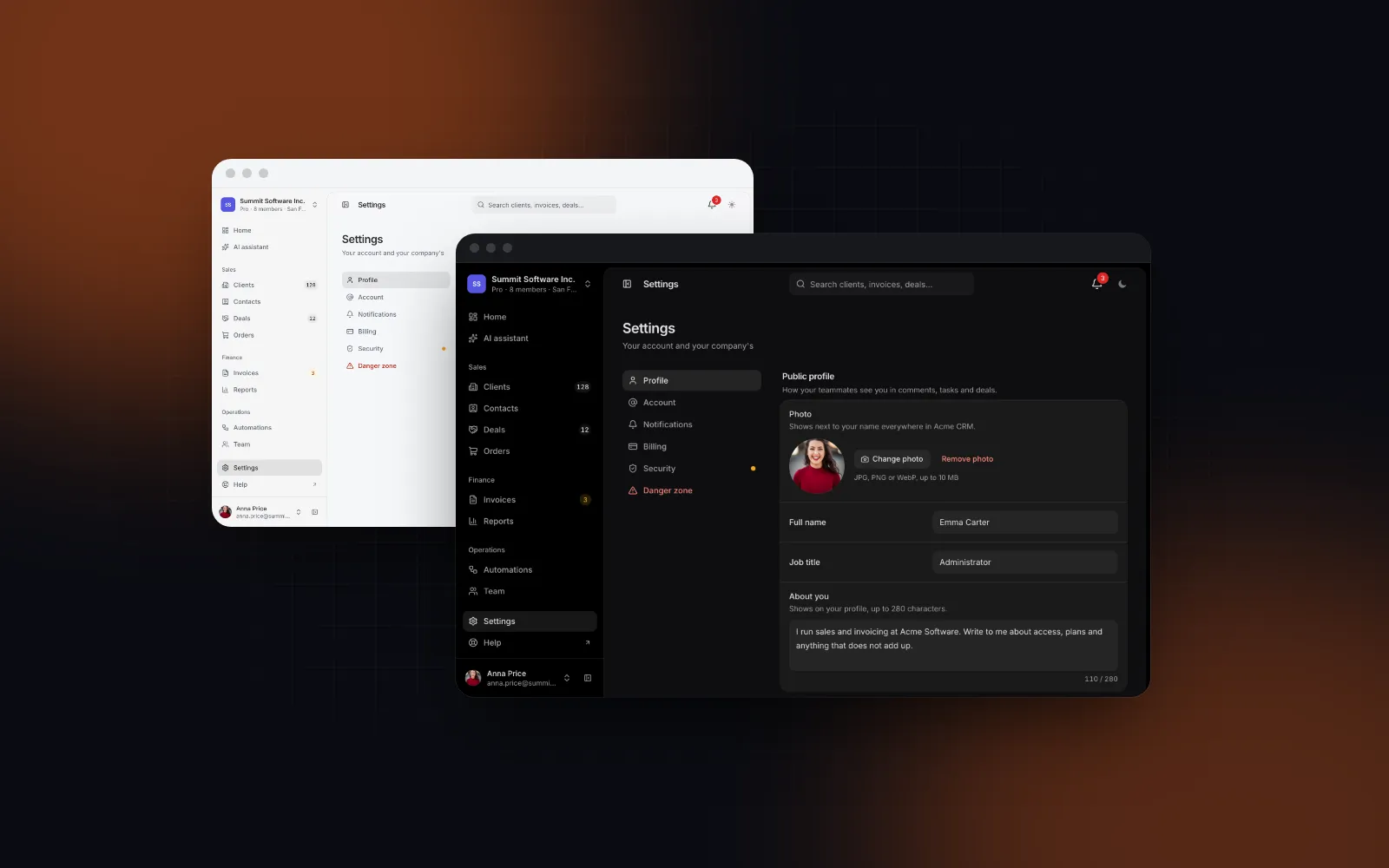
The block's section ids are its own (profil, cont, notificari, facturare, securitate, pericol); the labels on screen are English. A good run ends with a client component like this, which we type-checked against release 1.8.0:

tsx
// app/settings/settings-screen.tsx
"use client";
import Link from "next/link";
import {
SettingsPage,
type SettingsAccount,
type SettingsFormSection,
type SettingsProfile,
type SettingsSaveValues,
} from "@/components/blocks/settings-page";
async function patch(path: string, body: unknown) {
const res = await fetch(path, {
method: "PATCH",
headers: { "Content-Type": "application/json" },
body: JSON.stringify(body),
});
// a rejection keeps the draft and shows this message in the save bar
if (!res.ok) throw new Error("Your changes were not saved. Try again.");
}
type SettingsScreenProps = { profile: SettingsProfile; account: SettingsAccount };
export function SettingsScreen({ profile, account }: SettingsScreenProps) {
return (
<SettingsPage
sections={["profil", "cont", "notificari"]}
profile={profile}
account={account}
onSave={(section: SettingsFormSection, values: SettingsSaveValues[SettingsFormSection]) =>
patch(`/api/settings/${section}`, values)
}
onPreferenceChange={(preference, value) => patch("/api/settings/preferences", { preference, value })}
labels={{
photoDescription: "Shows next to your name everywhere in Harbor.",
workspaceAddressDescription: "Your teammates open Harbor at this address.",
workspaceDomain: "harbor.app/",
}}
linkComponent={(props) => <Link {...props} />}
/>
);
}

The list Codex should hand back includes onUpload (the photo upload), onEmailChange and verifyEmailCode (the change-email dialog, where the code 123456 passes until you wire it), and checkWorkspaceAddress. In the demo below, a save fails on purpose so you can see what the user sees when your API rejects one.

Open Profile, edit the full name and press Save: this demo drops the first save, so the bar shows the error and keeps your edit, and the next Save goes through
$ npx wingo-ui@latest add settings-page
ProSettings Page docs

Prompt 2: a sign-in from login-page

text
Build /login from the Wingo UI login-page block, centered layout, no social providers.
Sign in with a password or a 6 digit email code through our /api/auth routes, go to /dashboard
on success, and replace every Northwind string in the labels with Harbor.
List every handler you left on its simulated default.

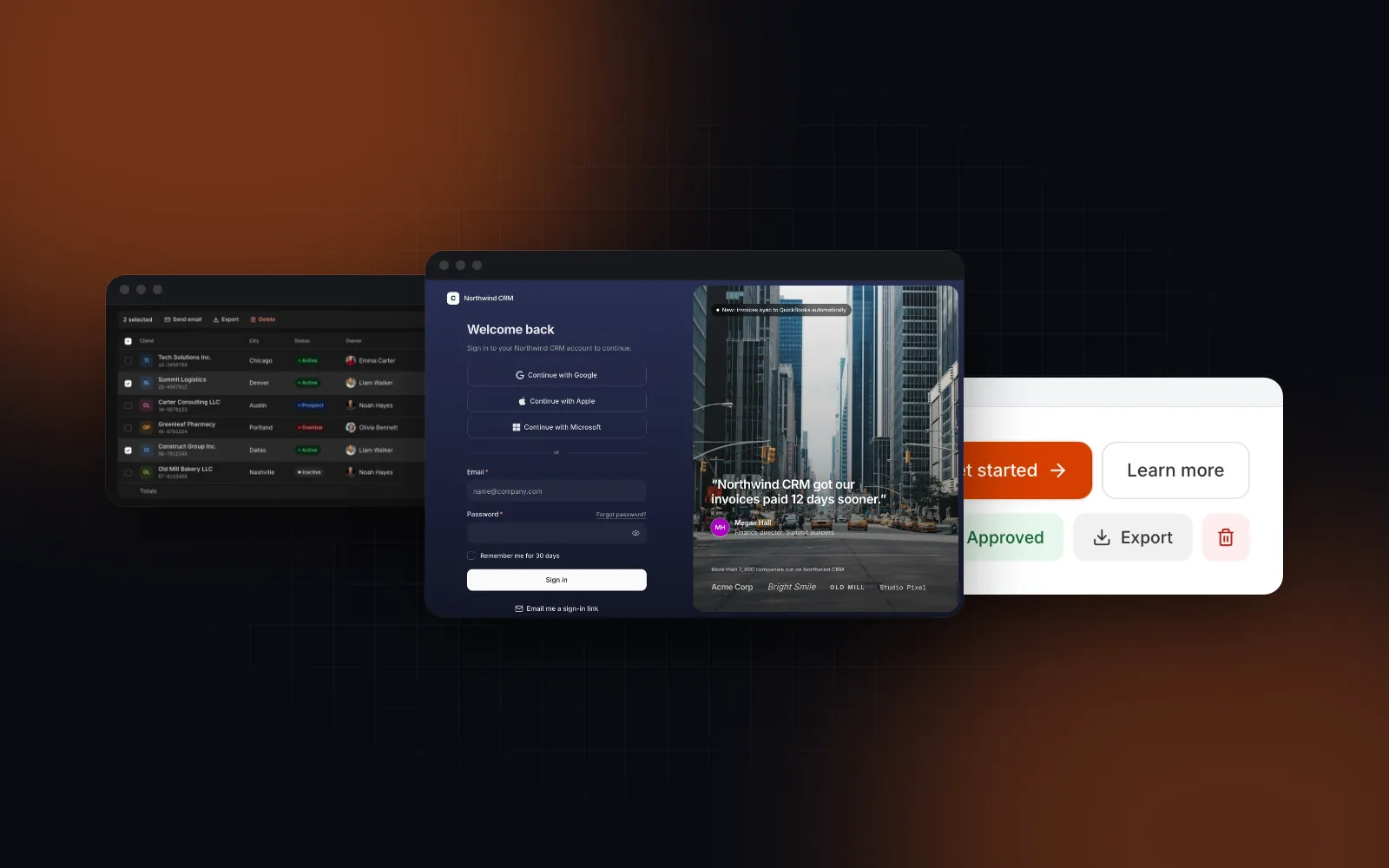
The sample brand matters here: the block's default labels name Northwind CRM in the app name and the sign-in description and Northwind Software in the copyright line, and its default logo is the Northwind mark. The result we expect:

tsx
// app/login/login-screen.tsx
"use client";
import Link from "next/link";
import { useRouter } from "next/navigation";
import { LoginPage, type SignInValues, type VerifyCodeContext } from "@/components/blocks/login-page";
async function post(path: string, body: unknown) {
const res = await fetch(path, {
method: "POST",
headers: { "Content-Type": "application/json" },
body: JSON.stringify(body),
});
if (!res.ok) {
const data = (await res.json().catch(() => null)) as { message?: string } | null;
// the page shows the message of a rejected promise in its error alert
throw new Error(data?.message ?? "Something went wrong. Try again.");
}
}
export function LoginScreen() {
const router = useRouter();
return (
<LoginPage
layout="centered"
methods={["password", "otp"]}
showProviders={false}
logo={<span className="text-lg font-semibold">Harbor</span>}
labels={{
appName: "Harbor",
signInDescription: "Sign in to your Harbor account to continue.",
copyright: "© 2026 Harbor Inc.",
}}
onSignIn={(values: SignInValues) => post("/api/auth/sign-in", values)}
onSendCode={(email) => post("/api/auth/send-code", { email })}
onVerifyCode={(code: string, context: VerifyCodeContext) => post("/api/auth/verify-code", { code, ...context })}
onForgot={(email) => post("/api/auth/forgot", { email })}
onReset={(password) => post("/api/auth/reset", { password })}
onSuccess={() => router.push("/dashboard")}
registerHref="/signup"
linkComponent={(props) => <Link {...props} />}
/>
);
}

Without onVerifyCode, the code view accepts 123456 for anyone, which is the line in the agent's report you most want to see. With the methods above and the providers hidden, the list should come back empty.

Sign in with any email and a password shorter than 8 characters to see the error alert, then open Forgot password: the email you typed carries over
$ npx wingo-ui@latest add login-page
ProLogin Page docs

Prompt 3: swap a hand-written component

text
Run check_updates for the items in wingo-ui.json first. Then find every button in app/account
that renders its own spinner while saving, and replace it with the Wingo UI button.
Use get_component for its props, install it with the CLI, and show me the diff.

The point is get_component: our Button has a loading prop, so the hand-rolled spinner and the disabled juggling go away:

tsx
import { Button } from "@/components/ui/button";
export function SaveButton({ saving, onSave }: { saving: boolean; onSave: () => void }) {
return (
<Button tone="brand" loading={saving} loadingText="Saving" onClick={onSave}>
Save changes
</Button>
);
}

While saving is true the label swaps for a spinner and "Saving", the width holds, clicks are ignored and aria-busy is set.

What goes wrong, and how do I fix it?

  • The server is missing in a trusted project. You installed with --scope project, and Codex does not trust the folder. In our test, codex mcp list printed "No MCP servers configured yet" until we marked the folder as trusted. Trust lives in ~/.codex/config.toml as projects.<path>.trust_level; we added trust_level = "trusted" under a [projects."<path>"] table and the server appeared. Trust the project when Codex asks, or install with the default user scope.
  • The key variable is missing. Codex has no token to send for the HTTP entry. Check with the echo line from step 3 in the shell you start Codex from, export WINGO_UI_API_KEY in your profile, open a new terminal and restart Codex. An editor or desktop app may not load your shell profile; switch to the proxy with npx wingo-ui@latest agents install codex --mcp stdio.
  • The stdio proxy times out on first start. npx downloads the package the first time, and Codex waits 10 seconds by default (startup_timeout_sec). Add startup_timeout_sec = 30 to the [mcp_servers.wingo-ui] table, or run npx -y wingo-ui@latest --version once beforehand.
  • A free key and a Pro block. get_block still returns props and usage for settings-page, but no source, and npx wingo-ui@latest add settings-page stops with "Settings Page is part of Wingo UI Pro". Ask Codex to build from free components instead, or upgrade.
  • Codex writes UI without calling the tools. Check that the rules block is in an AGENTS.md Codex reads (npx wingo-ui@latest agents status tells you), and name the block in the prompt.

Where should I start?

Run npx wingo-ui@latest login, then npx wingo-ui@latest agents install codex, restart Codex and try prompt 3 on a free component first. The MCP server docs list every tool, and the coding agents docs cover the other agents and the --scope and --mcp options. The Settings Page and Login Page blocks are part of Wingo UI Pro, on the pricing page. Everything we ship for coding agents is on one page, Wingo UI for AI agents, and more setups like this one live under Building UI with AI agents, including the Claude Code shadcn MCP setup for the same job in Claude Code.

Components in this post

  • Button

    The React button component every screen starts with: five variants, six tones, all sizes, and a loading state that never jumps.

    Free
  • Login Page

    A React login page with password, magic link or code sign-in, Google, Apple and Microsoft buttons, two-step codes and password recovery.

    Pro
  • Settings Page

    A React account settings page for a back office: profile, account, notifications, billing, security and a danger zone, with a save bar.

    Pro

FAQ

Where does Codex store MCP servers?

In config.toml: ~/.codex/config.toml for every project, or .codex/config.toml inside a project. OpenAI's docs say Codex loads the project file only when you trust the project, which is why our CLI writes to the user file by default.

How do I pass an API key to a remote MCP server in Codex?

Set bearer_token_env_var to the name of an environment variable, such as WINGO_UI_API_KEY, and export that variable in the shell that starts Codex. Codex sends its value as a bearer token in the Authorization header, so the key never goes in the config file.

Why does Codex not see my MCP server?

Usually the server sits in .codex/config.toml of a project Codex does not trust, or Codex was not restarted after the change. Run codex mcp list in the project folder: if the server is missing there, Codex is not reading the file.

Does Codex read AGENTS.md from my home folder?

Yes. Codex reads ~/.codex/AGENTS.md first, then AGENTS.md files from the project root down to the current folder, and joins them up to 32 KiB by default (project_doc_max_bytes).

Can Codex install Pro components with a free key?

No. A free key returns the source of free items; Pro blocks such as the Settings Page still return their props and docs, but the source and npx wingo-ui@latest add need a Pro account.

  • Codex
  • OpenAI
  • MCP
  • AGENTS.md
  • AI agents

Share

SR

About the author

Serban Rusu

Founder of Wingo UI

Serban Rusu founded Wingo UI. He builds its component library, CLI and MCP server, and writes about React interfaces for phones and AI coding agents.

More from Serban
Keep reading

Related posts

All posts
Building UI with AI agents

Claude Code shadcn Setup: MCP Server, Skill and CLAUDE.md

Claude Code shadcn setup, tested on shadcn 4.21.4: the MCP server, the skill, a second registry in its own folder, a CLAUDE.md block and prompts that work.

SRSerban Rusu·Oct 9, 2026·12 min read
Building UI with AI agents

Component Library MCP: Make Agents Use Real Components

How a component library MCP server, rules files, llms.txt and a registry get Claude Code, Cursor and Codex to install real components instead of guessing.

SRSerban Rusu·Oct 9, 2026·26 min read
Comparisons and alternatives

v0 vs Claude Code for UI: Ownership, Screens and Cost

v0 vs Claude Code for UI, checked in October 2026: who owns the code, how each keeps sign-in, pricing and settings screens consistent, and what you pay.

SRSerban Rusu·Oct 9, 2026·12 min read
Newsletter

Get new posts by email

New guides, tutorials and comparisons from the Wingo UI blog, sent when they are published.

No spam. Unsubscribe at any time.

WingoUI

Animated, configurable, mobile-first React components and blocks. Copy the source, make it yours, and let your coding agent build with it.

Product

  • Components
  • Templates
  • Pricing
  • AI agents
  • Theme generator

Resources

  • Docs
  • Blog
  • Changelog
  • Changelog RSS
  • llms.txt

Legal

  • Terms
  • Privacy
  • Refunds
  • License
  • Imprint

Component categories

  • Buttons & Actions
  • Inputs
  • Forms
  • Navigation
  • Overlays
  • Feedback
  • Data Display
  • Tables & Lists
  • Charts & Stats
  • Layout
  • Media
  • AI Kit
  • Text & Effects
  • Mobile
  • Commerce
  • Marketing Sections
  • Blocks
  • Hooks & Utilities

© 2026 Wingo UI

Wingo UI