React Onboarding Flow: Slides, Permissions, Install
A React onboarding flow has three jobs: tell people what the app does in a few seconds, get the permissions the app genuinely needs, and save enough about them to make the first screen useful. Many first-run screens fail at the second job. They fire the browser's notification prompt the moment the page loads, people tap Block, and the site can never ask again. This tutorial builds a flow in Next.js that shows skippable welcome slides, asks for notifications and location on its own screen with a reason for each, resumes after a reload, and offers the PWA install once everything is done.
What should a first-run flow ask, and when?
As little as possible, and each thing at the moment it makes sense. Nielsen Norman Group's analysis of mobile-app onboarding (opens in a new tab) (June 2020) recommends skipping onboarding when the interface can teach itself, advises against deck-of-cards tutorials, and says that when you keep one it needs a highly visible Skip. It also says to explain why you want any data and how you will use it.
The browsers set the rules for permissions. As of October 2026:
- web.dev's Permission UX guide (opens in a new tab) (last updated March 2025) says not to ask for push permission as soon as someone opens the site, recommends a "double permission" pattern where your own dialog comes first, and warns that after a block the app cannot ask again.
- Firefox 72 made
Notification.requestPermission()work only in response to a user gesture such as a click, and rejects the promise otherwise (Mozilla Hacks (opens in a new tab)). - Chrome 80 introduced a quieter notification permission UI (opens in a new tab) (January 2020) and enrolls sites with very low acceptance rates in it automatically, until their rates improve.
- web.dev's user location guide (opens in a new tab) says people distrust sites that ask for their position on page load, and that the request should follow a user gesture.
So good notification permission UX comes down to one pattern: your own card says what the permission is for, Allow calls the browser API from that click, and Not now stores a skip without touching the browser. The browser prompt stays unused, and you can offer it again later in context.
How do you build the React onboarding flow?
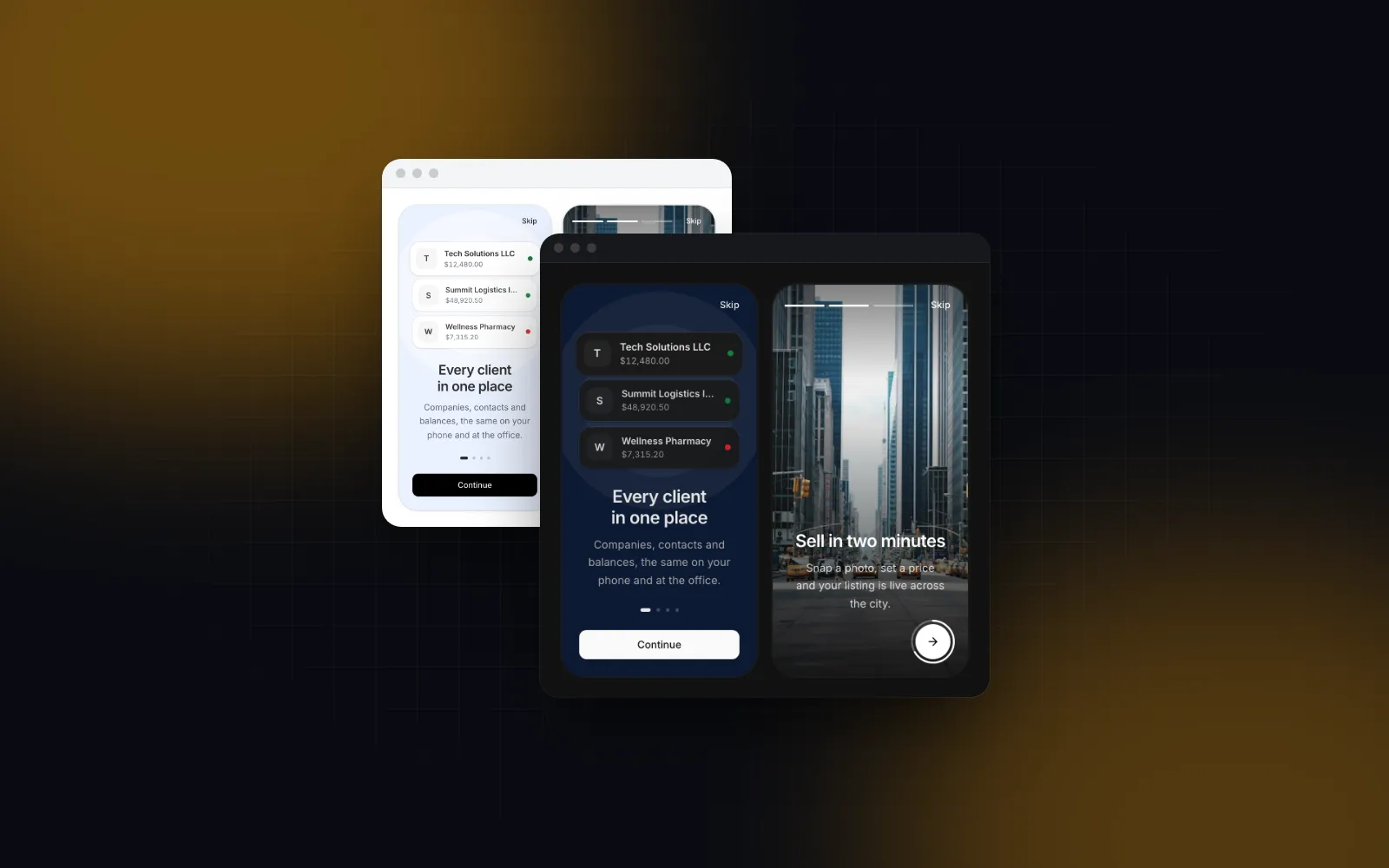
Start from the Onboarding Flow block. It runs five steps: welcome slides, permissions, a short profile, preferences and a finish screen. It saves every answer as people go, so a closed tab resumes on the same step.
The block brings the Onboarding Carousel it uses for the slides, plus the Button, Switch, Combobox and the other parts it imports.
Gate the app on a completed flag
Decide the first run experience on the server. A localStorage flag alone shows the slides again on a new phone or after someone clears site data, so store onboardedAt on the user and redirect from a layout. Put /welcome outside the route group that redirects to it, or the redirect loops.
Render the flow with your own content
The block ships with the slides, interests and labels of its Acme Market demo. Replace them before you ship. labels is merged shallowly: each top-level key you pass replaces the default whole, so an override of permissions needs both entries in full.
A promise returned from onComplete spins the Go to Home button until it settles. Your route handler sets onboardedAt and stores the answers. The finish screen's tips live in labels.tips and the step intros in keys like permissionsDescription, so rewrite those too.
Three pitfalls before you ship:
- The side panel. From 1024px the block shows a picture beside the card. Custom slides replace it on the welcome step only. The later steps keep the sample photos (paths under
/demo/, whichadddoes not copy) and marketplace vignettes such as a "Michael Reed replied" notification. Passart="none", as above, unless you also replacelabels.artand those vignette labels. - The profile photo. Without
onUpload, the default handler pretends to upload for 900 ms and keeps the cropped photo inprofile.avataras a data URL, so the JSON you POST can carry a whole image. TheonUploadabove sends the blob to your own route and resolves its URL. - The city. The city search on the profile step, and the city a granted location fills in, come from the block's Romanian city list (
lib/ro-locations). For another market, swap that data or leave the city out of your saved profile.
How do you make welcome slides people can skip?
Keep them short and let people leave from the first one. On its own, the React onboarding carousel works like this: a swipe or Next advances, the dots jump, Left and Right move with the keyboard, and Skip sits in the top corner on every slide but the last.
$ npx wingo-ui@latest add onboarding-carouselInside the flow, Skip on the slides goes straight to the permissions step. If you use the carousel alone, for an app without sign-in, pass persistKey so a finish is remembered on that device, and set skipTo="complete": Skip then ends the tour at once, instead of landing on the last slide and asking for one more tap.
Mount it as a modal over the home screen, not on a route of its own:
The modal waits until storage is read before it opens, so a returning visitor never sees a frame of it. It slides up full screen with safe-area padding on a phone, opens as a centered card on desktop, and Escape or a click outside counts as Skip. The inline layouts behave differently: the server renders them before storage is read, so a returning visitor sees the slides for a moment, they fade out, and onComplete does not run again. A carousel on its own /intro route that redirects in onComplete leaves that visitor on an empty page.
To show the slides again while testing, call writePersisted("onboarding-v1", null) from @/hooks/use-persisted-state. Changing the key to onboarding-v2 shows a new tour to everyone once.
How do you ask for notifications and location without getting blocked?
Give each permission a card with a reason, and call the browser only from Allow. That is what the permissions step does: each card shows a title and a one-line reason, Allow calls Notification.requestPermission() or navigator.geolocation.getCurrentPosition() from the tap, and Not now marks it skipped. Continue is never disabled, so both permissions stay optional.
$ npx wingo-ui@latest add onboarding-flowThe demo passes simulatePermissions, which answers granted after 600 ms. In your app leave it off and the cards report what the browser said. A card shows Allowed, Denied with a pointer to settings, Skipped with an Allow anyway link, or a short note when the browser has no such API. A permission granted on an earlier visit shows as Allowed on mount, and a granted location fills the profile's city. onComplete receives each answer as granted, denied or skipped, so you know whom to ask again later. A browser without the API reports denied. skipped covers both Not now and a browser prompt closed without an answer, so in either case you may ask again later.
Two decisions are yours. First, drop a permission the app cannot justify yet: permissions={["location"]} asks for location only, and [] skips the step. If notifications only pay off after someone posts a listing, ask then. Second, on iPhone and iPad, Web Push works only in the installed Home Screen app (WebKit, iOS 16.4 (opens in a new tab)). The React PWA install prompt post shows how to drop the notification card in a Safari tab with useInstallPrompt().
How do you ask for notifications later, in context?
With the same pattern outside onboarding. Show a card at the moment the value is obvious, such as right after someone sends their first message, and only while the browser can still ask:
The Button keeps its width while loading swaps the label for a spinner. Remember a Not now in your own storage so the card does not return on every page.
What changes for onboarding screens in a PWA?
The same screens, with two differences: iPhone push needs the installed app, and the install offer itself belongs after onboarding.
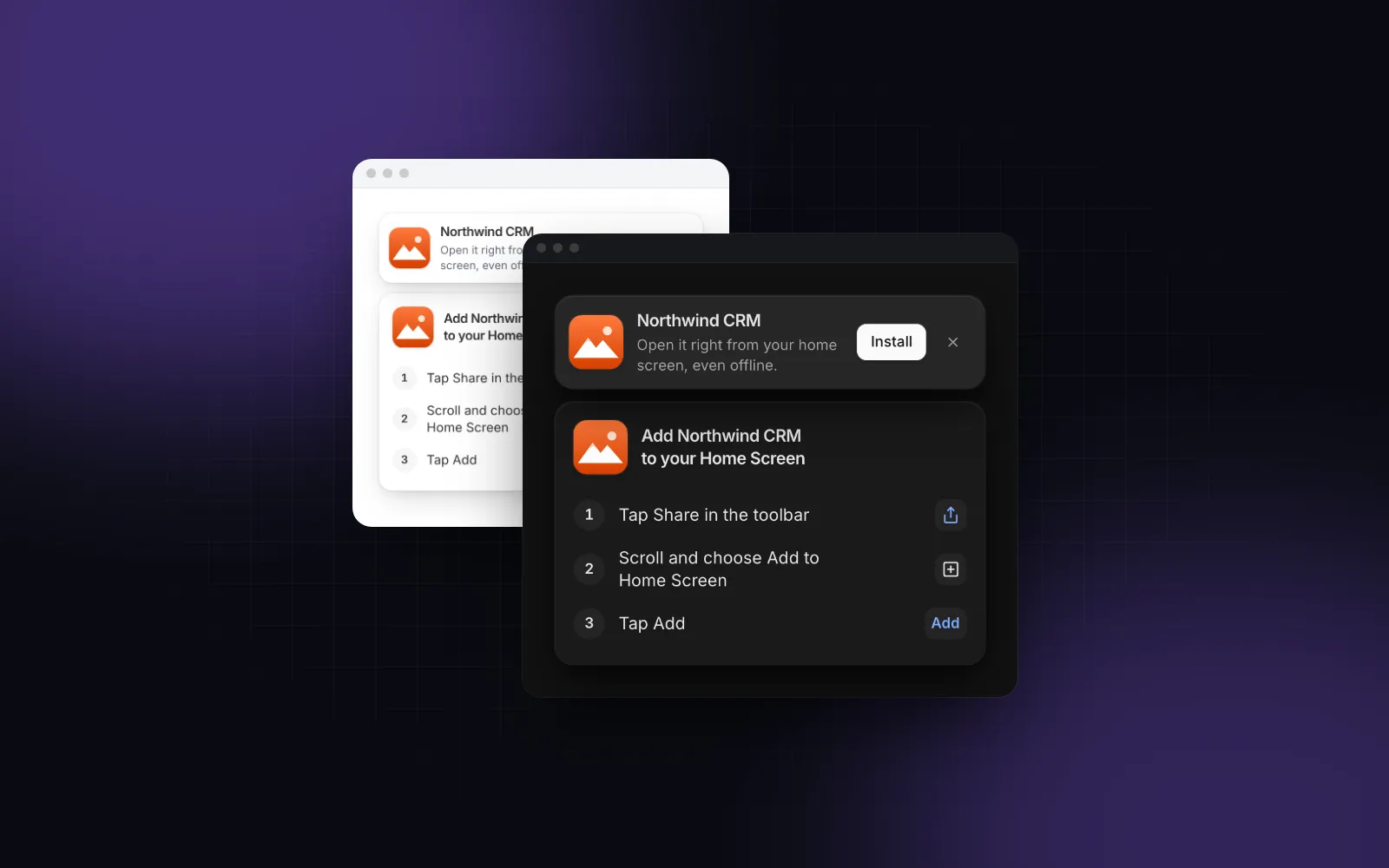
Mount the Install Prompt once in the root layout and hide it while the flow runs. Chrome fires beforeinstallprompt as soon as the page qualifies, often while someone is still on the slides, and a listener added after that misses it. useInstallPrompt() starts the shared listener, keeps the event and calls preventDefault() on it, so the banner can still offer Install later:
$ npx wingo-ui@latest add install-promptWhen the flow redirects to /, the banner waits delay milliseconds, then slides up. People have just set the app up and no form competes for the screen. Inside the installed app it renders nothing, and Not now hides it for 14 days by default (dismissDays).
What should you build next?
Install the block and replace its content: npx wingo-ui@latest add onboarding-flow install-prompt. The Onboarding Flow, the Onboarding Carousel and the Install Prompt are part of Wingo UI Pro; the Button, Switch and Alert they use are free. For a longer form after sign-up, the React multi step form guide covers validation per step and saved drafts, and the Steps component gives it a progress header. The rest of the app's screens are in the Next.js admin dashboard tutorial and the other step by step builds.
FAQ
When should a web app ask for notification permission?
When people can see what the notifications are for, and always from a click. web.dev recommends never asking as soon as the site opens, and Firefox 72 and later reject Notification.requestPermission() calls that do not come from a user gesture.
Can I ask for notification permission again after someone blocks it?
No. Once the browser prompt is answered with Block, Notification.permission stays denied and only the person can change it in the browser's site settings. That is why an Allow or Not now card of your own should come first: Not now on your card leaves the browser prompt unused.
How do I show onboarding only once in React?
Store the finish. On one device a localStorage flag is enough (the Onboarding Carousel does it with persistKey); for signed-in people, save a completed date on the user record in onComplete and redirect from the server when it is missing, so a new phone does not see the slides again.
Should onboarding slides be skippable?
Yes. Nielsen Norman Group advises against deck-of-cards onboarding in most apps and says any that remains needs a highly visible Skip option. Keep it to three slides or fewer, one idea each.
Do iPhone users get web push notifications from a PWA?
Only from the installed Home Screen app. WebKit added Web Push for Home Screen web apps in iOS 16.4, so in a Safari tab you should leave the notification card out of onboarding and ask after people install.
- Onboarding
- Permissions
- PWA
- React
- Next.js