React Product Tour: Spotlight, Phone Dock, Hotspots
A React product tour looks simple in a demo: a box around a button, a card with Next, five steps, done. Then it meets a real app. The target is inside a closed menu, the card covers the thing it describes on a 390px screen, Tab wanders off into the page behind the overlay, and everyone who reloads gets the tour again. This guide covers what a production tour needs, how the Wingo UI Tour handles the spotlight, the phone layout and saved progress, and when you should not build a tour at all.
What should a React product tour handle?
Seven things. A React guided tour that only highlights elements on a wide screen covers the first one:
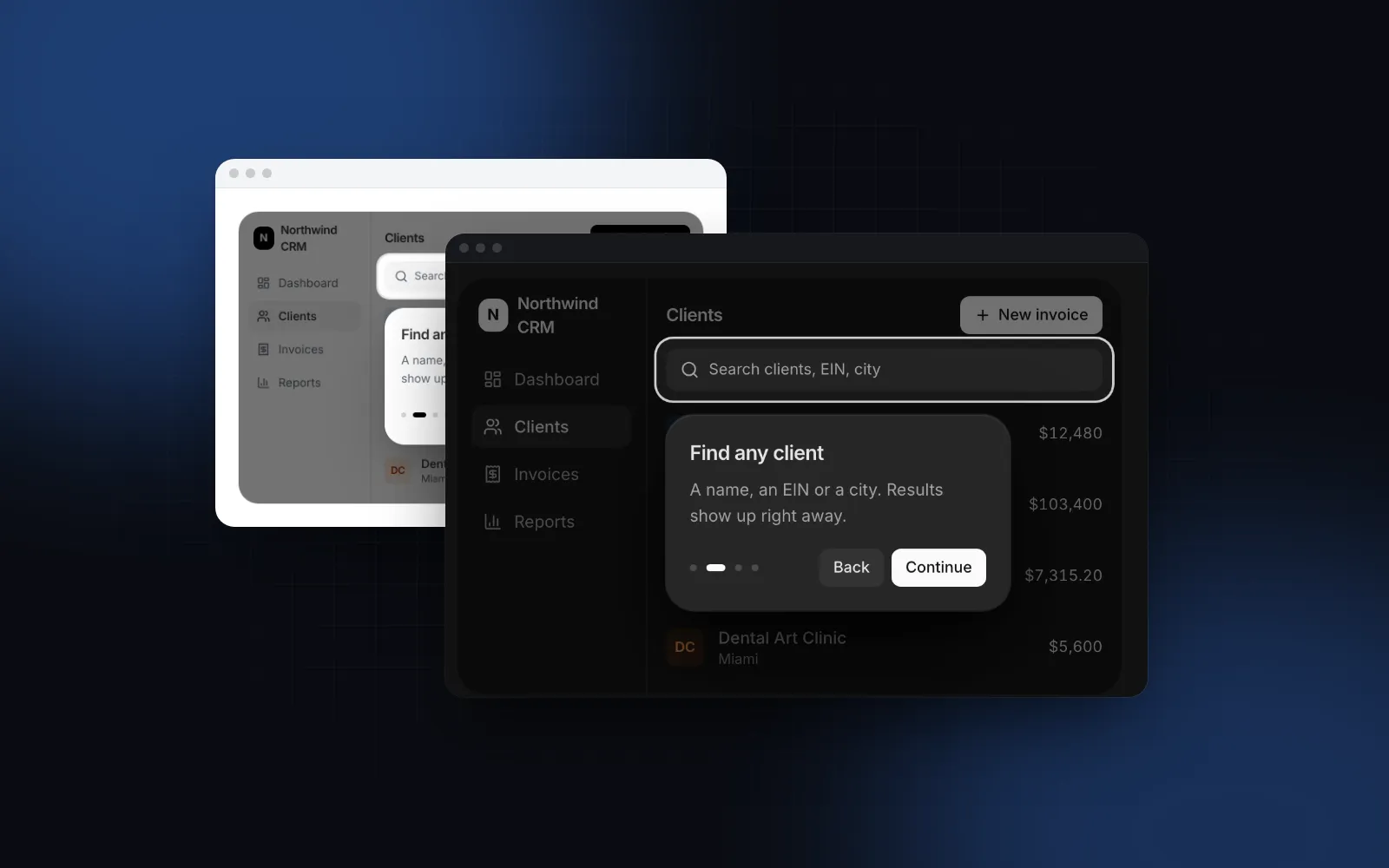
- A spotlight on the real UI. Dim the page, cut a rounded hole around the target, and follow it when the page scrolls or resizes.
- Targets that are not there yet. A step can point at an item inside a menu or a tab that has to open first.
- Interactive steps. "Press New invoice" should move on when people press the real New invoice button.
- Keyboard and screen reader support. Focus in the card, arrow keys to page, Escape to leave, focus back where it was.
- A phone layout. A card floating next to a 44px button covers half a phone screen.
- Memory. Finished or skipped tours do not come back on the next visit.
- A way back in. A Help menu item or a shortcut that replays it.
How do the React tour libraries compare?
React Joyride is the established free React tour library, Driver.js is a small library without React bindings, and Shepherd.js is free only for non-commercial work. Those are the names that come up when you look for a React Joyride alternative. Facts come from each project's README or site, as of October 2026.
React Joyride is the safe pick if you want a free, maintained package and plan to handle phones yourself. Driver.js fits a project that is not all React. The rest of this guide covers the Wingo UI Tour, which ships as source in components/ui.
What props does a React product tour need?
One: steps. Each step has an id, a title, optional content and media, and a target, which can be a CSS selector, a function that returns an element, or a ref. A step without a target, or one whose target does not show up within one second, gets a centered card, which is how you write a welcome and a closing step.
The Tour renders its children in place and puts the overlay in a portal. Each step first scrolls its target into view, then the spotlight glides there on a spring and the card fades in on the first side with room for it (side="auto" tries below, then above, then the wider of left and right). Next you will reach for showProgress (dots, fraction, bar or none), size (sm for 288px cards, md for 340px), tone, spotlightPadding and spotlightRadius (also settable per step), and labels for every string.
Start the tour below and follow it to step four: it waits until you press the real New invoice button. Right arrow and Enter go forward, Left goes back, Escape leaves.
$ npx wingo-ui@latest add tourHow do steps wait for menus and real clicks?
Three step options cover it. interactive: true lets clicks and typing reach the highlighted element, so people can type into the search box while the card explains it. advanceOn: "click" implies interactive and calls next when the target is clicked. beforeEnter runs before the step shows and is awaited for up to three seconds, which is enough to open a menu or switch a tab so the target exists:
Close the menu again in the next step's beforeEnter and in onOpenChange when the tour ends, or it stays open after a skip. If a target is removed while its step is showing, the card falls back to the center instead of pointing at nothing.
How should a product tour work on a phone?
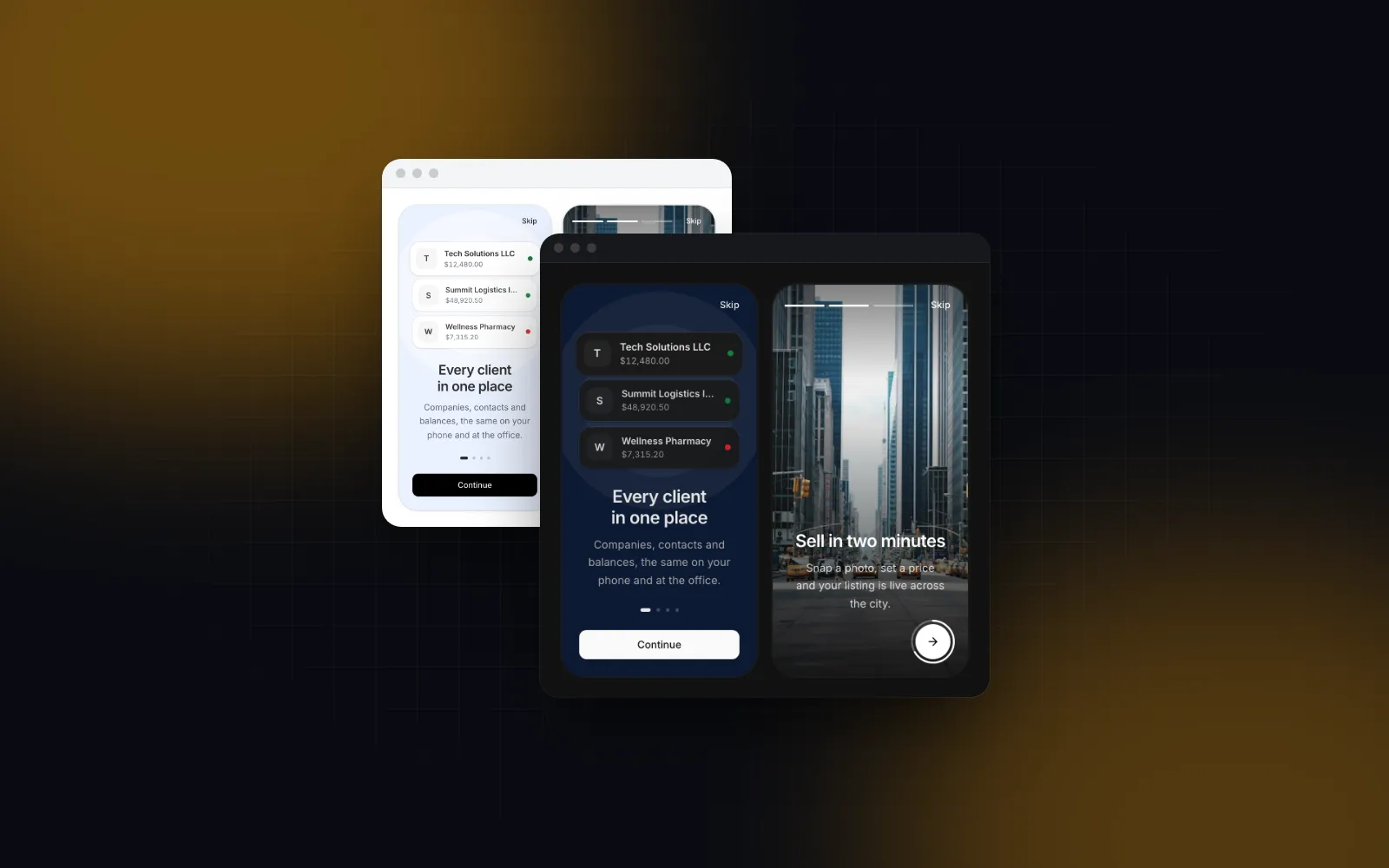
Dock the card at the bottom. Below 768px the Tour does that by default (mobileLayout="docked"): the card becomes a sheet above the safe area, its Back and Next buttons are 48px tall, it rides above the on-screen keyboard when one opens, and a target outside the top 55% of the screen scrolls up into it, so the card does not cover it. A swipe left on the card goes to the next step and a swipe right goes back.
The reason is the thumb. A popover anchored to a button at the bottom of a phone screen sits on top of the hand that has to tap Next, and a popover anchored near the top pushes Next out of reach. The same rule drives our React bottom sheet guide. Pass mobileLayout="popover" if you really want the desktop card on phones, or docked to dock it at every width, which is what you want inside a phone mockup together with container.
$ npx wingo-ui@latest add tourHow do I remember who finished the tour?
Give it a persistKey. The Tour then stores completed or skipped in local storage, autoStart (which opens the tour 600ms after hydration) leaves a finished tour alone, start() still replays it, and reset() forgets it. That is enough for one device. For a React onboarding tour shown to signed-in users, save the outcome on the server too, so a new laptop does not replay it:
useTour() gives anything inside the Tour its API plus open, step, count and status, so the replay button can sit in a header or a Help menu. For code outside the Tour's children, the setApi prop hands you the same start, next, previous, goTo, skip, finish and reset. Only one tour shows at a time: a second one that opens waits for the first to close.
How do I make a product tour accessible?
Treat each card as a dialog. The Tour's card has role="dialog", aria-modal, and a label and description tied to the step's title and content. Tab stays inside the card without locking the page, focus returns to where it was when the tour ends, and a polite live region announces "Step 2 of 5: Find any client" on every step and "Tour closed" or "Tour completed" at the end. The highlighted element gets aria-describedby pointing at the step's text for as long as the step shows, so a screen reader reading the real button also hears what the tour says about it.
Clicks on the dimmed area do nothing by default (closeOnOverlayClick={false}), so a stray tap on a phone does not end the tour. By default every card has Skip or a close button, and Escape skips from anywhere. Under reduced motion the spotlight jumps instead of gliding and the cards fade; the prefers-reduced-motion guide explains the hook behind it.
When is a hotspot better than a tour?
When you want to point at one thing. Nielsen Norman Group's Onboarding Tutorials vs. Contextual Help (opens in a new tab) (Page Laubheimer, February 2023) puts it bluntly: "Tutorials interrupt users, don't necessarily improve task performance, and are quickly forgotten." The article recommends help that appears when people need it and is easy to dismiss and find again.
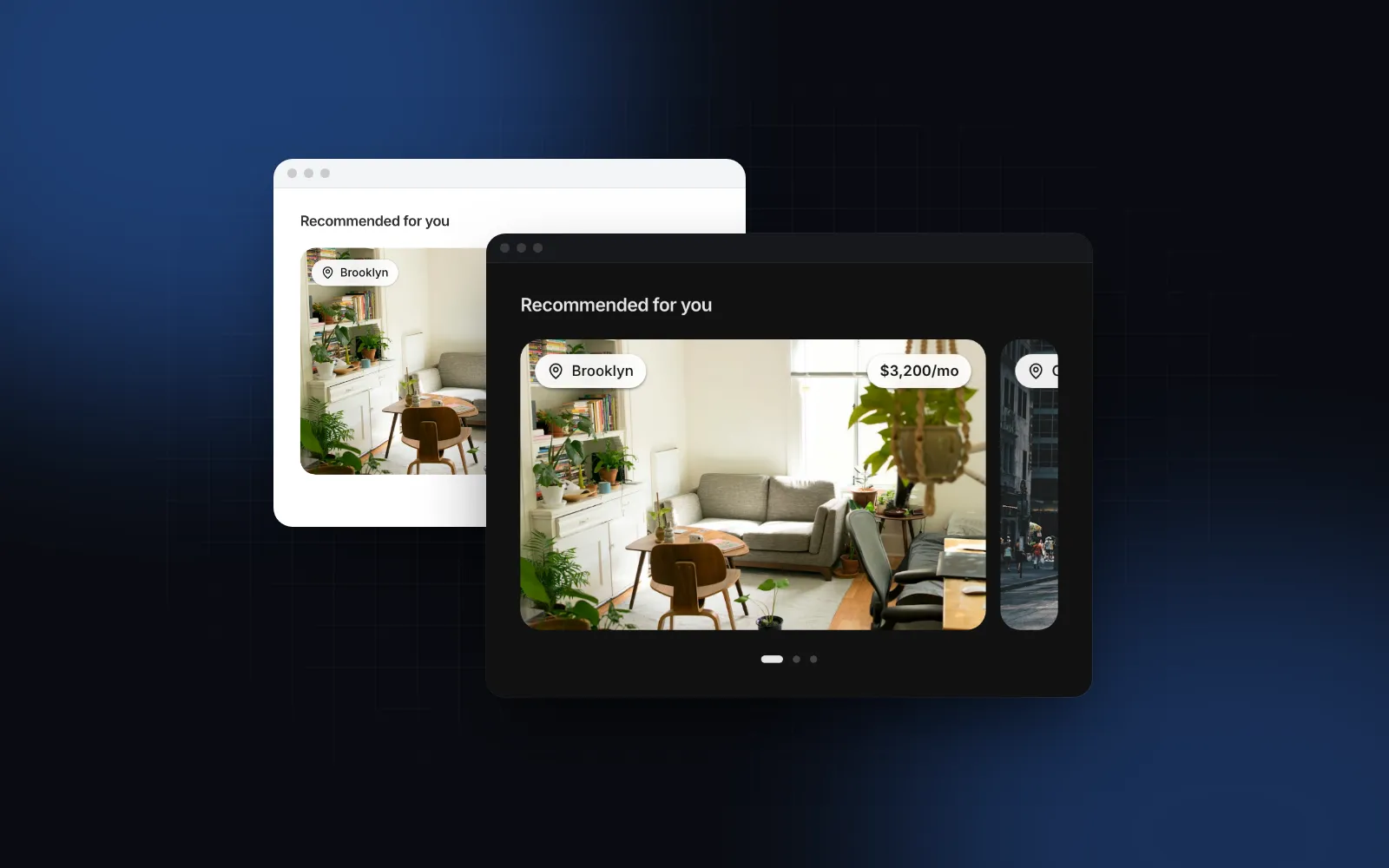
TourHotspot is that pattern. It puts a pulsing dot on a corner of its child (or of any target) and opens a tip when someone taps or clicks it, as a bottom card below 768px. With persistKey the dot disappears for good once the tip has been seen.
A rough split that works for us: a hotspot for one new feature, a coachmark tour (spotlight={false}, cards with an arrow and no dimming, the page stays usable) for two or three related changes in a release, and the full spotlight tour only for first-run orientation in an app with several areas. A single hint on a control that people already understand belongs in a Tooltip or a Popover, both free.
Should I use a tour or an onboarding flow?
They do different jobs. An onboarding flow runs before people reach the app: welcome slides, permission asks, a short profile. The Onboarding Flow block covers that, and the React onboarding flow tutorial walks through it, including why the notification ask needs a card of its own. A product tour runs inside the app, on the real screens, after that. If you have both, keep the tour to the three or four places people use in their first week.
What are the common product tour pitfalls?
- autoStart without persistKey. The tour opens on every page load. Pair them, or drive
autoStartfrom a server flag. - Too many steps. Each extra step is one more chance to press Skip before the part that matters. Split long tours by area and start each one from its page.
- Steps that describe obvious controls. A search box does not need a step unless it searches something unexpected.
- A shortcut that collides.
?often opens a shortcuts dialog; the Tour binds nothing until you passshortcut, and our demo usesshift+h. - A selector that matches a hidden copy. A string target goes through
document.querySelector, which returns the first match. If that is the desktop toolbar hidden on a phone, the step shows a centered card. Use a ref or a function that returns the visible element, andbeforeEnterfor anything that takes longer than a second to render.
How do I add it to my project?
Run npx wingo-ui@latest add tour. The CLI copies tour.tsx into components/ui, adds the Button, Kbd and Progress components and the hooks and helpers it uses, and installs @radix-ui/react-popover, motion and lucide-react. The Tour and the Onboarding Flow are Pro components (pricing). More single-component deep dives are in the component guides category, and the React form components guide applies the same keyboard, touch and screen reader rules to every form control.
FAQ
What is the best React tour library?
React Joyride is the most established free option: MIT licensed, with a Joyride component and a useJoyride hook, and its README lists React 16.8 through 19. Driver.js is a small framework-free MIT library, and Shepherd.js needs a commercial license for commercial use. Pick a source component such as the Wingo UI Tour if you want to edit the code and get a phone layout built in.
How do I show a product tour only once in React?
Store the outcome. With the Wingo UI Tour, persistKey saves completed or skipped in local storage and autoStart leaves a finished tour alone; for signed-in users, also save it on the user record in onComplete and onSkip so a new device does not replay it.
Should a product tour be skippable?
Yes, on every step. Nielsen Norman Group found that tutorials shown up front interrupt people and are quickly forgotten, so the least you can do is make leaving easy and let people replay the tour later from a Help menu.
What is the difference between a product tour and a hotspot?
A tour pushes a sequence of steps at people, usually on first run. A hotspot is a small pulsing dot on one element that opens a tip only when someone taps it, so it fits announcing one new feature without interrupting work.
Is the Wingo UI Tour free?
No. The Tour and the Onboarding Flow block are Pro. The Popover and Tooltip components, which cover single hints without a sequence, are free.
- Product tour
- Onboarding
- Mobile UI
- Accessibility
- React