React Diff Viewer in React 19: Split, Unified, Word Diffs
You have two versions of a text and someone needs to see what changed: the file an agent rewrote, a contract that came back from the client with edits, a config someone wants to push to production. A React diff viewer should answer that in one glance. A naive one paints whole lines red and green, flags every trailing space, crams two columns onto a phone and blocks the main thread on a large file. This guide covers how a diff viewer works, what to look for in a react diff viewer alternative, and how to wire one up for AI edits, contracts and configs. The examples use the Diff Viewer from Wingo UI, the library we build, so we are not neutral; facts about other packages link to their sources.
How does a React diff viewer work?
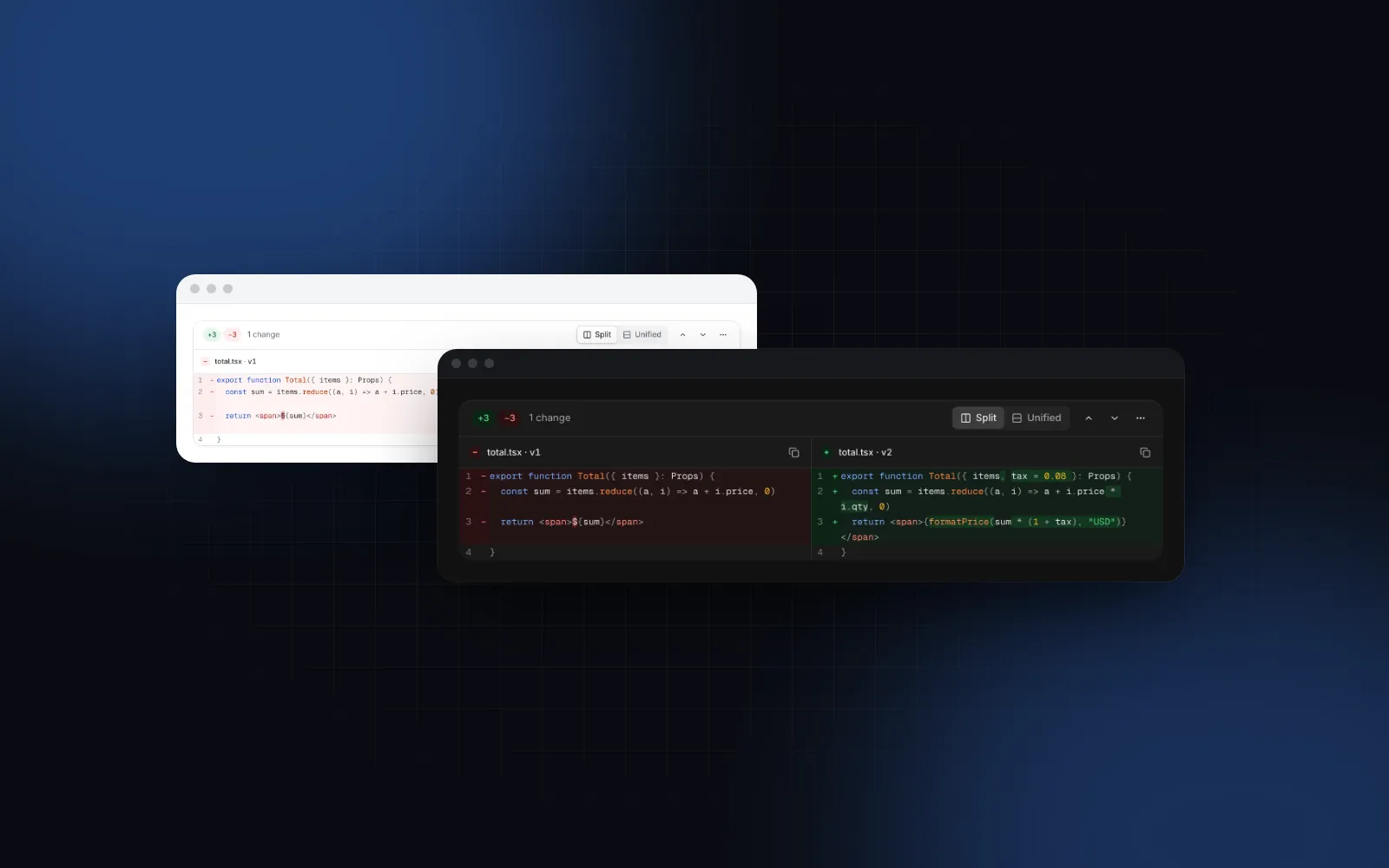
A text diff React component that takes two strings makes two passes. First a line diff: split both texts into lines and find the smallest set of removed and added lines that turns one into the other (Myers' algorithm, which jsdiff implements and git uses by default), so each line ends up unchanged, removed or added. Then, for each removed line that sits across from an added one, a second diff inside the pair, by word or by character, so the reader sees that "15 days" became "30 calendar days" instead of a whole red line and a whole green line. That second pass is the part most word diff React snippets skip, and it is the part reviewers actually read.
The Wingo UI viewer uses jsdiff (opens in a new tab) (the diff package, version 9) for both passes. It pairs removed and added lines and only marks words when the pair still shares more than 40% of its text. Below that the words are mostly different anyway, and the line tint alone reads better than confetti. Unchanged lines more than contextLines (default 3) away from a change fold into a row that says how many lines hide there.
Try it on the default playground: version 3 and version 4 of a services agreement.
$ npx wingo-ui@latest add diff-viewerWhich react diff viewer alternative should I use?
On React 19, use react-diff-viewer-continued for two strings with the original API, react-diff-view for git patches, and a source component when the viewer has to match your design system. The package most tutorials still import, react-diff-viewer, has not had a release since 2020 and does not list React 17 or later as a peer. All of the options below can show the side by side diff React developers know from GitHub pull requests, plus a unified view. Here is what the npm registry says about them, checked on October 16, 2026:
Where each one is the better choice:
- react-diff-viewer-continued is the drop-in fix if you already use the original API. Its README (opens in a new tab) describes it as a fork of the original with dependencies updated for modern stacks. It styles through Emotion (CSS-in-JS), its default compare method is by character, and an
infiniteLoadingoption virtualizes long diffs so only the visible rows render. Pick it when you want a free npm package, its JSON and YAML compare methods, or diffs of tens of thousands of lines. - react-diff-view (opens in a new tab) is the right tool when your input is a git patch instead of two texts. Its README describes it as a component "to consume the git unified diff output", with
parseDifffor multi-file patches and a widget system for code comments. For a pull request with 40 changed files, start there. - A source component fits when the viewer has to match your design system, read your theme tokens and behave like the rest of your UI on a phone. That is the case the Wingo UI Diff Viewer covers.
How do I install and render a diff?
Install the component with the CLI, then pass it two strings.
The command copies components/ui/diff-viewer.tsx with the free Button, Badge, Copy Button, Dropdown Menu, Segmented Control and Tooltip it imports, and installs diff, prism-react-renderer, motion and lucide-react. Diff Viewer is part of Wingo UI Pro, so run npx wingo-ui@latest login first.
The two required props are the texts. Titles name the columns:
The file is a client component, but you can render it from a server component as long as you only pass serializable props like these.
Which Diff Viewer props matter most?
The two texts are enough for most reviews. These props change what the reader sees and how much of it:
defaultView("auto","split"or"unified", default"auto"). Auto shows a side by side diff from 768px and one unified column below it and on the server. It also checks the viewer's own width, so a narrow panel on a desktop gets the unified column too. Control it withviewandonViewChange.granularity("word","char"or"none", default"word"). Words suit prose and code. Characters suit short edits such as product titles, prices or IDs.contextLines(default 3). How many unchanged lines stay around each change.-1shows everything.ignoreWhitespaceandignoreCase(both false). Whitespace-only and case-only differences count as unchanged. Both also sit in the toolbar's menu.language(default empty). A Prism language such astsx,jsonoryamladds syntax colors drawn from the tone tokens, so both themes stay readable.wrap(default false),maxHeight(default 560,0grows with the content),size(smormd) andradius.labels: every visible and spoken string, English by default, for translation.
This second demo starts unified with character highlights and one line of context. Use it to see how much tighter the change reads at character level.
$ npx wingo-ui@latest add diff-viewerHow do I review AI edits with a diff viewer?
Render the current file and the agent's proposal in one viewer, with Accept and Reject under it, so no edit reaches disk unreviewed:
Agents often return a whole rewritten file to change four lines. With the default contextLines of 3, the reviewer sees those four lines and their neighbors, and the rest folds into expander rows. For the rest of an agent run, with steps, approvals and errors, see our guide to AI agent tool call UI.
How do I review config changes without whitespace noise?
Set ignoreWhitespace and pass the language. YAML and env files collect trailing spaces and double spaces that nobody cares about, and with the flag those lines count as unchanged:
The flag collapses runs of spaces and tabs and trims each line before comparing, and it also ignores a missing final newline (without it, a missing newline counts as a change on the last line, as in git). Line endings are always normalized, so a file saved on Windows does not light up every line. If only the line endings differ, the viewer says so instead of showing an empty diff. For structured payloads, where key order and nesting matter more than lines, a tree such as the JSON Viewer is often the better view.
How do I add line comments to a diff?
onLineClick turns the line numbers into buttons, and renderGutter adds a cell after the numbers for counts, avatars or coverage marks:
Hook your own comment box to target and push into notes on submit. For a history of who changed what and when, pair the viewer with an Audit Log and open the diff from each entry.
Is the diff viewer accessible and usable on a phone?
Yes. Changes carry signs and spoken labels besides color, jumps between changes work from the keyboard, and phones get a unified column with 44px touch targets:
- Signs and spoken labels. Removed lines carry a minus and added lines a plus, and each changed line has a spoken "added" or "removed" label. The stats badges (
+12 −3) read as "12 additions, 3 deletions". - Keyboard. Alt+Down and Alt+Up jump to the next or previous change from anywhere inside the viewer, wrap at the ends, focus the change and announce "Change 2 of 5". The scrolling body is focusable, so arrow keys scroll it.
- Reduced motion. The flash on a jumped-to change and the crossfade between views turn off when the person asks for reduced motion.
- Phones. Below 768px, or in a panel narrower than 640px, the view switch moves into the menu, and on a phone that menu opens as a bottom sheet. Long lines scroll sideways with the line numbers pinned, or wrap with
wrap. The toolbar buttons and the folded rows grow to 44px hit areas on touch screens.
What breaks a diff viewer in production?
Most of these problems come from the input. Check them before you ship:
- Diffing rendered HTML. Compare the source text of a contract or a Markdown file, not the HTML it renders to. Tag soup turns one changed word into a changed paragraph.
- Huge files on the main thread. A diff runs in JavaScript on the main thread unless you move it to a worker. Above 2,000 lines per side, the Wingo viewer defers the work to an idle callback and shows a skeleton, so the page paints first. If two large texts are very different, the line diff gives up after 2 seconds and shows one replaced block. It does not virtualize rows, so keep
contextLineslow on big files and test your largest real one. - Minified lines. A single 200KB JSON line has no useful word diff. Above 20,000 characters the viewer falls back to line highlights. Pretty-print the JSON first if you want more.
- Binary content. Text with NUL bytes shows a binary notice instead of garbage.
- Showing a diff where a snippet is enough. If there is only one version, use a Code Block with copy instead.
If you need the numbers without the UI, for example a "+4 −2" badge in a list of revisions, computeDiff(oldValue, newValue, options) is exported from the same file and returns { rows, stats, blocks, lineEndingsOnly, binary }. It is a plain function, so call it in a client component with useMemo or in your tests.
For more single-component deep dives, browse the component guides or start with our pillar on React form components. If you keep copied components in sync with upstream, our post on updating shadcn components without losing edits shows the same kind of diff applied to your own source files.
How do I add a diff viewer to my React app?
Run npx wingo-ui@latest add diff-viewer, pass it two strings and leave the defaults alone at first: auto view, word highlights and three lines of context cover most reviews. Then add language, ignoreWhitespace or onLineClick as your case needs them. If you work with a coding agent, connect the Wingo UI MCP server so it reads the real props instead of guessing them.
FAQ
How do I show the difference between two strings in React?
Pass both strings to a diff viewer component, which runs a line diff and then a word or character diff inside each changed pair. With Wingo UI that is , built on the jsdiff library.
What is a good react-diff-viewer alternative for React 19?
react-diff-viewer-continued keeps the original API and lists React 19 in its peer dependencies as of October 2026. If your input is git diff output, use react-diff-view. If you want the source in your repo, styled with Tailwind tokens, install the Wingo UI Diff Viewer.
Should I use a split or a unified diff?
Use split when there is room: the Wingo UI viewer shows it when the screen is at least 768px wide and the viewer itself at least 640px. On a phone two columns leave a few characters per line, so a unified column reads better.
How do I ignore whitespace changes in a React diff?
Compare normalized keys instead of raw lines, so lines that differ only in spaces or tabs count as unchanged. In the Wingo UI Diff Viewer set ignoreWhitespace, or toggle it from the menu in the toolbar.
Is the Wingo UI Diff Viewer free?
No. The Diff Viewer is part of Wingo UI Pro. The Button, Badge, Tooltip, Segmented Control and Copy Button it builds on are free.
- Diff
- Code Review
- AI Agents
- Data Display
- Accessibility