React Currency Input: Intl Formatting Without Caret Jumps
A React currency input looks easy until real people type into it. Somebody in Berlin types 1234,5 and expects 1.234,5, somebody in Chicago types 1234.5 and expects 1,234.5, and both expect the caret to stay right after the digit they just typed. Your API wants 1234.5 as a number and a currency code next to it. This guide covers what a good money field does, why the caret jumps in hand-rolled versions and how to fix it with Intl, and how to use the Wingo UI Currency Input in a form.
What should a React currency input do?
It formats in the user's locale while they type, keeps the caret where it was, and hands your code a plain number. In detail, seven behaviors:
- Format while typing, in the user's locale. Group separators appear as digits arrive (
1,234in en-US,1.234in de-DE), using the separatorsIntl.NumberFormatreports for that locale. - Keep the caret still. Inserting a separator must not throw the caret to the end of the field.
- Accept either decimal key. Phone keypads show a dot or a comma depending on the system language, so both should become the locale's decimal when typed at the end.
- Put the symbol where the locale does.
$1,234.56in en-US,1.234,56 €in de-DE,1.234,56 leiin ro-RO. The symbol sits next to the text and is never part of the editable value. - Respect the currency's decimals. USD has 2, JPY has 0, BHD has 3. A yen field ignores the decimal key.
- Commit on blur. Pad
1,234.5to1,234.50and clamp to min and max when the field loses focus, not while the user is mid-number. - One clean value out. Your state and your form submit get
1234.5, never"$1,234.50".
Why does the caret jump in a formatted money input?
Because the string changes length under it. You type 5 after 1,234 and your onChange writes 12,345. React sets the input's value to a new string, the browser has no way to know where your old caret position maps in it, and the caret lands at the end. If you typed in the middle of the number, the next keystroke goes in the wrong place.
The fix is to track digits, not character positions. Before formatting, count the digits to the left of the caret. After formatting, walk the new string and put the caret after the same number of digits. Separators the formatter added or removed never count, so they never move it. The free number-format helpers ship this approach as digitsBeforeCaret and caretAfterDigits, next to formatEditable (re-formats text mid-typing without dropping a trailing . or trailing zeros), parseNumber (locale-aware parsing) and getCurrencyParts (where the symbol goes).
Here is a minimal money input built only on those helpers:
getCurrencyParts("USD", "en-US") returns { symbol: "$", position: "prefix", spaced: false, fractionDigits: 2 } and getCurrencyParts("EUR", "de-DE") returns the euro sign as a spaced suffix, so the same component lays itself out per locale. Reading separators and symbol position from Intl, instead of hardcoding , and ., is what lets one Intl.NumberFormat currency input work in Berlin and Chicago alike. getCurrencyParts defaults to narrowSymbol, the symbol people actually write: in ro-RO, Intl's default symbol display prints 1.234,56 RON, where narrowSymbol prints 1.234,56 lei.
Try the helpers on their own below. The demo is set to de-DE, so the dot groups thousands and the comma is the decimal. Type in the middle of the number: the grouping changes, the caret does not move, and the rows show the parsed number.
$ npx wingo-ui@latest add number-formatThat sketch covers the main path. It does not pad on blur, clamp, step with the arrows, or read a pasted $1,234.56. In de-DE, a dot typed after 1.234 is dropped as one more group separator instead of becoming the decimal comma. It does not handle Backspace on a separator either, where the formatter puts the separator straight back and the key seems dead. It also has a quieter bug: type a letter and formatEditable returns the same text, setText bails out, React writes the old value back into the DOM, and the caret jumps to the end anyway. The full component handles all of these, the last one by restoring the caret itself when a keystroke changes nothing.
How do you use the Wingo UI Currency Input?
Install it with npx wingo-ui@latest add currency-input, then render it with a locale, a value and a name for forms:
Type an amount below, then open the currency button and pick another code: the symbol changes and the amount stays the same.
$ npx wingo-ui@latest add currency-inputThe props that matter most:
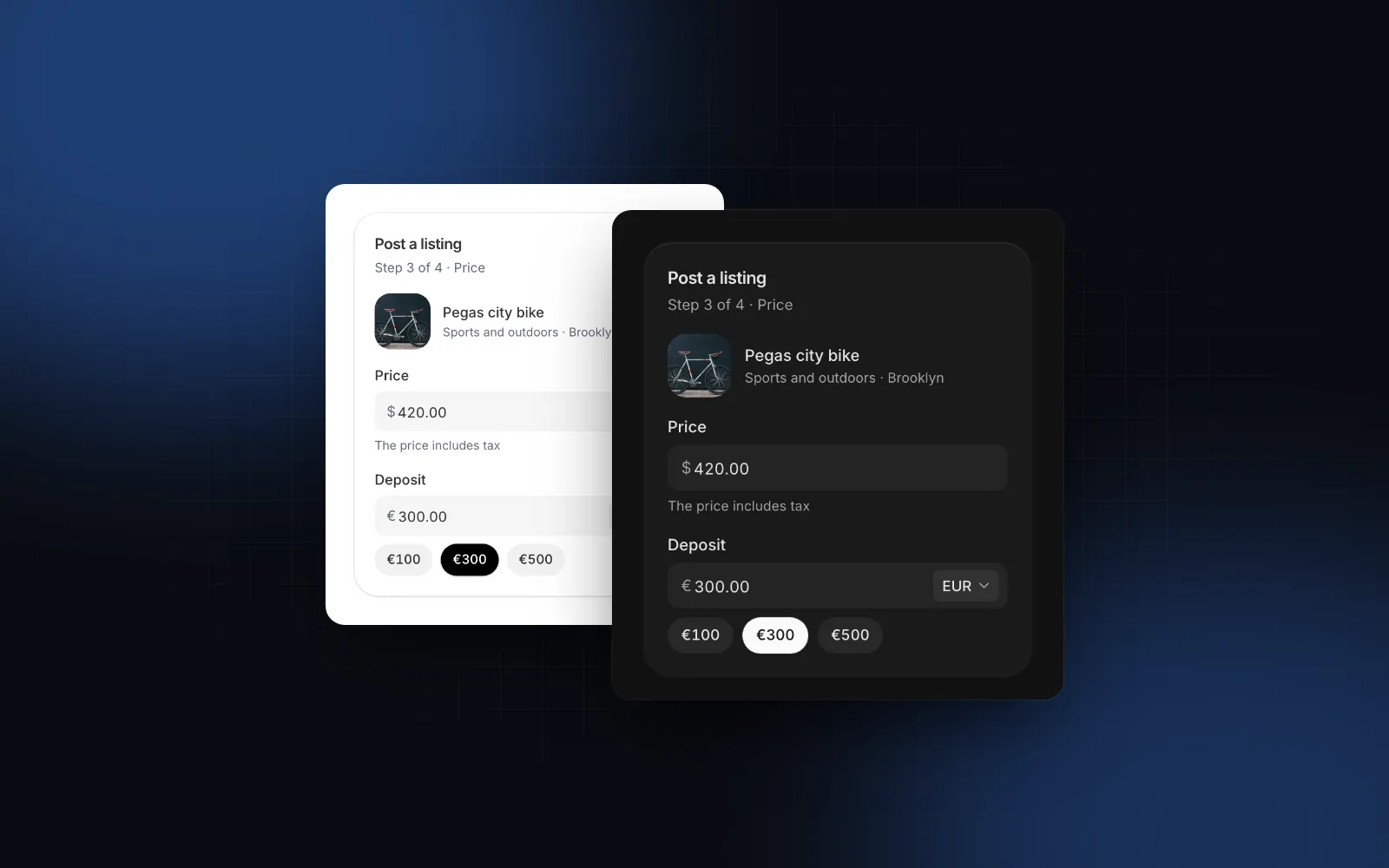
valueandonValueChangecarry the amount in major units (1234.56), withnullfor an empty field.onValueChangefires live while typing, unclamped until blur, so validate with that in mind.localesets the separators and the side of the symbol. Leave it empty and the field reads theUIProviderorLocaleProviderlocale. Without either, the server rendersen-USand the browser switches to the page language after hydration, so set a locale when the first paint must already be right.defaultCurrency/currencytake an ISO 4217 code. The decimals follow it (decimals={-1}, the default, means "the currency's own"), so USD types two decimals and JPY none.currencieswith two or more codes shows a compact code button at the end of the box. Switching currency never converts the amount; if the new currency has fewer decimals, the amount is rounded to them.min,maxandstepclamp on blur or Enter, flag the field invalid while out of range, and set what ArrowUp and ArrowDown add (Shift for ten steps).presetsrenders quick amounts as chips under the field, the pattern donation and tip forms use.allowNegativelets a minus in, for refunds or balance adjustments.
What value does the currency input submit?
With name, the component renders a hidden input whose value is the amount as "1234.56" with a dot decimal, or empty when the field is empty. The visible input has no name. currencyName adds a second hidden input with the chosen code. So a plain form or a Server Action reads numbers, not formatted text:
The hidden input updates in the same event as the keystroke, so pressing Enter in the field pads the amount and submits the new value together. Round, never truncate: 1.15 * 100 is 114.99999999999999 in JavaScript, so Math.trunc gives 114 where Math.round gives 115. The * 100 assumes a two-decimal currency; for JPY or BHD multiply by 10 ** decimals instead.
How does it compare with react-currency-input-field and a shadcn currency input?
react-currency-input-field is the free dedicated package, react-number-format is the general-purpose formatter, shadcn/ui has no money field, and the Wingo UI component is a Pro source file with the selector and phone behavior built in. As of October 2026, from npm and each project's docs:
If you want a free npm package for a react currency input field and are happy to style it, react-currency-input-field is the dedicated choice: read values.float from its onValueChange for the number, since its first argument is a string, and set disableAbbreviations if a typed k should not mean thousands. Search for a shadcn currency input or a React money input example and the usual shortcut is a type="number" Input with a dollar icon in an Input Group. That gives you no grouping and no locale. The Wingo UI component fits when you want the field, the label and error anatomy, and the phone behavior in one file you own.
How does the currency input work on mobile and with a keyboard?
On phones the field uses inputMode="decimal" for the decimal keypad and enterKeyHint="done", and either separator key is accepted, since the keypad shows whichever the system language uses. The text is 16px so iOS Safari never zooms into it, the md box grows to 44px on touch screens, and the currency button and the preset chips have 44px hit areas. Below 768px the currency list opens as a bottom sheet instead of a popover (responsive={false} keeps the popover). iOS decimal keypads have no minus key, so with allowNegative a negative amount comes from ArrowDown or a hardware keyboard.
With a keyboard, focusing the field selects the amount so typing replaces it (selectOnFocus, on by default). ArrowUp and ArrowDown step, Enter commits and still submits, and with clearable Escape empties the field. On the currency button, Enter, Space or the arrows open the list, where typing a letter jumps to a currency ("u" to USD). The symbol is aria-hidden, and a visually hidden "Amount in US dollars" is linked through aria-describedby, so a screen reader hears the currency once with the field instead of a stray dollar sign.
Should you use the Number Input for money instead?
Use the Number Input when people step a value, and the Currency Input when they type an amount from scratch. The Number Input takes a currency prop too and formats with Intl, but it works the other way around: at rest it shows $125,000, and on focus it turns into the plain number for editing. It adds stepper buttons with hold to repeat, the mouse wheel and Home / End to jump to min and max. That fits a quantity, a budget or a price you nudge in steps of 1,000. For an amount people type from scratch, such as a payment, a donation or a listing price, the Currency Input's live grouping, currency selector and presets fit better.
Which currency input pitfalls show up in production?
Most money bugs come from treating the formatted text as data or doing math on raw floats. The usual ones:
- Storing the formatted string.
"$1,234.50"cannot be summed or compared. Store the number and the currency code as two fields. - Float math on money.
0.1 + 0.2is0.30000000000000004in JavaScript. Round to the currency's decimals before saving, or store integer minor units. The number-format helpers includeroundTo(0.1 + 0.2, 2), which gives0.3. - Clamping while typing. Clamping
5to a minimum of10on every keystroke makes50impossible to type. Flag it invalid while typing and clamp on blur. - Parsing with
parseFloat.parseFloat("1.234,56")is1.234andNumber("1,234.56")isNaN. Parse with the locale's separators (parseNumber(text, locale)) or read the hidden input, which is always a dot decimal. - Formatting with an undefined locale.
new Intl.NumberFormat()uses the server's language on the server and the browser's in the browser, so1,234.5and1.234,5disagree and hydration fails. Pass a locale, or wrap the app inLocaleProviderfrom@/hooks/use-locale. - Converting on currency change. Switching the currency in a form usually fixes a wrong pick. Keep the amount and let the user edit it.
For invoices, where each line amount feeds a VAT total, our e-Factura VAT calculation guide shows the rounding per rate. The money field is one of many inputs covered in our React form components guide, and more single-component deep dives live under component guides.
How do you install the Currency Input?
Run npx wingo-ui@latest add currency-input. It copies the Currency Input plus the free parts it builds on (Field, Select, Button and the number-format, use-locale and motion helpers) and installs the npm packages they import, such as motion, lucide-react and vaul for the phone sheet. The Currency Input and the Number Input are part of Wingo UI Pro, so sign in first with npx wingo-ui@latest login; npx wingo-ui@latest add number-format on its own is free.
FAQ
How do I format a currency input in React?
Keep the text in state, re-format it on every change with Intl separators for the locale, and restore the caret by counting the digits before it, then placing it after the same count in the new text. Store the parsed number separately and pad the decimals only on blur.
Why does the cursor jump to the end in my currency input?
When onChange writes a new string with an added or removed group separator, the browser cannot map the old caret position into it, so it moves to the end. Count the digits before the caret, re-format, then call setSelectionRange after the same digit count in a layout effect.
Is there a shadcn currency input?
Not in the official shadcn/ui component list as of October 2026, which has Input and Input Group but no currency or number input. A common shortcut is a type="number" Input with a dollar icon inside an Input Group, which gives you no grouping and no locale.
Should I use type="number" for a money input in React?
No. A number input cannot show thousands separators or a currency symbol, its value is an empty string while the text is invalid, and the mouse wheel can change it by accident. Use a text input with inputMode="decimal" and parse the text yourself.
How should I store a currency amount?
Store the number and the ISO 4217 currency code as two fields, never the formatted string. Many teams store integer minor units (cents) in the database to avoid float math; if you keep decimals in JavaScript, round to the currency's decimals before saving.
- Forms
- Currency input
- Intl
- React