React Virtualized Table: 100k Rows With TanStack Virtual
A table with 100,000 rows will lock up the tab if you render every <tr>. A react virtualized table fixes that by rendering only the rows the user can see, plus a few past each edge, and swapping them as the user scrolls. The hard part is everything else: the sticky header that stops sticking, the arrow keys that lose focus when the focused row unmounts, and the Shift-click selection that only knows about the rows in the DOM. This tutorial builds a TanStack Virtual table on TanStack Table v9 that handles all three. At the end you will see the Wingo UI Data Table, our component that does the same behind one virtualize prop.
Why does a table with 100,000 rows freeze React?
A table with 100,000 rows freezes because the DOM cost grows with every row you render. A table of 100,000 orders with six columns is 100,000 <tr> elements and 600,000 <td> elements. React has to create them, the browser has to lay them out, and every sort or selection change touches them again.
Virtualization is how you render 100,000 rows in React without paying for all of them. In a scroll box 520px tall with 40px rows, about 12 rows are visible under the header. With an overscan of 10 rows on each side, the DOM holds around 32 rows, and that number stays the same at 1,000 rows or 100,000. The scrollbar still looks right because spacer elements take up the height of the rows that are not rendered.
What virtualization does not change: the data is still in memory, and sorting or filtering 100,000 objects still runs in JavaScript on every change. The TanStack Table virtualization guide (opens in a new tab) is explicit that virtualization is not a replacement for server-side pagination, filtering or sorting: if the dataset is too large to load into the browser, use server-side operations or infinite scrolling.
How does TanStack Virtual decide which rows to render?
TanStack Virtual compares the scroll offset with each row's start and end offsets and returns only the indexes inside the viewport, plus the overscan. useVirtualizer from @tanstack/react-virtual takes a count, a getScrollElement function and an estimateSize. On every scroll it returns getVirtualItems(): the indexes in view, each with a start and end offset in pixels, and getTotalSize(), the height of all rows together. It never touches your data. You map each virtual index to rows[index] from table.getRowModel().rows, which is already sorted and filtered.
There are two ways to place those rows inside a <table>, and the choice decides how much of the table you keep:
If you are building a virtual scroll table with fixed-height rows, spacer rows are the simpler path: every element keeps its native table display, so you write no column widths by hand. That is the approach below. Switch to absolute rows when row heights vary.
How do I build a virtualized table with TanStack Table v9?
Build the table with useTable, feed its row count to useVirtualizer, and render only the virtual items with a spacer row above and below. Install both packages:
The component below sorts on header click, selects with checkboxes, Shift-click and Ctrl/Cmd + A, keeps a sticky header, and moves focus with the arrow keys, PageUp / PageDown and Home / End. Every row and the header are exactly 40px, which lets the virtualizer skip measuring. The class names use Wingo UI's design tokens (bg-surface, shadow-raised); swap in your own.
A few lines in there carry most of the weight.
Spacer rows instead of transforms
The loop walks the virtual items in order and inserts a spacer <tr> wherever the next item starts below where the last one ended. That covers the gap above the first rendered row, the gap below the last, and any hole in between (you will see why there can be a hole in the next section). Because rows stay in normal flow, the browser sizes the columns from their content like any other table. One trap: the table uses border-separate so the sticky header keeps its look, and in that border model a border on a <tr> does not paint. The row borders go on the cells ([&>td]:border-b).
A sticky header that stays put
The header cells are position: sticky; top: 0 inside the element that scrolls, with a background so rows do not show through and a z-index above the body. Two options tell the virtualizer about the header: scrollMargin: ROW says the first row starts 40px down the scroll content, and scrollPaddingStart: ROW makes scrollToIndex stop a row below the header instead of hiding it underneath. If your header is taller, set both to its height.
The first screen on the server
On the server there is no scroll element, so the virtualizer would render zero rows and the page would arrive empty. initialRect gives it a viewport height to plan the first screen with, so the server HTML already holds the first rows and hydration does not jump.
How do I keep keyboard navigation working when rows unmount?
Track the focused row by id, scroll to it before you focus it, and keep it rendered while it is off screen. Rows use a roving tabindex: the active row has tabIndex={0}, every other row -1, so the table is one Tab stop and the arrow keys move inside it. The trouble starts when the next row is not rendered yet. Pressing ArrowDown on the last visible row has to scroll first and focus second.
The move function does both. It stores the target row's id as active, calls virtualizer.scrollToIndex(i, { align: "auto" }), and flags a pending focus. After the render, the effect finds tr[data-index] for the active index and focuses it with preventScroll: true, so the browser does not fight the virtualizer over the scroll position.
The rangeExtractor solves the second half of the problem. Without it, scrolling with the mouse wheel unmounts the focused row, focus falls back to <body>, and the next arrow key scrolls the page instead of the table. The extractor adds the active index to whatever range is in view, so that one row stays in the DOM wherever it is, with a spacer on either side. That is where the hole between rendered rows comes from.
Two more details matter for screen readers. Set aria-rowcount on the table to the full row count plus the header, and aria-rowindex on every rendered row, so assistive technology gets the real position (row 48,213 of 100,001) instead of the position among the 32 rows that happen to exist. Test with VoiceOver and NVDA anyway: WebKit bug 236790 (opens in a new tab), filed in February 2022 and still open as of October 2026, reports that VoiceOver does not announce the aria-rowindex value when focus moves between rows of an ARIA data grid.
How does selection work when most rows are not in the DOM?
Selection lives in TanStack Table's state, keyed by getRowId, never in the DOM. That is why it works at 100,000 rows:
- A checkbox calls
row.getToggleSelectedHandler(). In v9 that handler selects a range on Shift-click by default, and the range runs over the row model, so Shift-click on row 10 and then on row 90,000 selects everything between, rendered or not. - Ctrl/Cmd + A calls
table.toggleAllRowsSelected(true), and the header checkbox readsgetIsAllRowsSelected()andgetIsSomeRowsSelected(). In v9 the second one is also true when every row is selected, hence the&& !getIsAllRowsSelected()for the indeterminate state. - The active row is tracked by id too, so a sort does not hand focus to whichever order lands at the old index.
A bulk action bar should read table.getSelectedRowModel().rows, never the checked inputs in the DOM.
How do I add infinite scroll to a virtualized table?
Keep the loaded pages in one array and let the virtualizer's count grow with it. After each render, check the last virtual item: when its index is within a few rows of rows.length, more pages exist and no request is in flight, fetch the next page and append it. TanStack Table's virtualized infinite scrolling example (opens in a new tab) does the same with TanStack Query's useInfiniteQuery and fetches the next page when the scroll position is within 500px of the bottom. Two cautions: sorting and filtering only see the rows you have loaded, so a large dataset should sort on the server, and a loading row at the end keeps the scrollbar honest while the page arrives.
What still breaks at 100,000 rows?
Four things still break once the table is virtualized: find in page, the browser's height cap, sort animations and variable row heights.
- Find in page. Ctrl+F cannot see rows that are not rendered. Ship a search box that filters the row model.
- The height cap. Browsers limit how tall an element can be. Kohii's write-up on virtual scrolling past the browser limit (opens in a new tab) measured 16,777,216px in Chromium and 33,554,428px in Safari. 100,000 rows at 40px is 4 million pixels and fits; past about 419,000 rows of 40px, Chromium cuts the scroll area off, so page on the server instead.
- Sort animations. A FLIP animation needs each row's old and new position, and a row that just mounted has no old one. Turn row animations off while the table is virtualized. The Data Table only animates a sort when virtualization is off and 50 rows or fewer render.
- Variable row heights. Wrapped text or expandable rows need
measureElementand a closeestimateSize, and the absolute layout handles them better than spacer rows.
Is there a React data table with virtualization built in?
Yes: the Wingo UI Data Table uses the same spacer row approach on TanStack Table v9 and TanStack Virtual. Set virtualize (or leave it on "auto", which turns on past 200 rendered rows), and it renders the rows in view with an overscan of 10, sets aria-rowcount, and keeps the header sticky. With maxHeight it scrolls inside that height; without it, it virtualizes against the nearest scrolling ancestor (or the page) and the header sticks under --table-sticky-top. Before the scroll container is known, on the server and the first paint, it renders the first 30 rows plainly.
The keyboard model follows the same scroll-then-focus order as the OrdersTable: the rows are one Tab stop, Up / Down, Home / End and PageUp / PageDown scroll the target row into view before focusing it, Space selects, Shift + arrows extend, Ctrl/Cmd + A selects the page (or every matching row with selectAllScope="all"), and Escape clears. Selected keys survive sorting, filtering and paging. One difference from the code above: the Data Table does not pin the focused row, so a mouse-wheel scroll that unmounts it drops focus until you click a row again. The Virtual List below does pin it. On a phone every row becomes a card, and the cards are virtualized against the page scroll with measured heights.
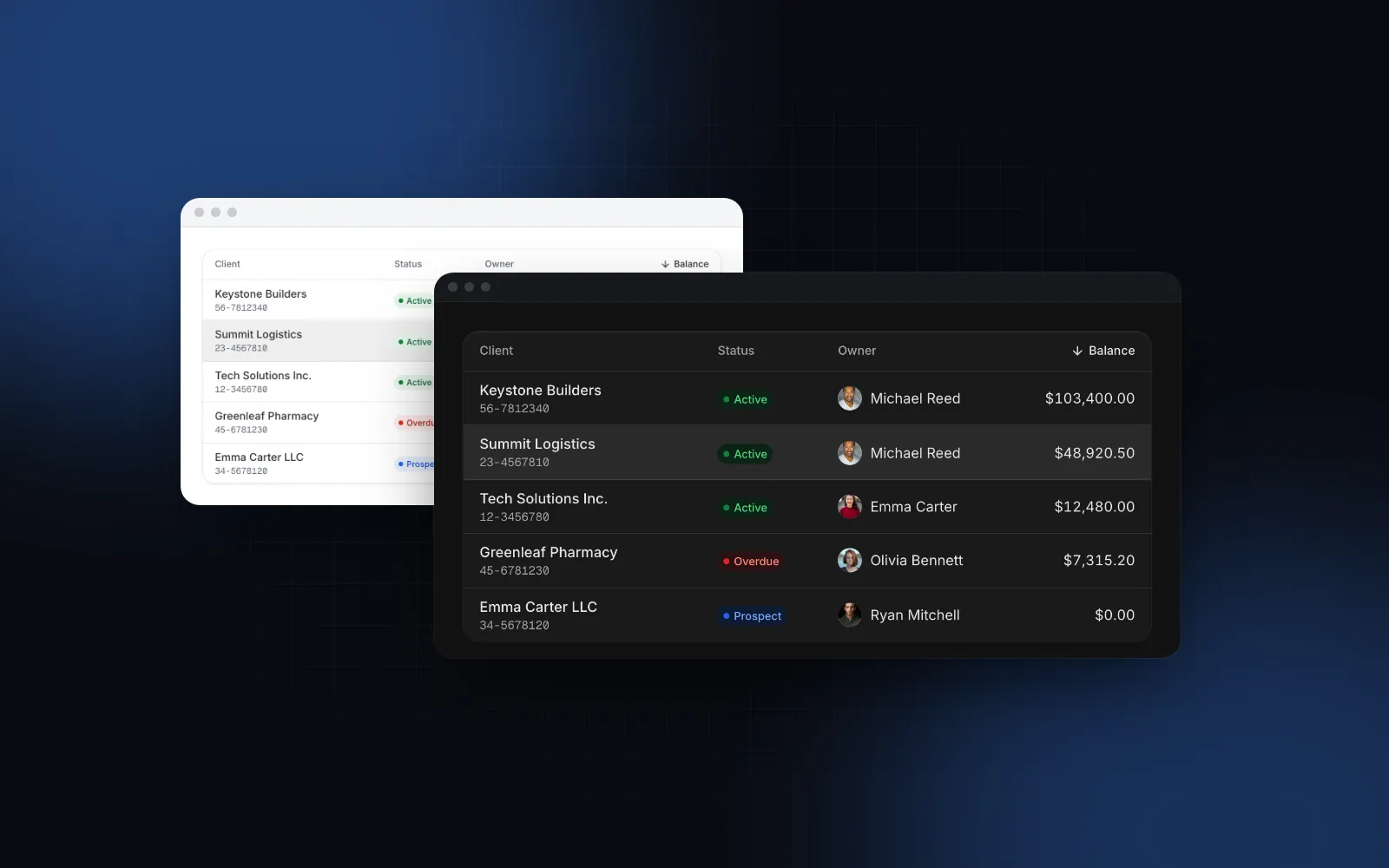
The demo below loads 1,240 clients with pagination off, virtualization on and a 520px scroll box.
$ npx wingo-ui@latest add data-tableFor infinite scroll, set pagination="infinite" and pass onLoadMore, hasMore and loadingMore: the table asks for the next page when the end comes into view, and virtualization keeps applying to the loaded rows. With mode="server", sorting, search and filters go to your API through onQueryChange instead.
When should I use a virtual list instead of a table?
Use a list instead of a table when the rows have no columns to compare. A contact list, a feed or a picker reads better as a list, and the Virtual List virtualizes those with sticky group headers, infinite loading, scroll restoration and the same rule of keeping the focused row rendered while it scrolls away.
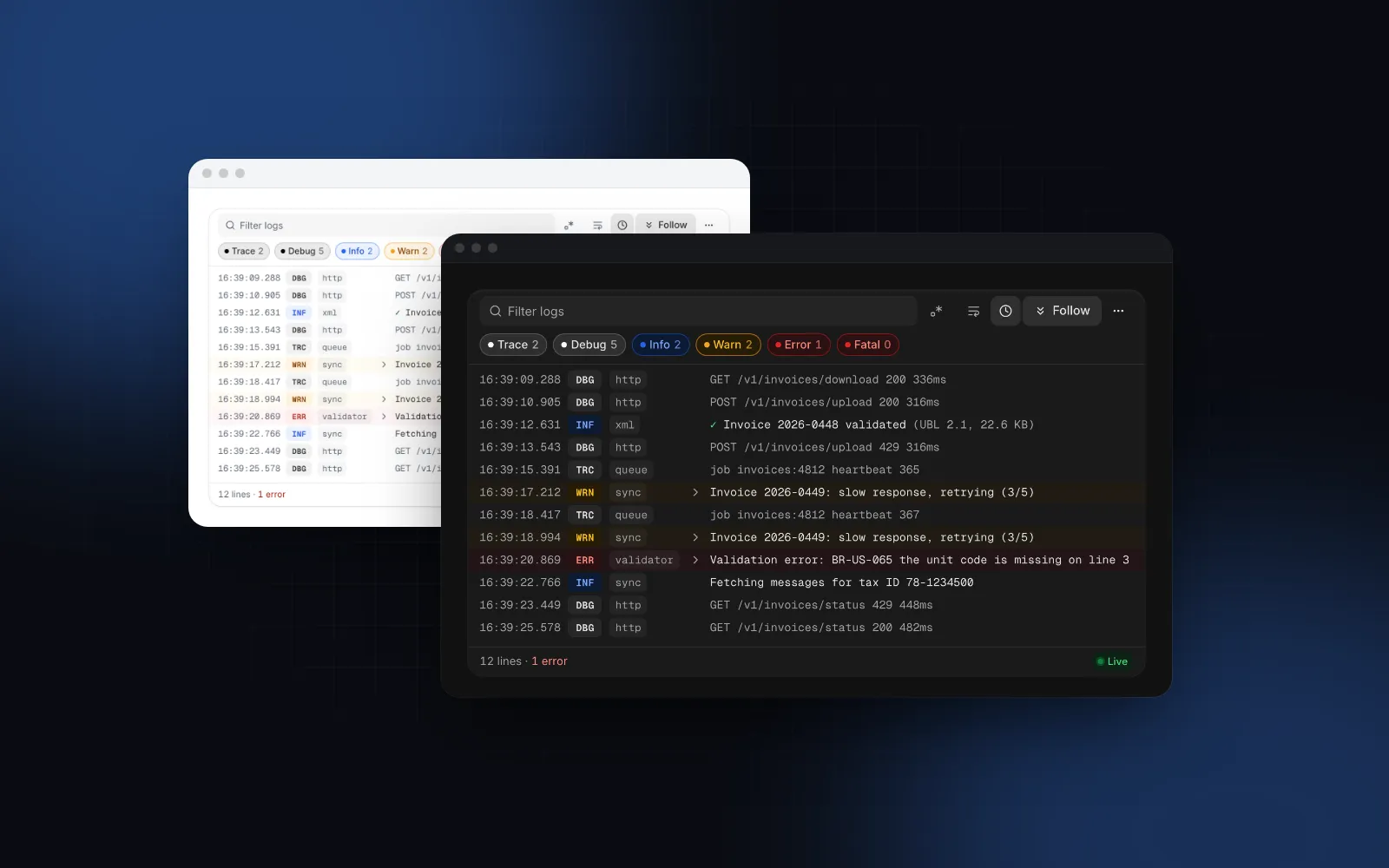
$ npx wingo-ui@latest add virtual-listStreaming text is another case. Build logs, job output and audit trails need tail-follow, level filters and search more than they need sortable columns, and the Log Viewer keeps up to 100,000 lines by default (maxLines) in a ring buffer with a virtualized body. The React log viewer guide covers it. If you only need styled table markup without sorting or virtualization, the Table primitives are what the Data Table is built from.
For more on the table itself, the TanStack Table v9 data table tutorial covers filters, bulk actions and server pagination, and responsive table mobile layouts explains why rows become cards below 768px. Every component guide lives in Component guides.
What should I do next?
If you want to own the code, copy the OrdersTable above: it is under 200 lines and depends only on the two TanStack packages. If you would rather not maintain keyboard focus, sticky headers, phone cards and selection banners yourself, install the Data Table with npx wingo-ui@latest add data-table. It is part of Wingo UI Pro, along with the Virtual List and the Log Viewer; the plans are on pricing.
FAQ
How many rows can a React virtualized table handle?
There is no fixed row limit, because the DOM only holds the rows on screen plus the overscan whether the data has 1,000 or 100,000 rows. The real limits are memory for the data, the time sorting and filtering take in JavaScript, and the browser's maximum element height: about 16.7 million pixels in Chromium, or roughly 419,000 rows at 40px.
Why does my sticky header disappear in a virtualized table?
Usually the element with overflow: auto is not the one wrapping the table, so position: sticky has no scroll container to stick to, or rows positioned with transforms paint over the header. Put the sticky cells inside the scrolling element, give them a background and a z-index, and use spacer rows instead of transforms so the rows stay in normal flow.
Does TanStack Virtual work with TanStack Table v9?
Yes. TanStack Virtual knows nothing about tables: you build the table with useTable, read table.getRowModel().rows, and pass rows.length as the virtualizer's count. Sorting and filtering happen before virtualization, so each virtual index maps to a row in the sorted order.
How do I add infinite scroll to a virtualized table?
Watch the last virtual item: when its index comes within a few rows of rows.length, more pages exist and no request is in flight, fetch the next page and append it to the data. The virtualizer's count grows with the data, so the scroll position stays where it was.
Why can't Ctrl+F find rows in my virtualized table?
Rows outside the viewport are not in the DOM, so the browser's find in page cannot see them. Give the table its own search box that filters the row model instead.
- TanStack Virtual
- TanStack Table
- Virtualization
- Data table
- Accessibility
- React