Tailwind v4 Dark Mode: Class Toggle, Tokens, next-themes
You add a moon button, it puts class="dark" on <html>, and nothing changes. Or the page turns dark when macOS does, whatever the button says. Tailwind v4 dark mode has one switch that decides all of this, and it moved from tailwind.config.js into your CSS. This tutorial covers that switch, how next-themes plugs into it in Next.js, the checklist for when it still does not work, and how to keep the dark theme designed rather than inverted, with semantic tokens and a toggle that renders correctly from the server.
Everything below was checked on October 13, 2026 with Tailwind CSS 4.3.3, next-themes 0.4.6, Next.js 16.3 and React 19.3. Every block of compiled CSS is real Tailwind 4.3.3 output.
Why does Tailwind v4 dark mode follow the OS instead of my toggle?
Because that is the default. With nothing configured, Tailwind v4 compiles dark:bg-black to a media query:
A class on <html> cannot change a media query, so a toggle has nothing to grab. The Tailwind dark mode docs (opens in a new tab) say it in one line: by default the variant "uses the prefers-color-scheme CSS media feature." To take manual control, redefine the variant in the stylesheet that imports Tailwind:
Now the same utility compiles to a selector:
If you are coming from v3, this is the line that replaces darkMode: "class". Tailwind v4 does not read tailwind.config.js on its own anymore. We compiled a stylesheet next to a config file containing module.exports = { darkMode: "class" }: without an @config "./tailwind.config.js"; line, dark: stayed a media query. With it, dark: compiled to :is(.dark *), the descendants-only form from the table below. The config still works through @config, but the @custom-variant line is shorter, lets you pick the selector, and keeps the setting where the rest of your theme lives.
Which Tailwind v4 dark mode class selector should you use?
Use &:where(.dark, .dark *) unless you need a data attribute. Three forms are common, and they differ in two details: whether the element that carries the class matches, and how much specificity the variant adds.
The first and the third come from the Tailwind docs. The second is what the shadcn/ui v4 stylesheet (opens in a new tab) uses (as of October 2026) and what our own globals.css uses, and it is fine as long as the class sits on <html> and nothing styles <html> with dark:. It bites in two places: <html className="dark:bg-black"> never matches, and a dark island such as <section className="dark dark:border-white/10"> misses its own border while its children switch. If you start fresh, use the :where form.
A data attribute is the better choice when you have more than two themes (data-theme="dim", data-theme="contrast"), because a class list can end up with two theme classes at once while an attribute holds one value.
How do you wire next-themes for Tailwind v4 dark mode in Next.js?
Pass attribute="class" to the provider, because next-themes writes a data-theme attribute by default. next-themes (opens in a new tab) does three jobs: it stores the choice in localStorage, it follows the system when the choice is system, and it injects a small script that sets the class before the page paints. The provider and the root layout:
As of October 2026 the next-themes README (opens in a new tab) still shows the Tailwind v3 setup (darkMode: 'selector' in tailwind.config.js) and does not mention v4. The v4 equivalent is the @custom-variant line above, nothing else.
Two details are easy to miss:
color-schemecomes for free. next-themes also setsstyle="color-scheme: dark"on<html>(theenableColorSchemeprop, on by default), which is what turns scrollbars, date inputs and autofill dark. Without next-themes, add the v4scheme-darkutility orcolor-scheme: darkin your.darkblock.- The background goes on
body. Putbg-backgroundon<body>, not on<html>with adark:class, for the specificity reason in the table.
The full project setup, from create-next-app to the first component, is in our guide to a Next.js component library. Why suppressHydrationWarning is on <html>, and what to do when the console still complains, is the whole subject of the next-themes hydration error post.
Why is Tailwind v4 dark mode not working?
Usually because the variant is missing or does not match what the toggle writes. Run down this list in order; each cause comes with a quick check.
- No
@custom-variantline. Search the compiled CSS in DevTools forprefers-color-scheme. If yourdark:rules sit inside that media query, the variant is missing or lives in a file that is not imported. - The variant and the toggle disagree. The variant looks for
.darkwhile next-themes writesdata-theme="dark", or the other way around. Inspect<html>after a toggle and compare. - A leftover media block. The
create-next-appstylesheet ships@media (prefers-color-scheme: dark) { :root { ... } }. Those variables follow the OS no matter what your class says, so the page goes half dark. Move the values into a.darkblock and delete the media block. dark:on the element that carries the class. With:is(.dark *), an element styles only its descendants. Switch to the:whereform or move the class up.- Tokens resolved too early. If
.darklives on a container instead of<html>, map your variables with@theme inline. Withoutinline,--color-surfaceis resolved once on:rootand a nested.darkcannot reach it. The Tailwind v4 design tokens guide shows the difference. - Images follow the OS.
<picture><source media="(prefers-color-scheme: dark)">is a media query too, so it ignores your toggle. Render both images and hide one withdark:hiddenandhidden dark:block. - Classes built from strings.
dark:${color}never reaches Tailwind's scanner. Write full class names, or pass a CSS variable. - The browser toolbar follows the OS. A
themeColorarray in the Next.jsviewportexport withmedia: "(prefers-color-scheme: dark)"entries is another media query, so Safari can keep a white toolbar over a page the visitor switched to dark. Use one neutral color, or update thetheme-colormeta tag from your toggle.
How do you design dark mode instead of inverting it?
Give every color a role, then pick the dark value of each role by hand. In Tailwind v4 that means CSS variables in :root, the same names again in .dark, and a @theme inline block that turns them into utilities:
Those are the real values from our app/globals.css, trimmed to six roles. A component written against them carries no dark: classes at all:
Look at what the dark values do, because an automatic inversion would not do any of it:
- Surfaces get lighter as they come forward. The page is black, a raised panel is
#1A1A1A, a popover#262626. Inverting white panels on a light gray page gives you dark panels on a lighter page, which reads upside down. - Status text changes, status fills do not. The soft green surface goes nearly black and its text goes from
#166534to#4ADE80, because dark green text on a dark surface fails contrast. Solid fills that carry white text stay the same in both themes. - Shadows change technique. A drop shadow is invisible on black, so dark elevation uses a lit top edge and a hairline instead.
The Card shows all three. Switch the site theme with the toggle in the header while you look at it:
$ npx wingo-ui@latest add cardTones push the same idea into props. Every Wingo UI component with a tone paints through five variables from tones (--tone, --tone-foreground, --tone-soft, --tone-soft-foreground, --tone-border), and each one points at a semantic token. A tone="success" badge is therefore right in both themes without a single dark: class, and a custom color prop goes through color-mix() toward --foreground, so it adapts too. The full token set, with a contrast check you can run in CI, is in the Tailwind v4 design tokens pillar.
When should you still write dark: classes?
For things a token cannot describe. A good rule: if two different components would need the same dark: class, it should be a token instead. What is left is usually:
- Assets. A logo with a black wordmark, a screenshot, an illustration drawn for a white page: render both versions and use
dark:hidden/hidden dark:block. - The theme toggle's own icon. A sun in light mode and a moon in dark mode is exactly what
dark:is for, and it has a side benefit covered below. - A one-off tweak.
dark:opacity-80on a bright photo so it does not glare.
If a component file collects dark:bg-zinc-900 dark:text-zinc-100 dark:border-zinc-800, that is a missing token, and it will drift the next time someone adjusts the palette.
How do you build a Tailwind v4 dark mode toggle?
Read and write next-themes in a client component, and draw the icon with dark: classes. The detail that separates a good toggle from a flickering one is that the server does not know the theme, so anything the toggle renders before hydration has to come from CSS. Drawing the icon with dark: classes does exactly that: the server HTML contains both states, and the class next-themes sets before paint picks one.
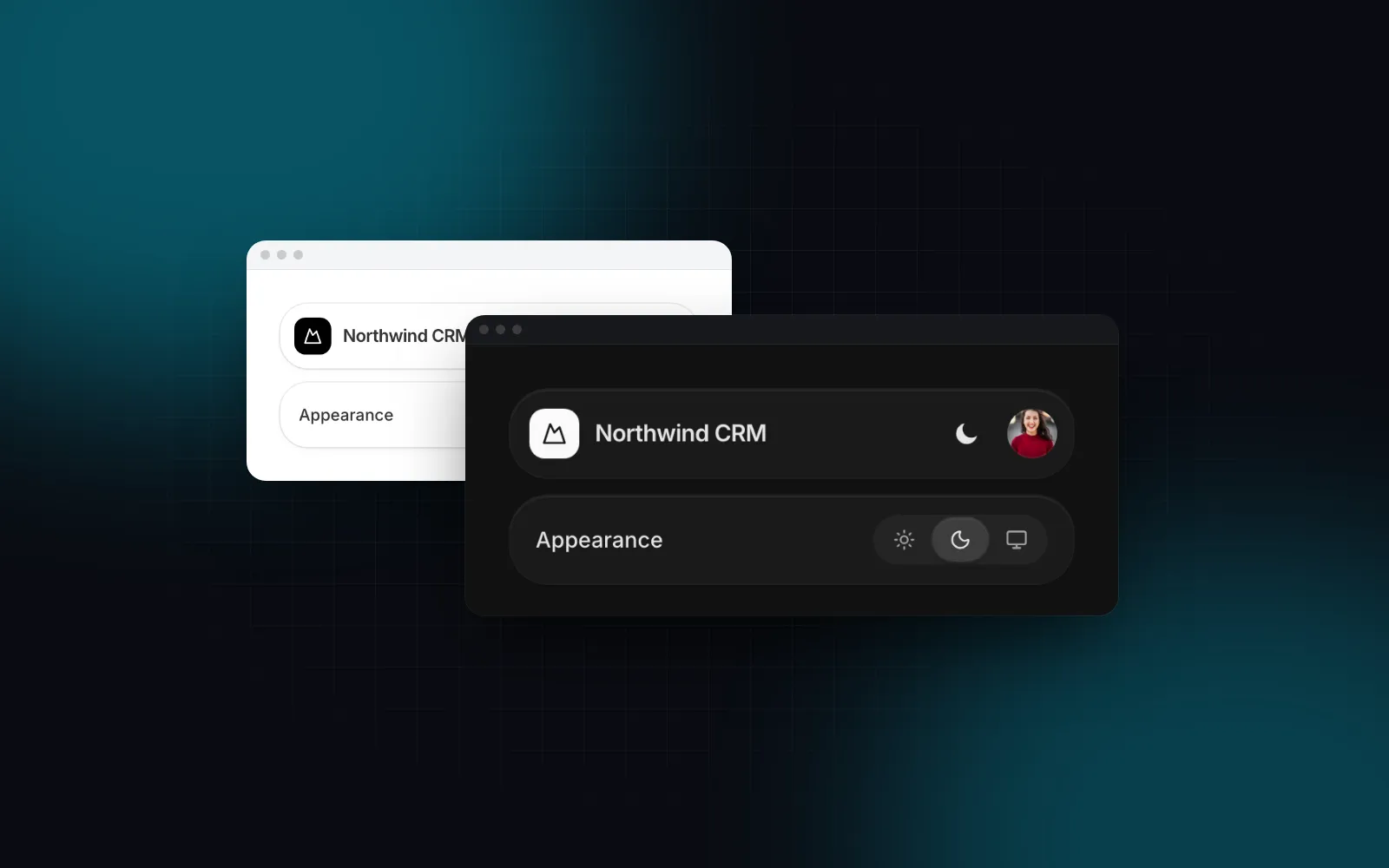
Our Theme Toggle is built that way. Its first render draws the sun and moon from dark: classes, and the animated version takes over once React knows the theme. We loaded the preview with every JavaScript bundle blocked and only the inline theme script allowed: the server HTML showed the moon on a dark device and the sun on a light one. It comes as an icon button, a segmented control or a dropdown, and cycles through System as well:
$ npx wingo-ui@latest add theme-toggleInstall it with npx wingo-ui@latest add theme-toggle. It reads useTheme() from the provider above (or takes value and onValueChange if you store the theme yourself), and its pre-hydration icon uses dark: classes, so the provider has to write the class your variant matches. With variant="segmented" and includeSystem it becomes the Light / Dark / System row of a settings page. Theme Toggle is part of Pro (see pricing). If you want a free one, the two-icon button in the Next.js component library guide uses the same dark:hidden trick in about 20 lines.
What should you do next?
Add the @custom-variant line, set attribute="class" on the provider, and grep your components for dark:: every repeated one is a token waiting to be named. Then open the page with JavaScript blocked in DevTools and check that the server HTML already shows the right theme. More posts on this stack are in Next.js and Tailwind CSS.
FAQ
Why is Tailwind v4 dark mode not working with my toggle?
Without a @custom-variant dark line, Tailwind v4 compiles dark: to @media (prefers-color-scheme: dark), so it follows the operating system and ignores any class you add. Add @custom-variant dark (&:where(.dark, .dark *)); after @import "tailwindcss" and check that your toggle writes the same class or attribute the variant looks for.
Does darkMode: "class" in tailwind.config.js still work in Tailwind v4?
Only if the stylesheet loads the file with @config, because Tailwind v4 no longer picks up tailwind.config.js on its own. A @custom-variant line in the CSS does the same job and is the v4 way to do it.
What is the difference between :is(.dark *) and :where(.dark, .dark *)?
The :where form also matches the element that carries the dark class and adds no specificity, while :is(.dark *) only matches its descendants and adds one class worth of specificity. With the class on html and your styles on body or below, both behave the same.
Should next-themes use attribute class or data-theme with Tailwind v4?
Either works if the variant matches it. next-themes defaults to data-theme, so either pass attribute="class" to the ThemeProvider or write the variant as @custom-variant dark (&:where([data-theme=dark], [data-theme=dark] *));.
Do I need dark: classes on every component?
No. Put colors in CSS variables, redefine them in a .dark block, and map them to utilities with @theme inline; bg-surface or text-muted-foreground then switch with the theme. Keep dark: for real exceptions such as a logo or a screenshot.
- Tailwind CSS
- Dark mode
- Next.js
- Design tokens