React Invoice Template: Line Items, VAT and Print View
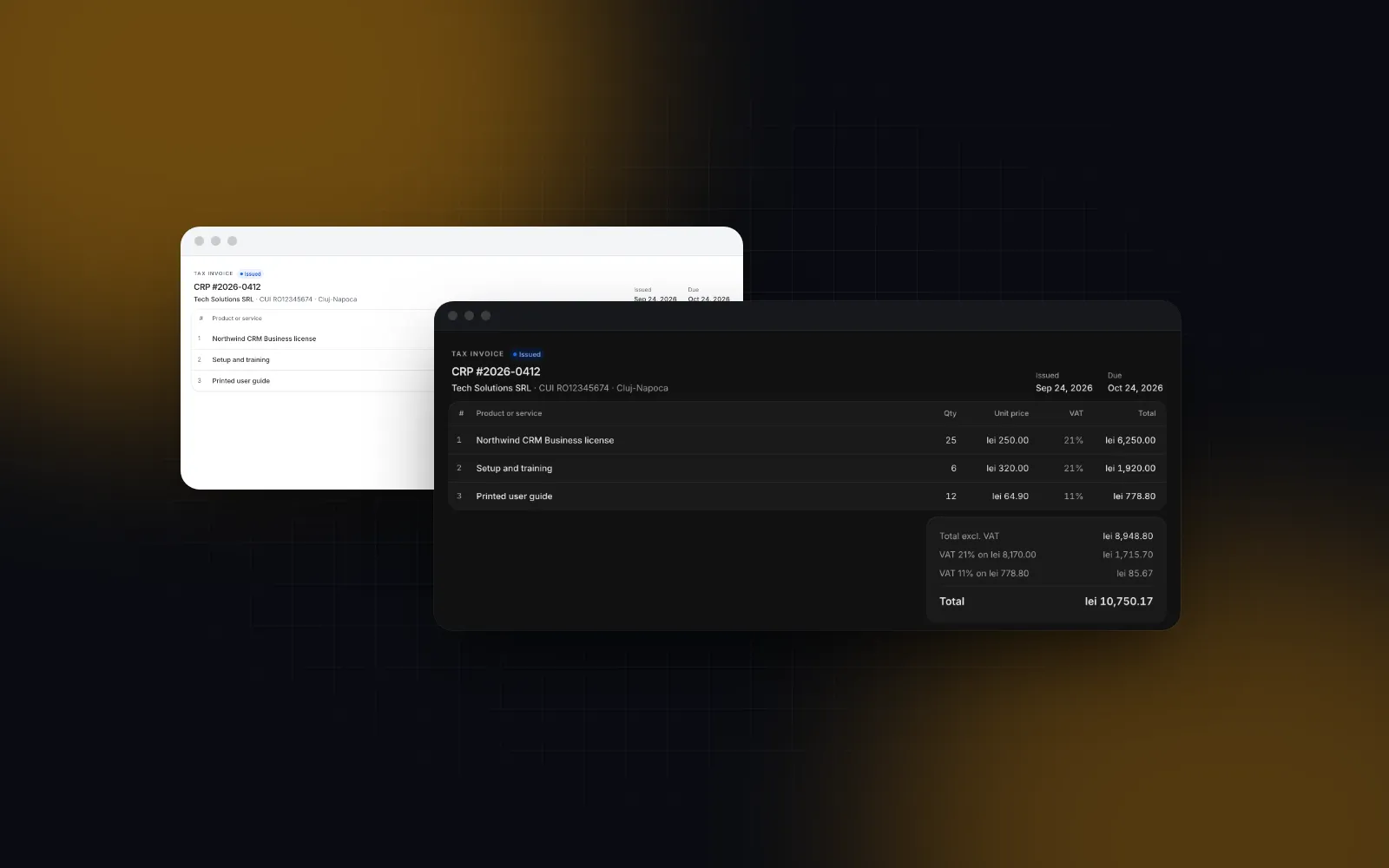
A typical react invoice template is a form with a table and one tax field under the subtotal. That works until the first real invoice: a discount on one line, another on the whole document, two VAT rates, and a client who wants a PDF that does not look like a screenshot of your app. This tutorial builds the version that survives those cases in Next.js: an invoice editor whose lines behave like a spreadsheet, totals with VAT per rate, and a print view that the browser saves as a clean A4 PDF. The editor is Invoice Line Items from Wingo UI, the library we build, so we are not neutral; the totals and the print sheet are code you can read and copy.
What does a React invoice template need?
It needs one invoice object and two views of it: an editor that changes it and a print sheet that only reads it. Whether you call the result a react invoice generator or a react invoice builder, the object holds the parties, the number, the dates, the currency, the lines and an optional document discount. The totals are never stored next to the lines in the browser state: they are derived from the lines on every render, in the browser for display and again on the server before saving.
InvoiceLine is { id, quantity, unitPrice, vatRate?, discount?, discountType? } plus the printed fields product, description, unit and vatCategory. The rate is a fraction (0.2 for 20%), and vatCategory tells the 0% rows apart, so a zero rated line and an exempt line print as different rows.
How do I build the invoice line items editor?
Install Invoice Line Items and pass it your products, your VAT rates and your currency. The lines are the part of a React invoice editor that people touch on every invoice, so they get the most keyboard work. The install brings the invoicing lib, the product combobox and the currency input with it:
The default VAT options are Romania's (21%, 11% and three 0% categories), because the component was built for e-Factura invoices. Pass your own list through vatRates. The example bills a UK client in pounds, with the three rates GOV.UK lists (opens in a new tab) as of October 2026: 20% standard, 5% reduced and 0% zero rated.
Picking a product fills its unit, price and VAT rate and keeps the quantity. Typing a name that is not in the catalog adds it as free text, with the price flagged until you enter one (allowCustomProducts, on by default). For a large catalog, swap products for onSearchProducts, an async search the combobox debounces.
A React invoice line items table built on react-hook-form's useFieldArray gets you rows you can add and remove, and quantity times price. The keyboard is what makes it feel like a spreadsheet. Tab moves through the cells in reading order, Escape in a number cell restores the value it had, Enter moves to the same cell on the next line, and Cmd or Ctrl + Enter adds a line from anywhere. Alt + Arrow Up or Down moves the current line, and a removed line leaves an undo row for five seconds.
$ npx wingo-ui@latest add invoice-line-itemsOn a phone the same component shows each line as a card, and tapping one edits a copy in a bottom sheet that you keep with Save. The switch follows the component's own width (layout="auto" shows the table from 768px of container width), so a narrow side panel on a desktop gets the cards too. The mobile-first React components guide explains why we measure the container.
How should discounts work on an invoice?
Line discounts come off first, then a document discount is shared across the lines before tax. A line discount, in percent or as an amount, comes off that line before anything else. A document discount comes off the subtotal after the line discounts, and it has to be shared across the lines before tax, in proportion to their value. If you subtract it from the grand total instead, the VAT printed for each rate no longer matches its taxable amount.
computeInvoiceTotals from the invoicing lib does both and rounds the VAT once per rate. Here is the example invoice, with 10% off the design line and 5% off the whole document:
The 204.50 document discount is split 108.00, 31.50 and 65.00 across the three lines, the last line taking whatever is left so the cents add up. The 20% row is taxed on 2,650.50, which is exactly what the two 20% lines are worth after both discounts.
Why compute VAT per rate instead of per line?
Because rounding each line and adding the results drifts. Three lines that each end in half a penny of VAT round up three times; the same base taxed once rounds up once. EN 16931, the European e-invoicing standard, defines the VAT of each rate as the rate's taxable amount times the rate, rounded to two decimals (rule BR-CO-17 (opens in a new tab)), and the document totals have to add up from those rounded rows. Our post on e-Factura VAT calculation walks through the rule with a worked example and the validation errors it causes.
For the template this means one thing: the per-line VAT in totals.lines is informative, and every total you print, store or send comes from vatBreakdown.
One limit to know if you bill US sales tax: the VAT column formats rates with at most one decimal, so New York City's 8⅞% combined rate (Publication 718 (opens in a new tab), effective March 1, 2025) would read 8.9%. Compute with the exact fraction, and print the rate yourself on the sheet.
How do I make a clean print view for the invoice?
Build a separate sheet for paper and keep the editor off the printout. Inputs, drag handles and hover tints have no place on paper, and an editor printed in dark mode wastes toner. The sheet is plain HTML with fixed paper colors in both themes, which is the one place a Wingo UI screen uses hardcoded colors: the sheet stands for a printed page, so it ignores the theme.
The net column shows each line after both discounts, so the lines add up to the taxable amounts in the VAT rows. The sheet has borders and no background fills, because browsers leave background colors out of a printout by default.
Then add the page rules to app/globals.css. size on @page is Baseline 2024 according to MDN (opens in a new tab); use letter for clients in North America.
Chromium has repeated a thead at the top of each printed page since a June 2016 change that matched Firefox and Edge (the commit (opens in a new tab)), so the display rule only makes the intent explicit. Print a 40-line test invoice in every browser your clients use before a client does.
How do I print only the invoice, not the app?
Mark everything else print:hidden and render the sheet hidden print:block while the editor is on screen. Your admin layout's sidebar and header need print:hidden too, since they sit outside the page component. With that, window.print() and the browser's Save as PDF give a PDF with only the document on it.
react-to-print (opens in a new tab) does the same through an iframe: useReactToPrint({ contentRef }) copies the referenced node and the page's styles into a fresh document and prints that, so you can skip the print:hidden classes. Reach for @react-pdf/renderer only when the server must build PDFs without a person in the loop, such as attachments on scheduled emails; it renders its own layout primitives, so you maintain the invoice layout twice.
What does the final invoice editor look like?
The editor and the sheet share one state object. Totals are never stored, only derived:
In preview the 210mm sheet scrolls sideways on a phone. If your clients check invoices on phones, measure the container with a ResizeObserver and scale the sheet with a CSS transform instead, which is what the Invoice Page block below does.
How do I save the invoice without trusting the browser's totals?
Send the lines, never the totals, and compute again on the server with the same function. The name prop gives the editor a hidden input holding the lines as JSON, so a native form posts them to a Server Action:
The invoicing lib has no React imports, so it runs in a Server Action, a route handler or a queue worker unchanged.
Can I start from a complete invoice page instead?
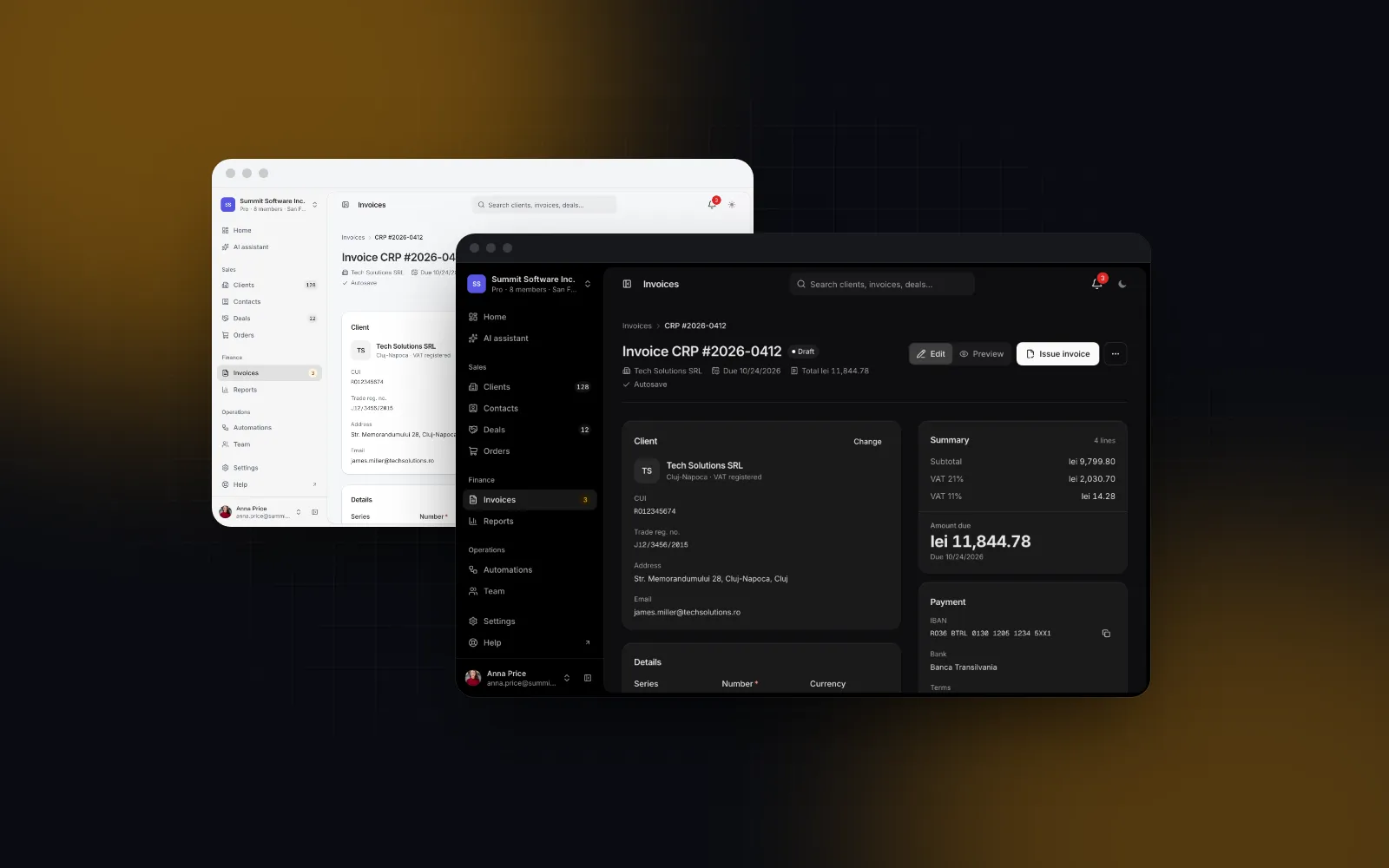
Yes, if you bill from Romania. The Invoice Page block wraps the same line editor in a full screen: a client picker that searches by name, CUI or city, series and numbering that skip taken numbers, due date presets of 15, 30 and 45 days, a draft that saves itself 800 ms after the last change (Ctrl or Cmd + S saves at once), an A4 preview scaled to the screen on phones, a send dialog and the e-Factura switch. Its labels are English, but its fields follow Romanian B2B invoices, so for other countries the composition above is the better starting point.
$ npx wingo-ui@latest add invoice-pageFor the rest of the back office around it, the Next.js admin dashboard tutorial builds the shell, the data tables and the settings, and more screens built step by step live in the Build it category.
Next step
Install the editor with npx wingo-ui@latest add invoice-line-items, paste the sheet and the print rules, and print a long test invoice in both themes. Invoice Line Items, the invoicing lib and the Invoice Page are part of Wingo UI Pro.
FAQ
How do I make a printable invoice in React?
Render the invoice as a plain HTML sheet with fixed white paper colors, hide the editor and the app shell with Tailwind's print:hidden, set the paper size with @page, and call window.print(). The browser's Save as PDF option then produces a PDF that contains only the sheet.
Should I use react-to-print or @react-pdf/renderer for invoices?
Use the browser's print, directly or through react-to-print, when the invoice already exists as HTML on screen and a person prints it. Use @react-pdf/renderer when the server has to generate PDFs on its own, for example to attach them to emails, and accept that its layout primitives are separate from your web components.
How do I apply a discount to the whole invoice when lines have different tax rates?
Share the document discount across the lines in proportion to their value after their own discounts, before any tax, and give the rounding remainder to the last line. Each rate's taxable amount then drops by its share, so the tax per rate stays exact.
Should invoice tax be calculated per line or per rate?
Per rate for VAT invoices: add the taxable amounts of all lines at a rate and round the tax once. EN 16931, the European e-invoicing standard, defines the VAT of each rate that way, and per-line tax can then stay on the document as information.
Is there a free React invoice template?
The print sheet, the print CSS and the rounding rules in this tutorial are yours to copy into any React app. The Wingo UI pieces it imports, Invoice Line Items, the invoicing lib with computeInvoiceTotals and the Invoice Page block, are part of the Pro plan.
- Invoicing
- React
- Next.js
- Printing
- VAT